Intellia’s modern design language unifies layout, typography, and performance across the app. By rebuilding the Trigger Links page, Intellia eliminates dated tables and manual refreshes, replacing them with a polished list view, sticky filters, and real-time actions—so agencies can create, search, and share links without friction.
Trigger Links themselves still work the same way: each click is logged on the contact record and can launch workflows or campaigns.
Instant page load—no more spinner purgatory.
Cleaner list view with adjustable column widths and compact/comfortable density.
Built-in custom-value picker: insert contact-, company-, or location-level values without memorizing merge codes.
Sharable URLs keep your search term, page, and row-limit settings, so teammates open the exact view you’re discussing.
Consistent styling aligns with other revamped areas (Contacts, Payments, etc.), reducing the learning curve for new staff.
A minimalist toolbar now houses global search, filters, and “+ New Trigger Link.” Columns resize via drag-and-drop, and the three-dot menu is context-aware—showing Edit, Copy URL, Analytics, and Delete only when relevant. This declutters the screen and shortens the time to common actions.
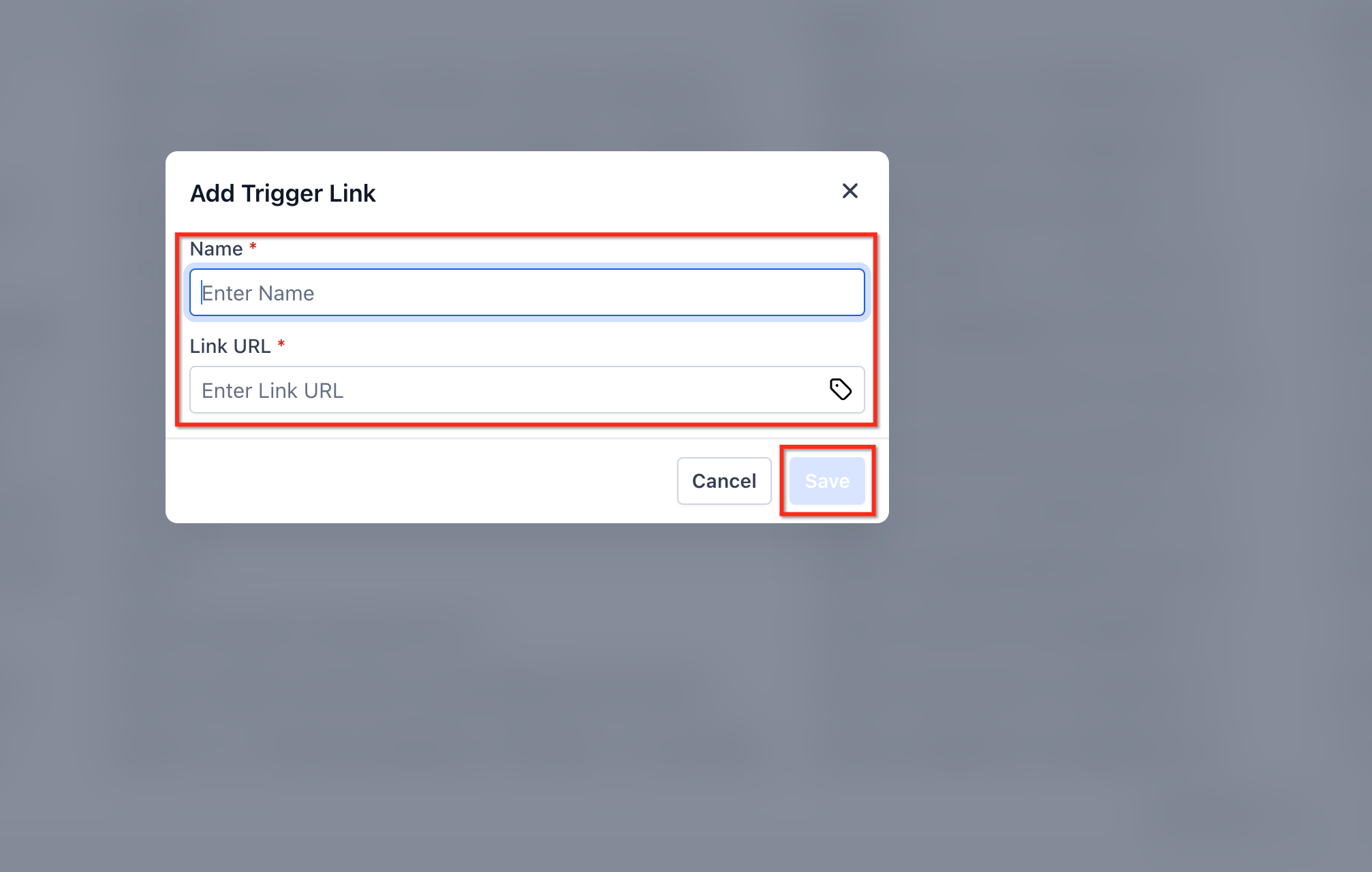
The link-creation modal includes a {} button that launches the full custom-value drawer. Choose any dynamic field—first name, appointment ID, location slug—and Intellia automatically inserts the merge code into your destination URL. This prevents typos and ensures values render correctly at send time (similar to using custom values in emails/SMS)
Every time you change the search keyword, page number, or rows-per-page limit, the URL updates in real time. Copy that URL to Slack, and your colleague lands on the identical filtered list—perfect for QA reviews or client approvals.
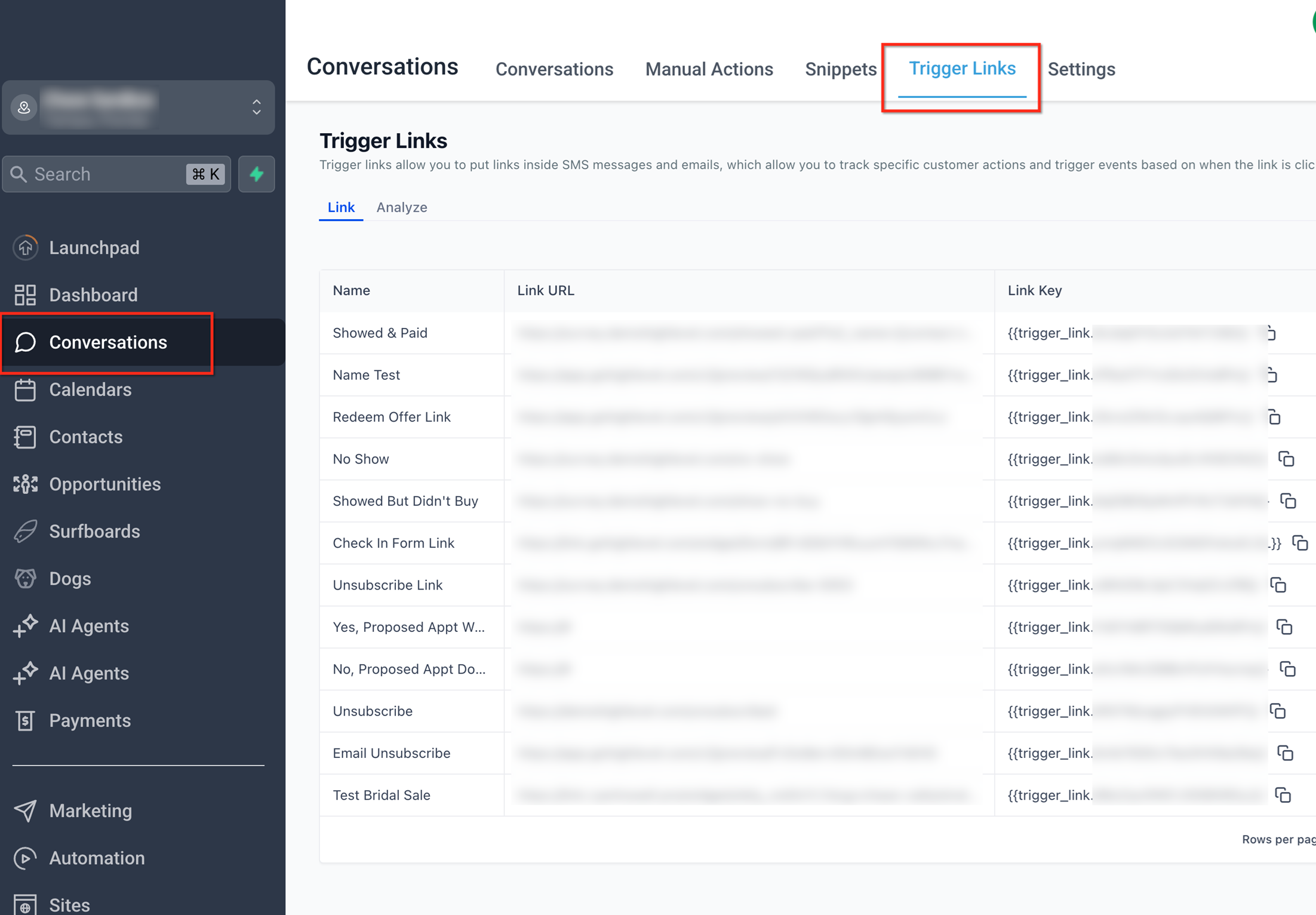
From the left sidebar, go to Conversations and select the Trigger Links tab at the top. This confirms you’re managing links inside the Conversations module, where clicks can be tracked and used in automations.
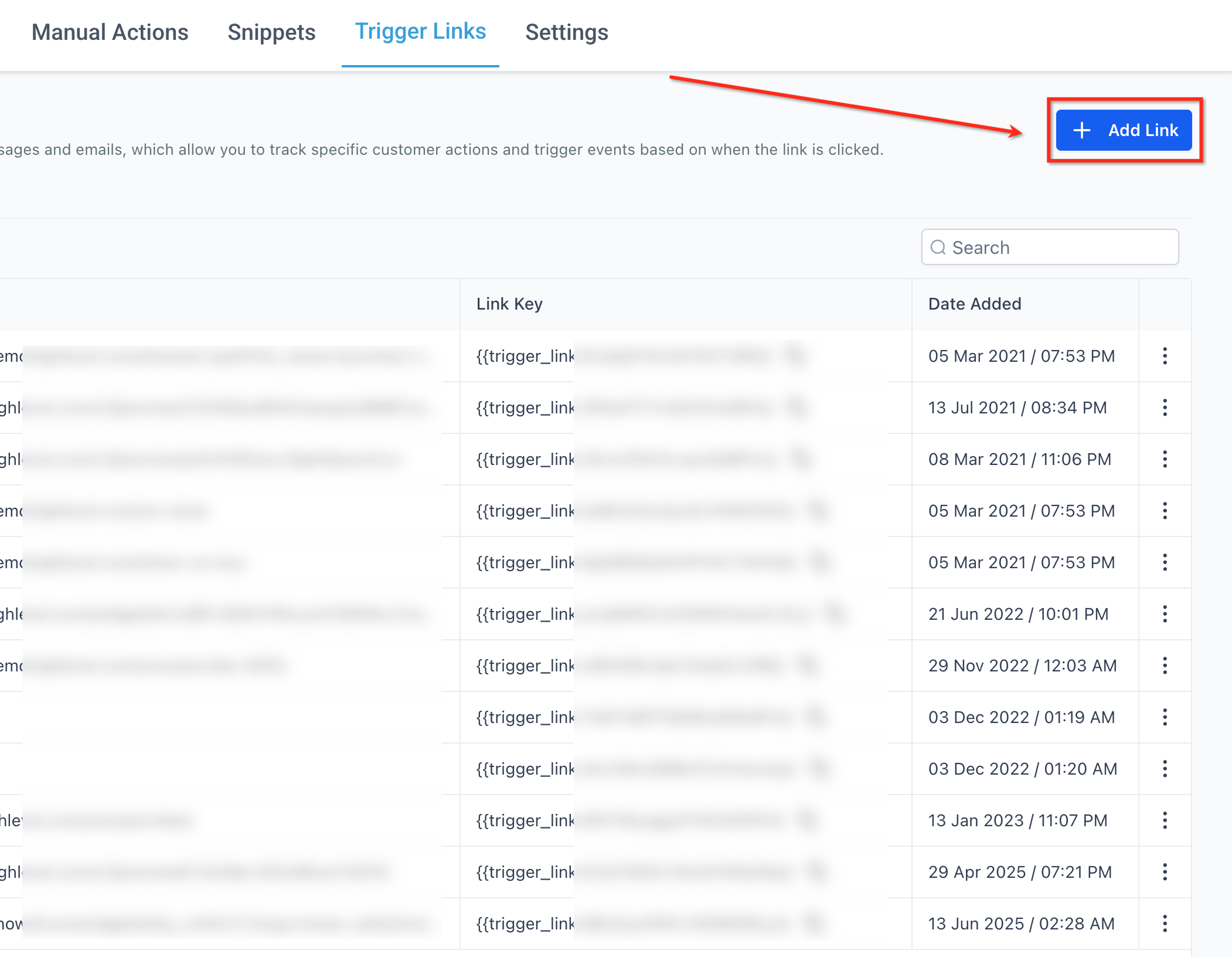
Click the + Add Link button in the top-right to create a new trigger link. This opens the creation dialog so you can name the link and set the destination URL.
In the Add Trigger Link modal, enter a descriptive Name and paste the Link URL. Click Save to add it to your list; use the {} icon if you need to insert a custom value.
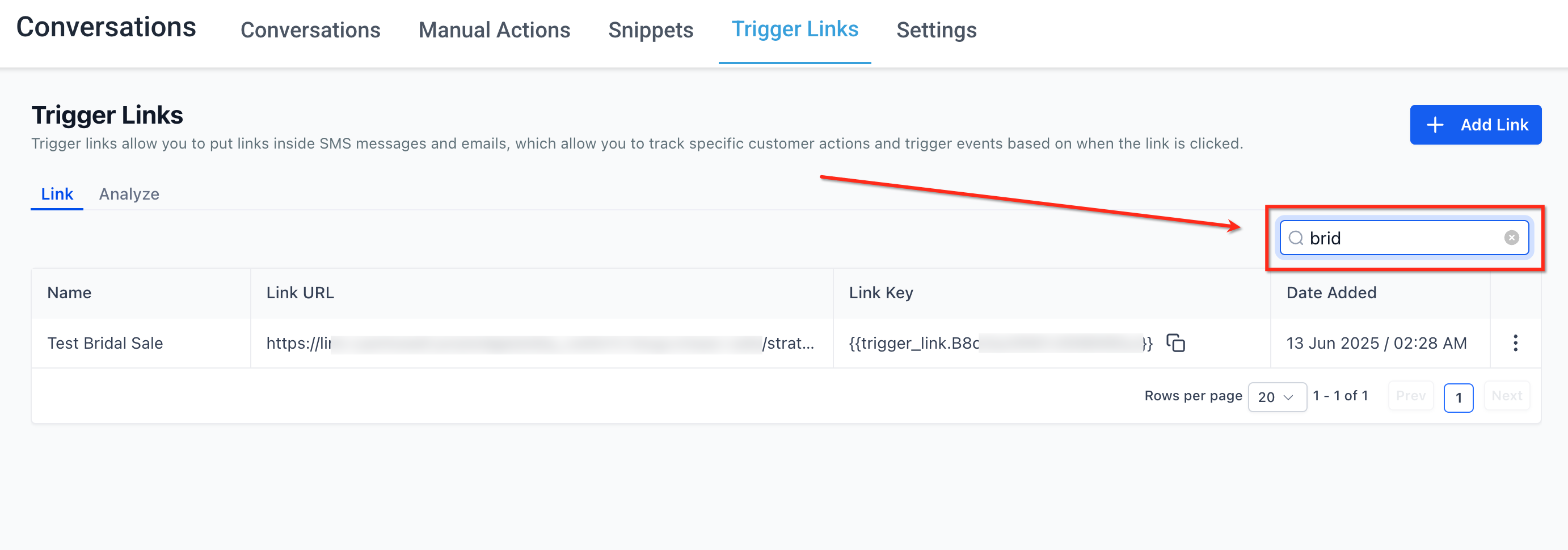
Use the Search field on the right to quickly find a link by typing part of its name. Results filter instantly, helping you locate links faster in long lists.
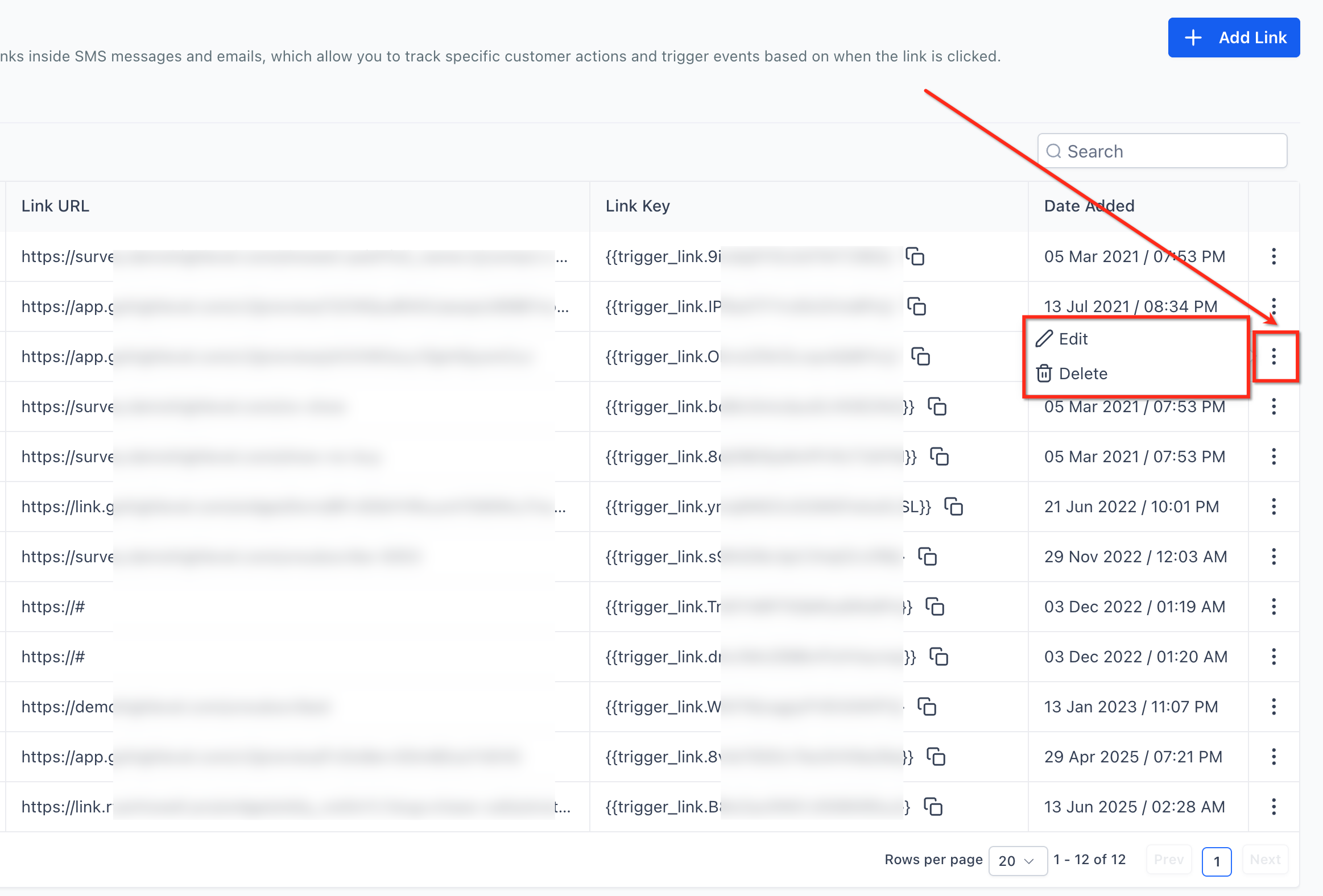
Open the row’s three-dot menu (⋮) to access Edit and Delete actions. This lets you correct URLs, rename links, or remove outdated items without leaving the page.
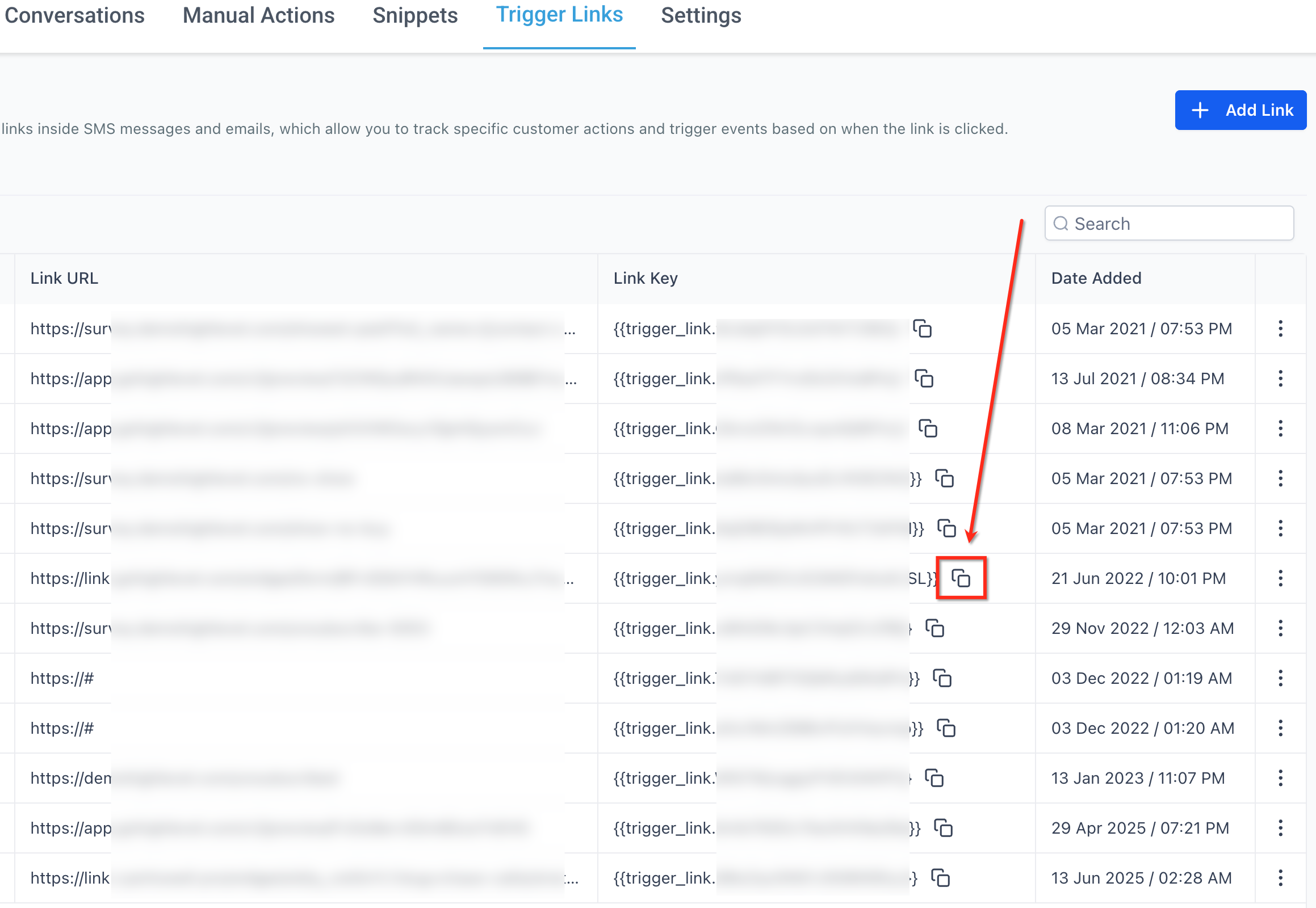
Click the copy icon beside the Link Key to place the merge code on your clipboard. Paste this key into emails, SMS, WhatsApp templates, or workflow actions to track clicks reliably.
Q: Will my existing Trigger Links break after the upgrade?
No. The upgrade is purely interface-level; underlying link IDs and tracking remain unchanged.
Q: Can I revert to the old design?
The classic view has been deprecated. All users are automatically redirected to the HiRise version.
Q: Do shared URLs expose account-level data?
Shared URLs honor user permissions. Teammates without access to certain sub-accounts will see an authorization error.
Q: Where did the pagination controls move?
Pagination now lives at the bottom-right corner and doubles as the row-limit selector.
Q: Is there a limit on custom values per link?
No technical cap, but keep URLs under 2 KB to ensure email-client compatibility.
Q: How can I see analytics for a specific link?
Click the three-dot menu → Analytics to view unique clicks, contacts, and top sources over selectable date ranges.
Q: Do Trigger Links work in WhatsApp messages?
Yes—insert the copied link into a WhatsApp V2 template button or inline link to track taps just like email/SMS

