The Snippets page is the redesigned home for all your text and email Snippets inside the Conversations module. Built on Intellia’s design system, it replaces the classic list view with a faster, modern layout that improves visibility, performance, and collaboration through URL-based filters and pagination memory.
Modern interface improves readability and reduces visual clutter.
Faster loading ensures large Snippet libraries open almost instantly.
Shared URLs preserve search terms, page number, and rows-per-page, so teammates see the identical view.
Responsive layout adapts seamlessly to all screen sizes.
Consistent navigation aligns Snippets with other upgraded modules for a unified experience.
The redesigned Snippets page centers your list view with a clear, single-table layout. Filters, search, and bulk actions are grouped in an intuitive header bar, while the New Folder and + New Snippet buttons are placed on the top-right for quick access. Context menus open as side panels, allowing you to edit Snippets without losing your position in the list.
The Snippets upgrade is automatically enabled for all accounts—no setup required.
From the left-hand navigation, click Conversations, then select the Snippets tab at the top of the page. This takes you to the Snippets dashboard, where you can view, create, and organize prewritten messages for quick use in conversations.

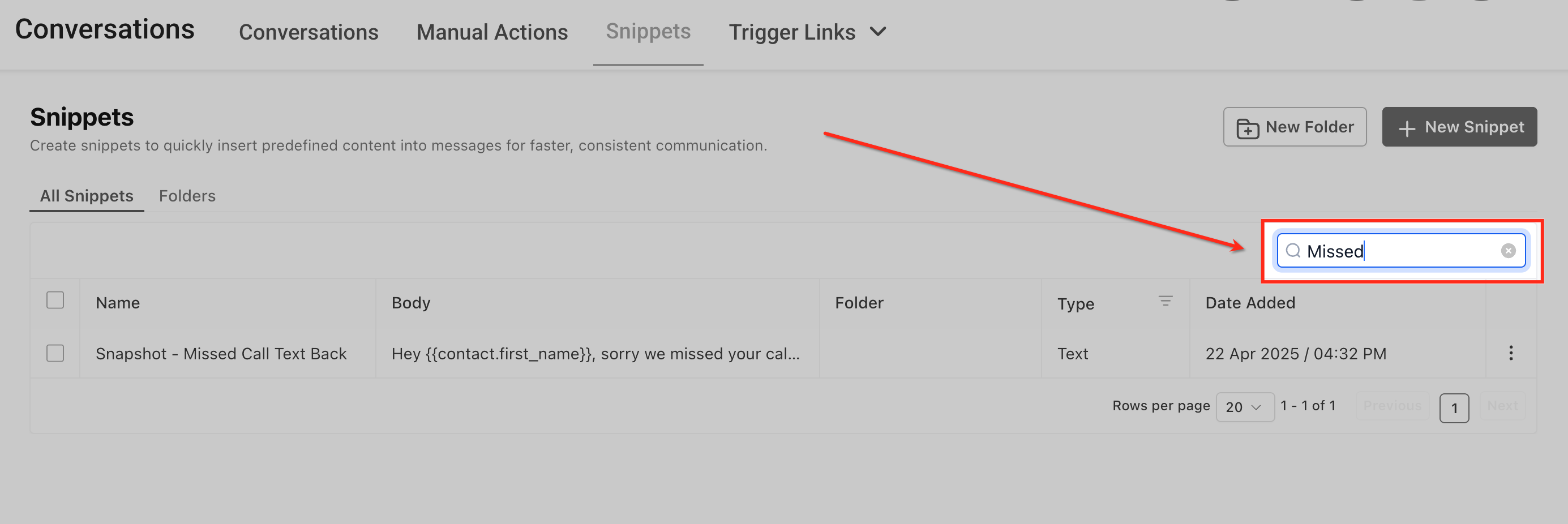
Use the Search bar on the right side of the Snippets page to quickly locate a specific snippet by name or keyword. As you type, the list filters automatically, displaying only the snippets that match your search term.
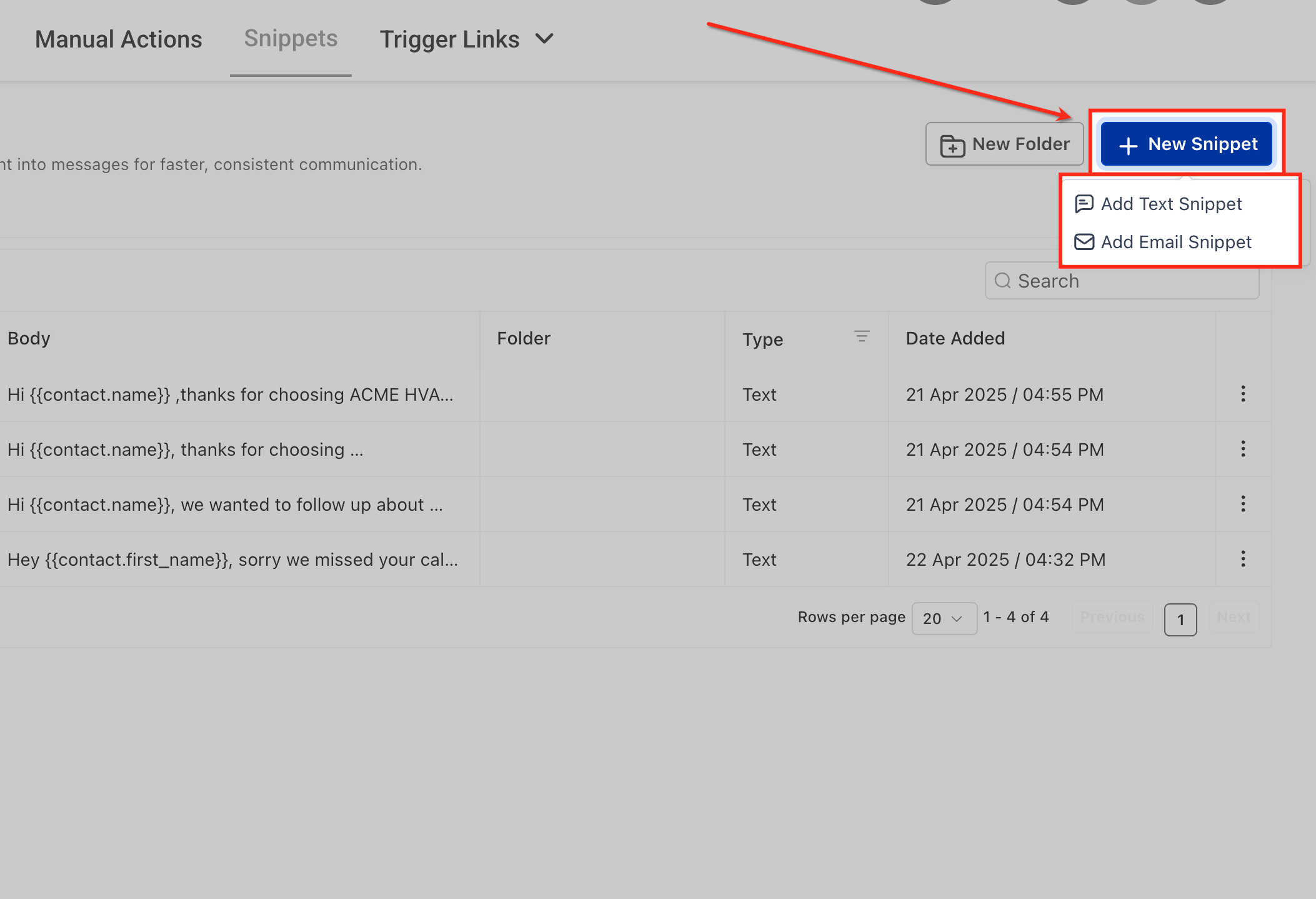
Click the + New Snippet button in the top-right corner and choose between Add Text Snippet or Add Email Snippet. This opens a new window where you can compose and save reusable content for faster and more consistent communication.
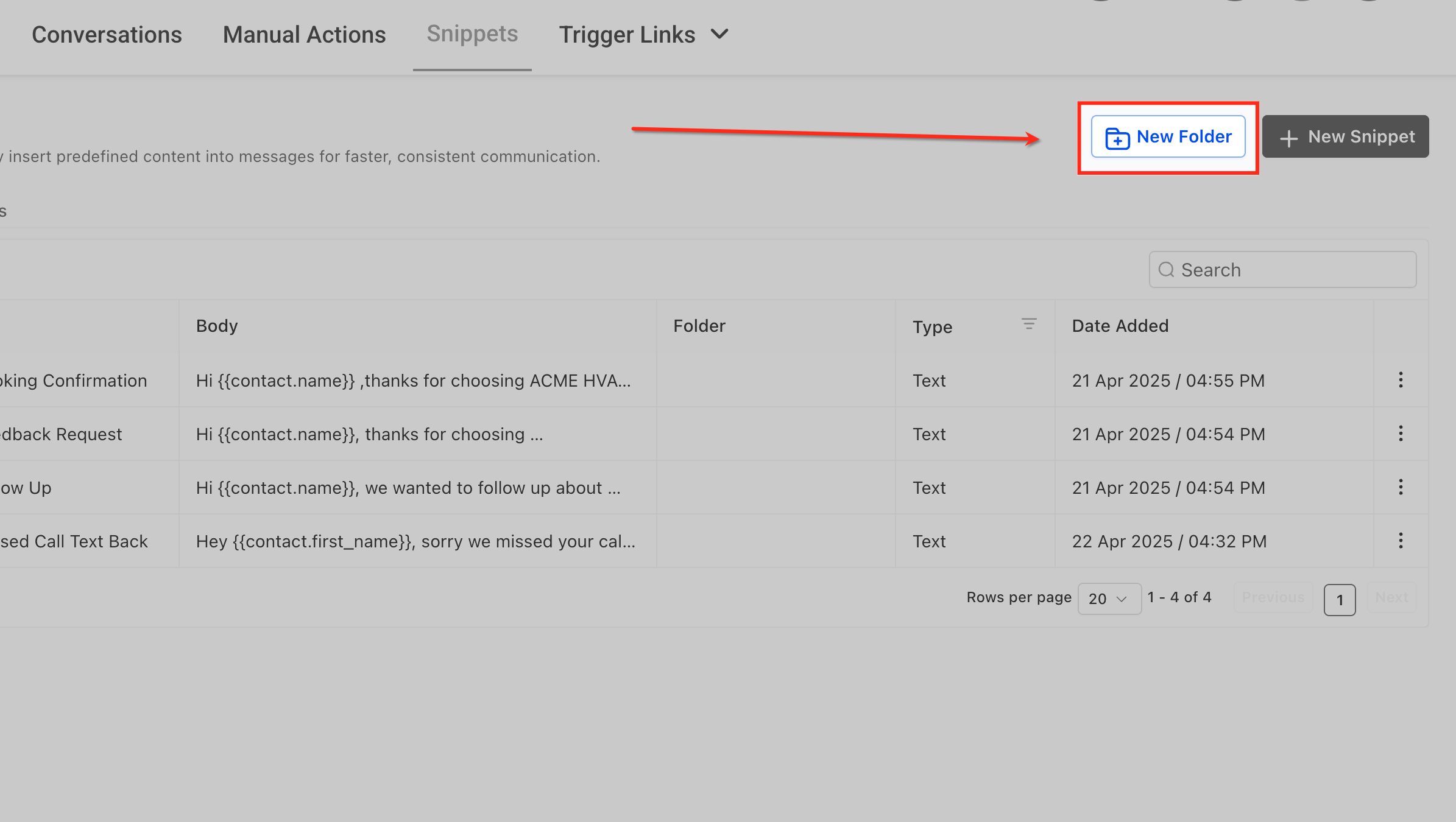
Click the New Folder button in the top-right corner to organize your Snippets by category or purpose. This helps you group related messages—like sales follow-ups or support replies—making it easier to locate and manage Snippets efficiently.
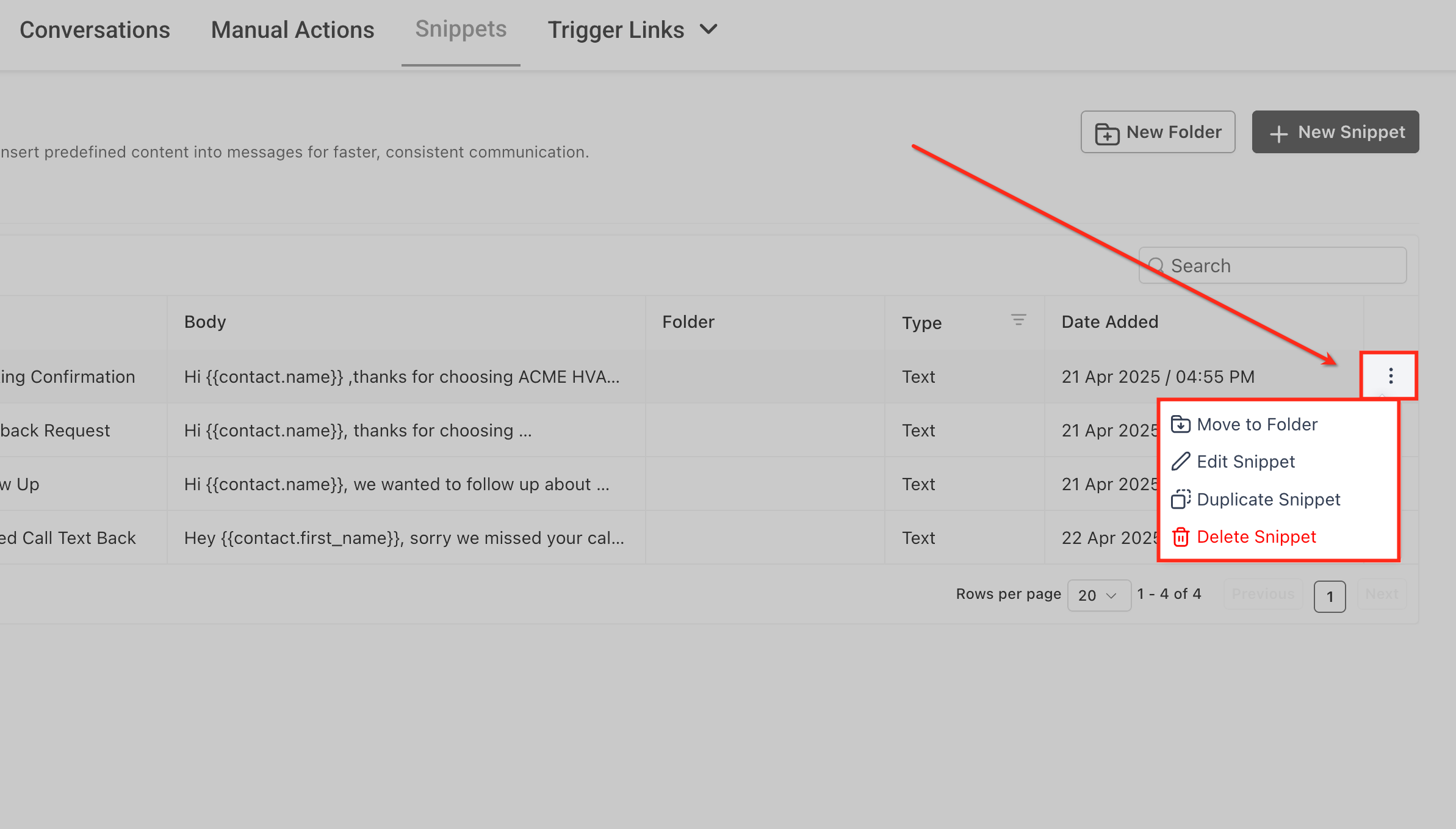
Click the three-dot menu (⋮) beside any Snippet to view management options such as Move to Folder, Edit Snippet, Duplicate Snippet, or Delete Snippet. These quick actions let you organize, update, or remove Snippets without leaving the main list view.
Q: Do I need to enable Labs or a beta toggle?
No. The Snippets page is already live for all locations.
Q: Did any Snippet functionality change?
No. All create, edit, folder, and permission features remain the same. Only the design and performance have improved.
Q: Can I revert to the old design?
The classic layout has been retired to maintain consistency across the platform.
Q: Will shared URLs break if Snippets are added or deleted later?
No. The link saves your view preferences—search, filters, and pagination—so others will still see your filtered view.
Q: Are Snippet permissions affected?
Permissions are unchanged. Users still need View & Manage Conversations access to use Snippets.
Q: Does the remembered URL work across sub-accounts?
No. Shared URLs only function within the same sub-account. Users without access will see an authorization error.

