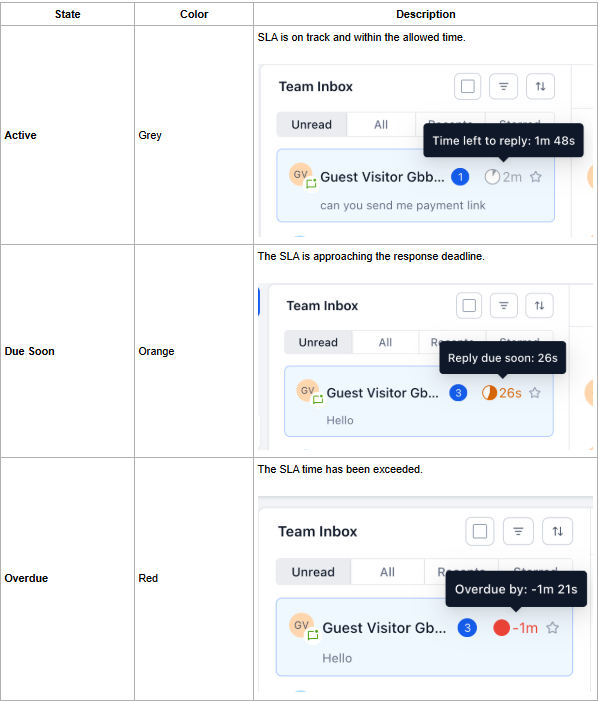
A Conversation SLA (Service-Level Agreement) is a response-time goal that counts down on each incoming thread inside Intellia’s Conversations inbox. Timers start when the customer’s newest message arrives and turn grey (on-track), orange (due soon), or red (overdue) as the deadline approaches, giving agents a real-time visual cue to reply before the SLA is breached.
Faster replies: Teams always know how much time is left to answer.
Smarter prioritization: Color-coded timers surface the most urgent threads first.
Channel flexibility: Create one universal SLA or unique targets for Email, SMS, Facebook, WhatsApp and more.
Accountability & reporting: managers can filter, sort, and report on “Longest SLA Overdue” and “Next SLA Target” to spot coaching opportunities.
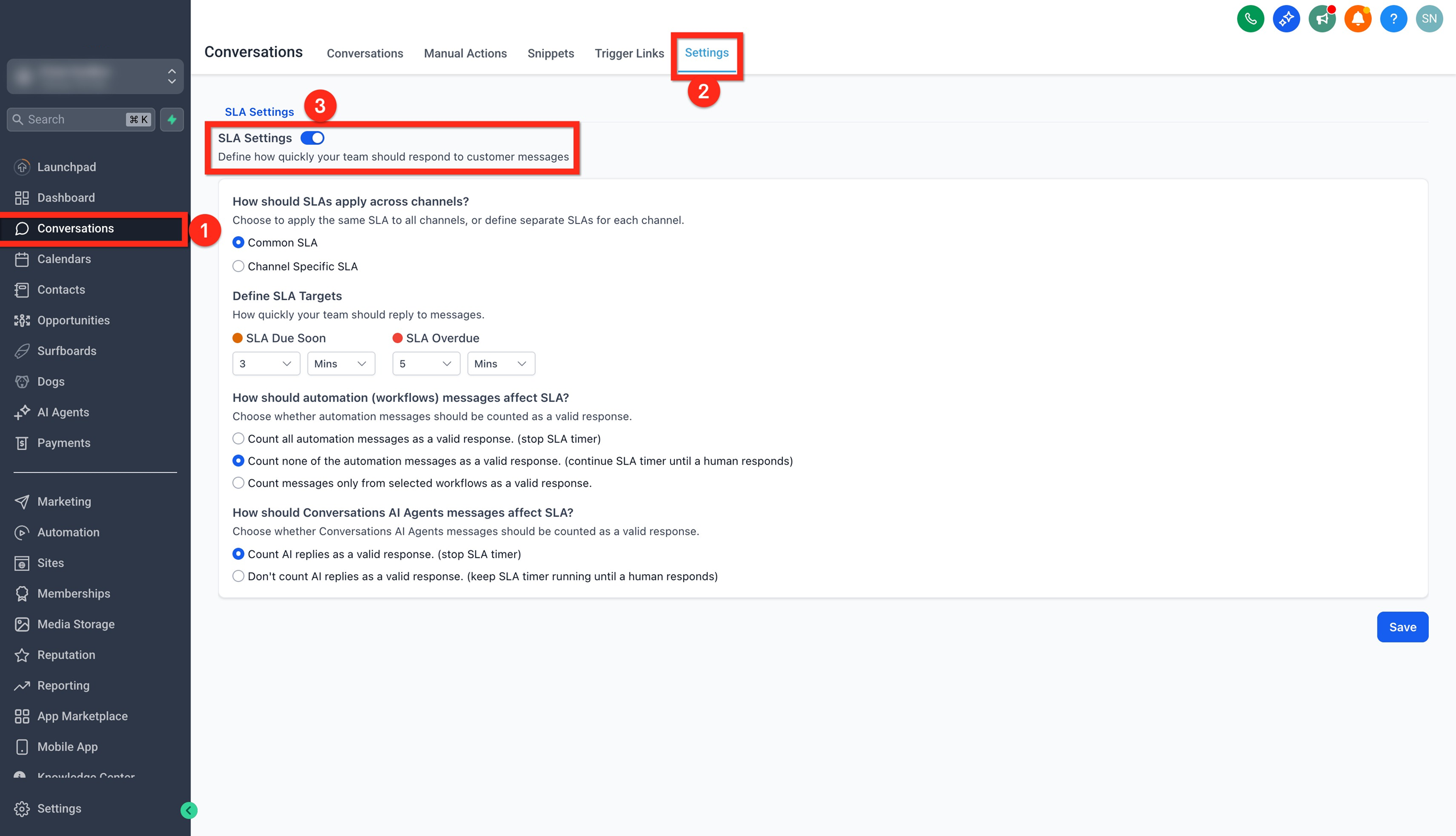
Click on Conversations module from your sub-account.
At the top panel, click on the Settings tab.
Click on the SLA Settings toggle to turn it on.
This will allow you to define how response time targets should apply across channels and how timers appear inside the inbox.
Under “How should SLAs apply across channels?”, choose one of the following options:
Common SLA: Apply the same SLA rule to all channels.
Example: All conversations—regardless of whether they come from Email, SMS, or Facebook—must be replied to within 1 hour.
Channel-Specific SLA: Define different response time targets for each channel.
Example: SMS replies must be sent within 15 minutes, while Email replies can take up to 2 hours.
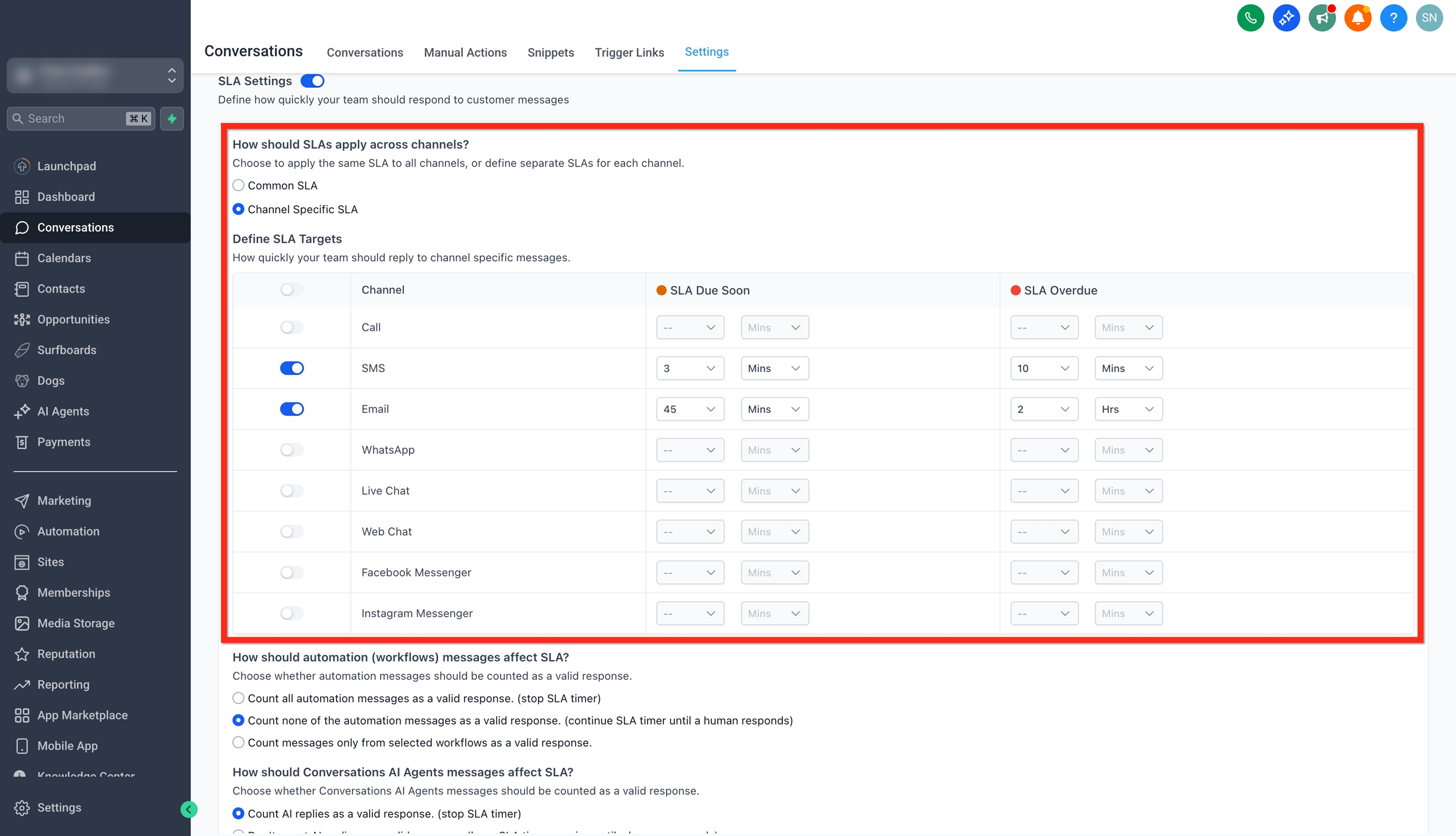
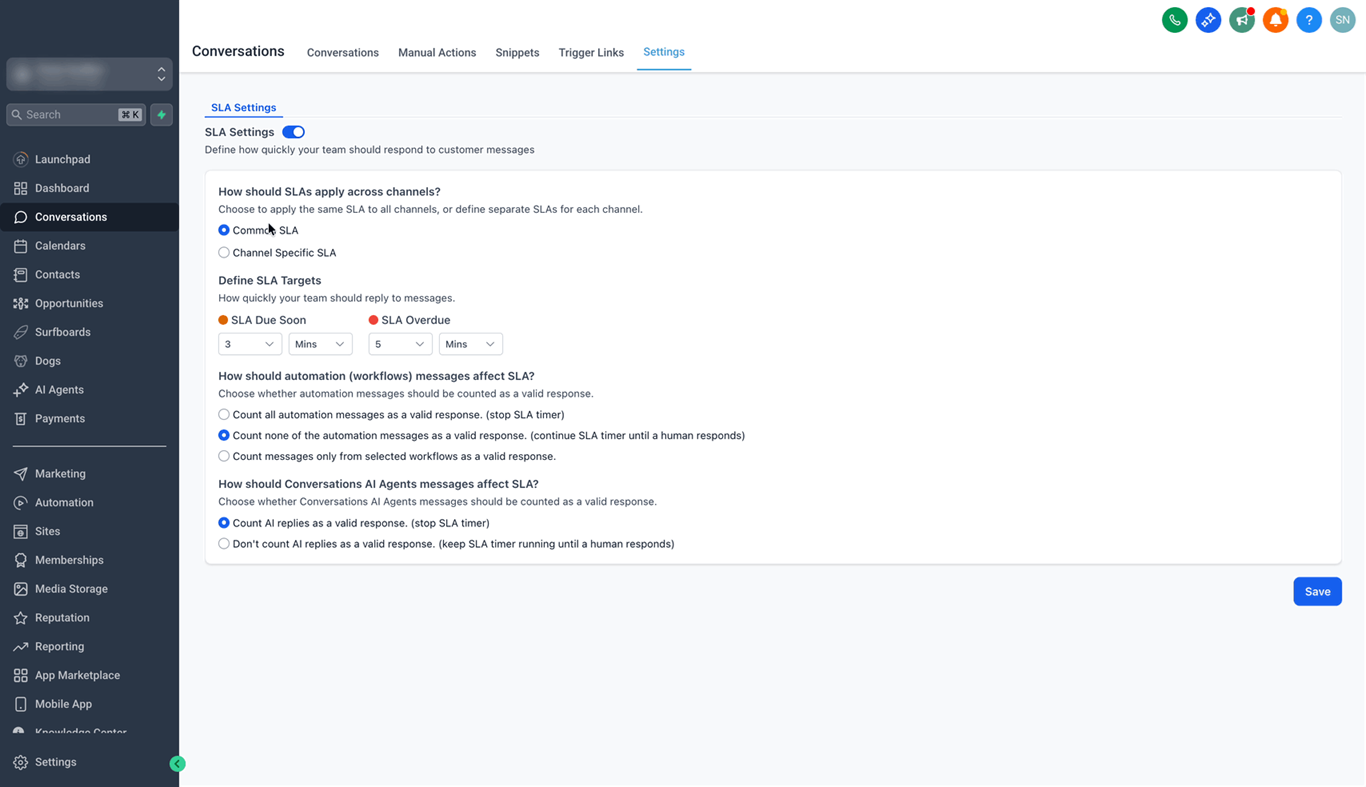
Set your preferred time limits to manage response expectations:
Due Soon: The warning time before an SLA breach. When a conversation enters this window, the timer turns orange.
Overdue: The maximum time allowed to respond before the SLA is considered missed. Once breached, the timer turns red.
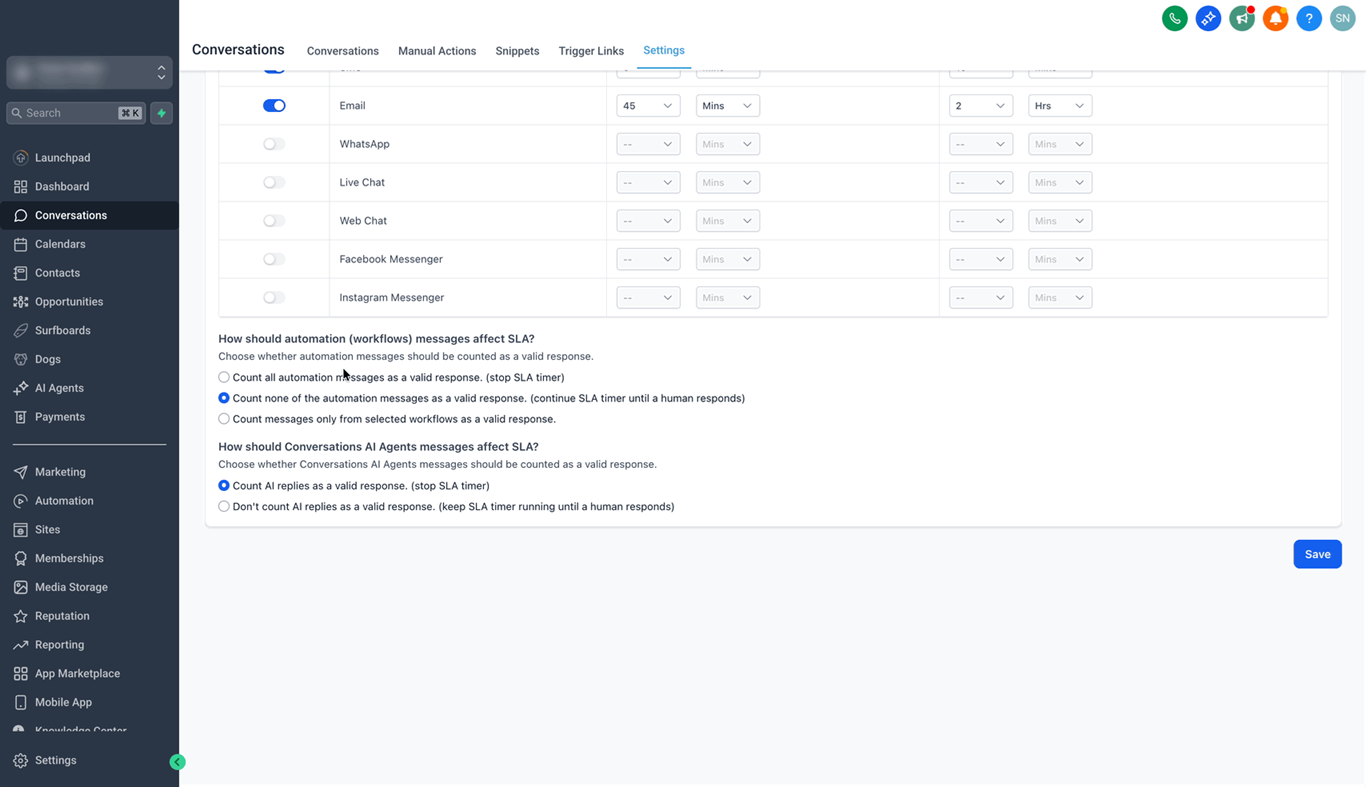
In this section, you can decide whether messages sent automatically—through workflows should count as valid replies for your SLA timers. This gives you flexibility to decide if automated responses should stop the countdown, or if only human replies should be considered.
Select how you’d like workflow or automation messages to affect SLAs:
Count all automation messages as valid responses – The SLA timer stops whenever a workflow sends a message.
Don’t count automation messages as valid responses – The timer continues running until a team member replies.
Count messages only from specific workflows – Choose certain workflows that can stop the timer, while others won’t.
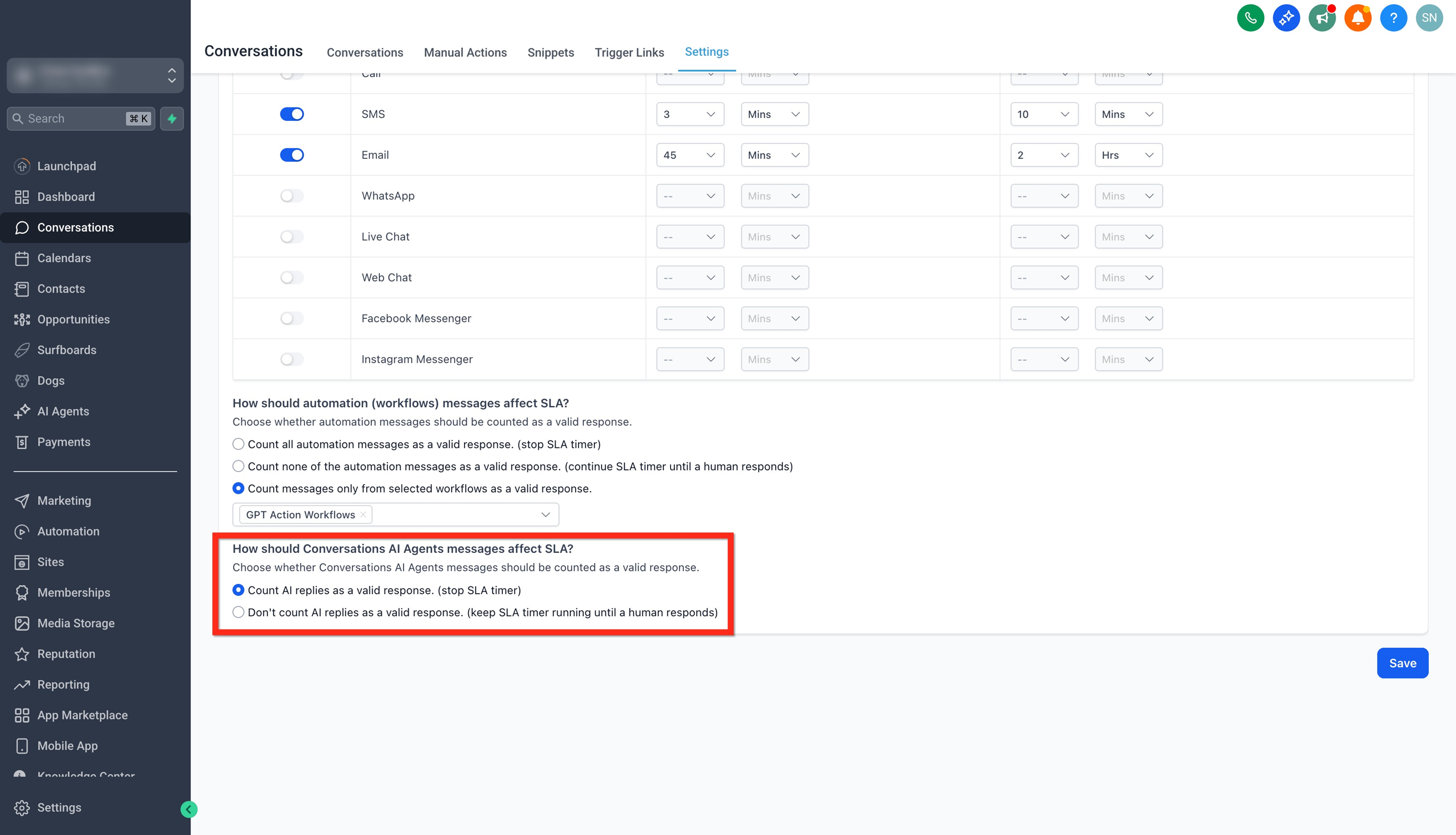
Decide how replies from your AI Agent should impact SLAs:
Count AI replies as valid responses – The SLA timer will stop when the AI Agent responds. (Default)
Don’t count AI replies as valid responses – The timer continues until a human agent replies.
Once you’ve configured your preferences, click Save.
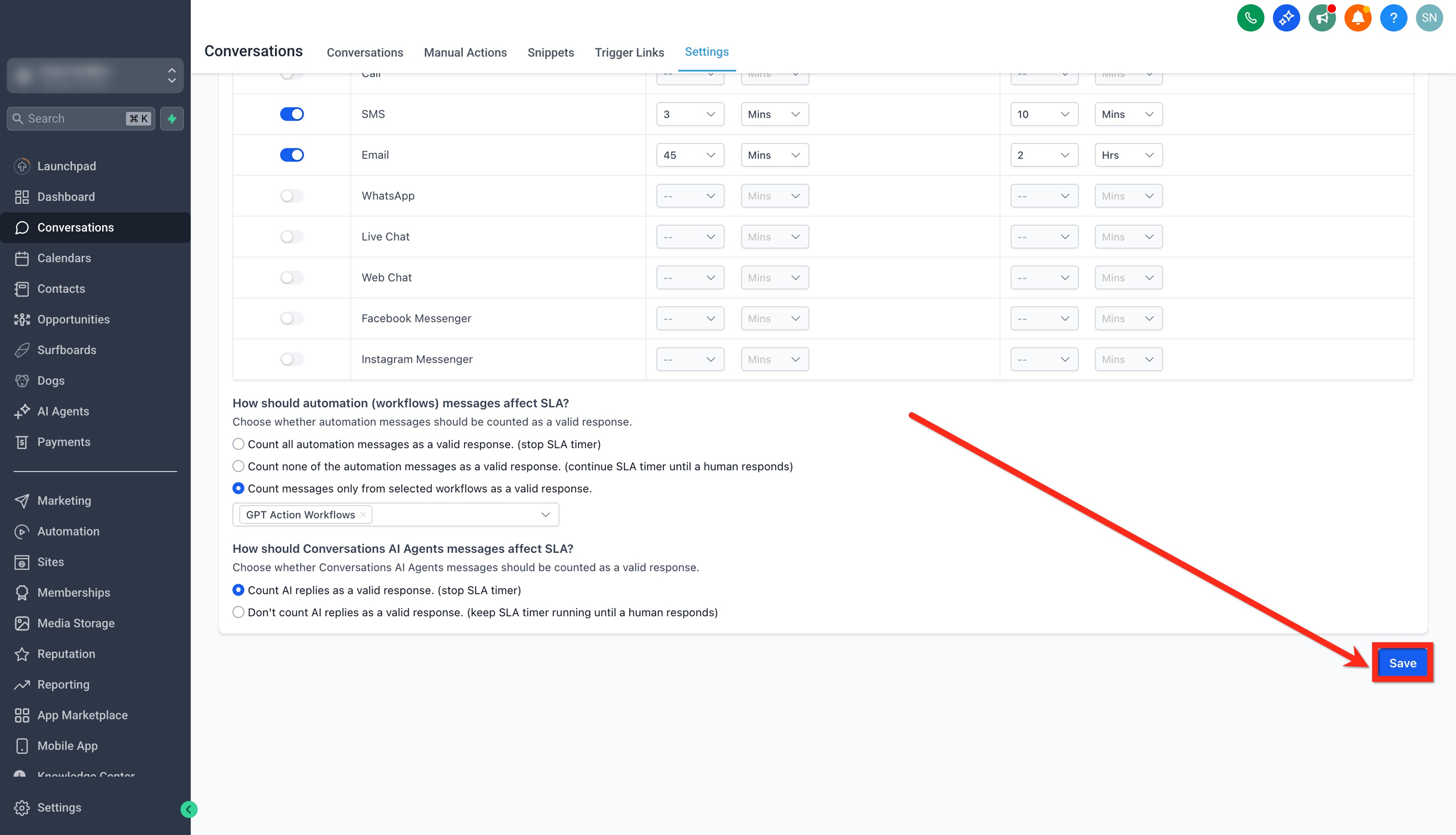
From this point on, all new incoming customer messages will automatically have SLA timers applied based on your setup. Existing conversations will continue to follow the SLA rules that were active before the change.
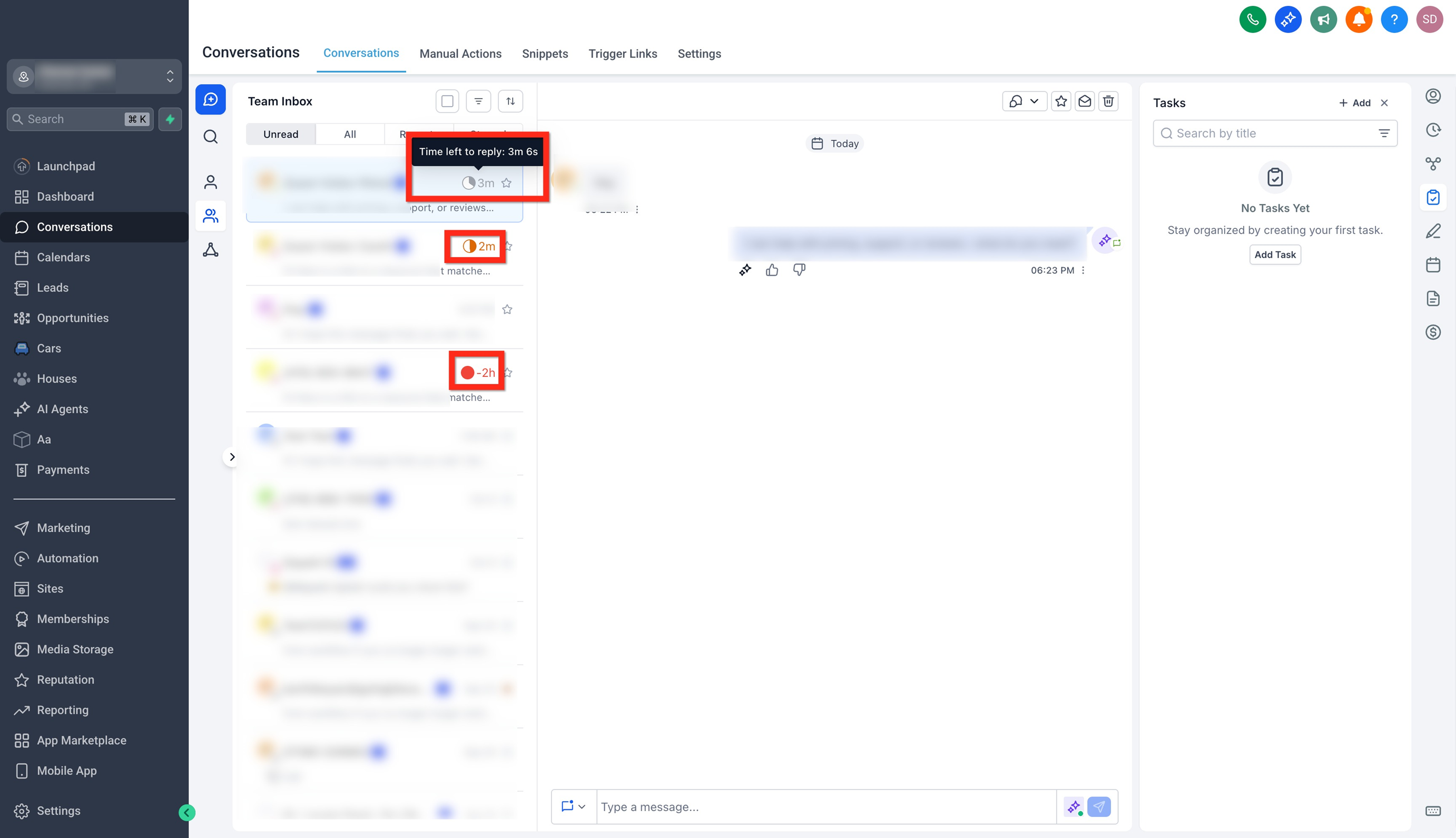
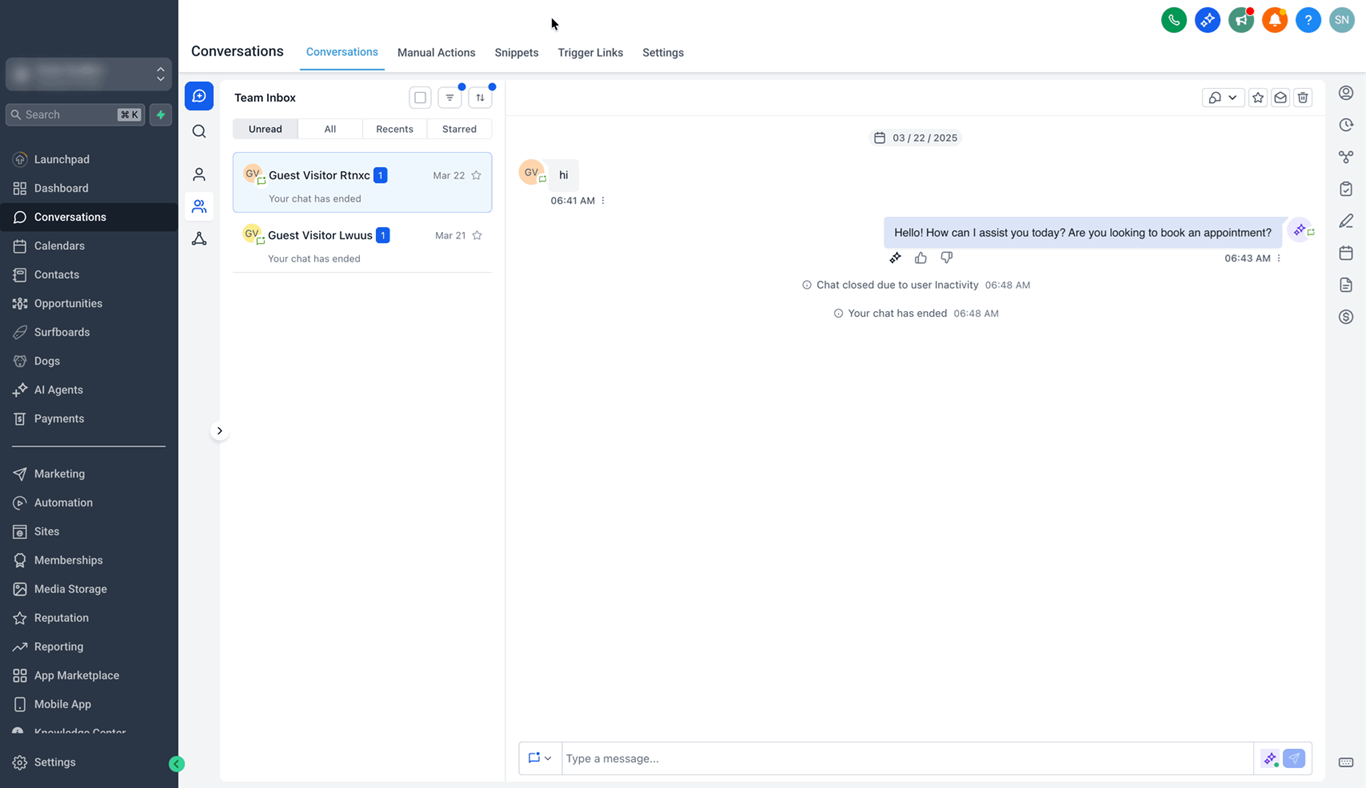
When a new customer message is received, an SLA timer appears in the Conversation list panel (left side of the inbox). These timers visually indicate how much time is left to respond and change color based on their current state. The timer disappears once an agent replies or manually marks the conversation as read.
To make it easier for agents to manage workloads, Conversations includes SLA-based filters and sorting options.
Filter by SLA Status: View only Active, Due Soon, or Overdue conversations.
Sort by SLA: Organize conversations by Longest Overdue or Next SLA Target.
Q: Will SLAs apply to existing conversations after I enable them?
No. SLAs only apply to new incoming messages created after the feature is enabled. Existing conversations will continue without SLA tracking.
Q: What happens if I disable SLAs?
If SLAs are disabled, existing conversations will continue to follow their current SLA timers, but new messages will no longer have SLAs applied. You can re-enable SLAs anytime from the SLA Settings tab.
Q: Do automated or AI replies stop the SLA timer?
Only if configured to do so. By default, workflow messages do not stop the timer and AI messages stop the timer. You can adjust these options under “How Workflow and AI Messages Affect SLAs.”
Q: Does SLA tracking consider business hours?
Currently, SLAs are based on calendar hours. Business hours configuration will be introduced in a future update.
Q: Can I have different SLAs for each channel?
Yes. You can set a Common SLA for all channels or define Channel-Specific SLAs to set different response targets for each communication channel.
Q: How will agents know if a conversation is overdue?
SLA timers inside Conversations change color to show status — Grey (Active), Orange (Due Soon), and Red (Overdue).
Q: Do SLAs apply to internal chats or comments?
No. SLAs apply only to customer conversations, not to internal team messages or comments.
Q: Can I create reports or workflow triggers using SLAs?
Not yet. SLA-based workflow triggers and performance reporting will be available in upcoming phases.
Q: If I modify my SLA settings, will they apply to all conversations?
No. Modified SLAs apply only to new incoming messages. Ongoing conversations will continue using the SLA rules active when they began.
Q: If a contact sends multiple messages, how is the SLA timer calculated?
The SLA timer runs based on the oldest customer message in the conversation. This ensures the response time reflects how long the contact has been waiting, even if they send multiple follow-up messages.

