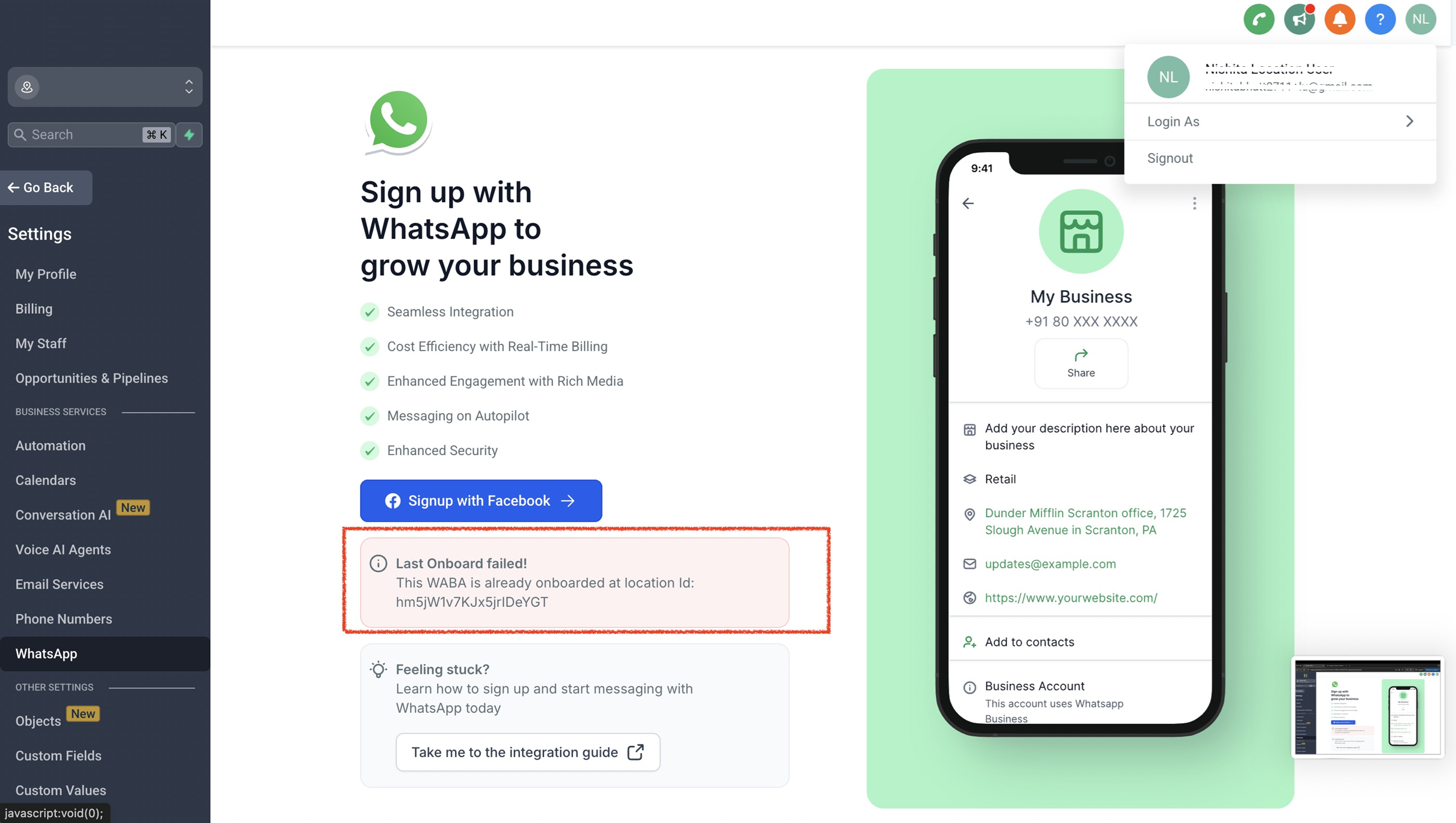
• Go to Settings → WhatsApp
Click Subscribe and pay $29.99/month
This is a monthly subscription that enables WhatsApp messaging for your account.
• Navigate to Settings > WhatsApp > Set Up a New WhatsApp Number.
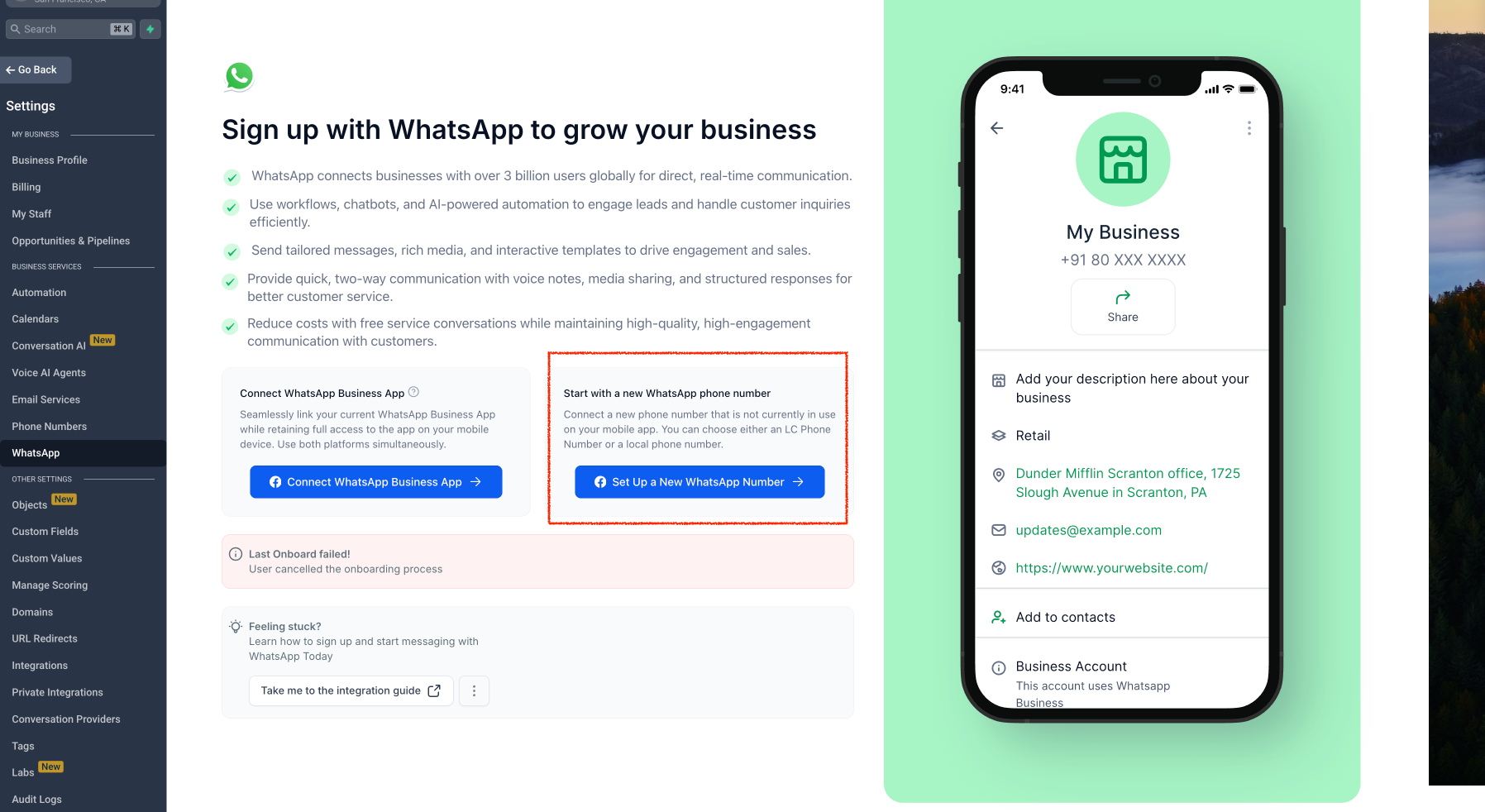
If the Pay and Subscribe button is not visible on the WhatsApp tab, please click the red Help button located at the bottom right of Intellia for assistance.

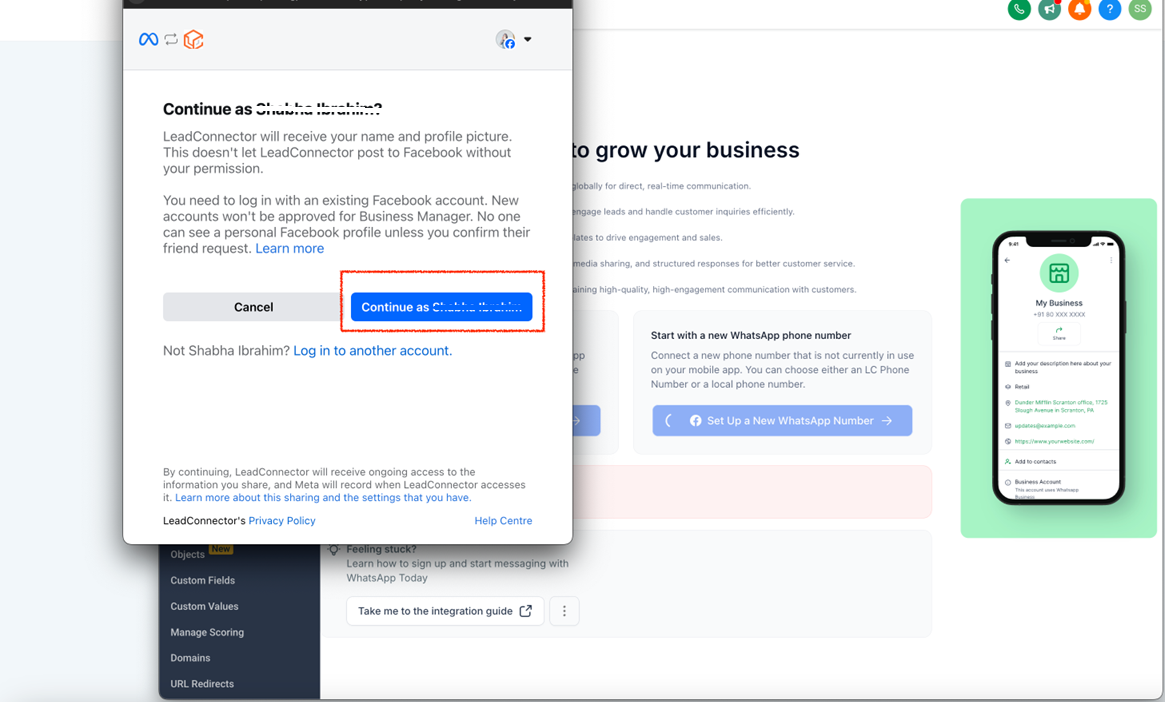
Step 3: Continue with Facebook
• Click “Continue with your Facebook account” to proceed
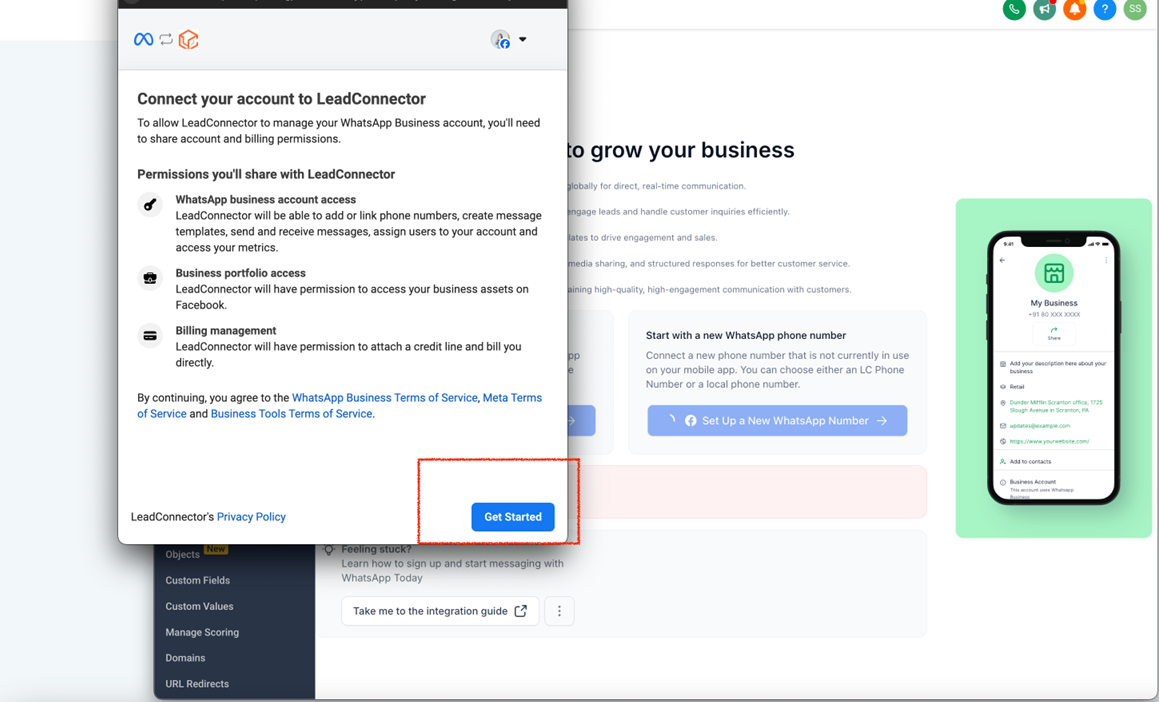
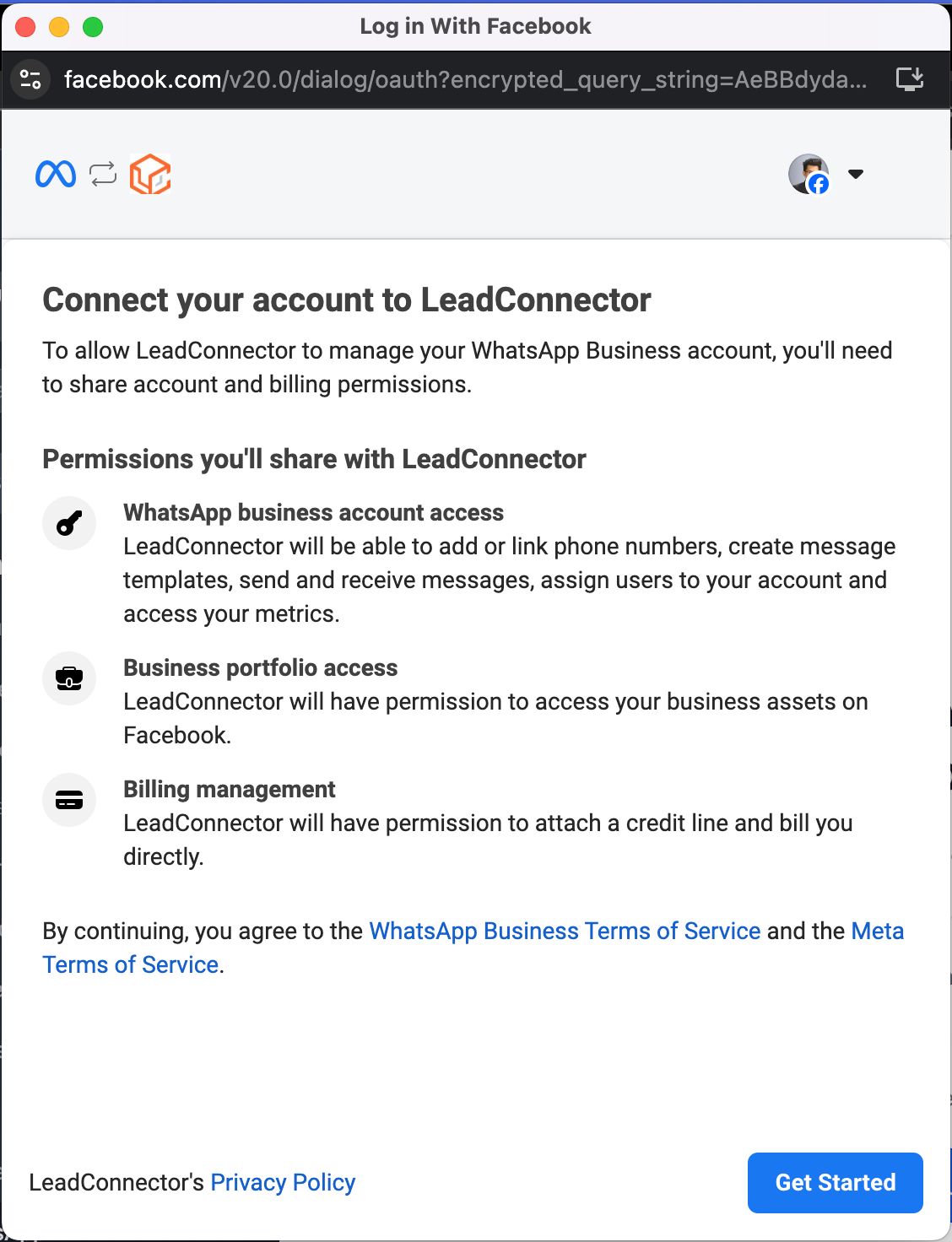
• Tap “Get Started” to initiate the integration process.
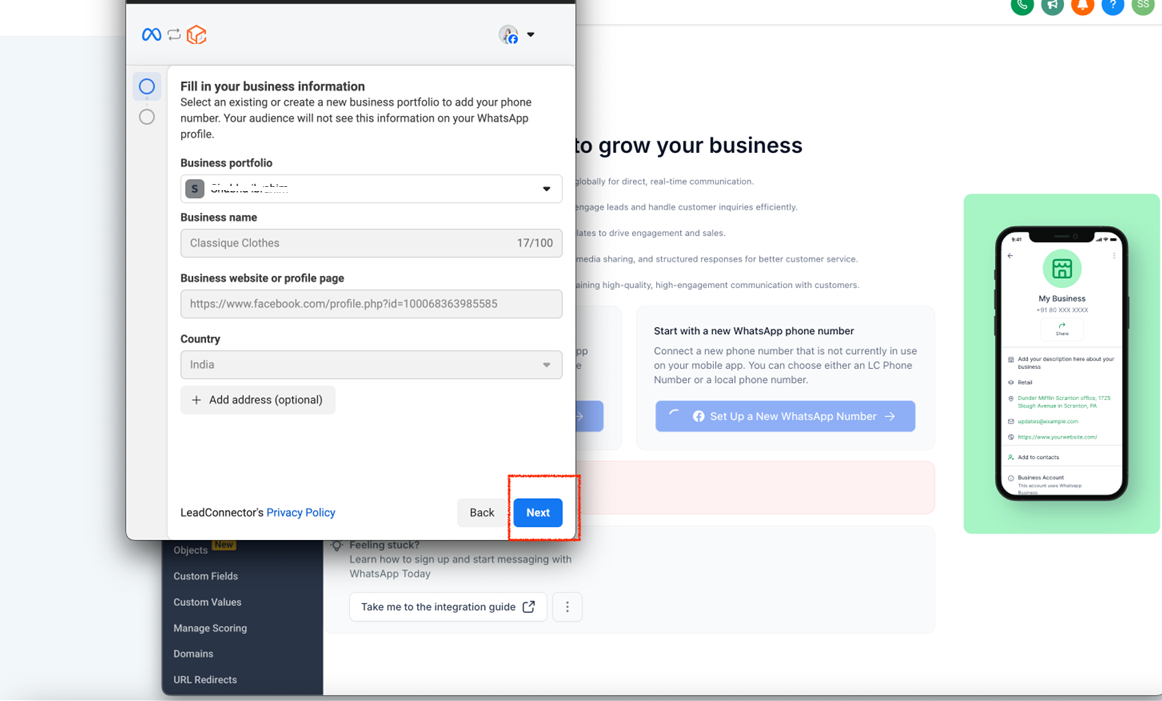
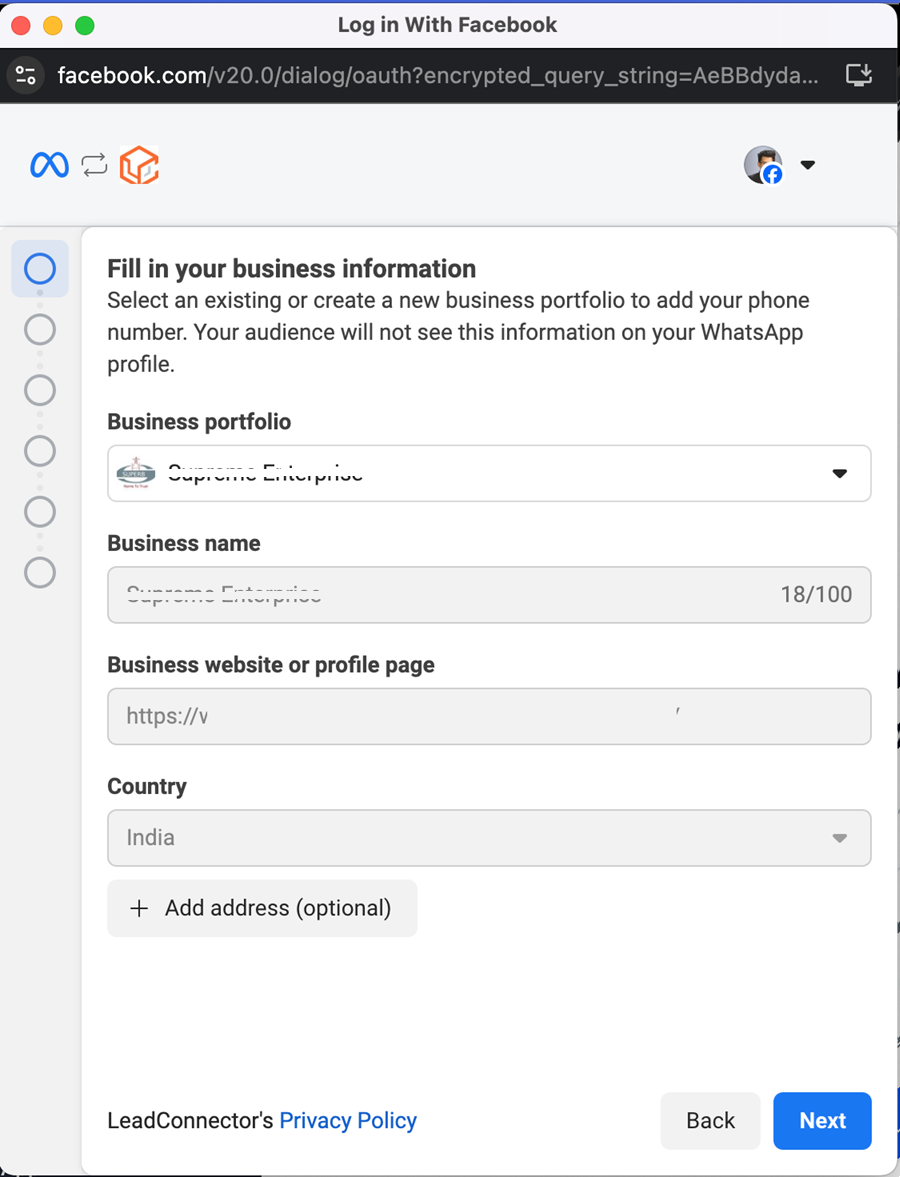
• Fill in the required business information and click “Next”.
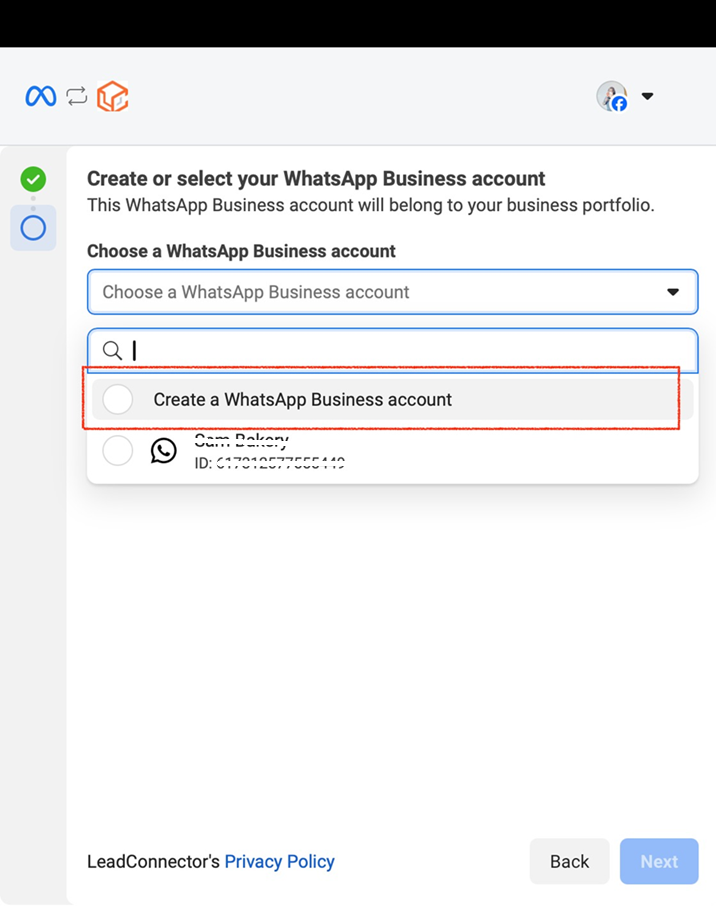
• Select “Create WhatsApp Business Account”.
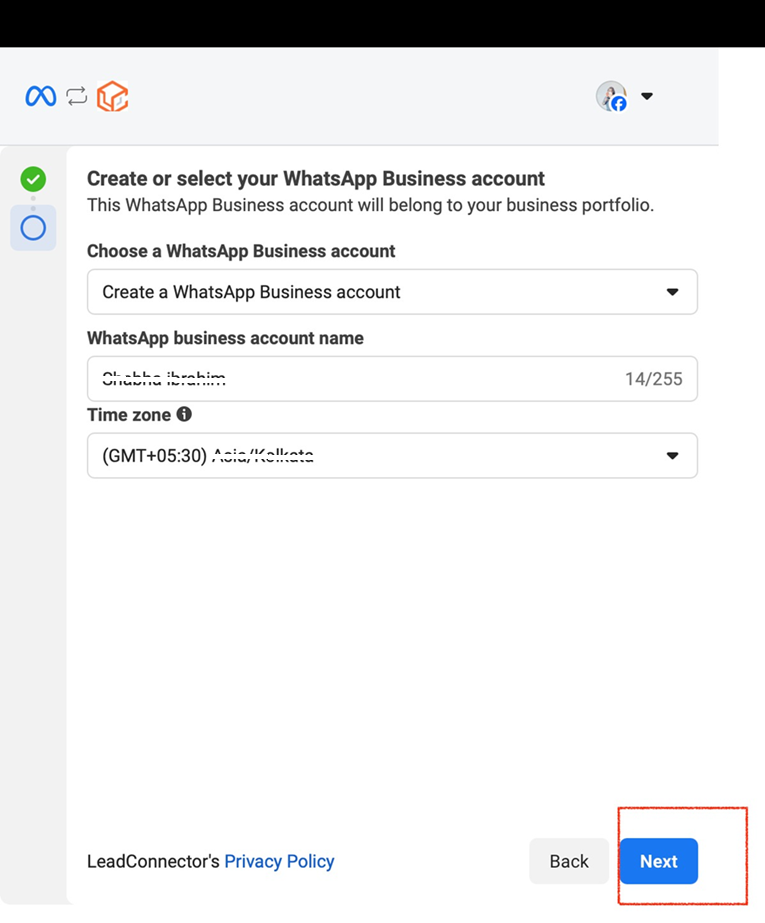
• Click “Next” to proceed.
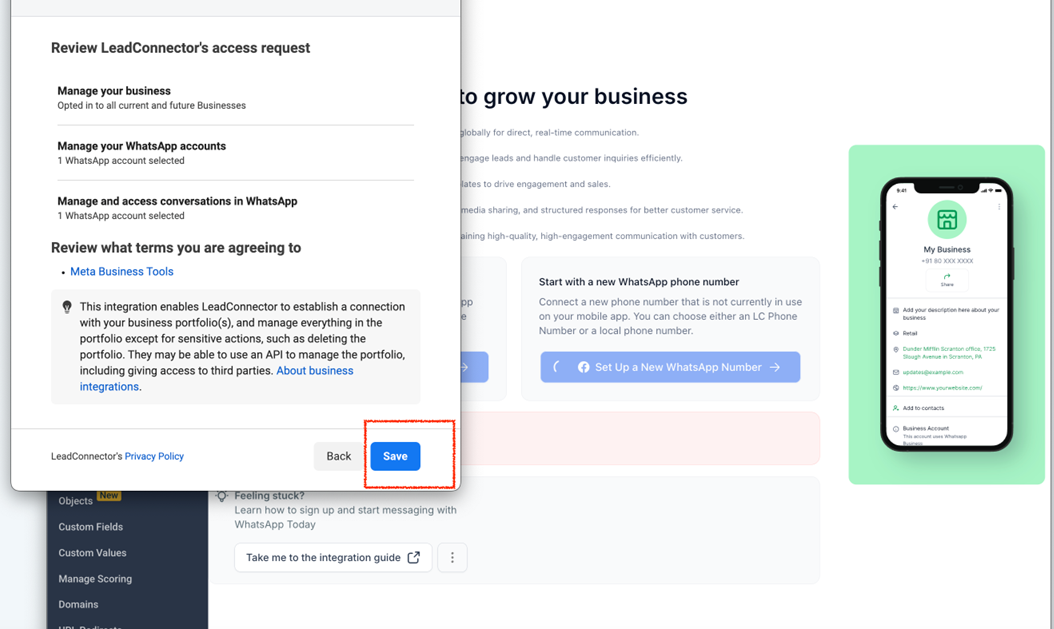
• Click “Save” to apply your settings.
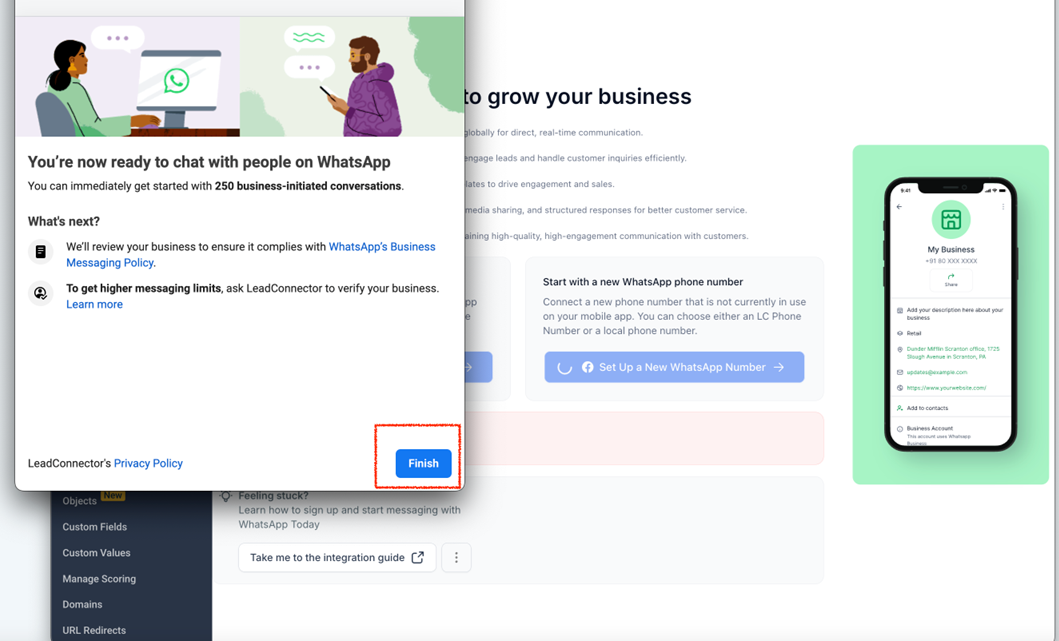
• Tap “Finish”—your WhatsApp Business Account is now successfully integrated!
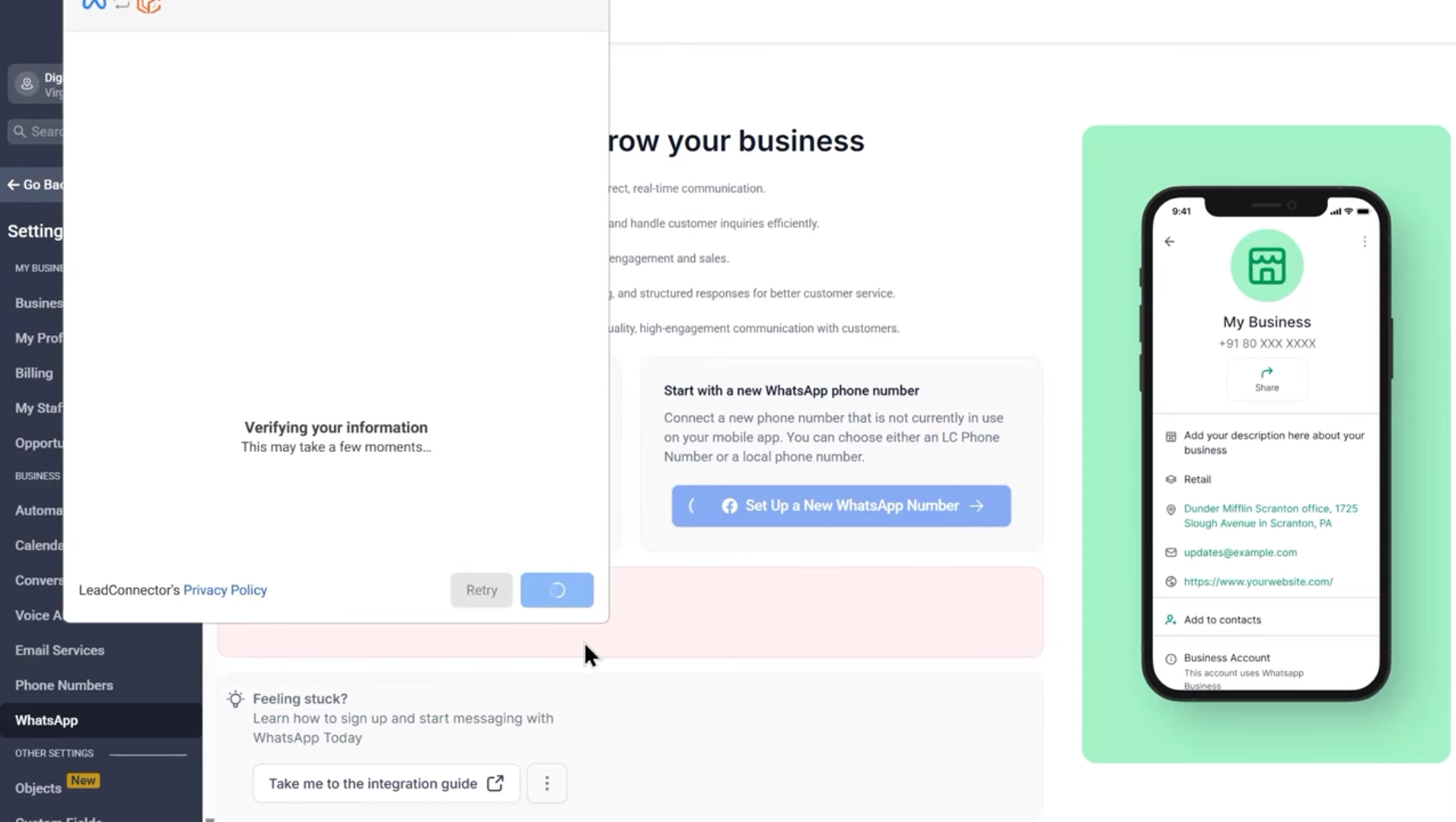
• Text Message (SMS): Select this option to receive an OTP via SMS.
• Phone Call: If selected, you will receive a verification call on your forwarded number.
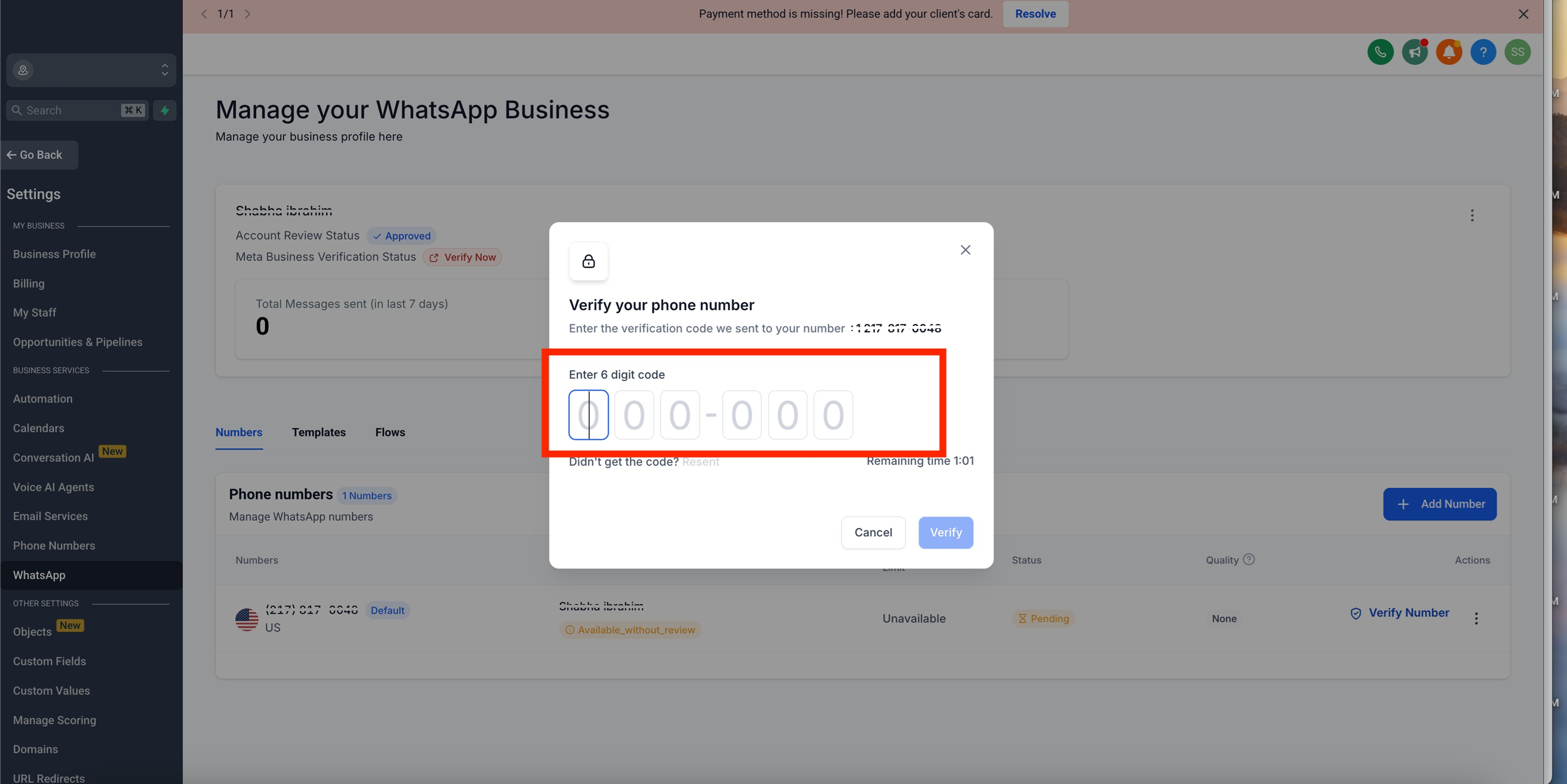
• Enter the 6-digit OTP received via SMS or call to verify your number.
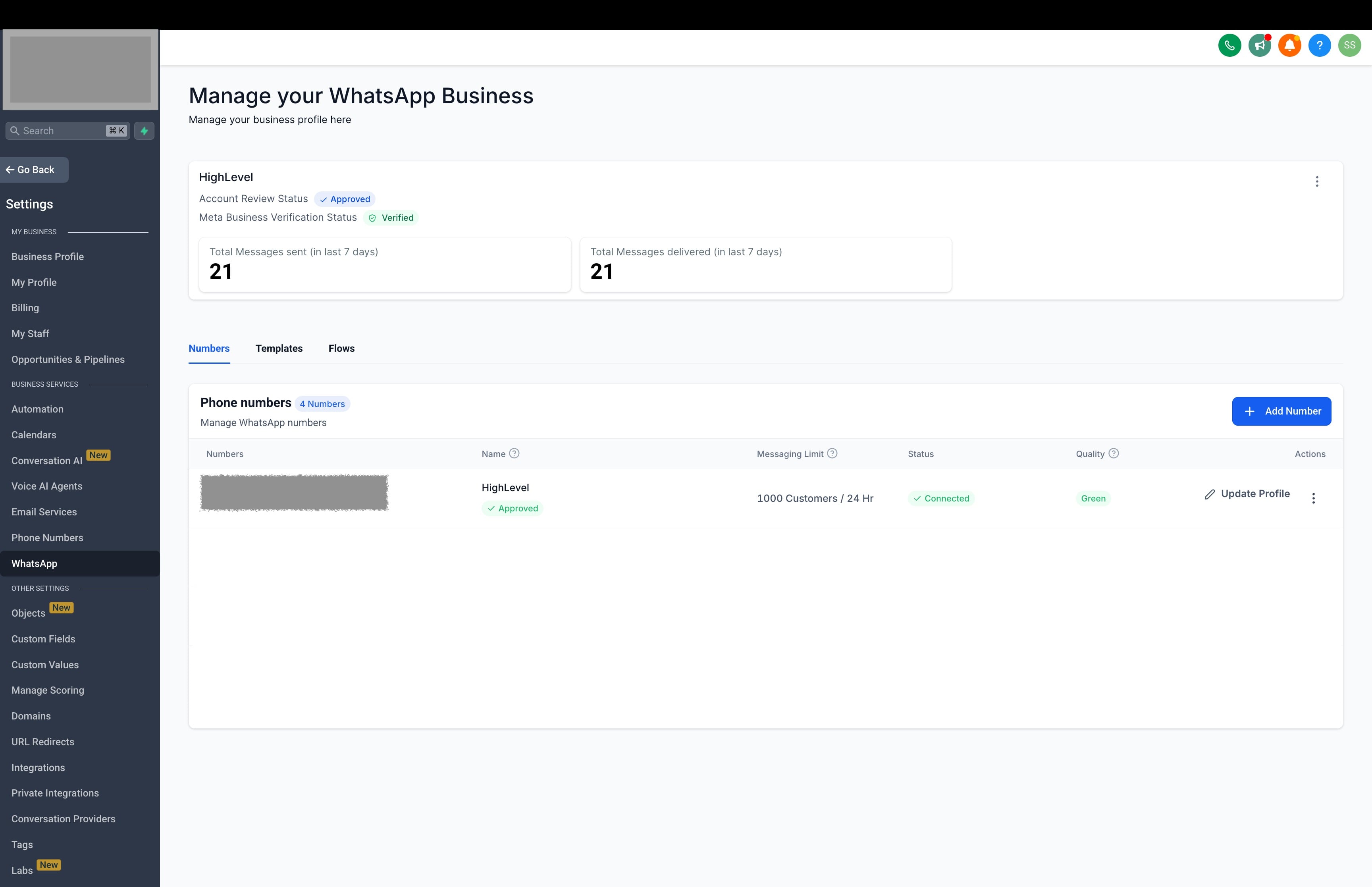
• Your WhatsApp Business number is now successfully verified and ready to use.
When signing up for the WhatsApp Business Platform, businesses must adhere to the following restrictions:
 New Phone Number Requirement
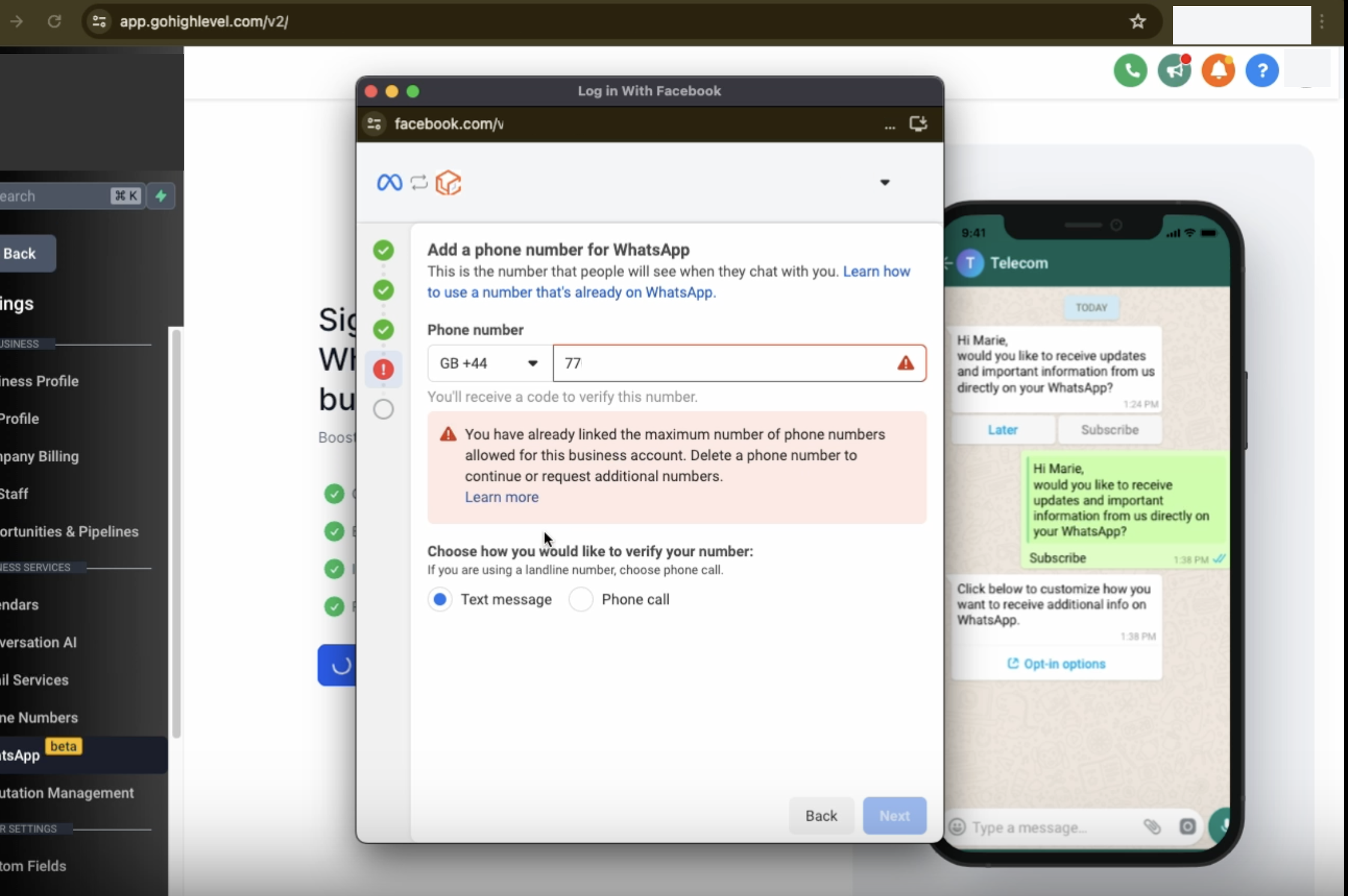
• Businesses must use a new phone number for registration, whether onboarding manually or through Embedded Signup.
• Existing numbers that are currently active on WhatsApp or WhatsApp Business App cannot be used for signup.
WhatsApp Business accounts do not support phone numbers with country codes from the following regions and countries. If your business operates in these locations, you may need to explore alternative solutions.
WhatsApp Business account phone numbers from the following countries are not supported:
Nigeria
South Africa
When using the WhatsApp Business app, you can link your Facebook Page with your WhatsApp Business account.
To link these accounts, you must have the following:
A Facebook page for your business. An app on the WhatsApp Business app.
The latest versions of the mobile apps.
You can link your accounts from within the WhatsApp Business app.
Step 1: Open the WhatsApp Business app.
Step 2: On Android, tap More options. On iPhone, tap Settings.
Step 3: Tap Business tools > Facebook & Instagram.
Step 4: Tap Facebook > Continue. This will open the Facebook login page.
Step 5: Enter the login information for your Facebook account. Tap Log In.
Step 6: Select the Facebook Page you want to link to your WhatsApp Business account. Tap Connect WhatsApp. .
Step 7: If you don’t have a Facebook Page, you’ll have the option to create one.
Step 8: You’ll now see a WhatsApp button on your Facebook page.
Step 9: Once you return to the WhatsApp Business app, you’ll see your linked Facebook Page at the top of the Facebook & Instagram screen.
• Navigate to Settings > WhatsApp > Signup with Facebook
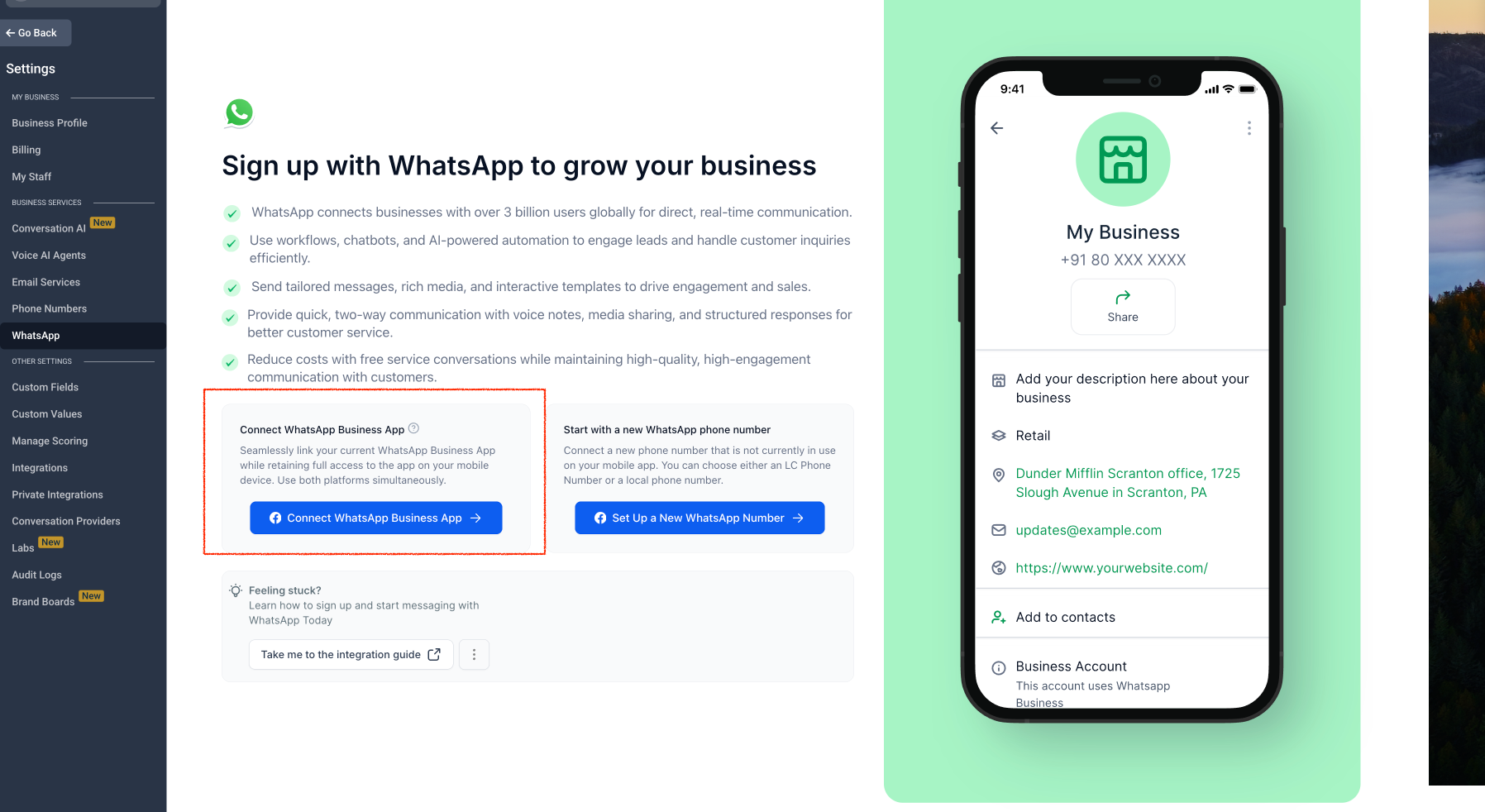
• Follow the on-screen instructions to proceed with the registration.
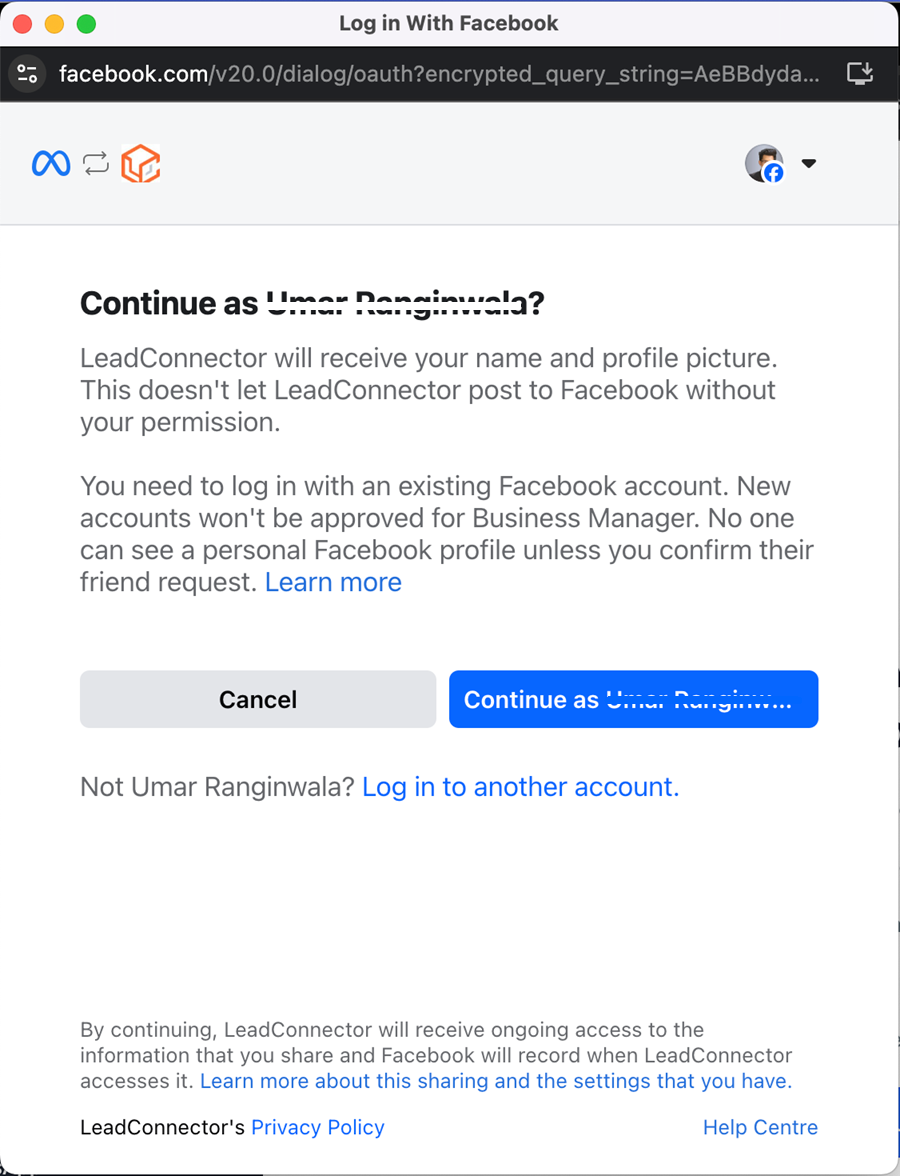
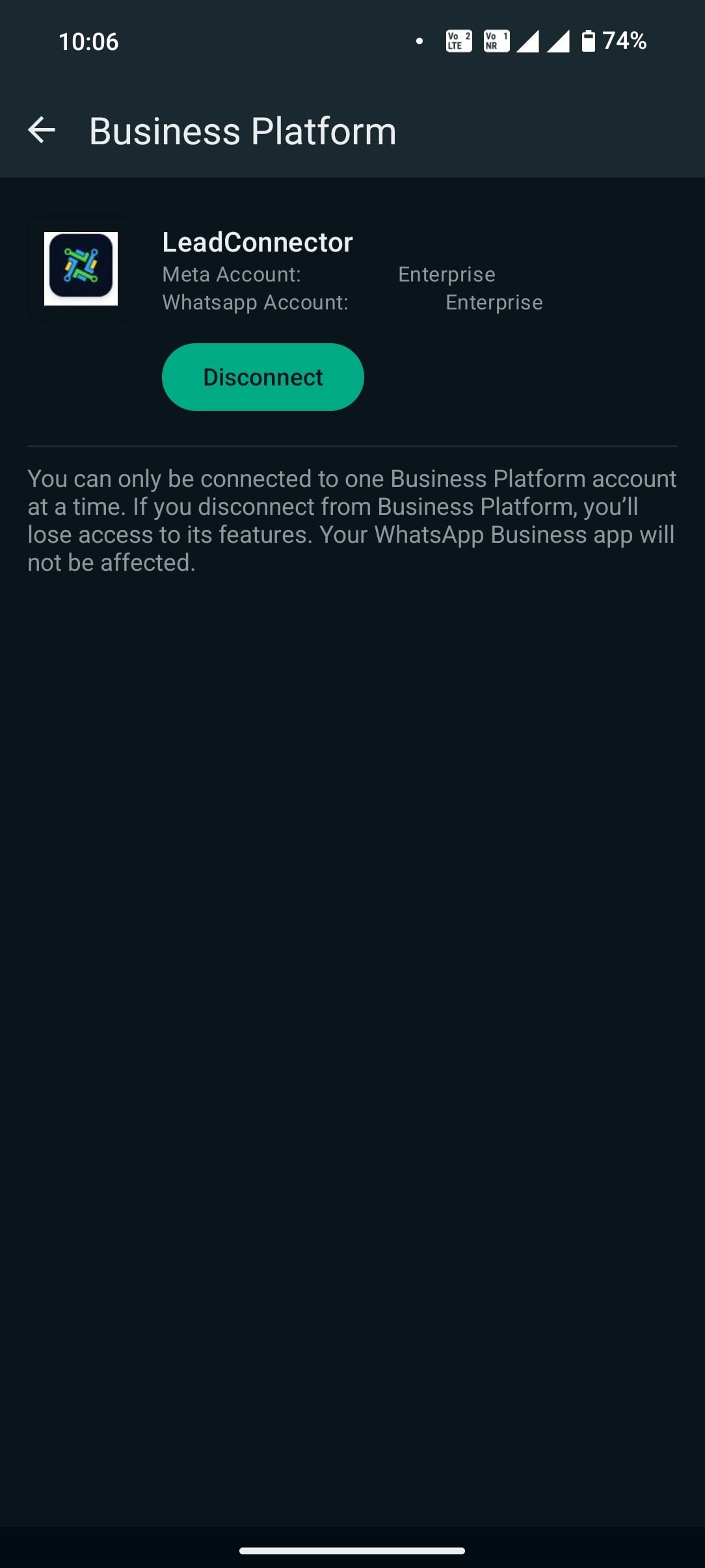
• Click Get Started to link your WhatsApp Business account with LeadConnector.
• Fill in the necessary business details as prompted.
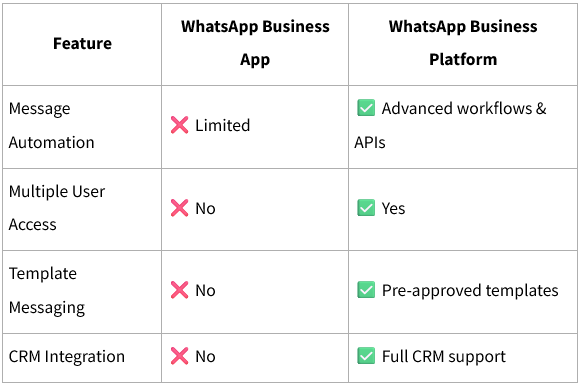
• Choose “Connect your existing WhatsApp Business App” for seamless integration.
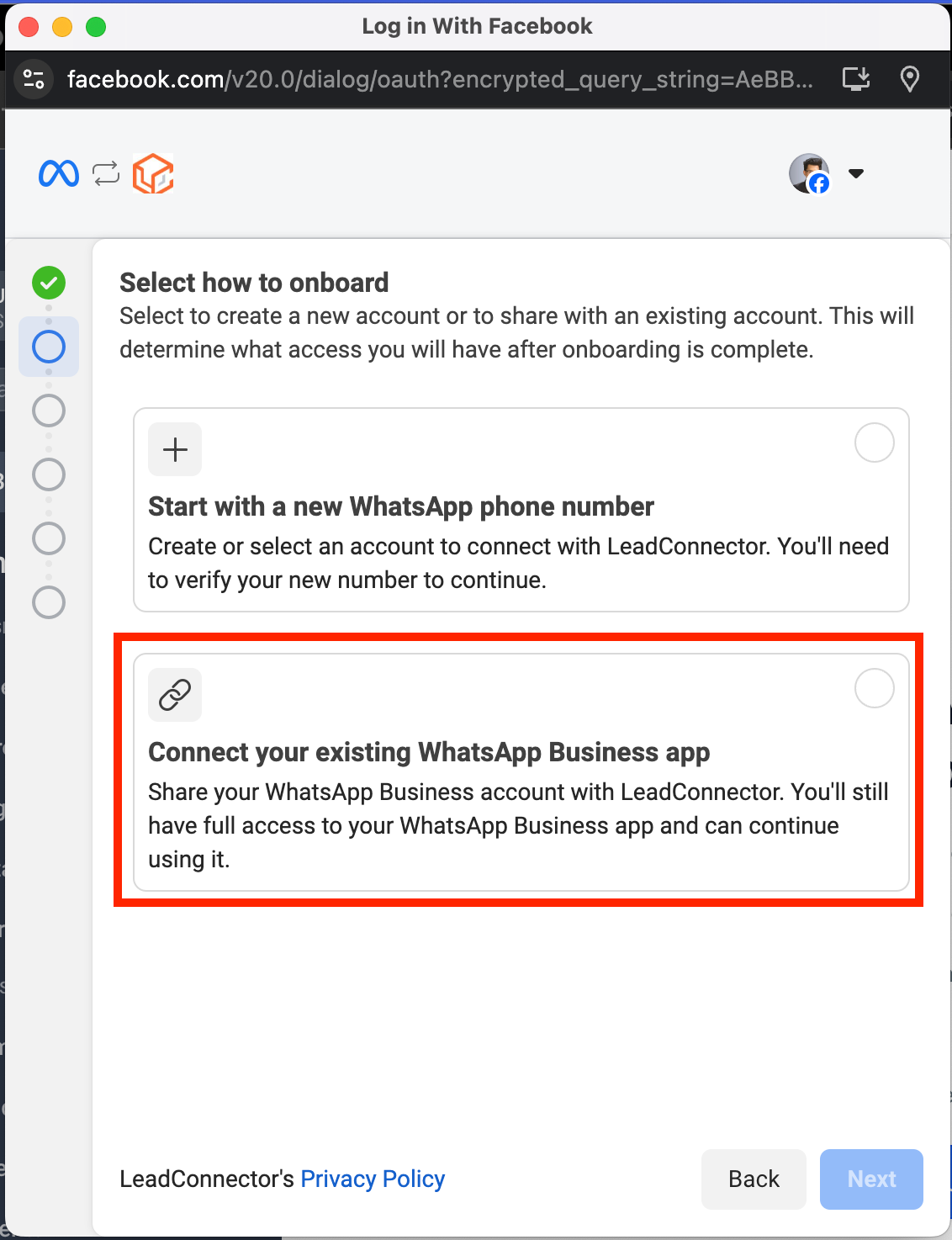
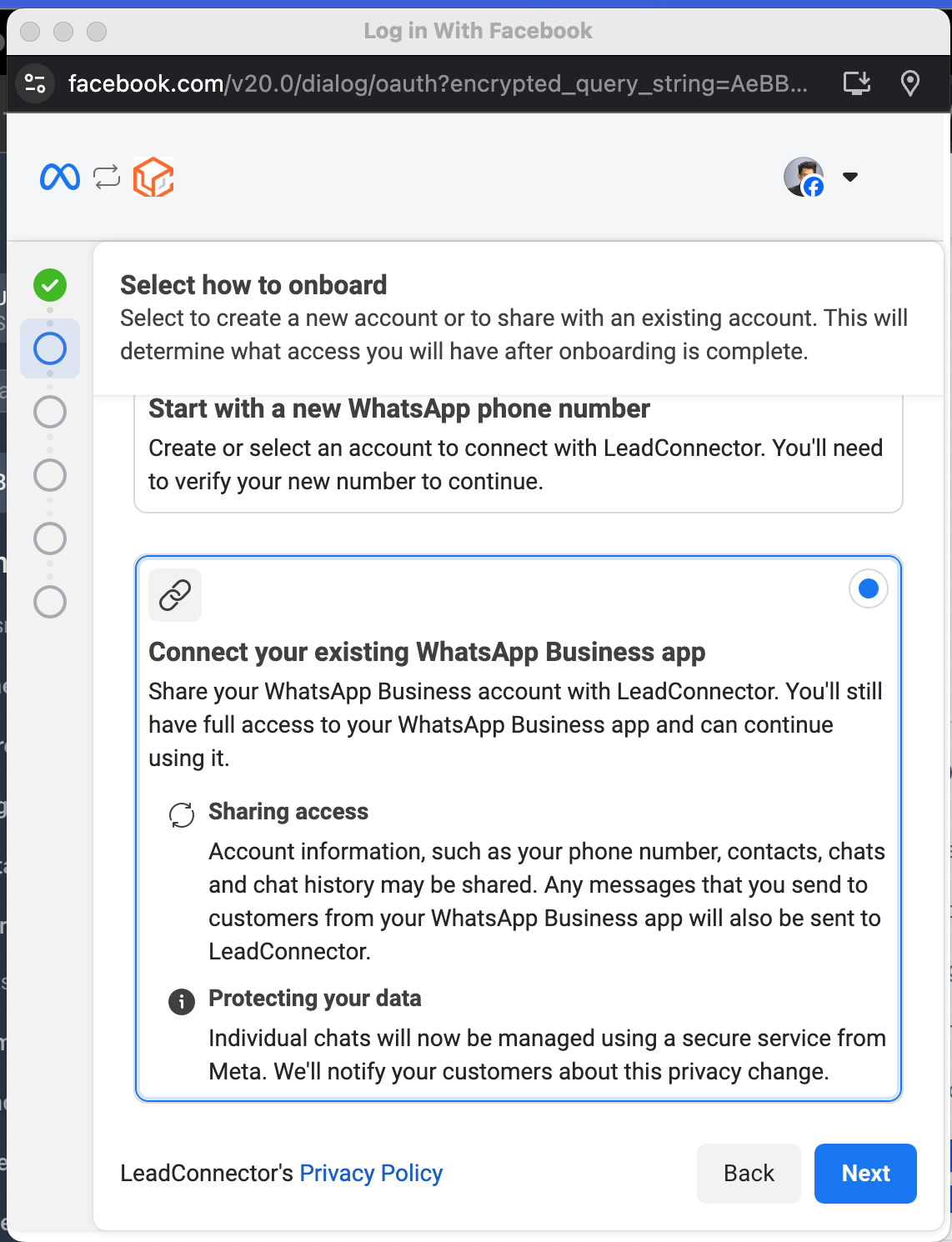
• Share your existing WhatsApp Business account with LeadConnector.
• You will retain full access to the WhatsApp Business App while using the CRM.
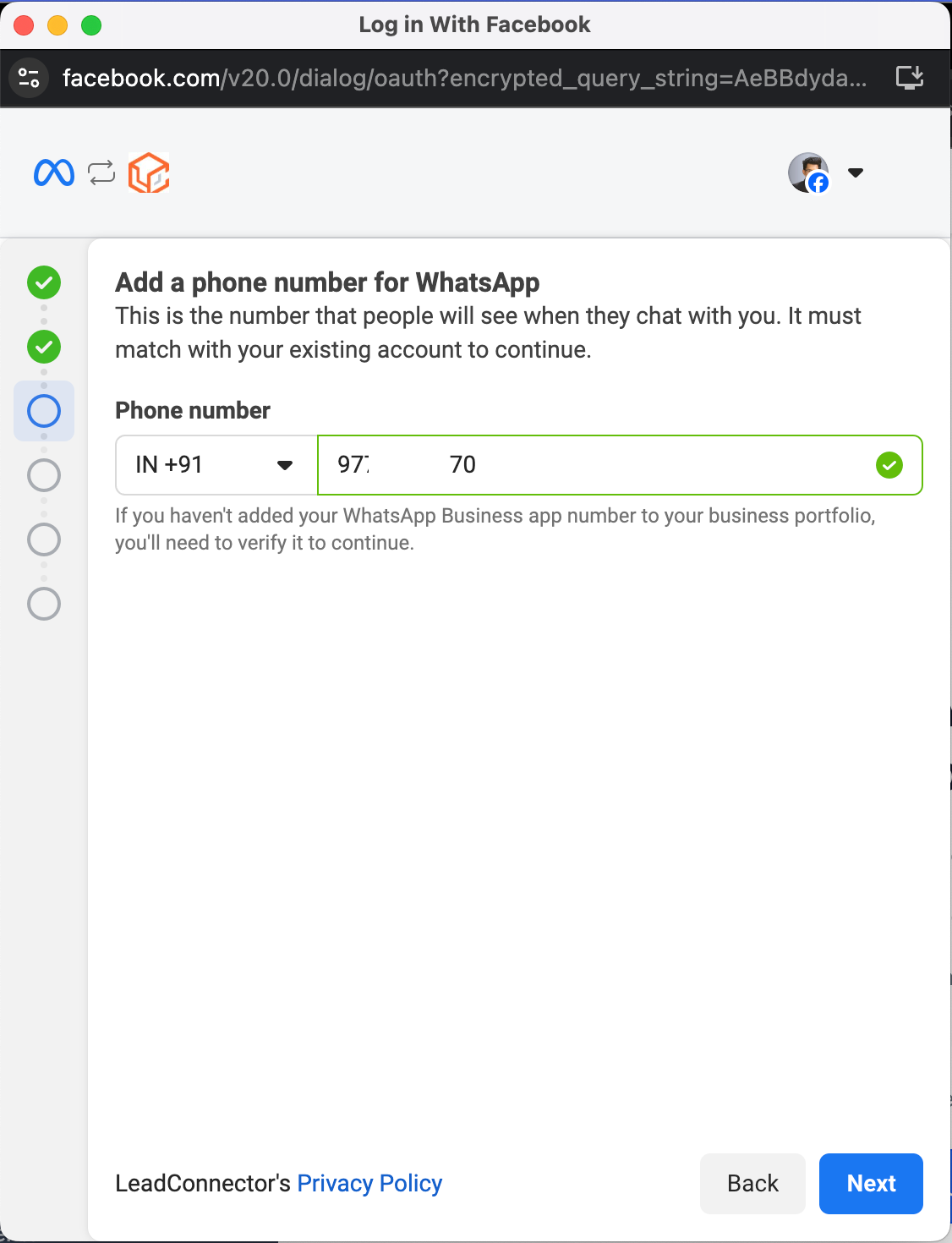
• Enter the WhatsApp number you want to connect.
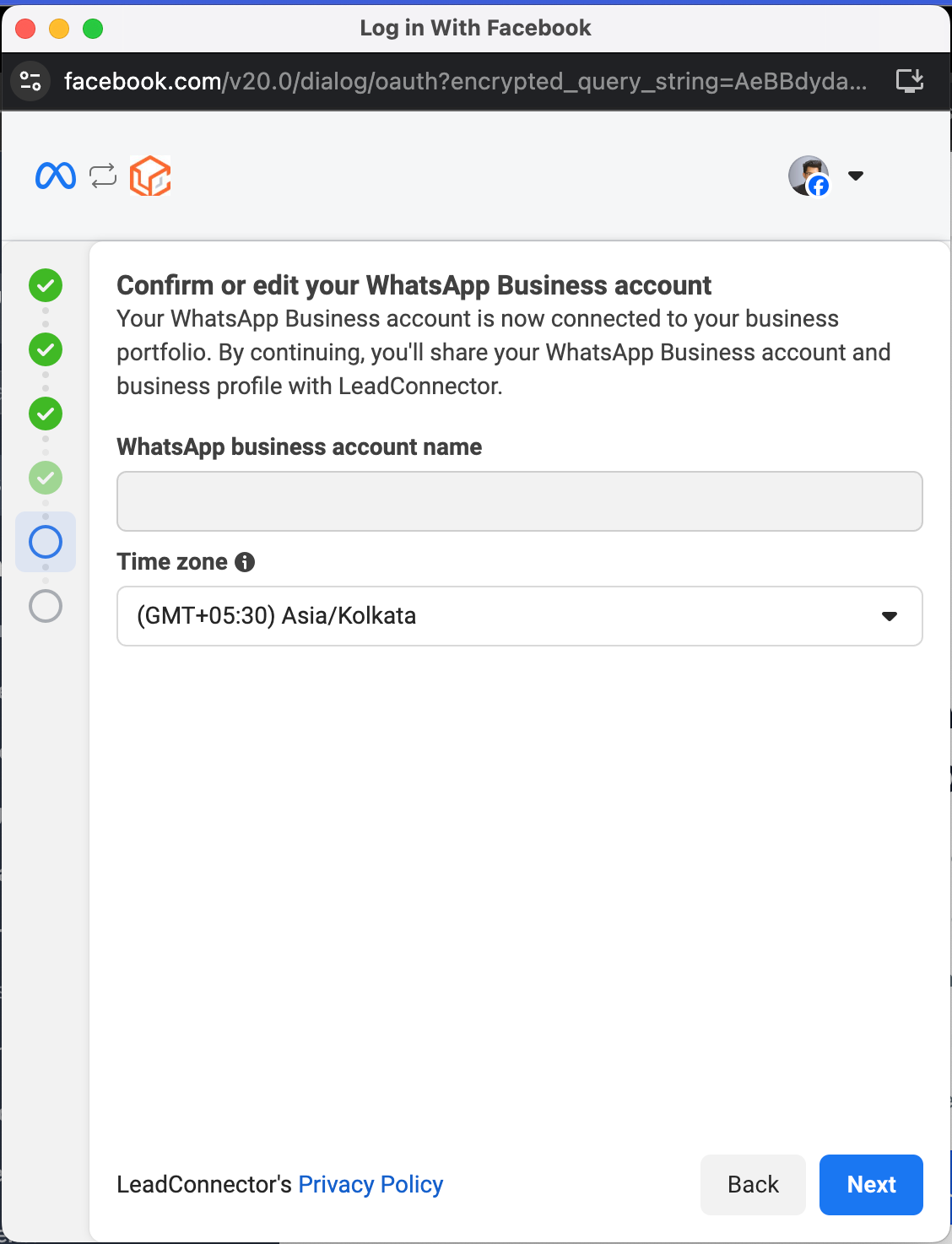
• Ensure all details are correct before proceeding.
• Import contacts and up to six months of chat history from the WhatsApp Business App to LeadConnector.
• Important: Update your WhatsApp Business App to the latest version before proceeding.
• Look for a message from the official Facebook business account and scan the QR code.
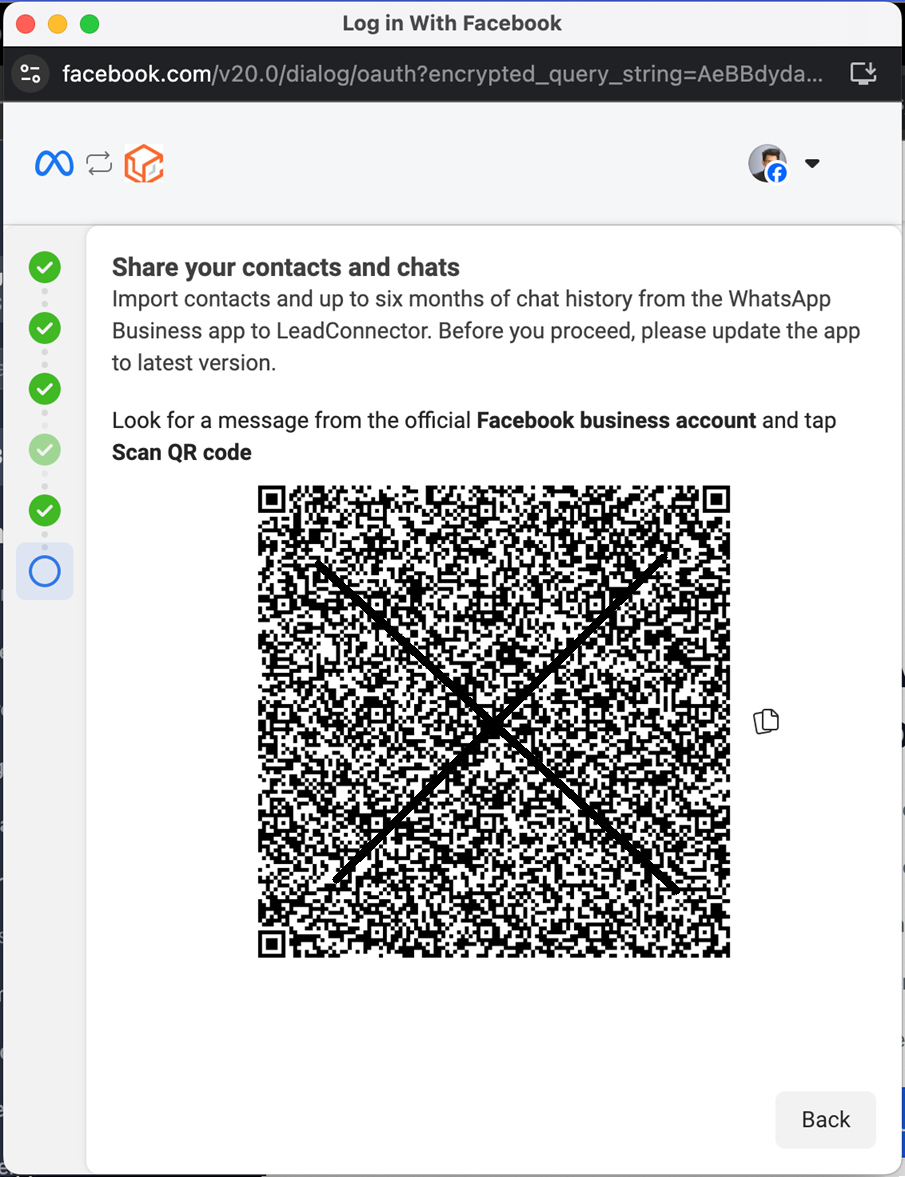
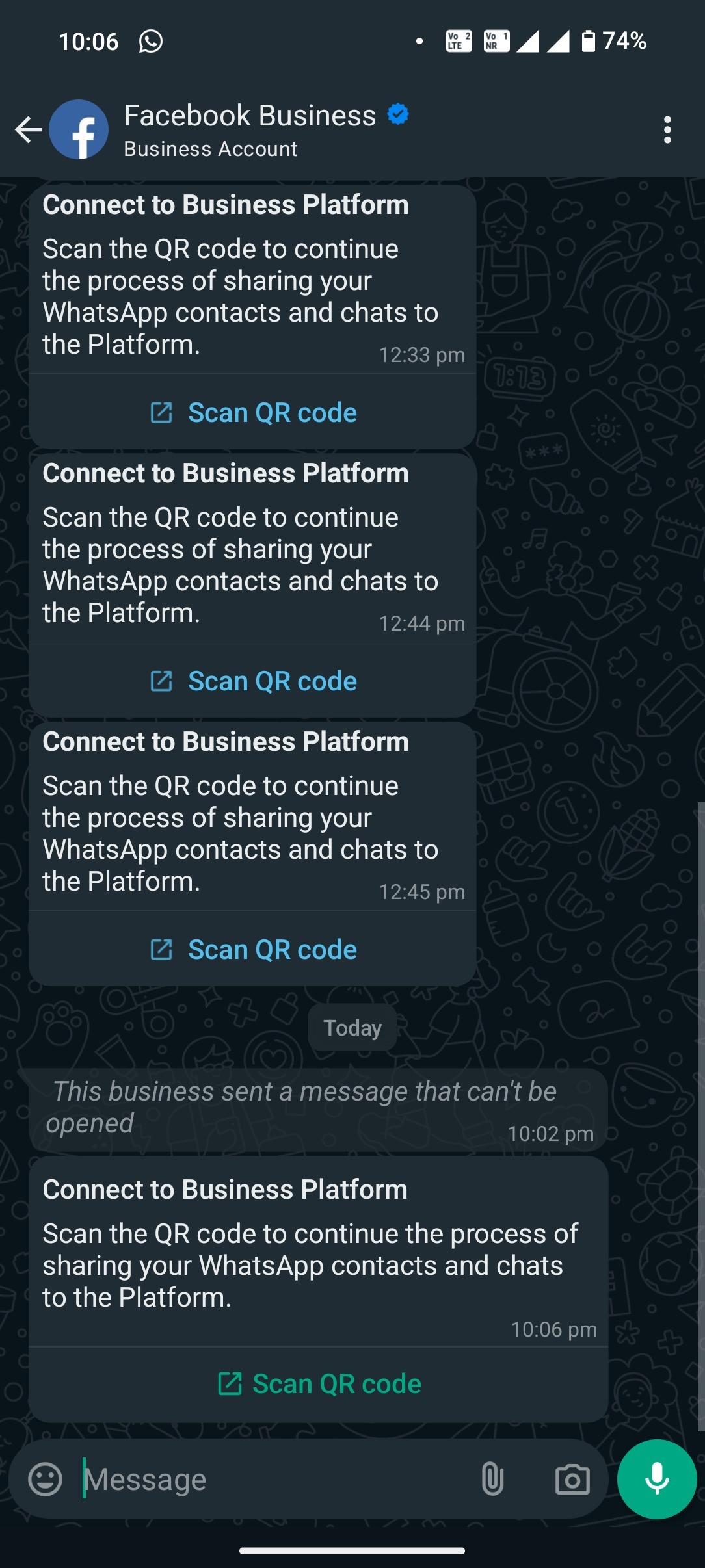
• Scan the QR code to complete the connection.
• You can continue using your WhatsApp Business App along with the Business Platform.
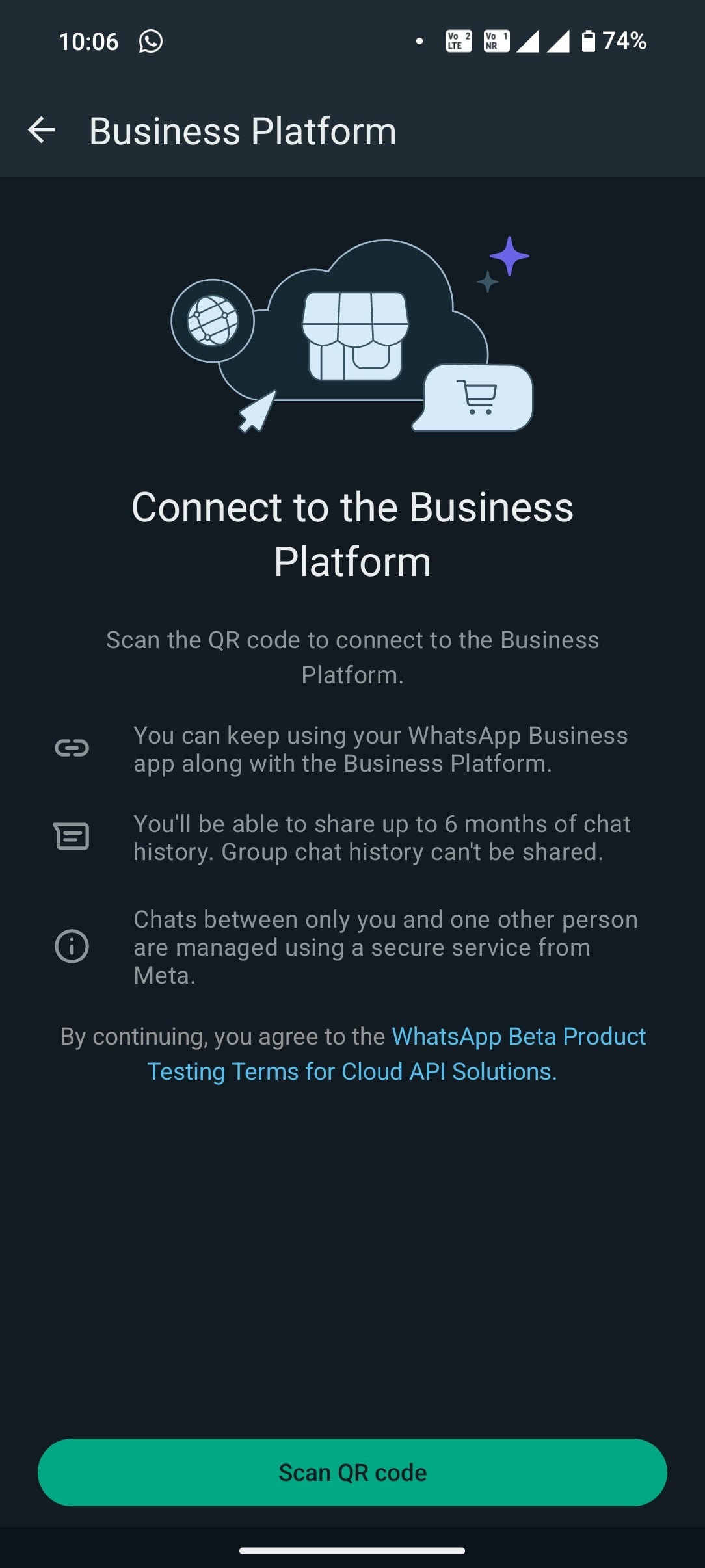
• Your contacts and conversations will be securely synced with LeadConnector.
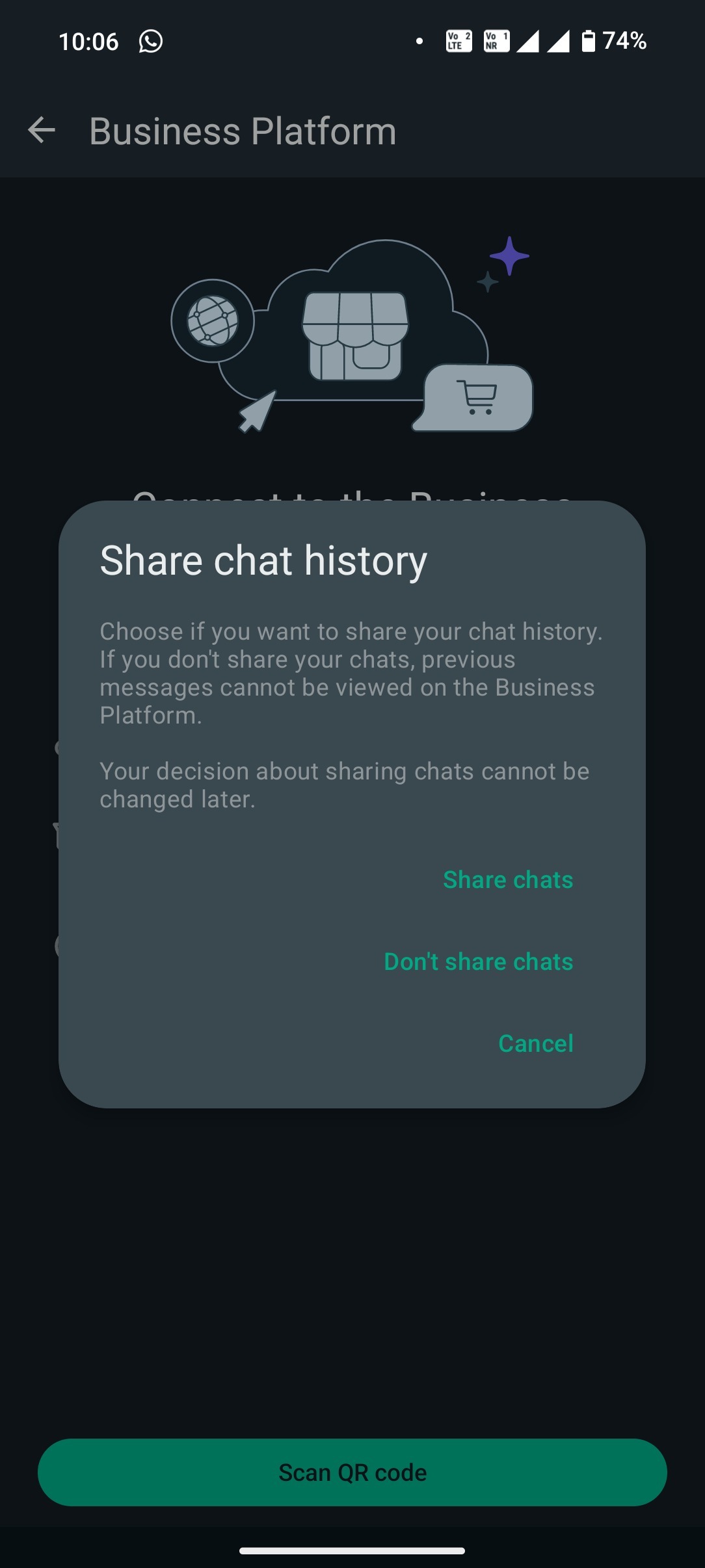
• Your WhatsApp Business App is now successfully integrated with LeadConnector!
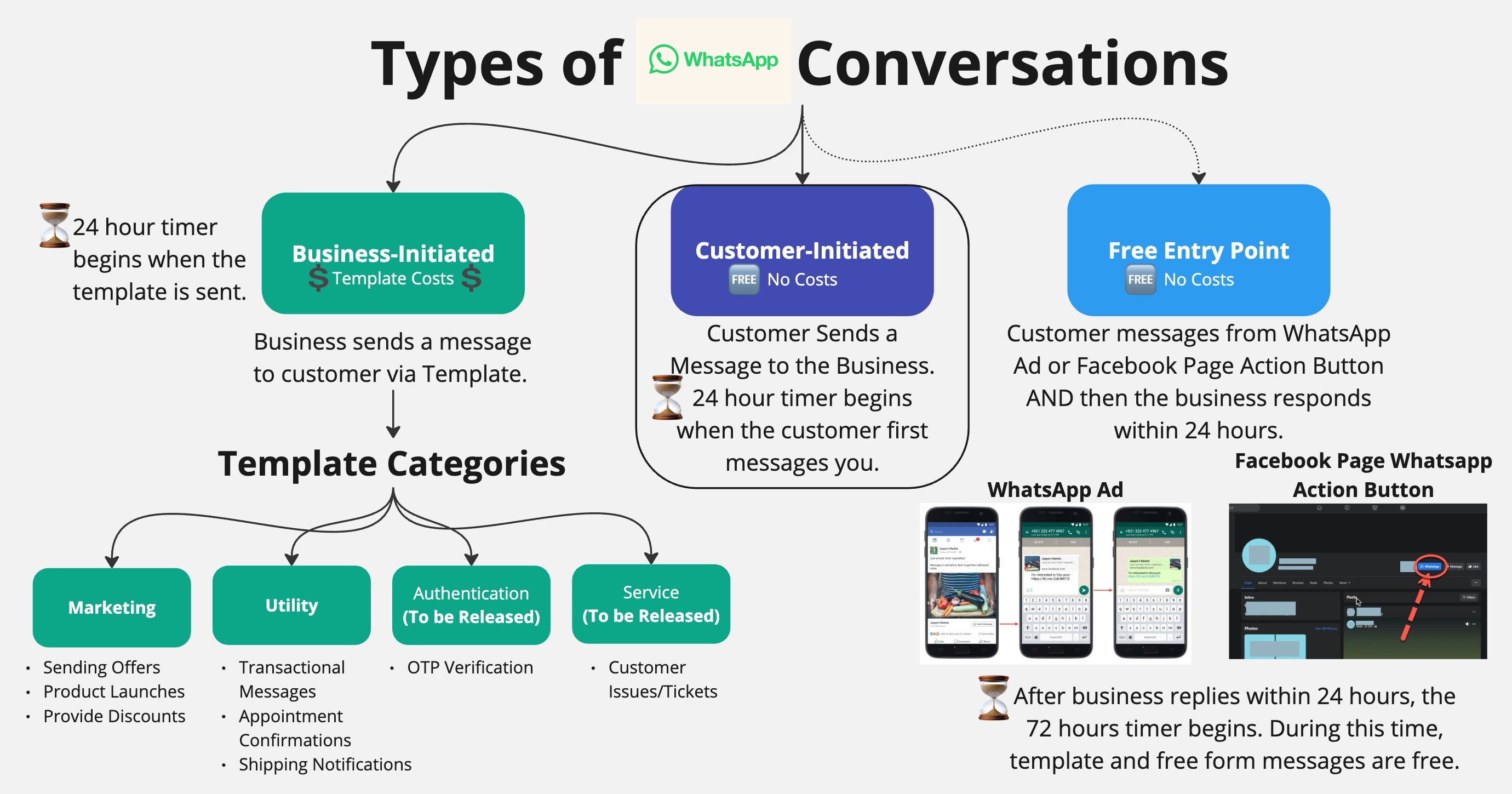
Unless a customer sends you a message, you must utilize a Template to send a new message to a customer. In general, there are two ways to open a WhatsApp conversation (1) when a customer messages you or (2) when you message a template to a customer.
Business-Initiated: Messages sent by businesses to customers using a template. There are four categories of templates and the templates are created and reviewed by Facebook Meta before they can be used. You can only send templates to customers until they respond, if they do not respond, you can only send templates.
Customer-Initiated: Messages initiated by the customers sending a message to the business. When a customer messages you, it opens up a 24-hour window where you can send any template or free-form message to them.
Free Entry Conversations: Initiated when customers interact with a WhatsApp Ad or a Facebook Business Page WhatsApp Action Button, allowing for a 72-hour window for businesses to respond. The business must respond within 24 hours of customer free point entry, after the business responds, the 72-hour timer begins.
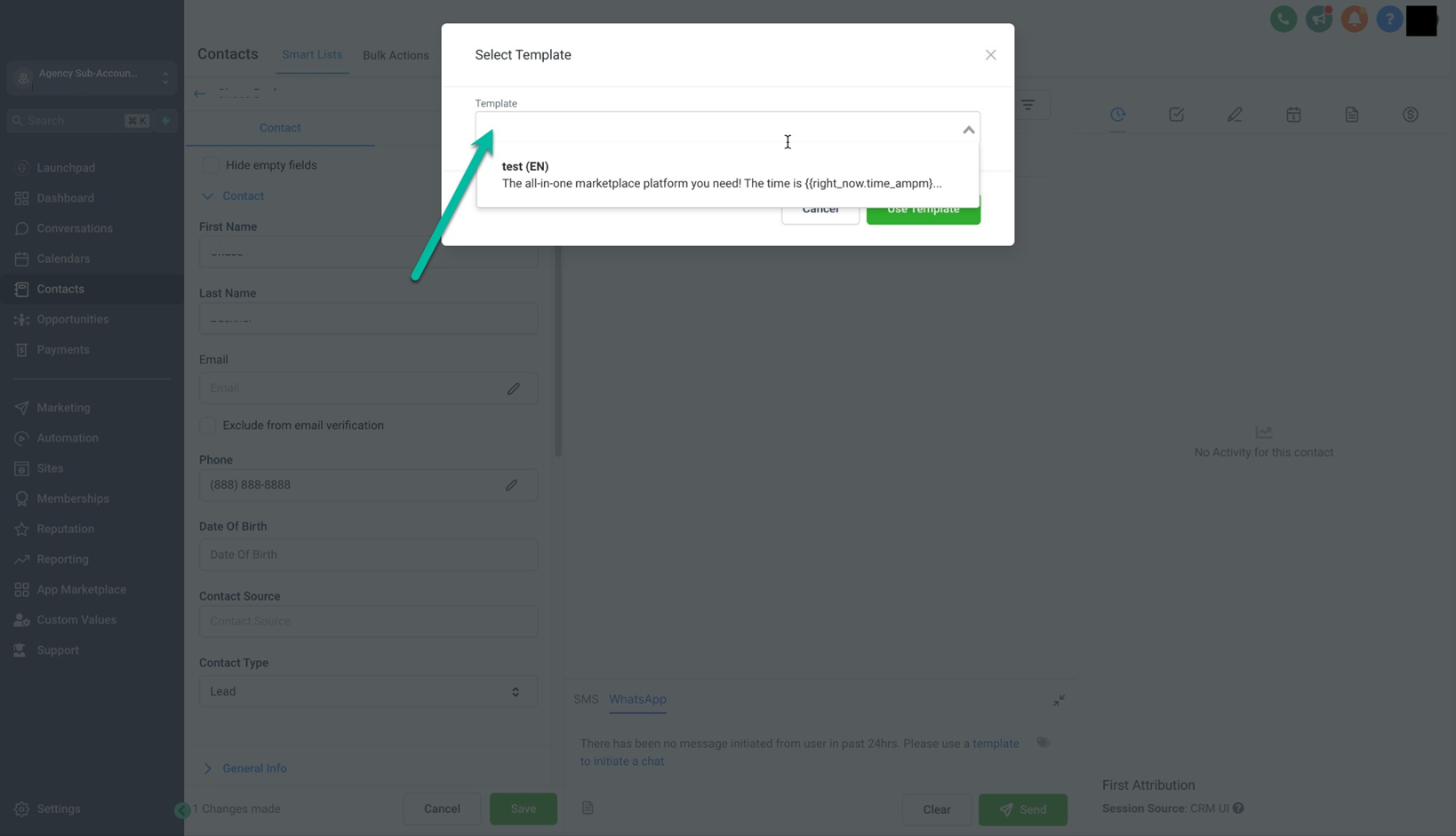
When opening a new Business-initiated conversation, you must utilize a Template. First, you create a WhatsApp template in Intellia. The template will be reviewed and approved (or denied) by Facebook Meta. Below we will review the types of template categories.
Marketing — Enables you to achieve a wide range of goals, from generating awareness to driving sales and retargeting customers. Examples include new product, service, or feature announcements, targeted promotions/offers, and cart abandonment reminders.
Utility — Enables you to follow-up on user actions or requests. Examples include opt-in confirmation, order/delivery management (e.g., delivery update); account updates or alerts (e.g., payment reminder); or feedback surveys.
Authentication (To be Released) — This enables you to authenticate users with one-time passcodes, potentially at multiple steps in the login process (e.g., account verification, account recovery, integrity challenges).
Service (To be Released) — Enables you to resolve customer inquiries.
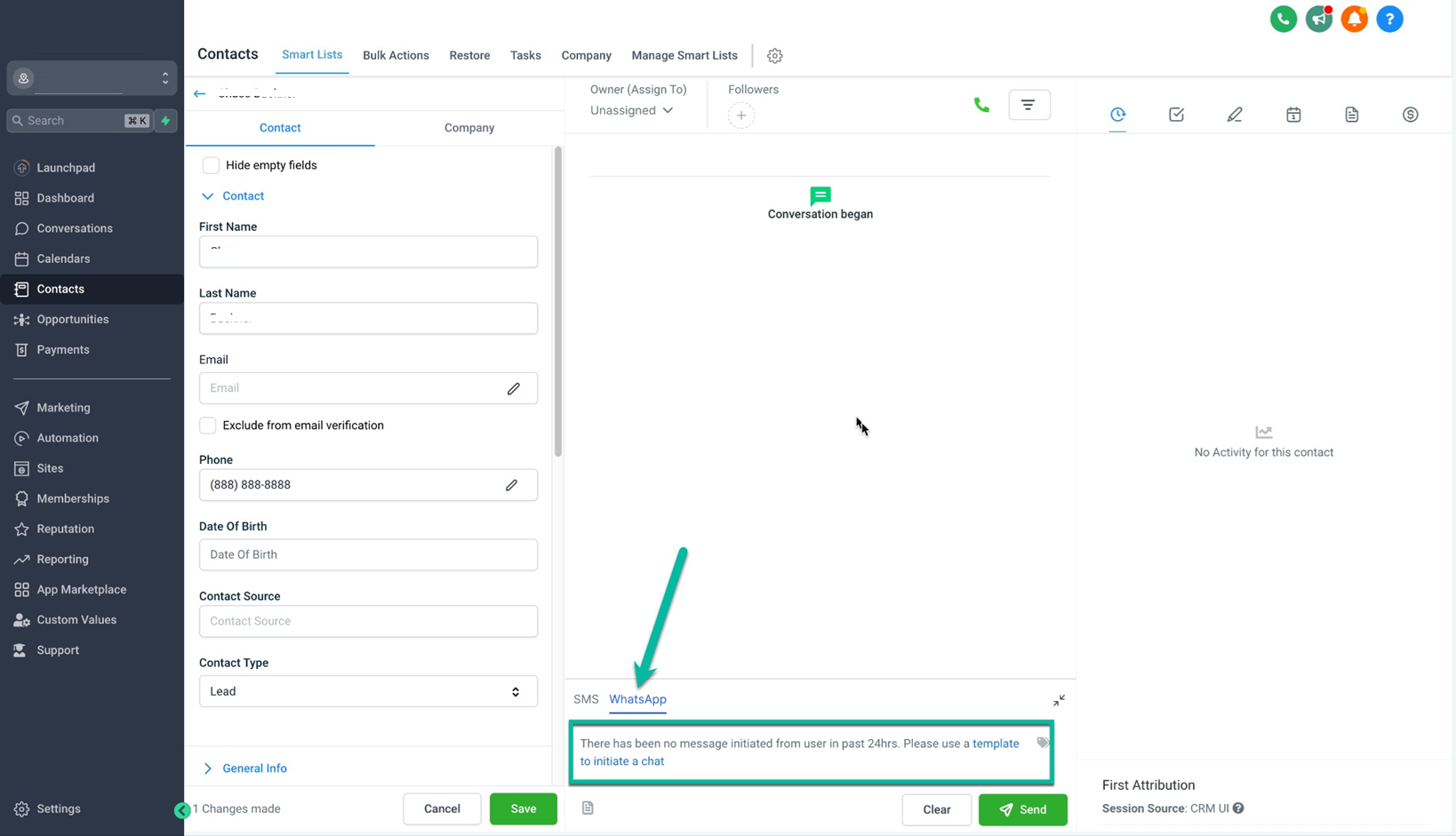
Unless a customer sends you a message, you must utilize a Template to send a new message to a customer. Until a customer responds, you can only send approved templates to customers.
For example, in Intellia, unless the customer sends you a message within 24 hours, you will see a prompt to send a template. You can only send templates until the customer responds.
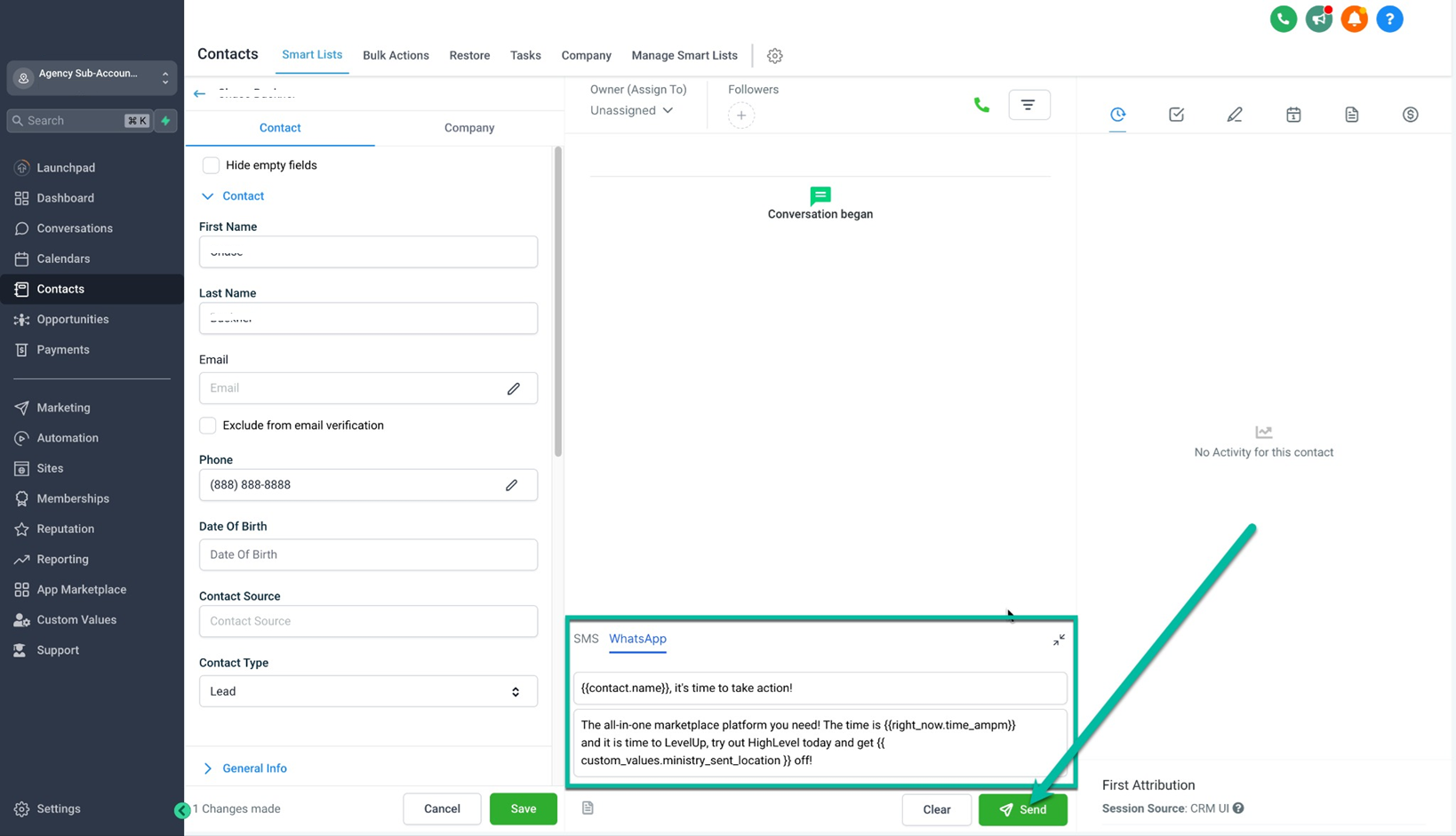
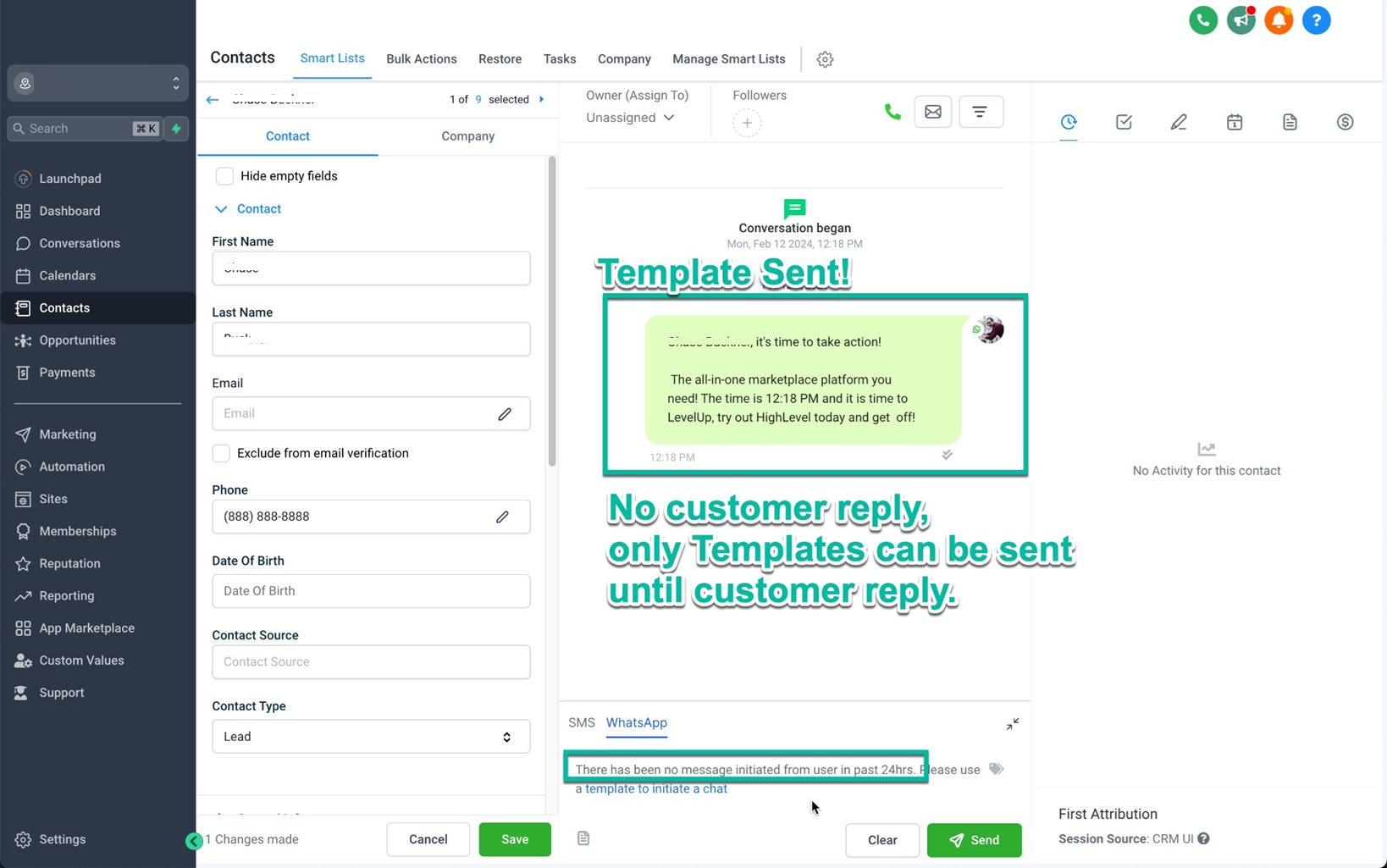
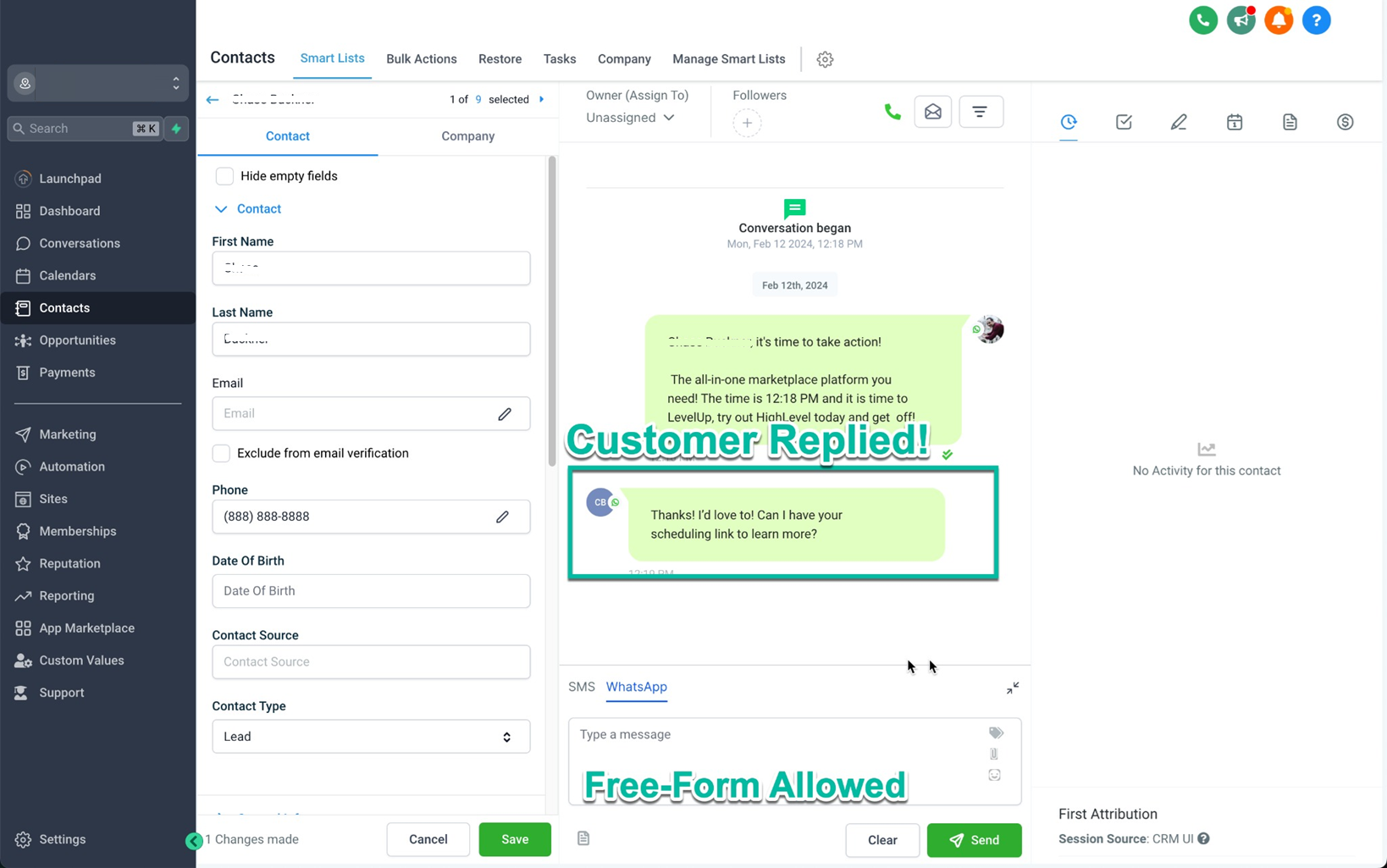
Conversations are opened when you send a template message or free-form message under the following conditions.
[Business-Initiated] Marketing, Utility, and Authentication Conversations
Marketing, utility, and authentication conversations are opened when you send an approved marketing, utility, or authentication template message to a customer and no open conversation with that category exists between you and that customer.
For example, if an open authentication conversation exists between you and a customer and you send them another authentication template message within 24 hours, a new conversation is not opened. If you send them a marketing message, however, a new marketing conversation is opened, resulting in two open conversations.
[Business-Initiated] Service Conversations
Service conversations are opened when you are within a customer service window, you send a free-form message to a customer, and no open conversation of any category exists between you and the customer.
For example, if an open conversation of any category exists between you and a customer and you send them a free-form message within 24 hours, no new conversation is opened. However, if no open conversation exists and the customer messages you (which starts a customer service window) and you reply within 24 hours with a free-form message, a new service conversation is opened.
[Customer-Initiated] Customer Service Windows
When a customer messages you, a 24-hour timer called a customer service window starts. If you are within the window, you can send free-form messages or template messages. If you are outside the window, you can only send template messages.
Multiple Conversations
It is possible to have multiple open conversations between you and a customer. This can happen in the following situations:
An open marketing, utility, or authentication conversation exists between you and a customer and you send them a template message of a different category within 24 hours.
An open service conversation exists between you and a customer and you send them a template message within 24 hours.
Duration of Conversations
Marketing, utility, authentication, and service conversations last 24 hours unless closed by a newly opened free-entry point conversation.
Free-entry point conversations last 72 hours.
Unlike SMS, WhatsApp charges per conversation. Only business-initiated conversations are charged. The charge varies depending on the Template Category and country. All Customer-initiated or Free point conversations are free and are not charged. You must have a WhatsApp Subscription on the Sub-Account as well, which is charged the Intellia Price of $10/mo.
[WhatsApp Sub-Account Subscription]: $10/mo
[New Business-Initiated Conversation]: The amount charged is based on the template category used and the recipient's country.
[Free Entry Point Pricing]: No charge
Template Pricing (New Business-Initiated Conversations)
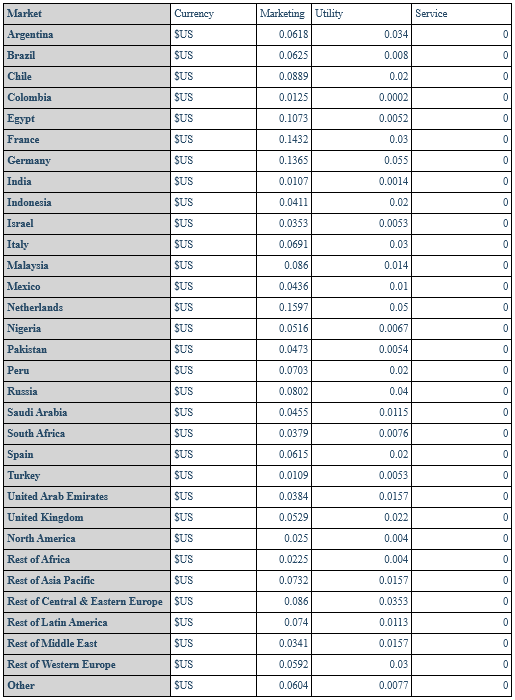
*Pricing is subject to change from time to time as per Meta’s policy.*
WhatsApp, when integrated with Intellia, offers powerful tools for efficient communication and automation in your business workflows. Explore the possibilities today and enhance your business's messaging capabilities!
The recipient phone number is not a WhatsApp phone number.
Sending an authentication template to a WhatsApp user who has a +91 country calling code (India). Authentication templates currently cannot be sent to WhatsApp users in India.
The message was not delivered to create a high quality user experience.
Starting June 14, 2023, roughly 1% of WhatsApp users will not receive marketing template messages from any business unless one of the following conditions is met:
a customer service window exists between the customer and the business
an open marketing conversation exists between the customer and the business
an open free-entry point conversation exists between the customer and the business
If you send a marketing template message to a customer who is part of the experiment group, your message will not be sent and you will not be billed for it since no conversation was created
Q. Customers are not able to see my Business name on their WhatsApp app, instead they are seeing the phone number
Q. I received an error message stating that the number is registered to an existing WhatsApp account. What should I do next?
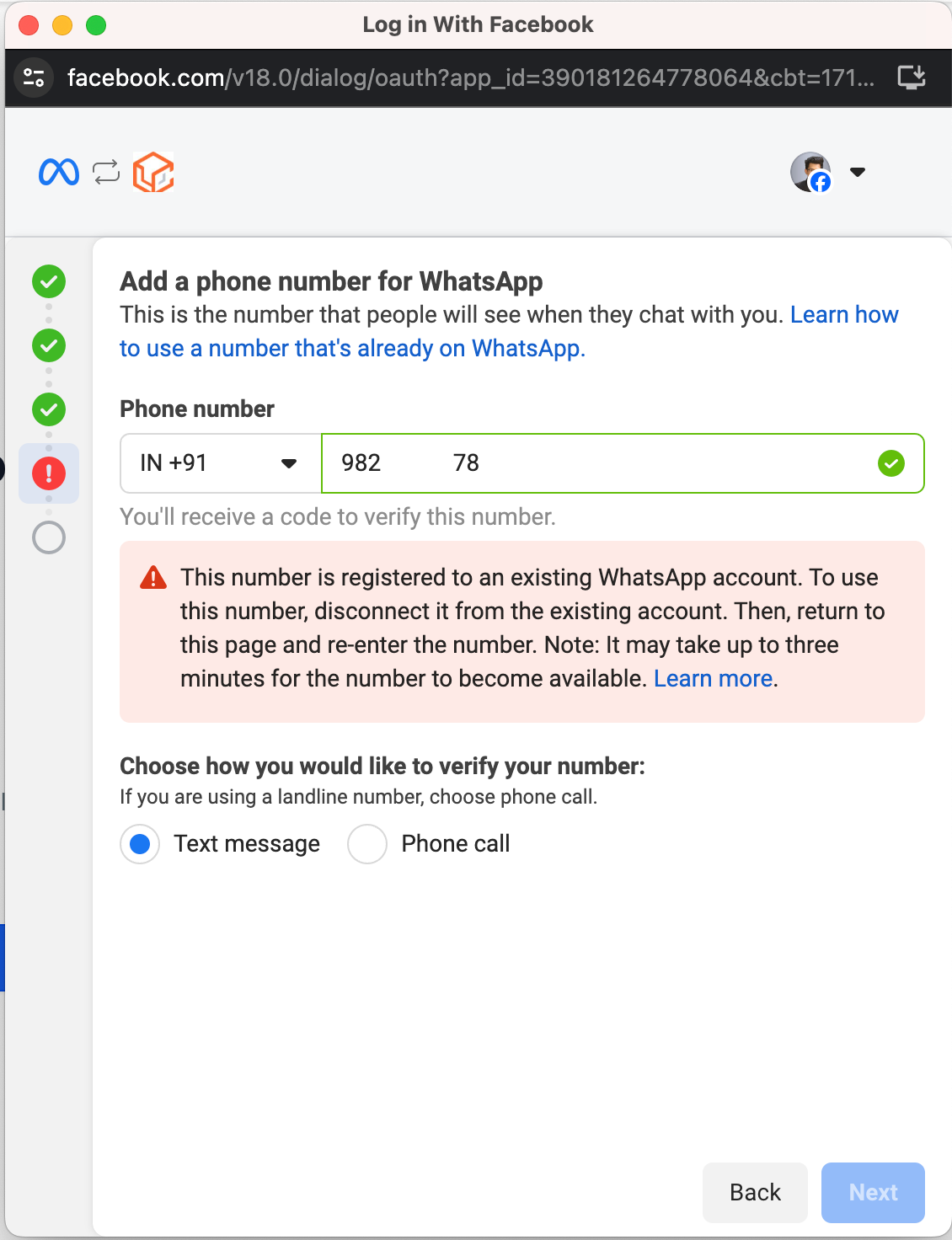
Answer:
This error usually occurs in two situations:
Active WhatsApp Account on Your Mobile Device:
If you currently have an active WhatsApp account on your mobile device, you need to delete that account to connect with the chat account. Follow these steps:
Open the WhatsApp app.
Navigate to Settings > Account > Delete my account.
Note: After integration, you will not be able to use WhatsApp on your phone, and your previous conversation history and contacts will not be migrated
WhatsApp Number Connected to Another Provider:
If your WhatsApp number is linked to another provider, you need to create a new WABA account and migrate your number to the new WABA account
Q. I am getting Message Undeliverable error
Reasons can include:
The recipient phone number is not a WhatsApp phone number.
Sending an authentication template to a WhatsApp user who has a +91 country calling code (India). Authentication templates currently cannot be sent to WhatsApp users in India.
The message was not delivered to create a high quality user experience. See Per-User Marketing Template Message Limits.
Q. Can I use an LC/Twilio number on WhatsApp even if my A2P 10DLC registration is incomplete?
Yes, you can use the number to register on WhatsApp. However, it is highly recommended that you complete the A2P 10DLC registration for better compliance and reliability.
This message indicates that the WABA (WhatsApp Business Account) you’re trying to onboard is already connected to another Location ID, as shown in the error message or screenshot. If you’d like to onboard this WABA to a different Location ID, you’ll first need to disconnect it from the current Location. Once it’s removed, you can proceed with onboarding it to the desired Location ID.