Create your AppLevel account, which is required to enable WhatsApp messaging inside Intellia.
In this step, you’ll:
Access the AppLevel sign-up page
Use the link below to begin setting up your AppLevel account:
👉 https://info.theintellia.com/en/articles/18-replace-intellia-s-sms-feature-with-whatsapp-message
Open the link and follow the instructions to proceed with the AppLevel sign-up process.
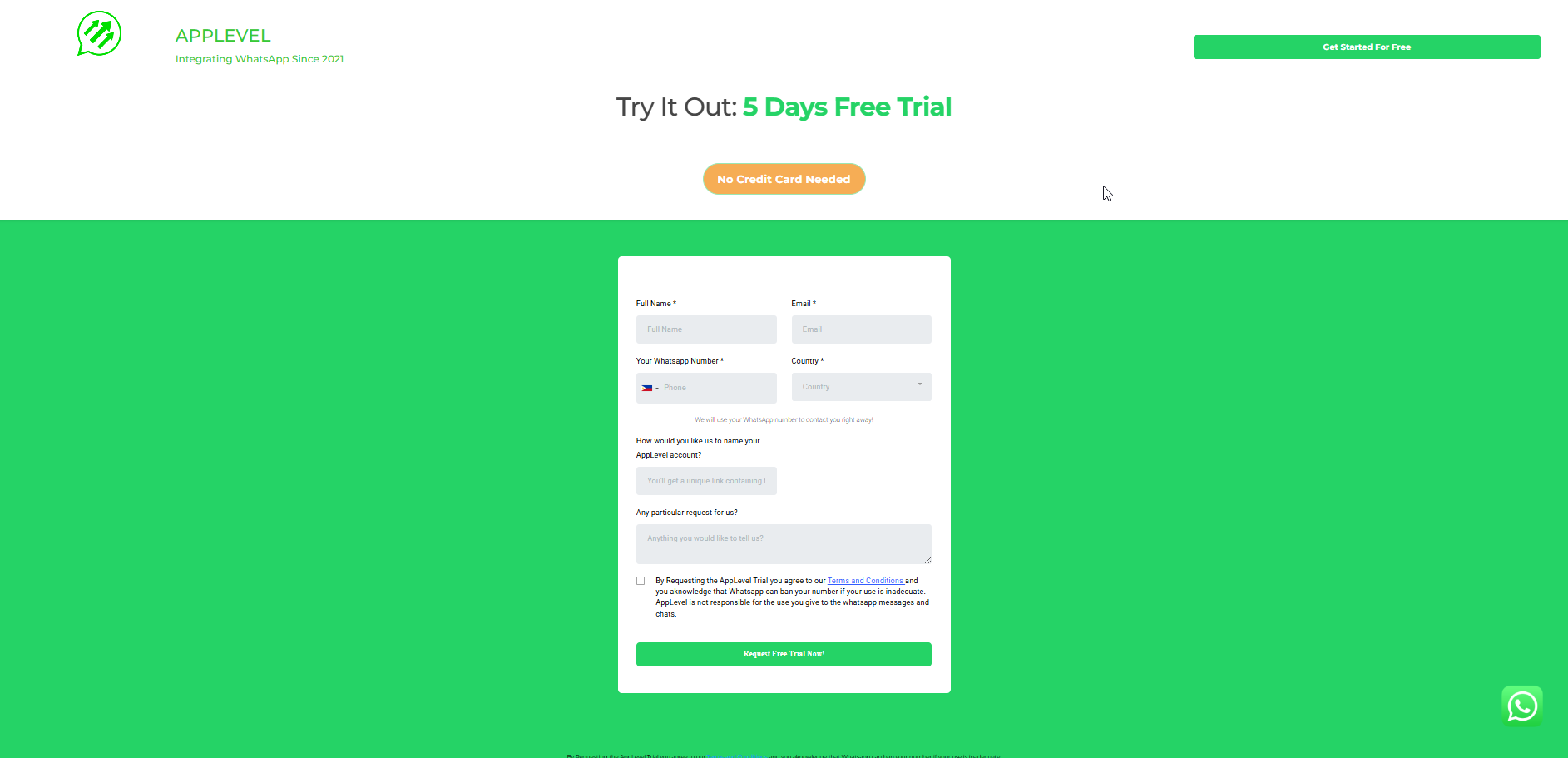
Complete the onboarding process
During the onboarding process:
Fill in the required account details
Connect your WhatsApp number when prompted
Follow all on-screen setup instructions until completion
Make sure you complete the onboarding fully before moving to the next step.
Receive your AppLevel dashboard login details via email
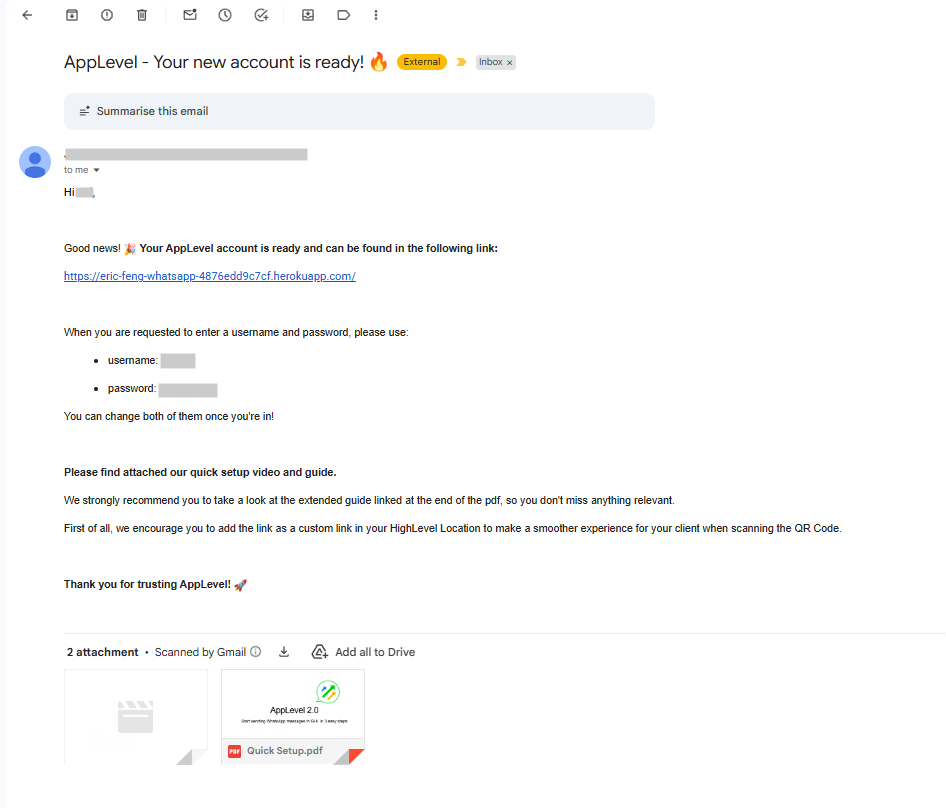
👉 Complete this step before moving on, as AppLevel is required for all WhatsApp connections.
Log in to your AppLevel dashboard.
Locate and click Connect WhatsApp.
A QR code will appear on your screen.
On your mobile phone:
Open WhatsApp or WhatsApp Business.
Go to Linked Devices.
Tap Link a Device.
Scan the QR code displayed in your AppLevel dashboard.
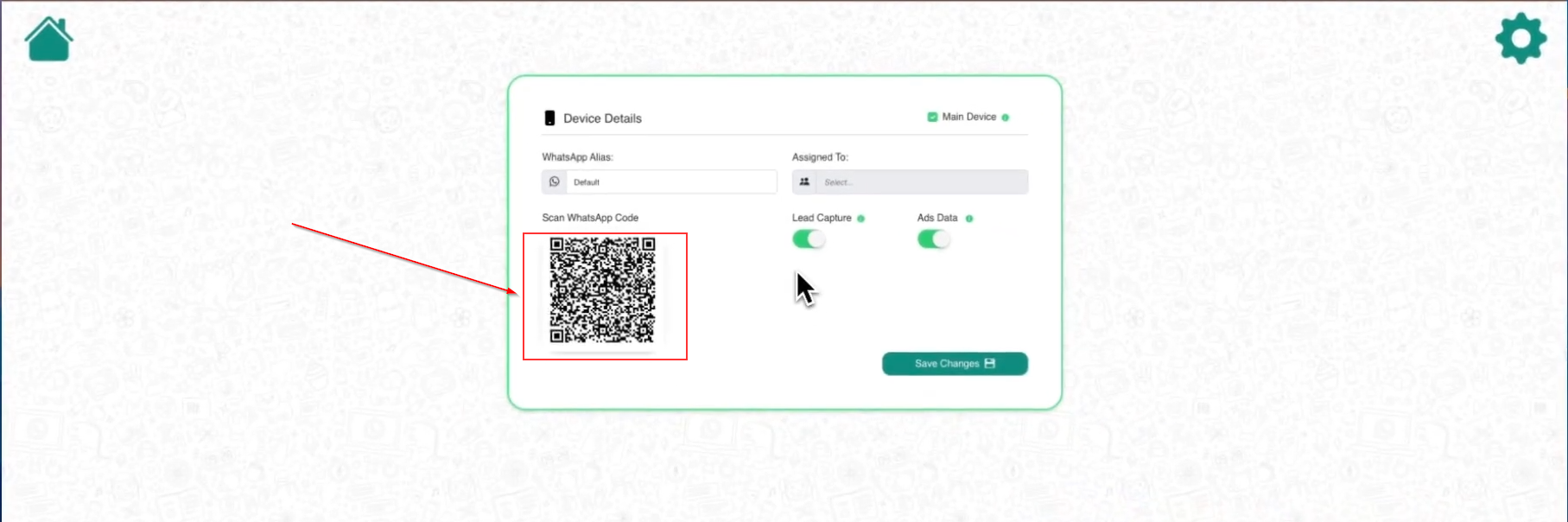
Confirm that your WhatsApp number is successfully connected
👉 This step links your WhatsApp number to AppLevel.
Finalize the connection so WhatsApp can send and receive messages inside Intellia.
In the AppLevel dashboard, click the Gear icon at the top-right corner.
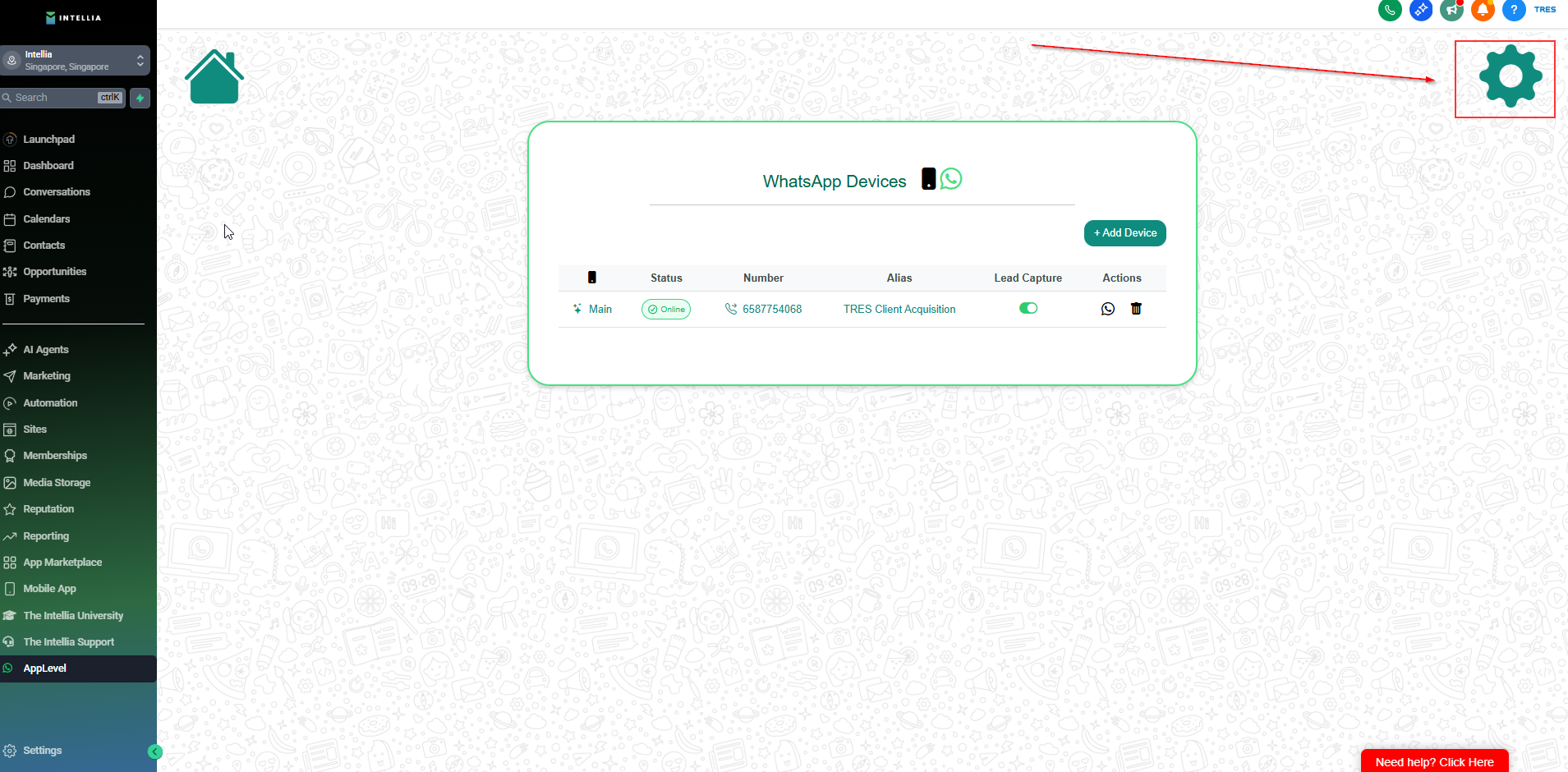
Select Admin Console.
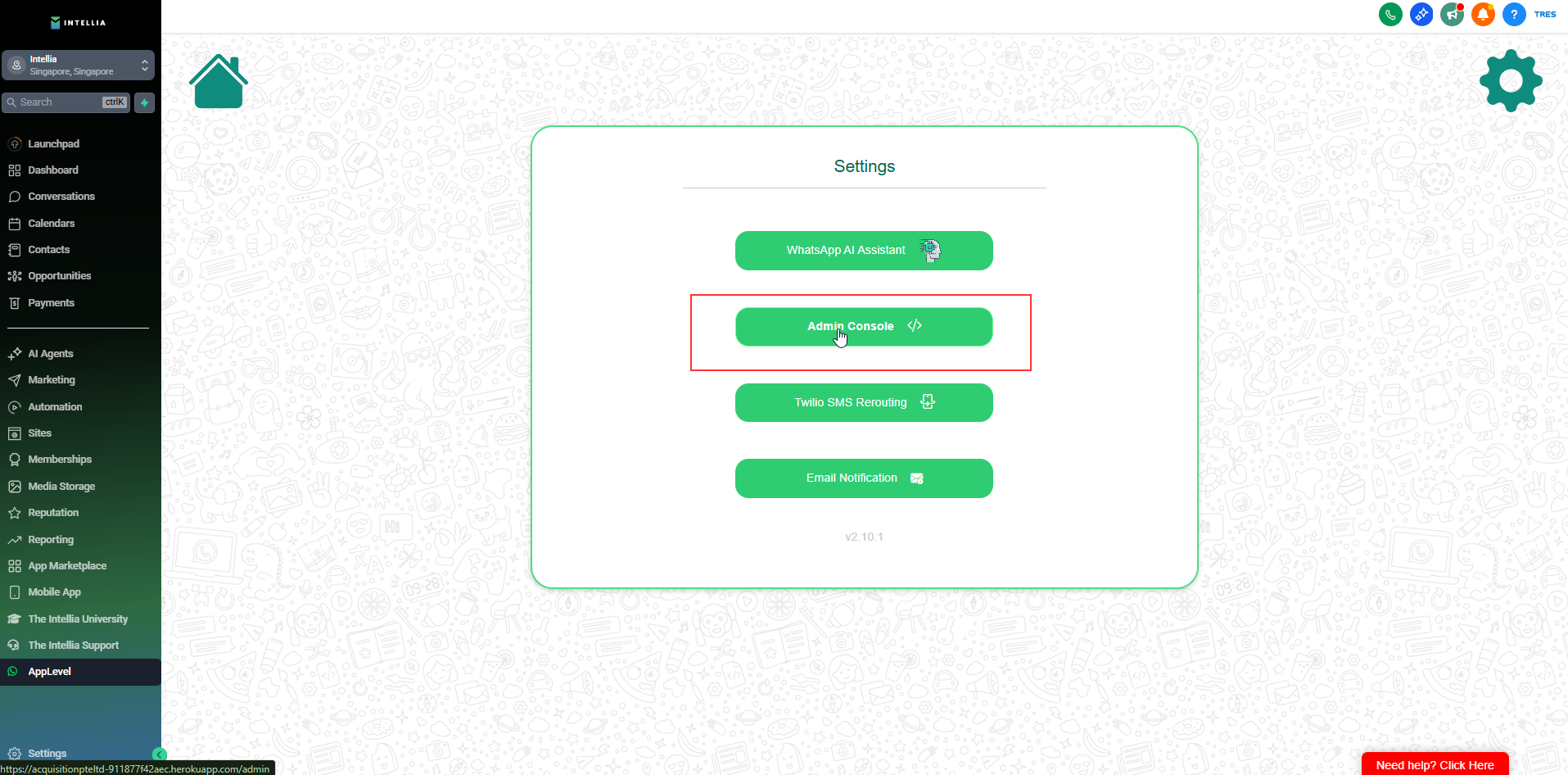
Sign in using the admin login details provided in your AppLevel email.
Once inside the Admin Console:
Click Add Location
You will be prompted to log in to your Intellia account
If you are already logged in to Intellia, simply reload the page.
Search for your Intellia account name, then select it to complete the connection.
Contact support to complete backend configuration and verification
👉 Once this step is completed, your WhatsApp will be fully configured and ready to use.

