Here's the link to the guide: https://info.theintellia.com/en/articles/73-integrating-zoom-with-intellia-calendars.
Pick which Google Calendar syncs so:
Appointments appear on Google Calendar
Availability checks work correctly
Automatically generate Zoom meeting links for booked calls
Ensure Zoom links appear on calendar bookings without manual work
Left sidebar → Settings
Click Profile
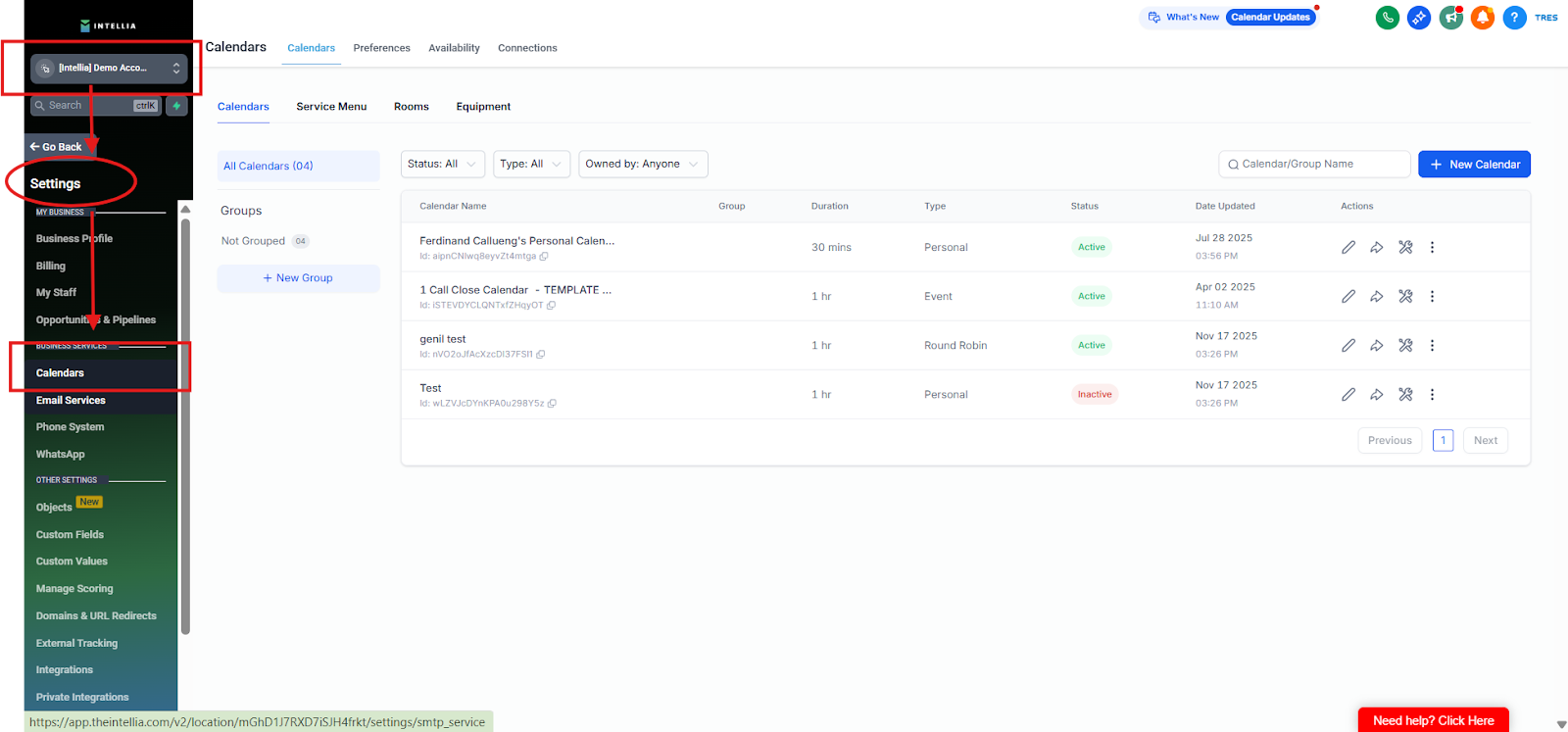
Scroll to Calendar Settings
Click CalendarsClick + Add New
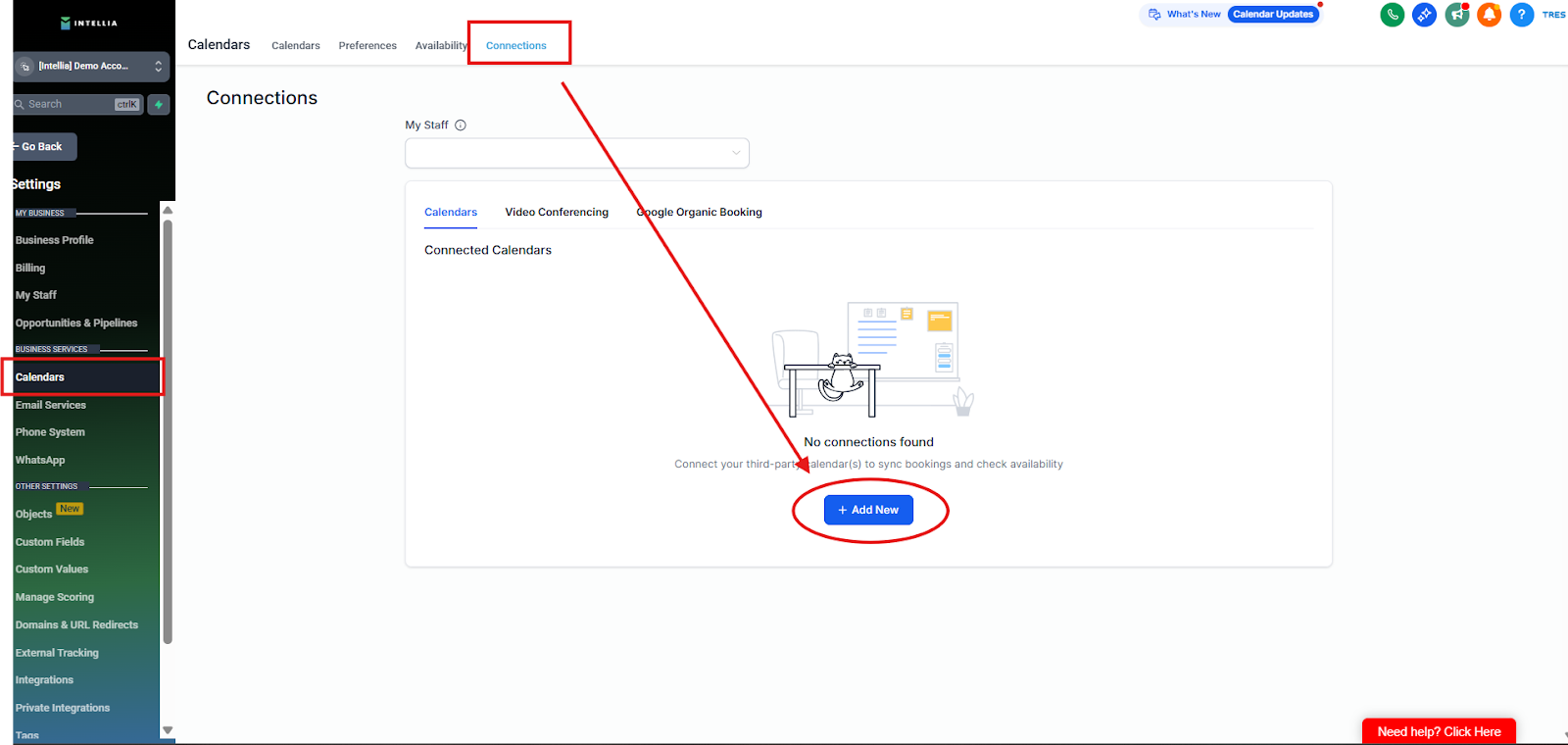
Click Connect
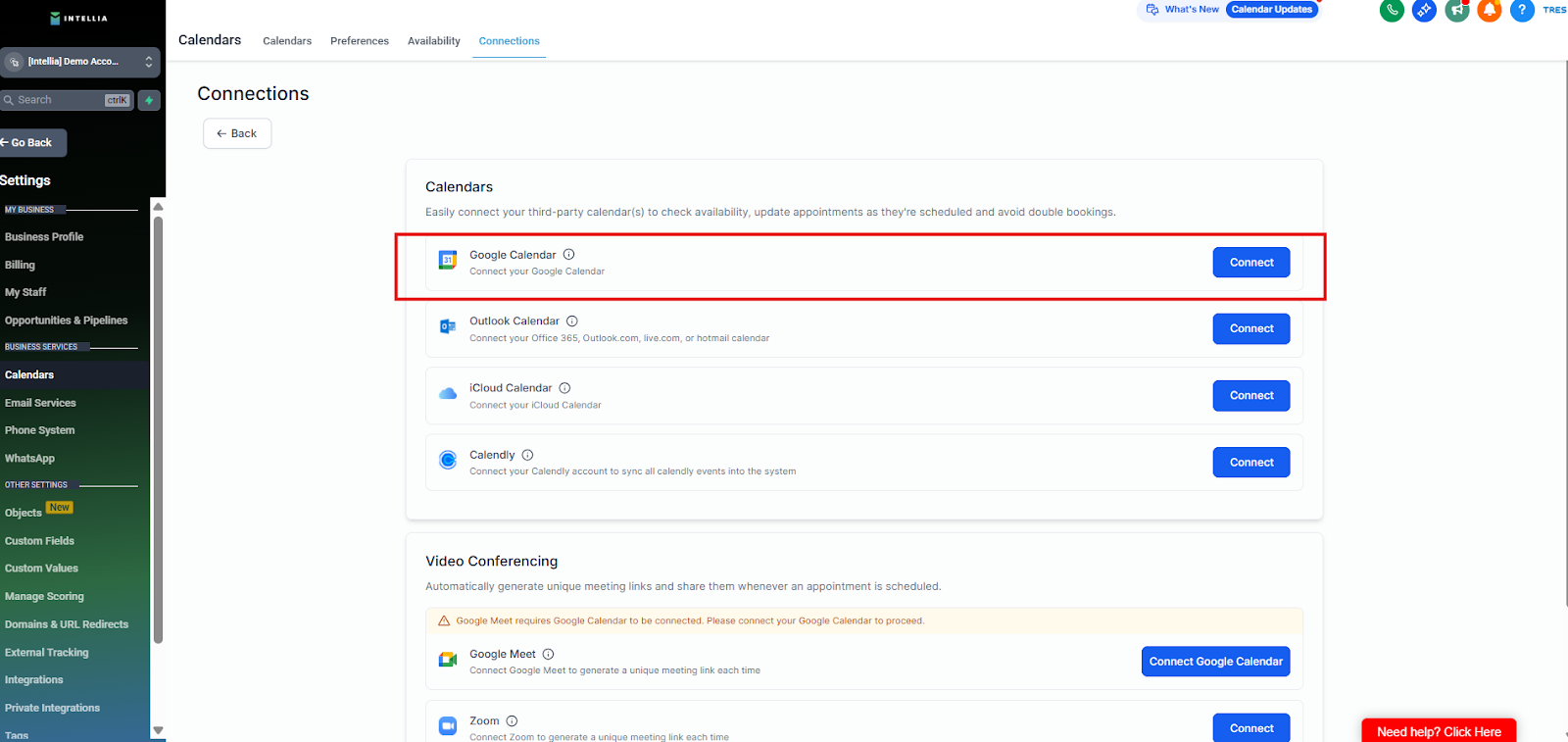
Approve all requested permissions
✅ Success looks like: Your Google Calendar is connected inside Calendar Settings.
Which Google account should you use?
Use the Google account that:
owns the calendar you’ll use for bookings
has stable access (not a temporary staff email)
If you have multiple calendars
After connecting, select the correct one in calendar settings
(example: “Consult Calls Calendar” vs personal calendar)
Make sure you have:
✅ An active Zoom account (Basic or Paid)
✅ Admin access to your Zoom account
✅ Google Calendar already connected to Intellia
✅ Permission to authorize third-party apps in Zoom
Log in to Intellia
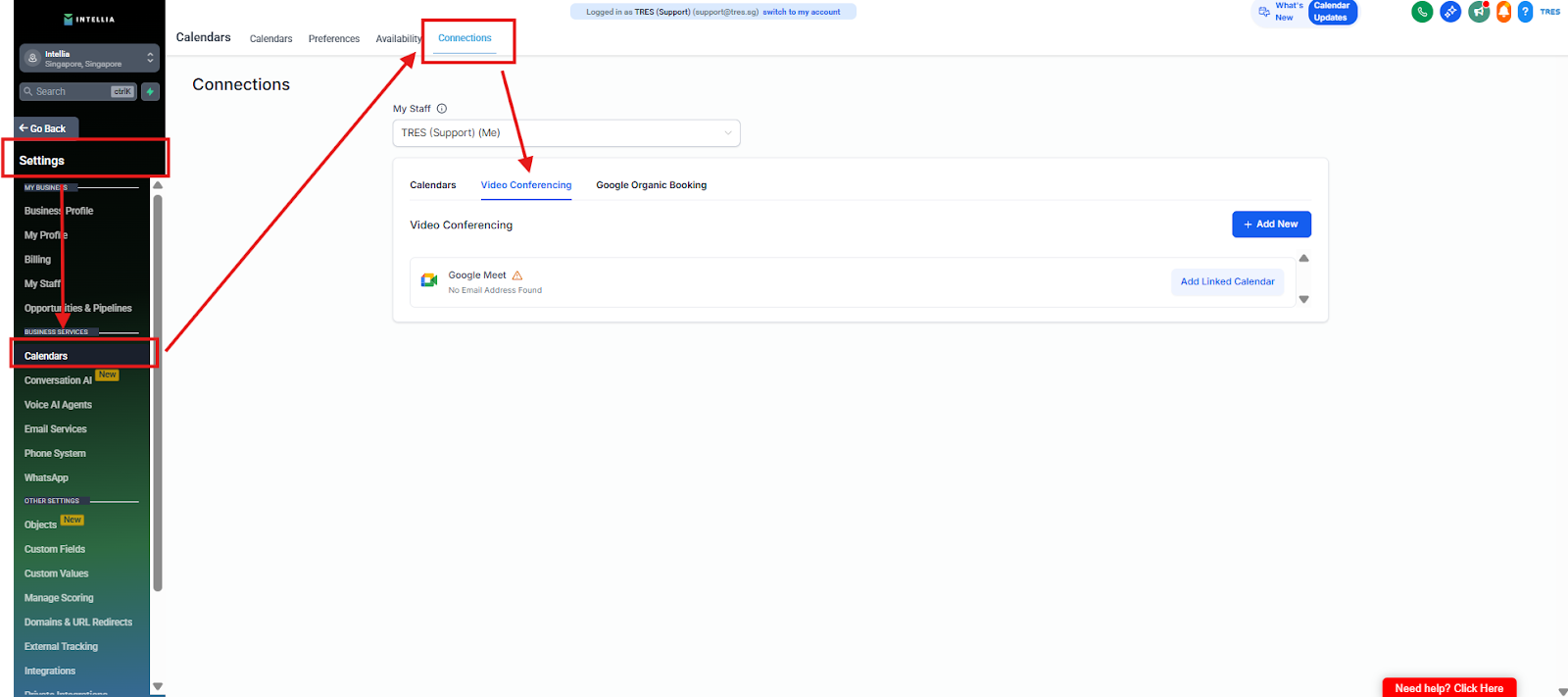
Navigate to My Profile in the Settings navigation bar
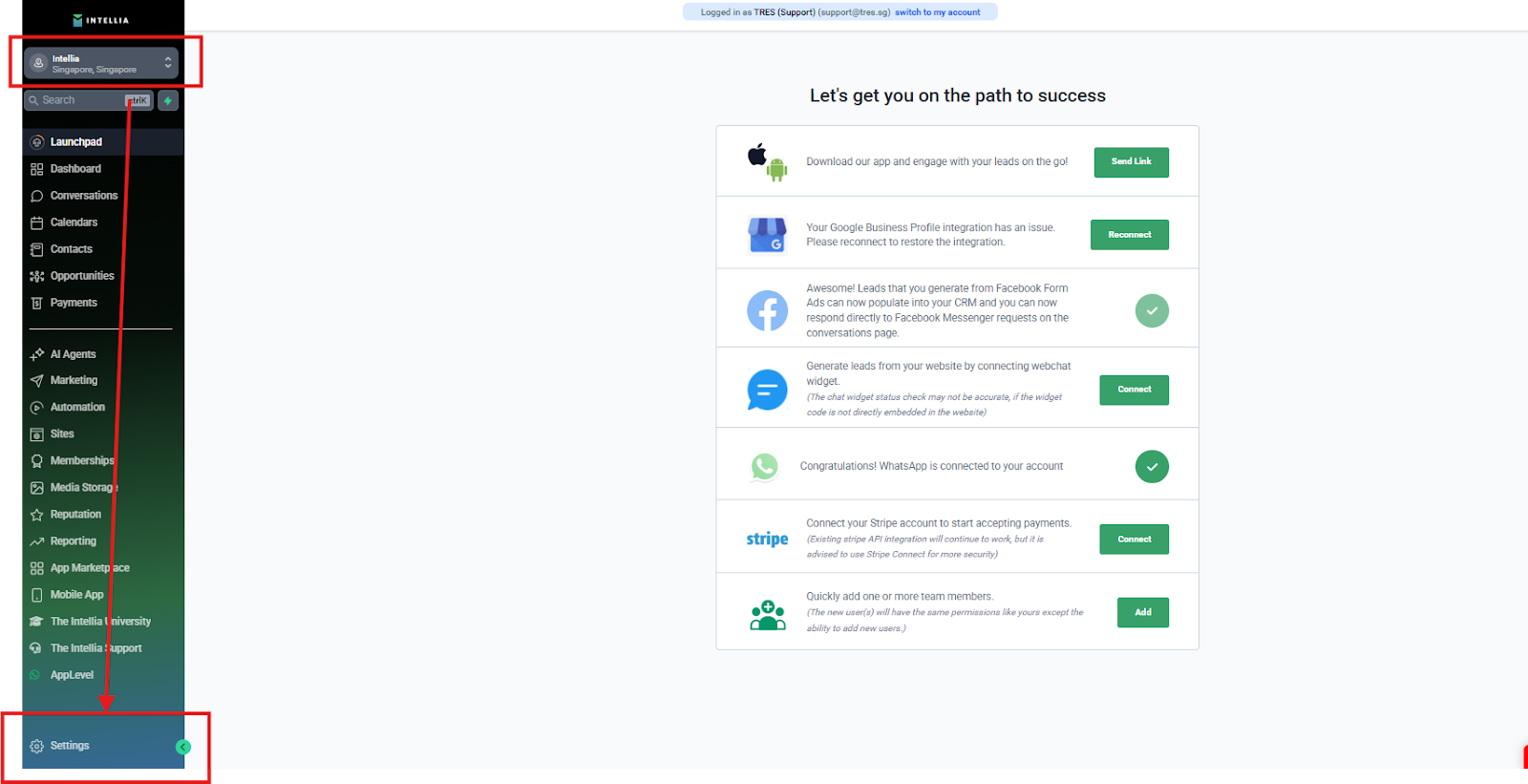
Navigate to the Calendar Section and click the tab labeled Video Conferencing in the secondary navigation ribbon.
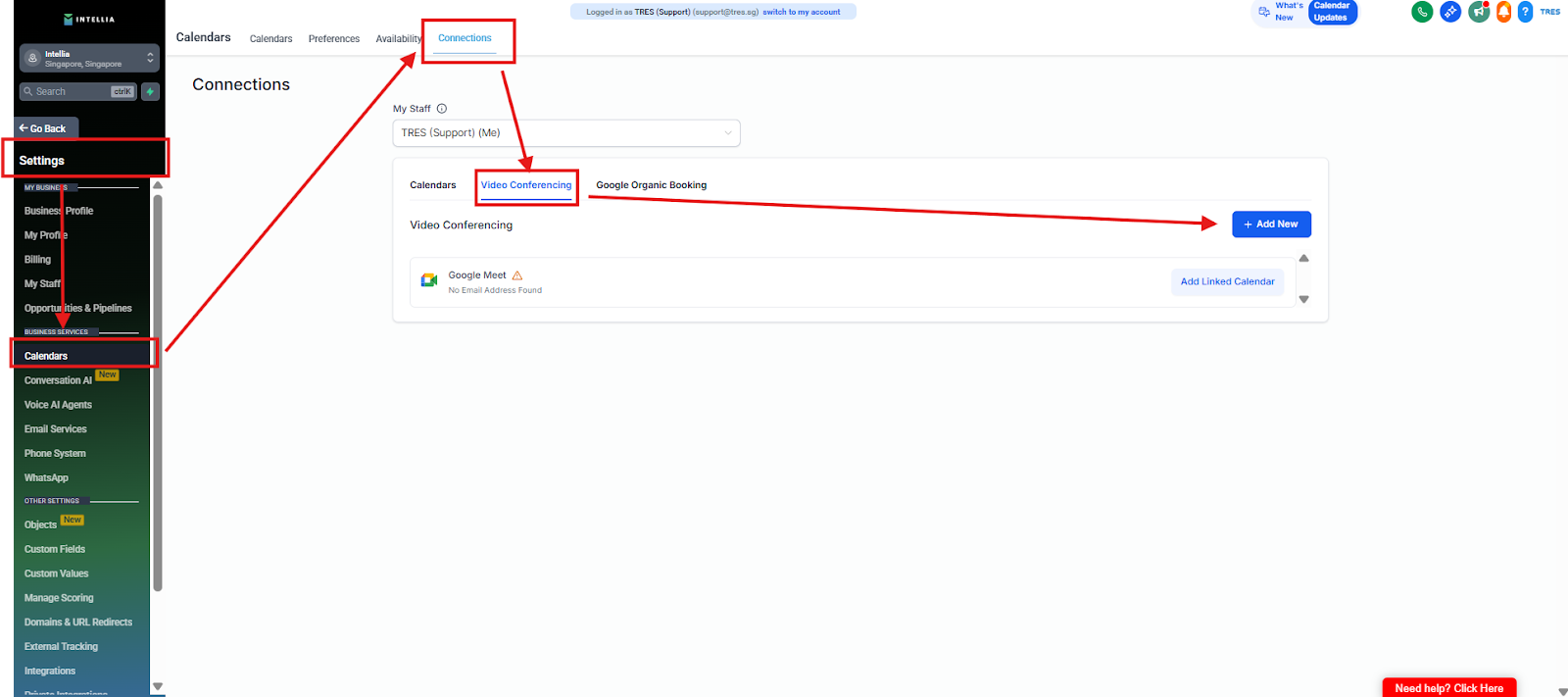
Click the blue button labeled + Add New.
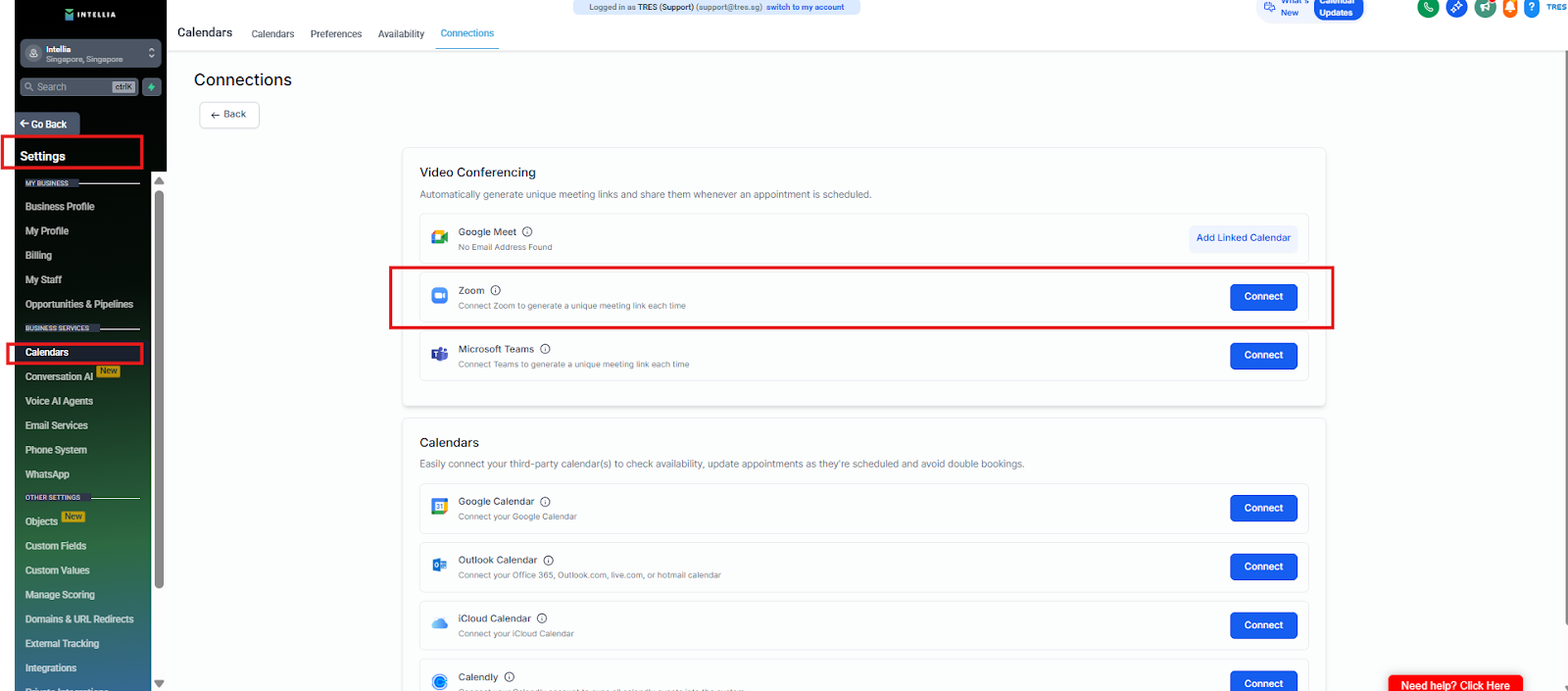
Click Connect (or Sign in with Zoom)
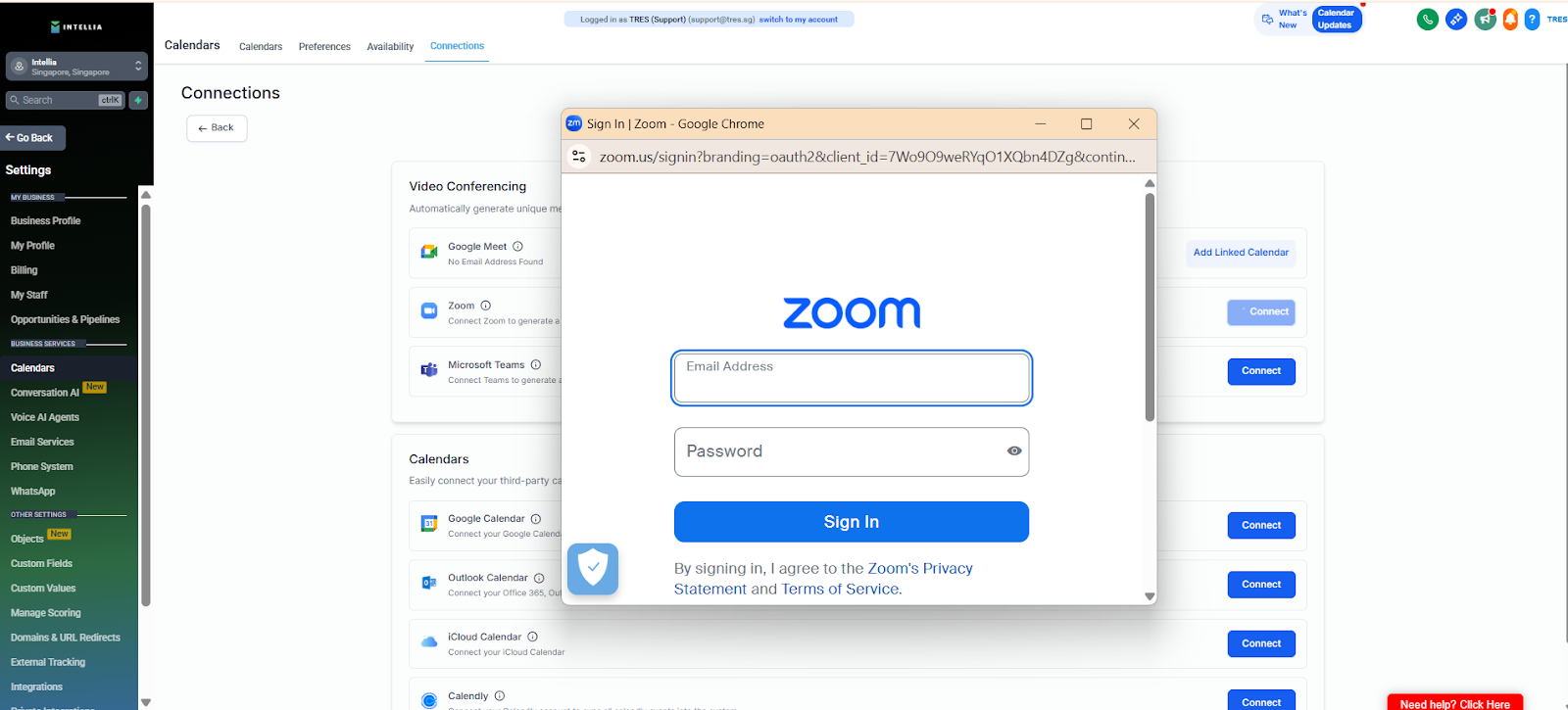
A Zoom authorization window will open
Log in to your Zoom account
Review the permissions request
Click Authorize
✅ What success looks like:
You’re redirected back to Intellia, and Zoom now shows as Connected.
Still inside Settings, go to Calendars
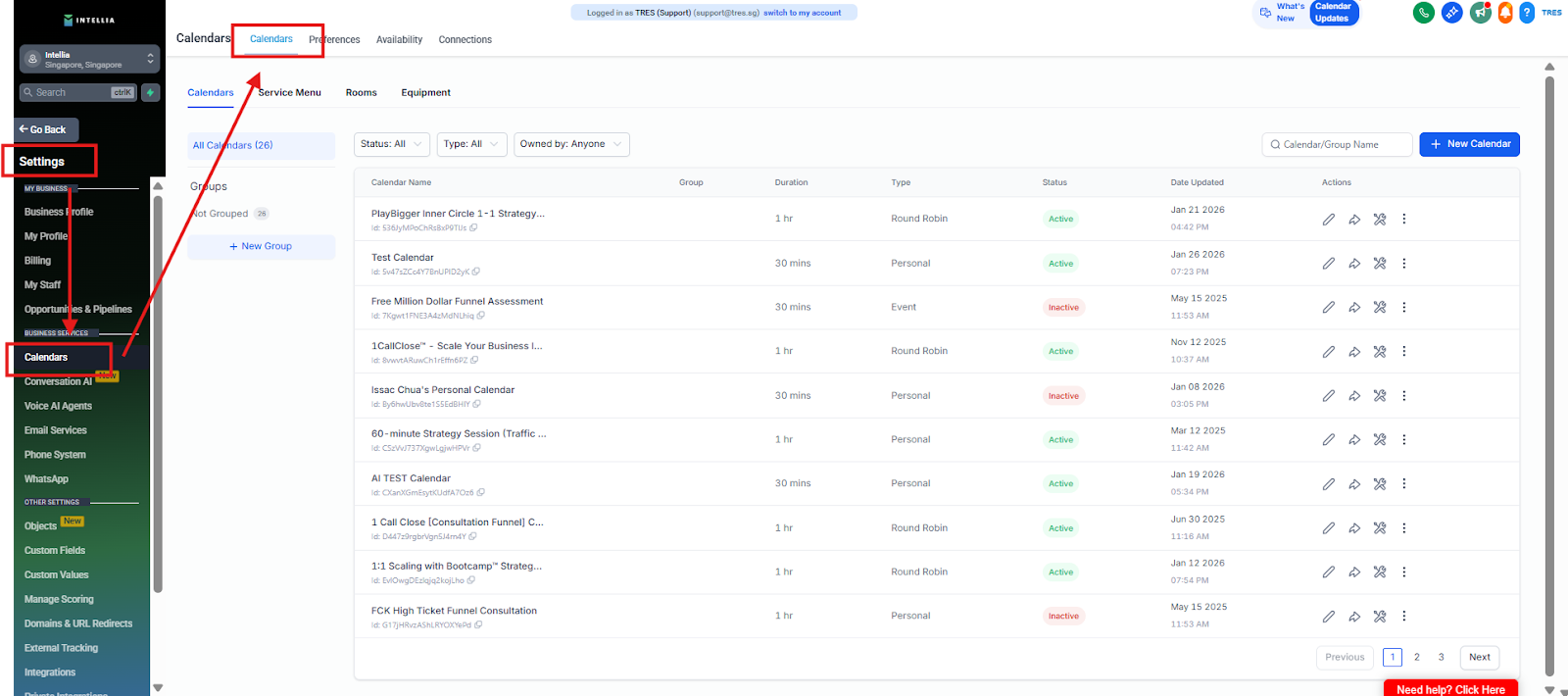
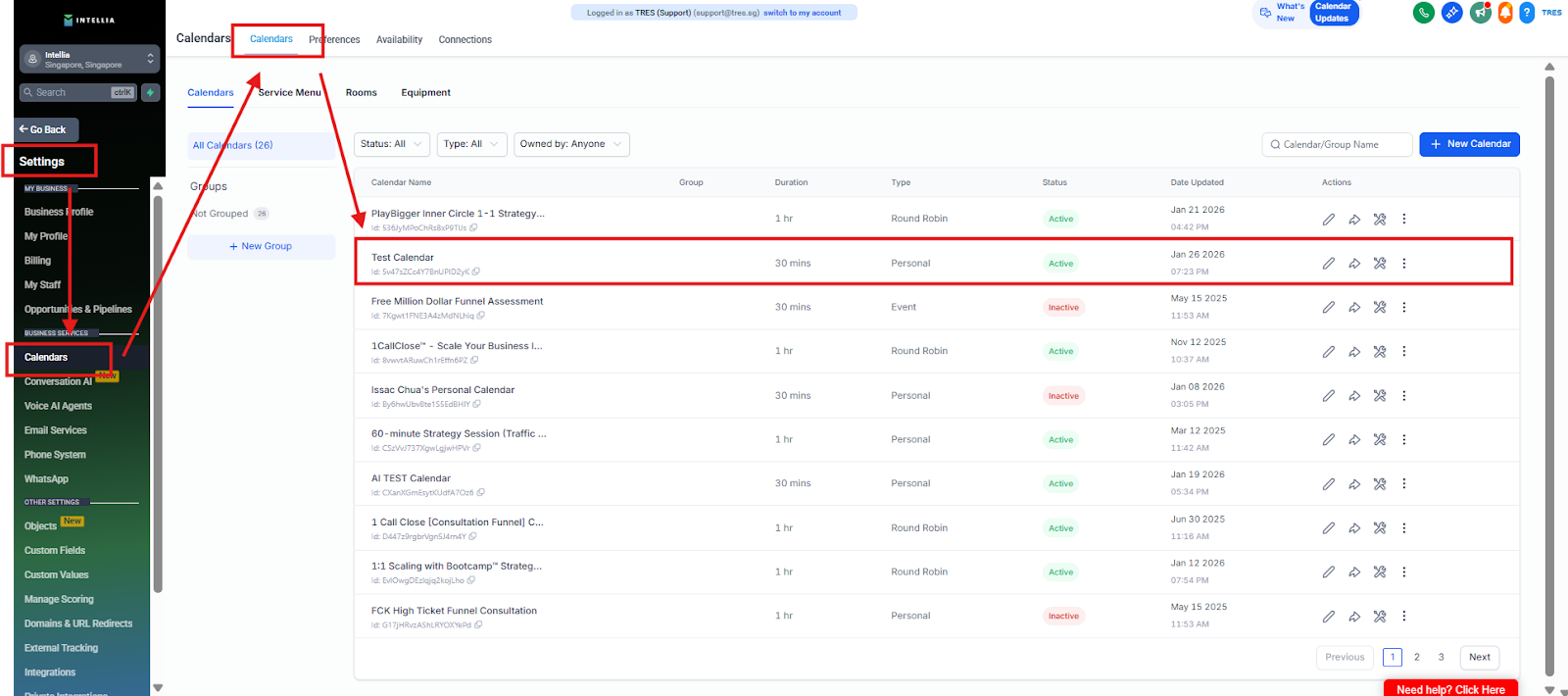
Open an existing calendar OR create a new one
Note: Do you want to create a new calendar? Here’s a guide on how to create a new calendar: https://info.theintellia.com/en/articles/4-how-to-set-up-the-calendar
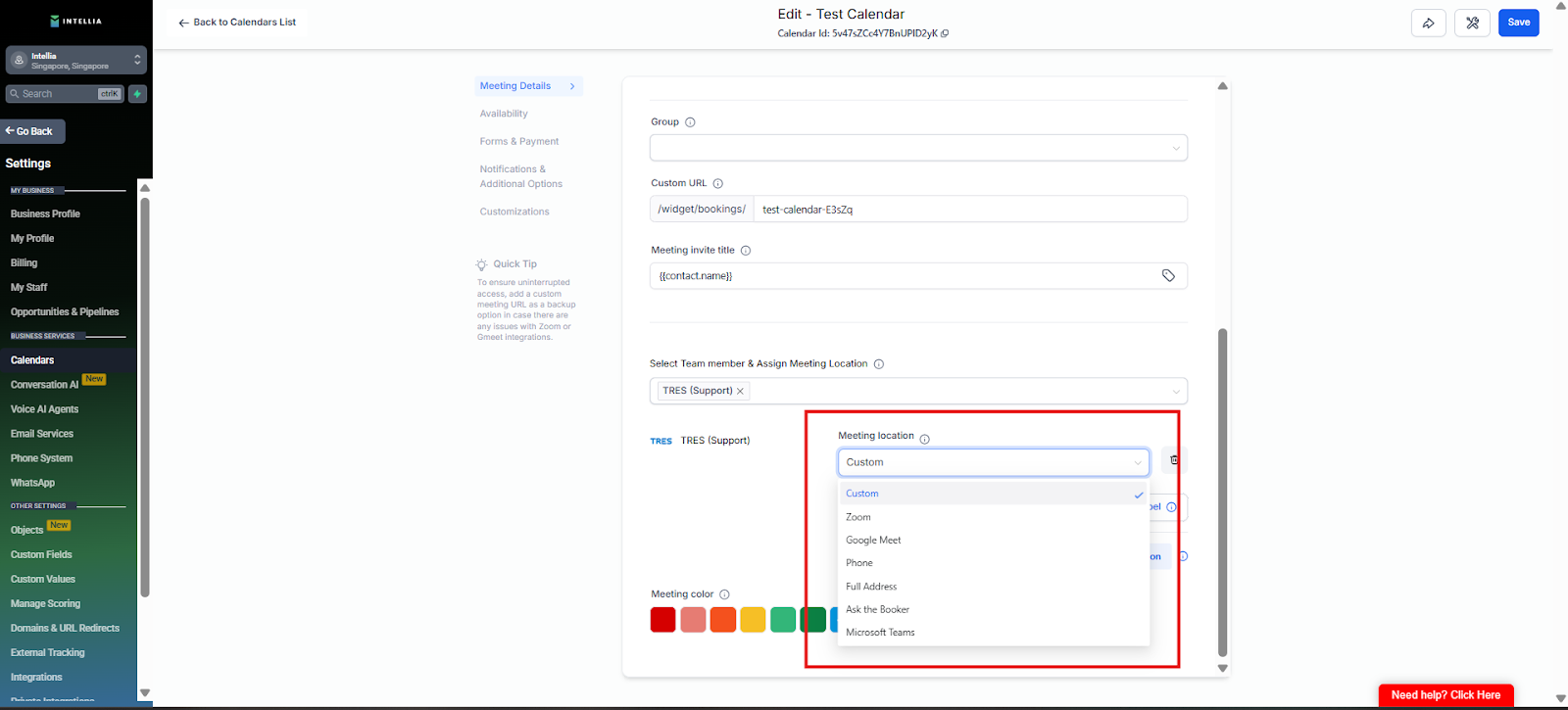
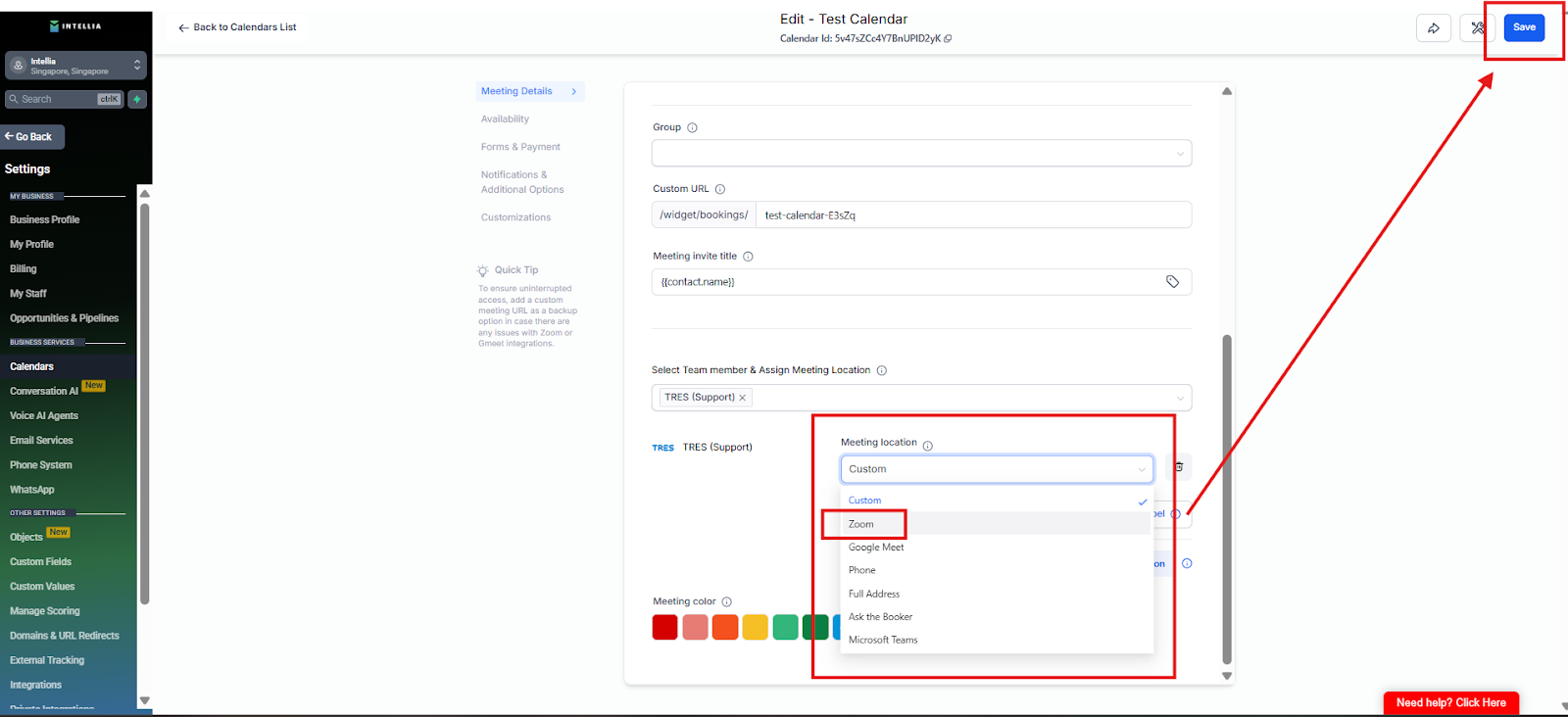
Look for the Meeting Location / Conference Type section
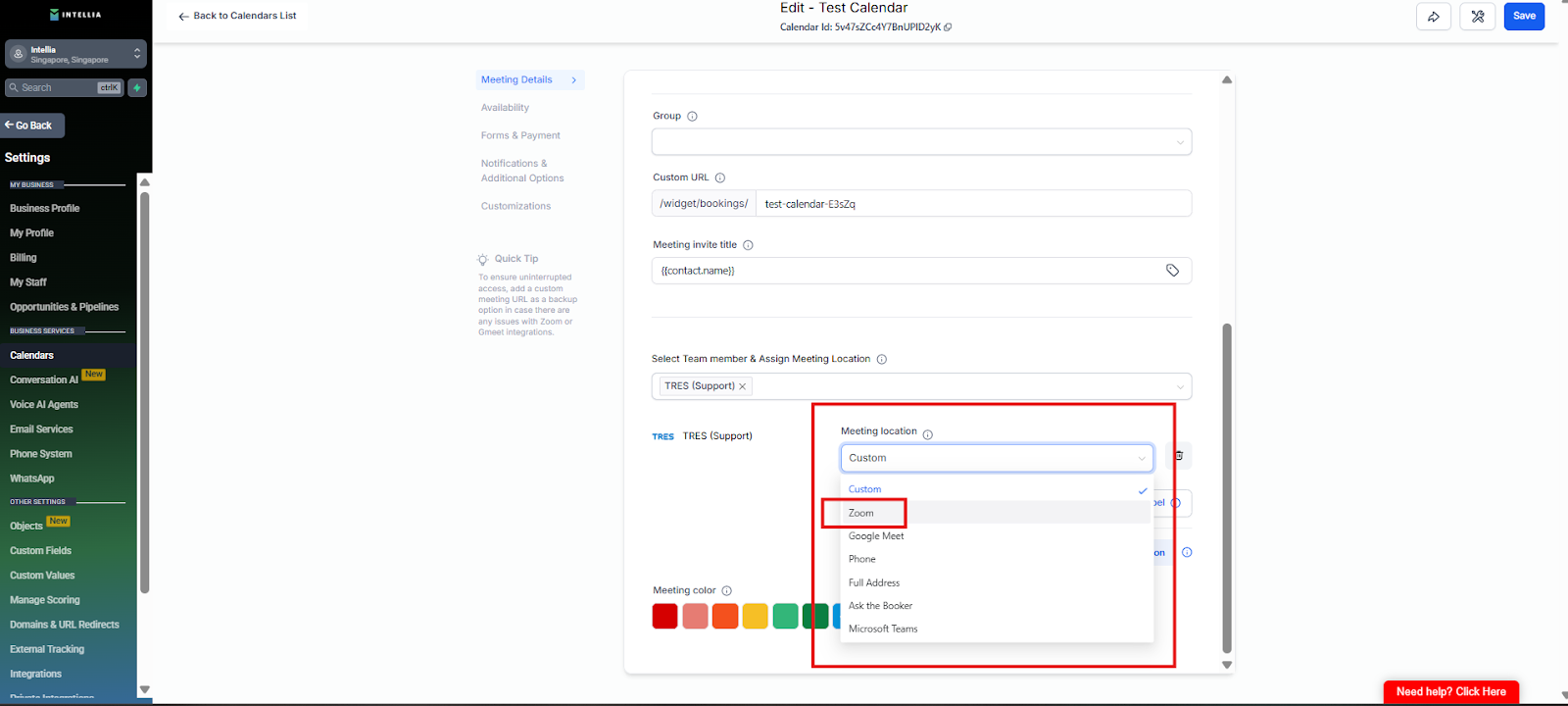
Select Zoom
Save the calendar
✅ What success looks like:
Zoom is selectable as a meeting type for that calendar.
Why do I need to connect Google Calendar to Intellia?
So Intellia can check your availability, place bookings on your calendar, and sync meetings correctly without manual updates.
Which Google account should I use when connecting the calendar?
Use the same Google account from Step 2 — the one that owns the calendar you’ll use for bookings (not a temporary or staff account).
I have multiple Google Calendars. Which one should I select?
After connecting, choose the calendar you want bookings to land on (e.g. Consult Calls vs Personal). Only the selected calendar will receive appointments.
Why do I need to connect Zoom as well?
Connecting Zoom allows Intellia to automatically generate Zoom meeting links and attach them to calendar bookings — no manual setup needed.
What permissions do I need to connect Zoom successfully?
You must have:
An active Zoom account (Basic or Paid)
Admin or authorization permission
Approval access for third-party apps in Zoom
Without these, the connection will fail.
How do I know everything is connected correctly?
Success looks like:
Google Calendar shows as Connected in Calendar Settings
Zoom shows as Connected under Video Conferencing
Zoom is selectable as a Meeting Location inside your calendar
If Zoom isn’t selectable, it’s not fully connected yet.

