You need a number that can receive SMS or Call OTP.
Recommended: Buy a new eSIM
Example: SG number from Zero1 — https://zero1.sg/plan-categories
✅ Before you buy: Check if your device supports eSIM. If not, you’ll need to buy a physical SIM instead.
✅ After purchase: Make sure the eSIM or SIM is installed and connected to your phone so you can receive OTPs via SMS or call.
✅ Best practice: don’t use the founder’s personal number. Use a business-dedicated number.
Log in to Intellia
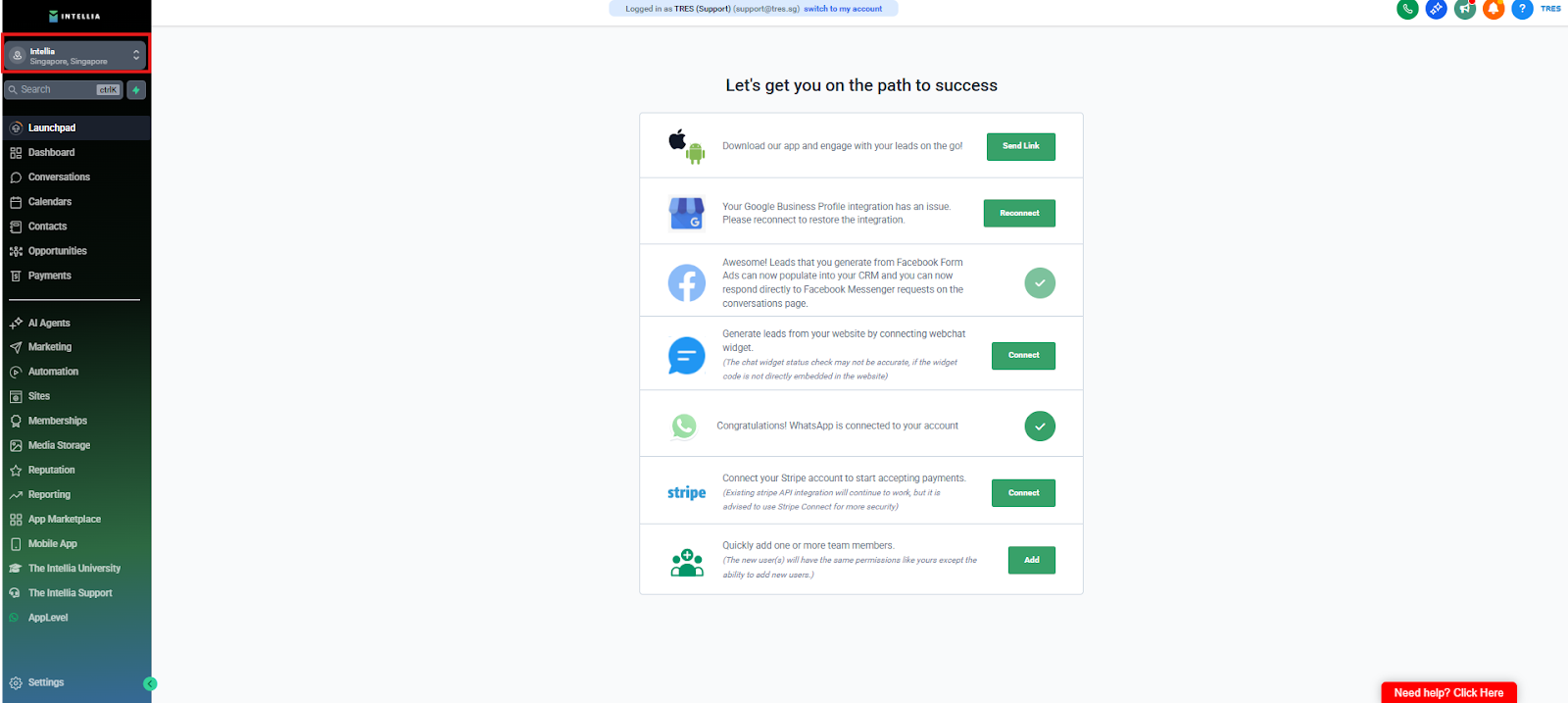
Left sidebar → Settings
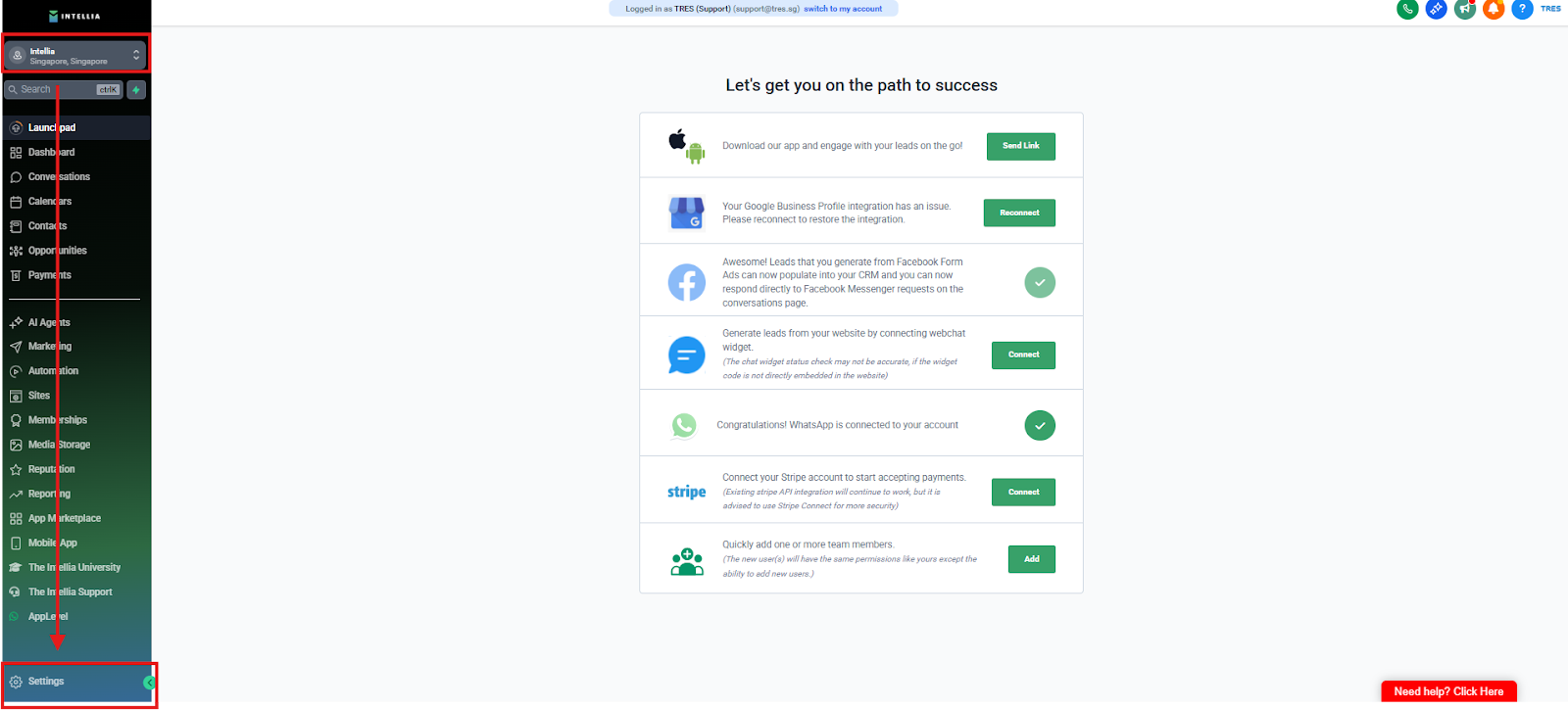
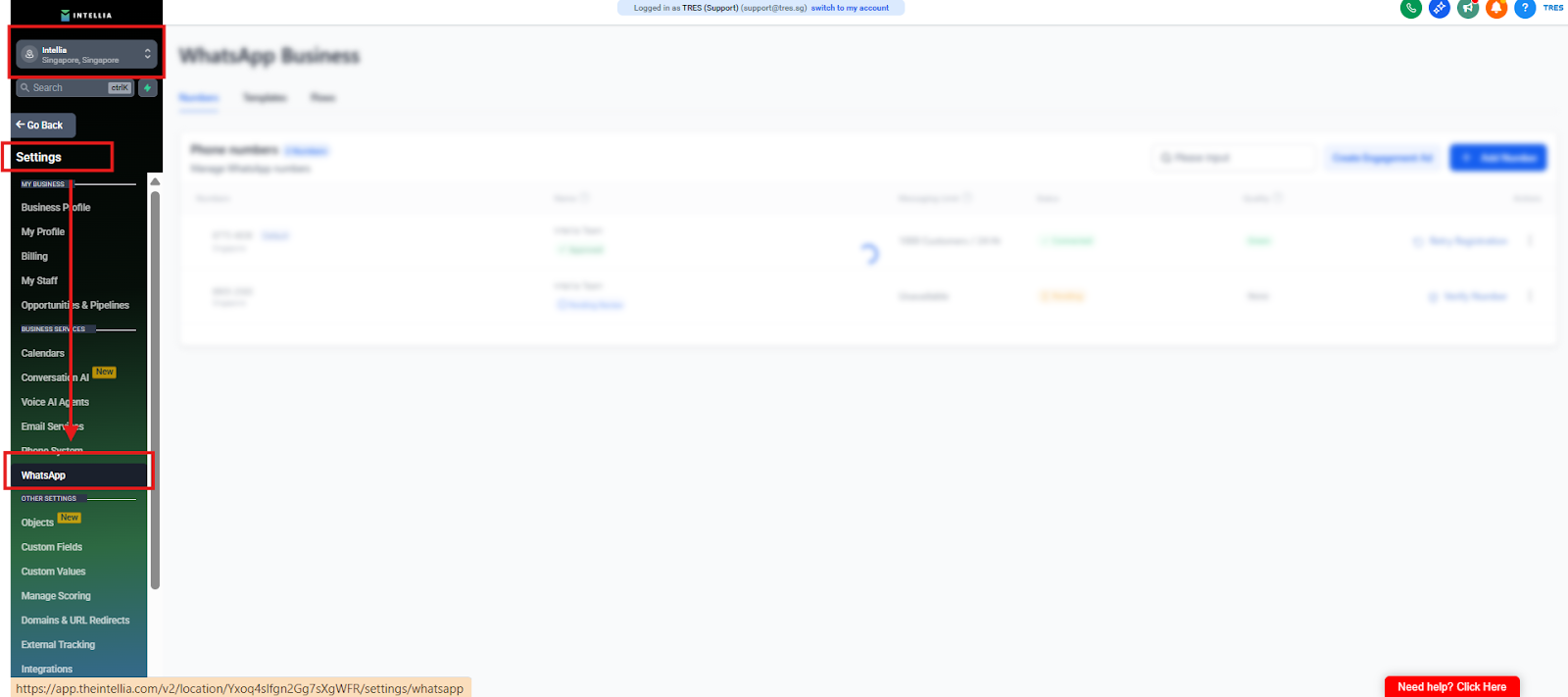
Click WhatsApp
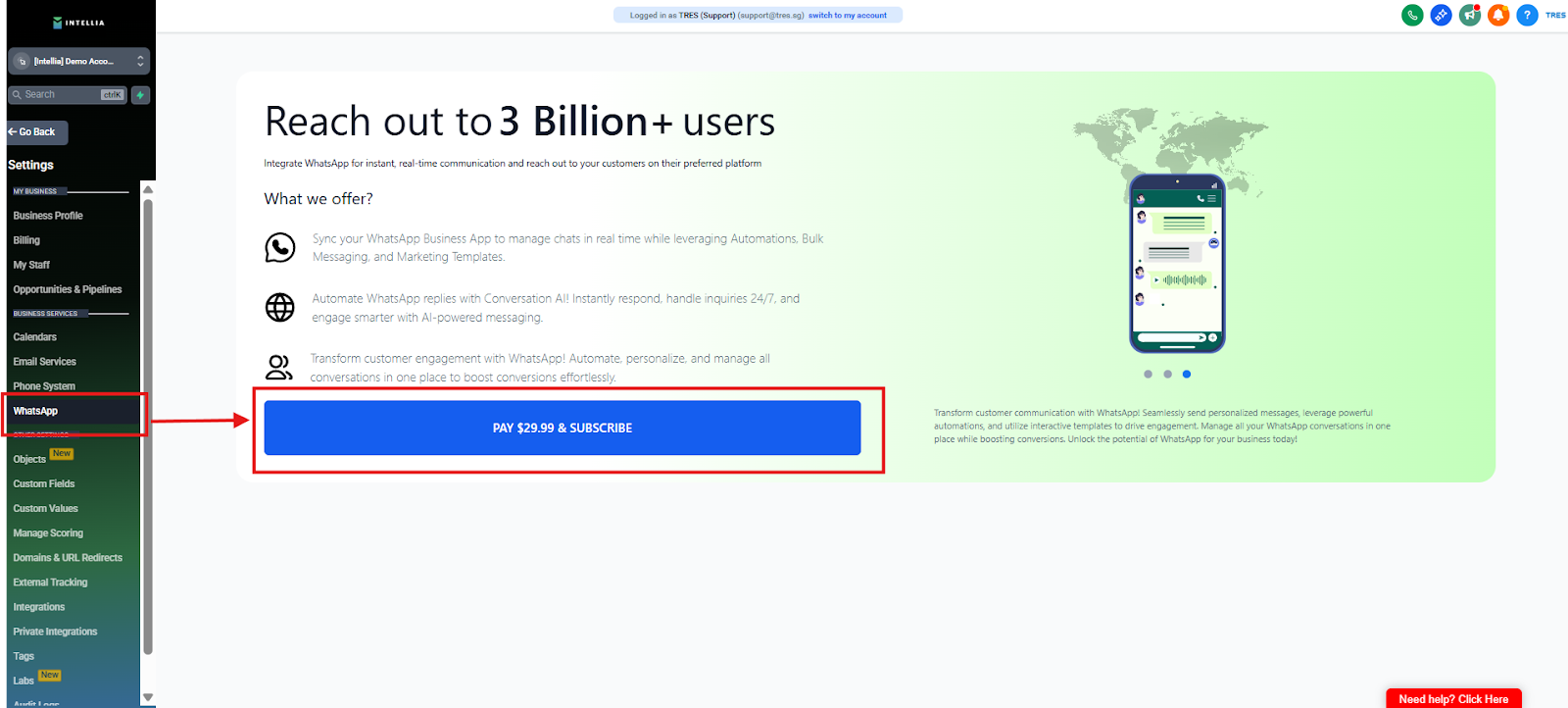
Click Subscribe
Complete payment: $29.99/month
Note: If the Pay and Subscribe button is not visible on the WhatsApp tab, please click the red Help button located at the bottom right of Intellia for assistance.
Confirm subscription is active
✅ Success looks like: WhatsApp Messaging enabled
Settings → WhatsApp
Click Connect WhatsApp Number
Choose Set Up a NEW WhatsApp Number
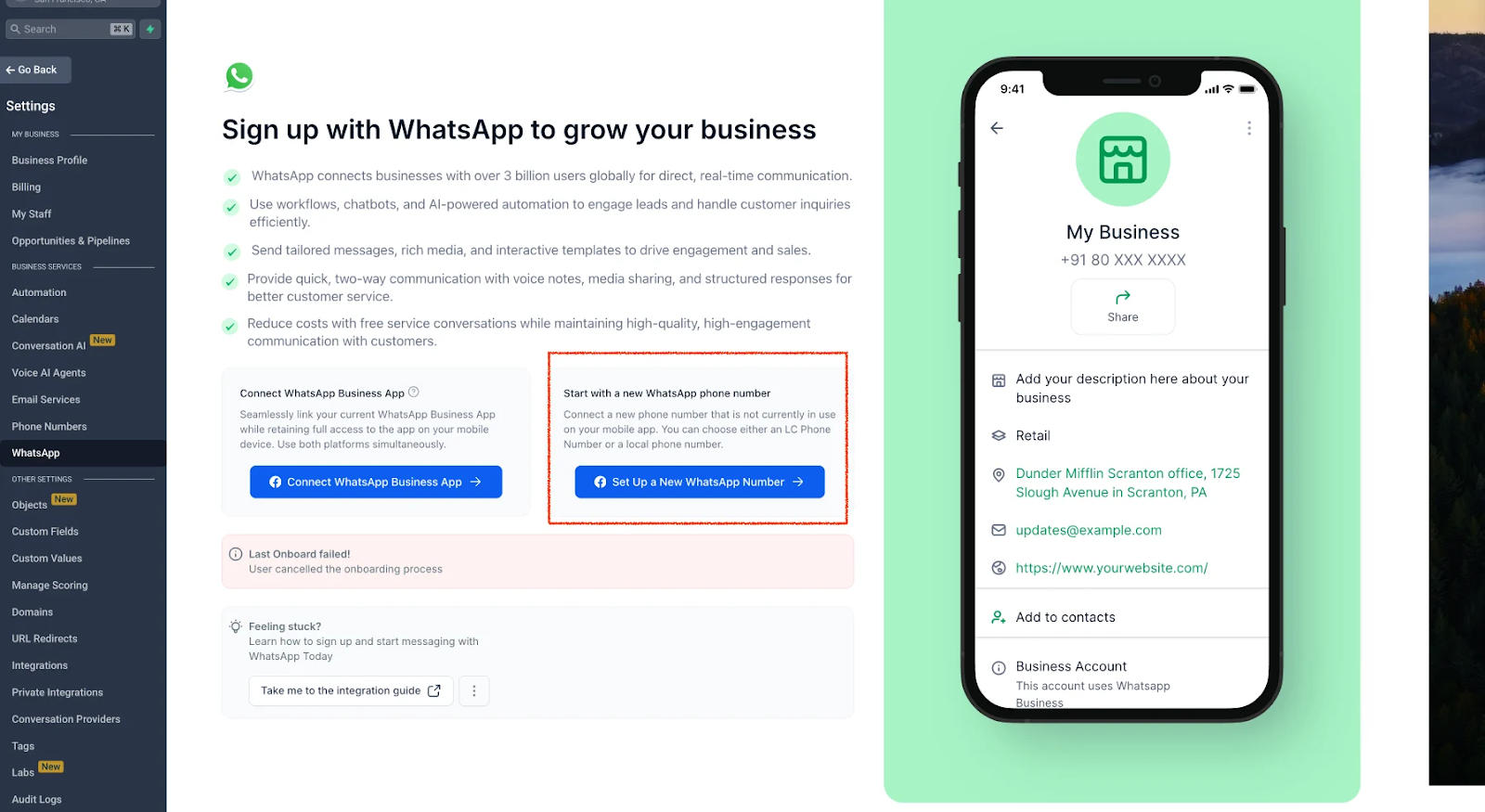
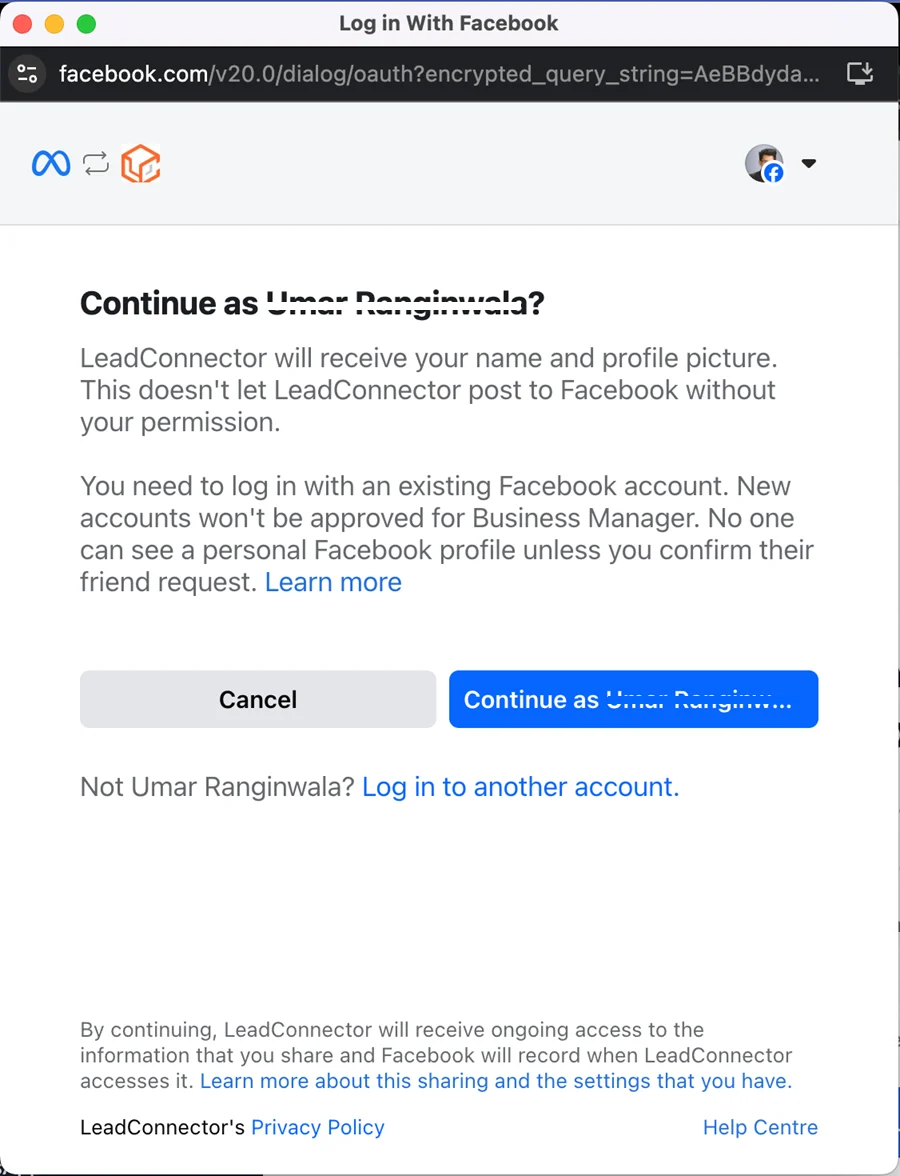
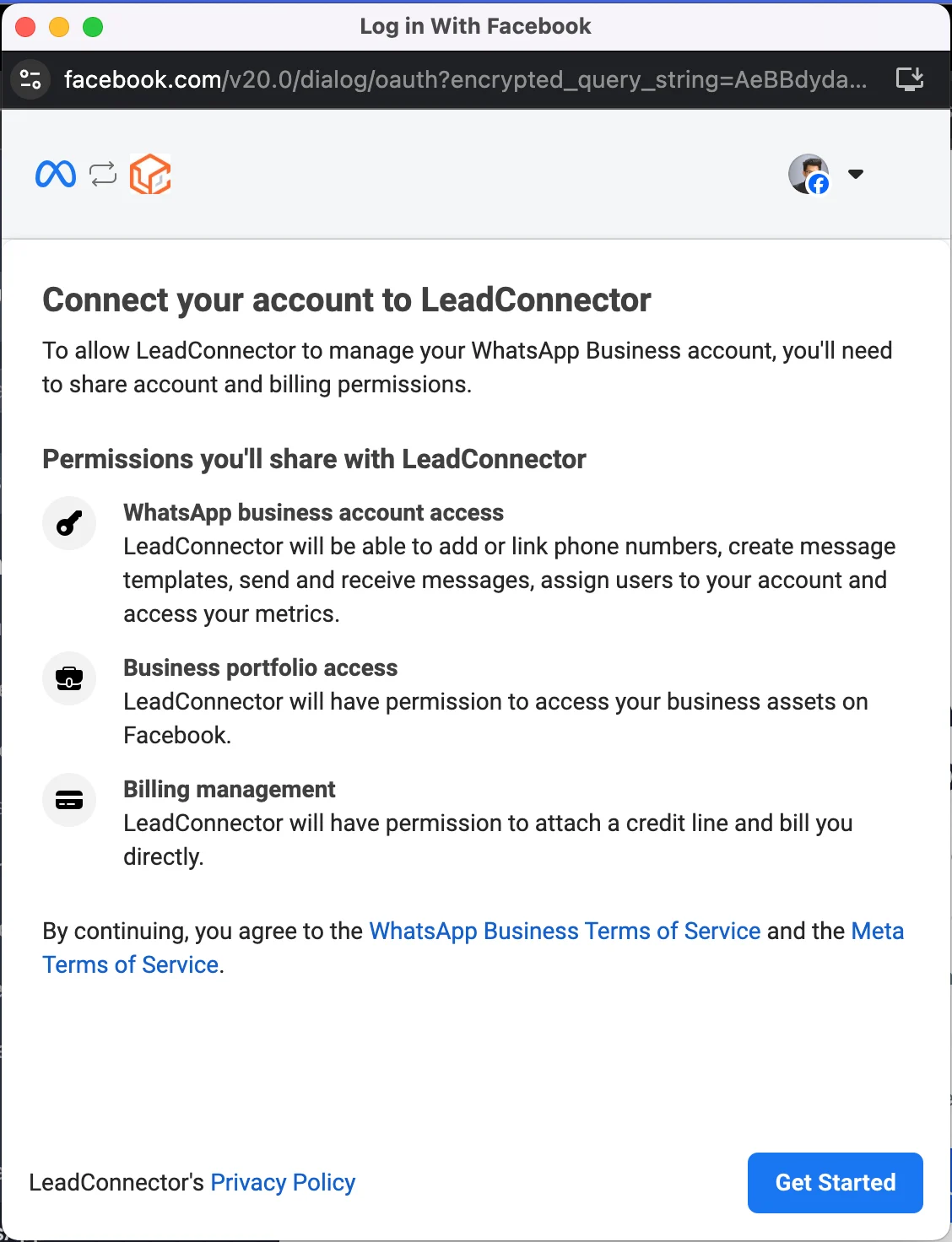
Follow Meta’s screens:
Continue with Facebook/Meta
Fill in business information
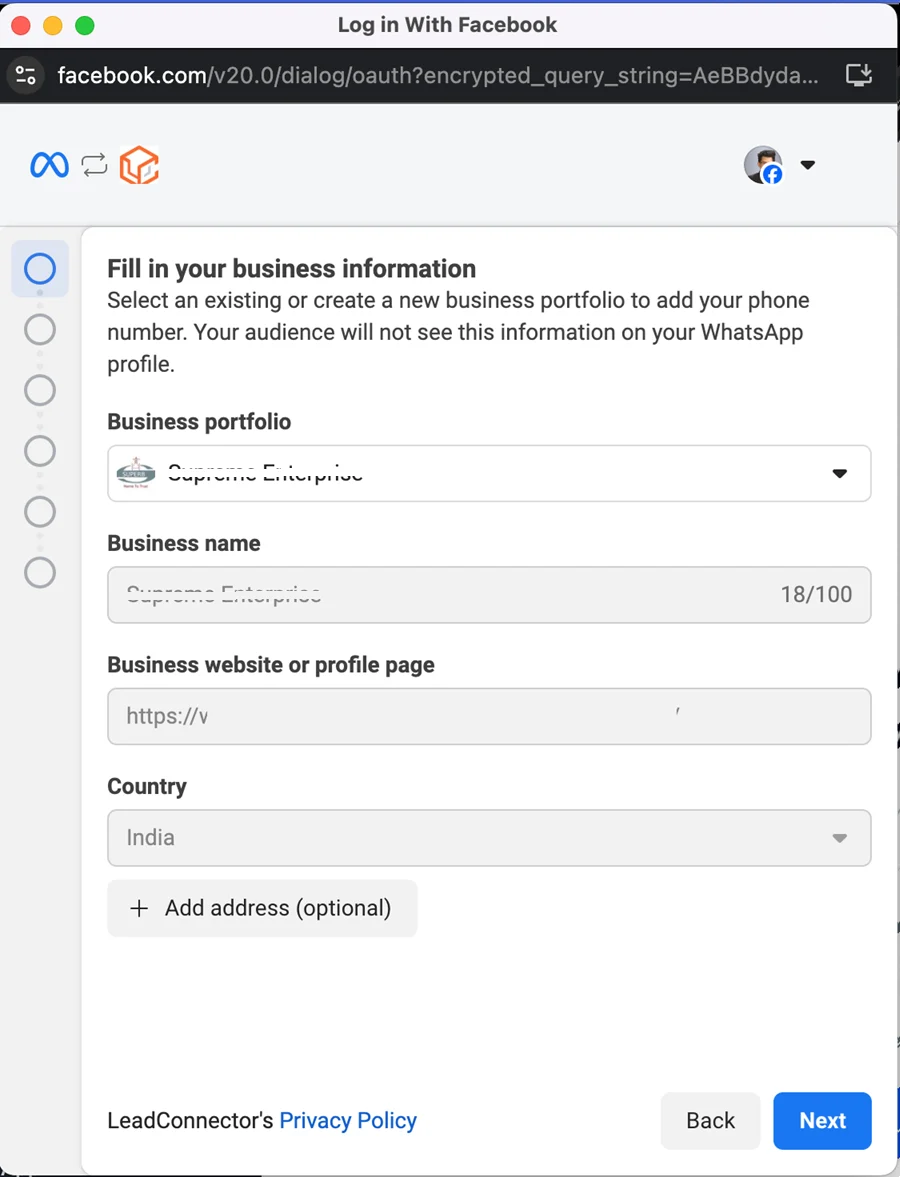
Create or select your WhatsApp Business Account (WABA)
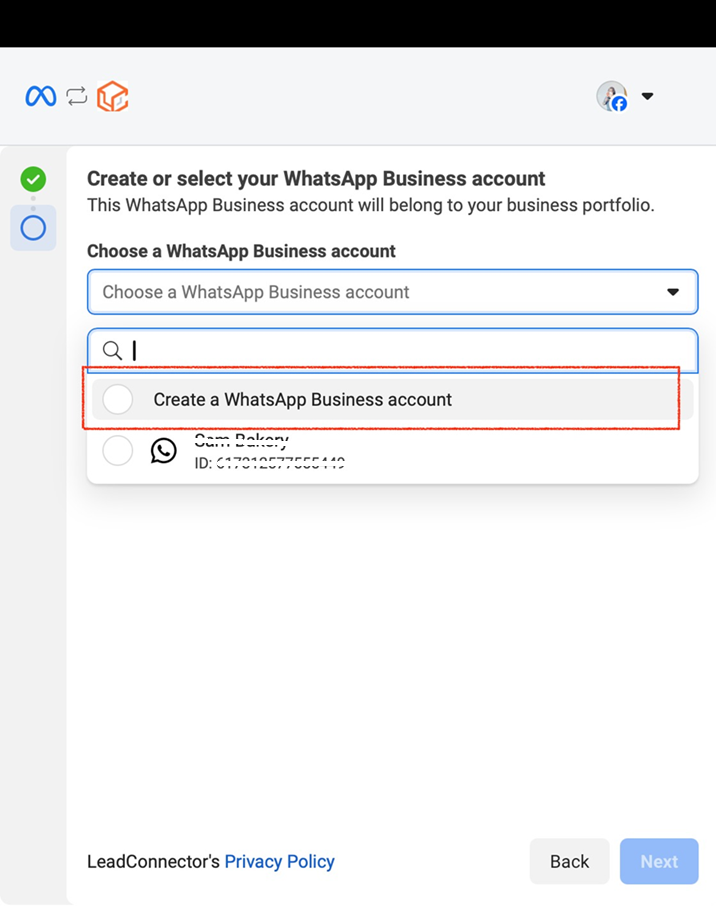
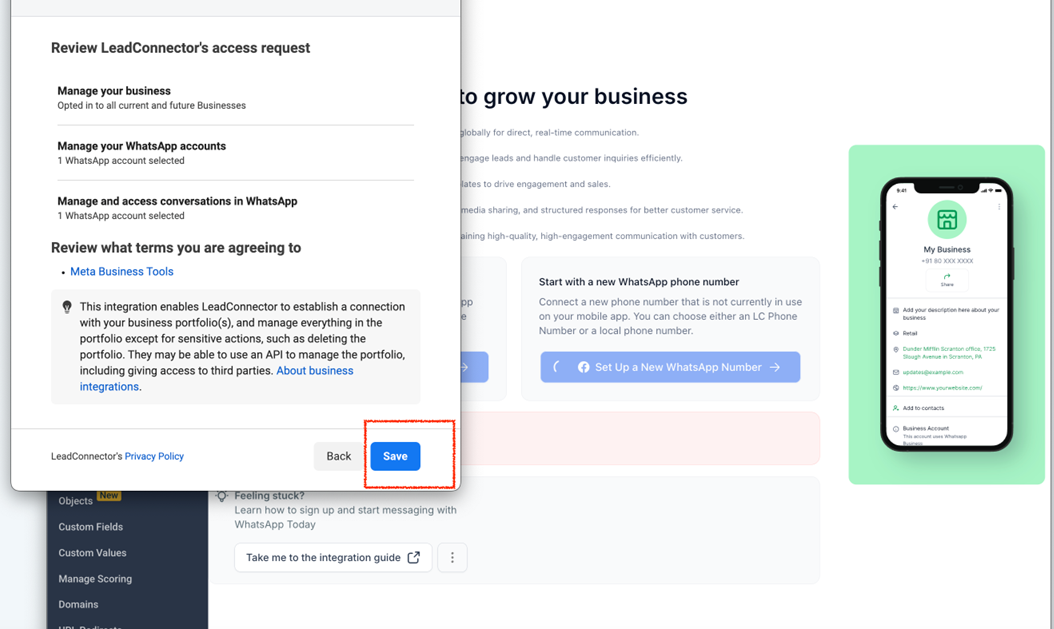
Review LeadConnector’s access request, then click save.
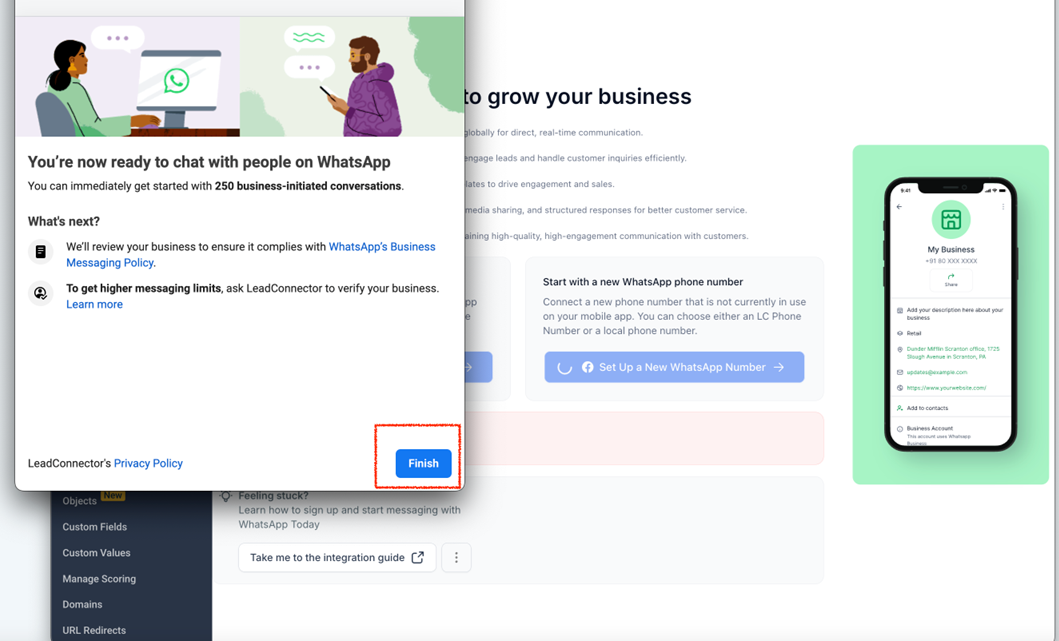
Tap “Finish”—your WhatsApp Business Account is now successfully integrated!
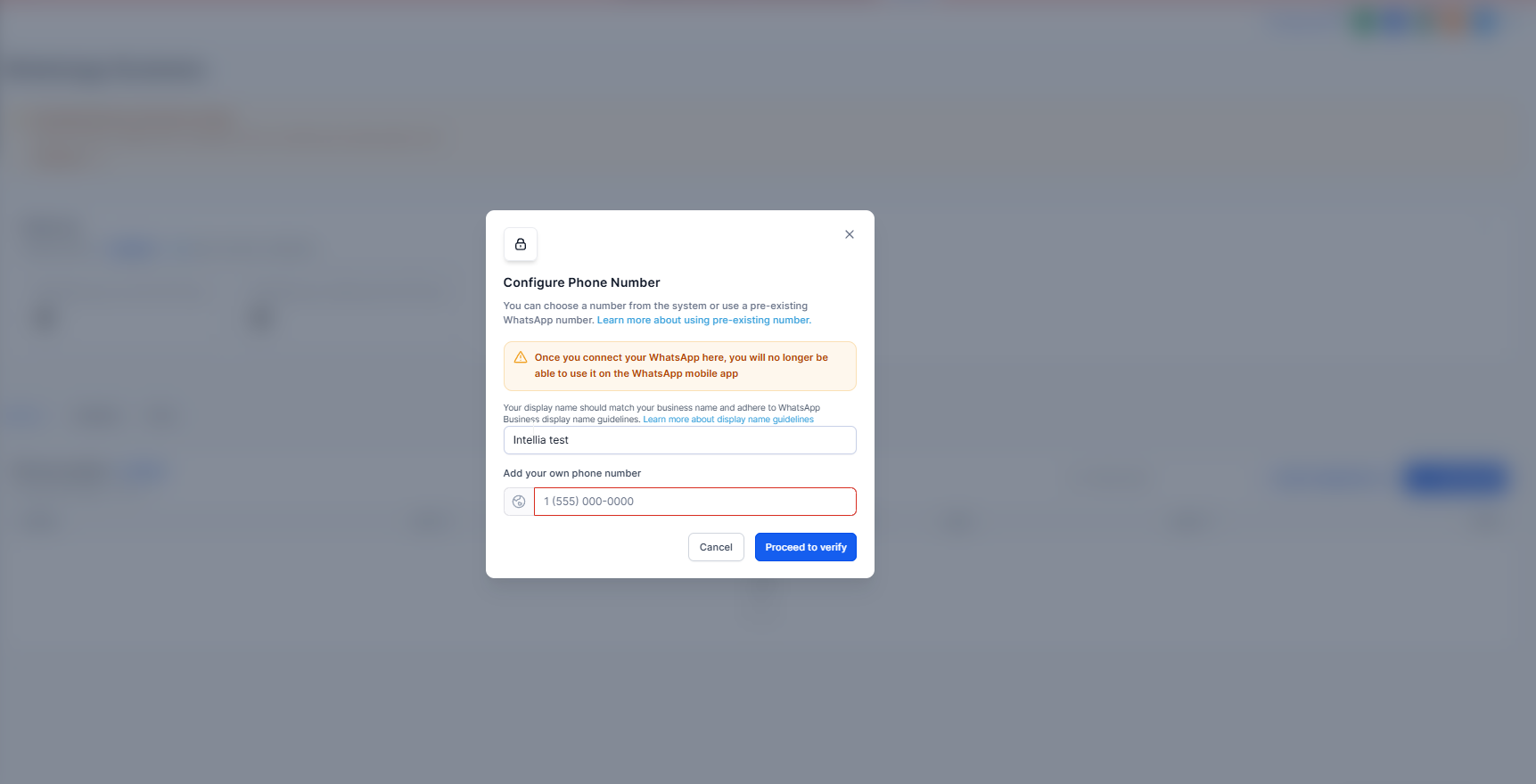
Add your NEW phone number (from Step 5.0 — Get A New Number)
Put (+65) at the start.
Verify via SMS or Call (OTP)
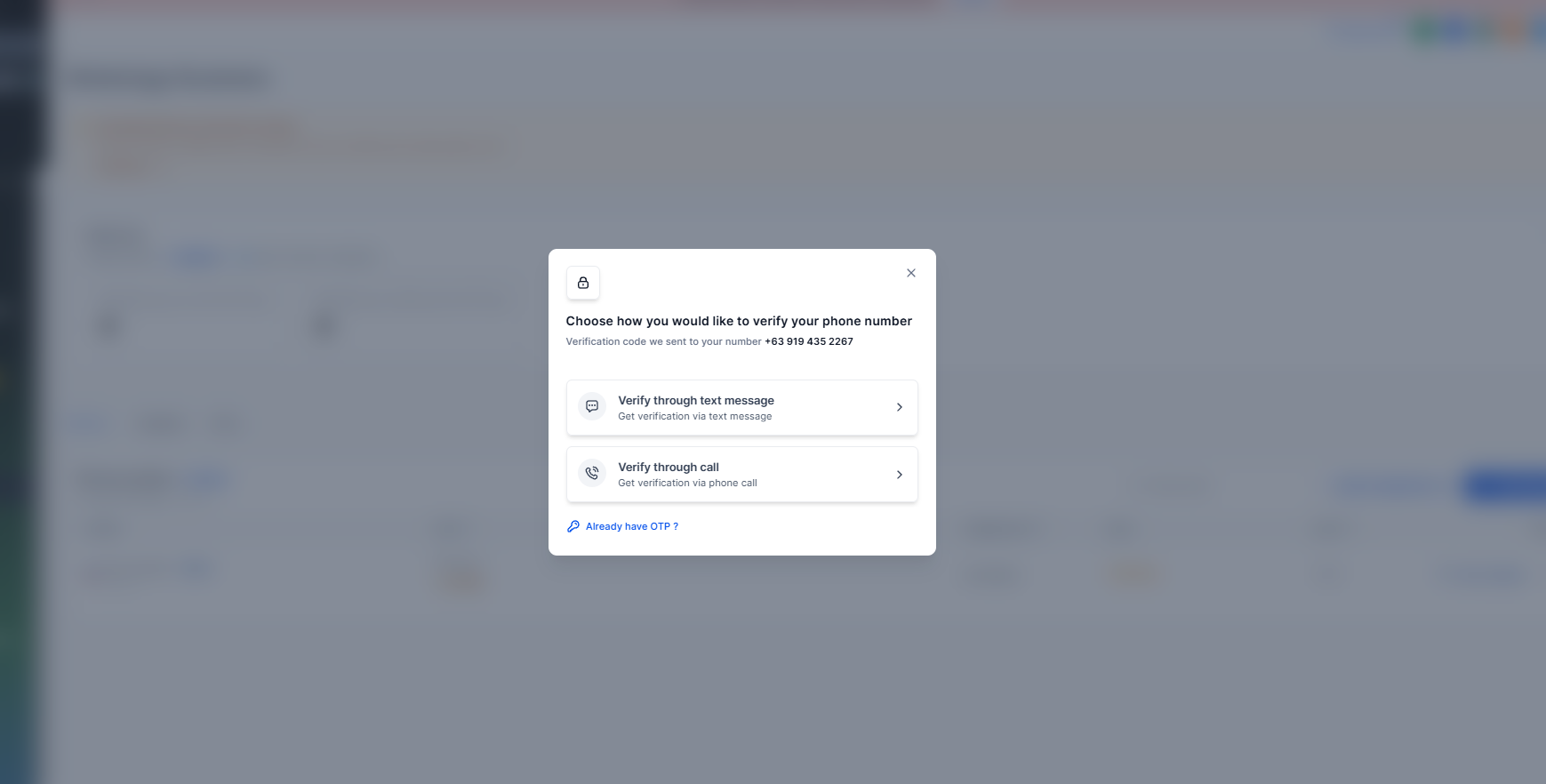
Click Verify
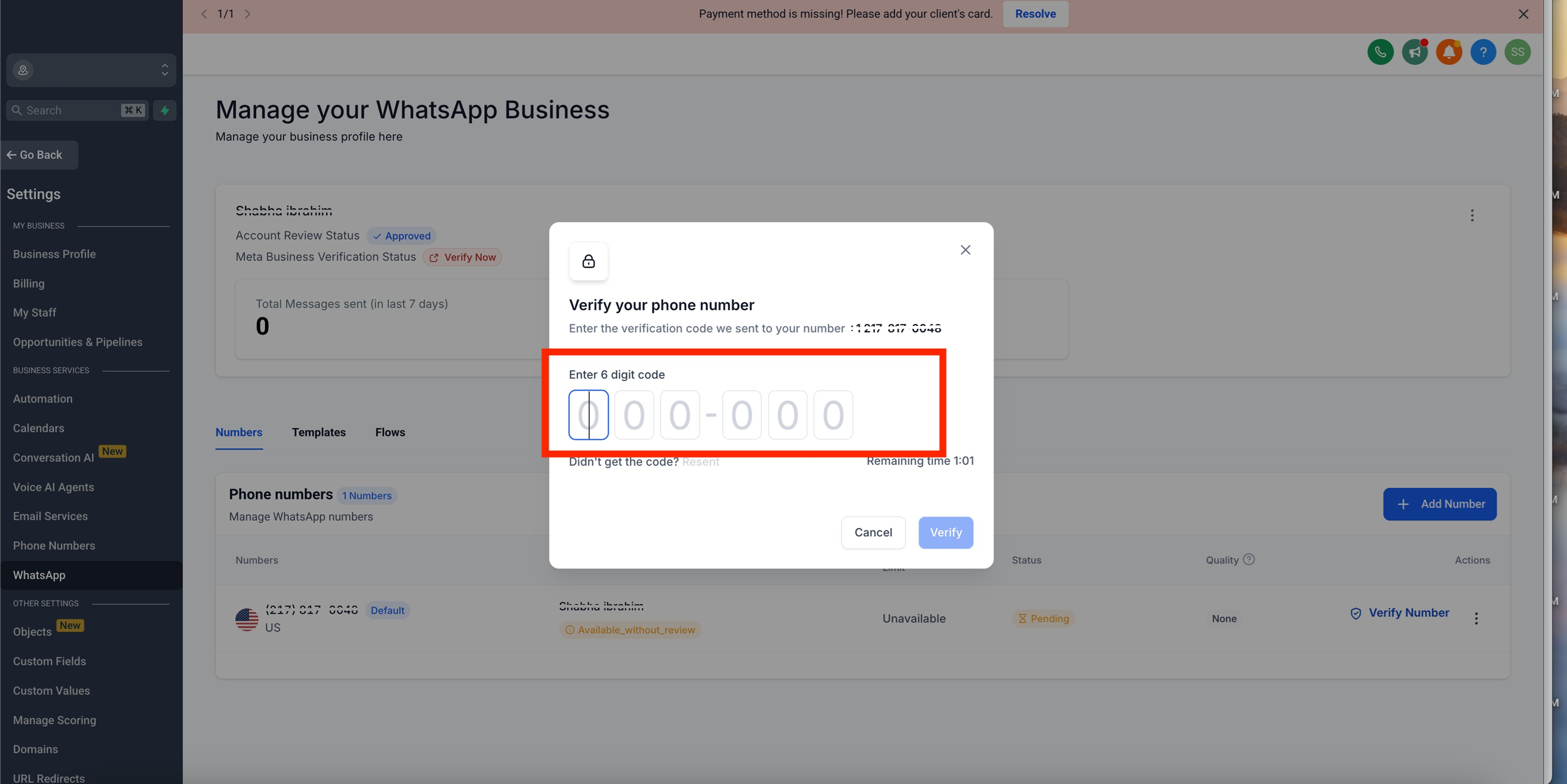
✅ IMPORTANT (Read This Before You Panic):
Entering the OTP = your number is verified.
If Meta shows something like “In review / Under review”, that’s normal — it means verification is processing on Meta’s side.
⚠ Meta may look “done” but still needs one final step:
Always click through until you see Next / Finish.
Do not stop halfway just because the OTP went through.
✅ If you see “In Review” in Meta:
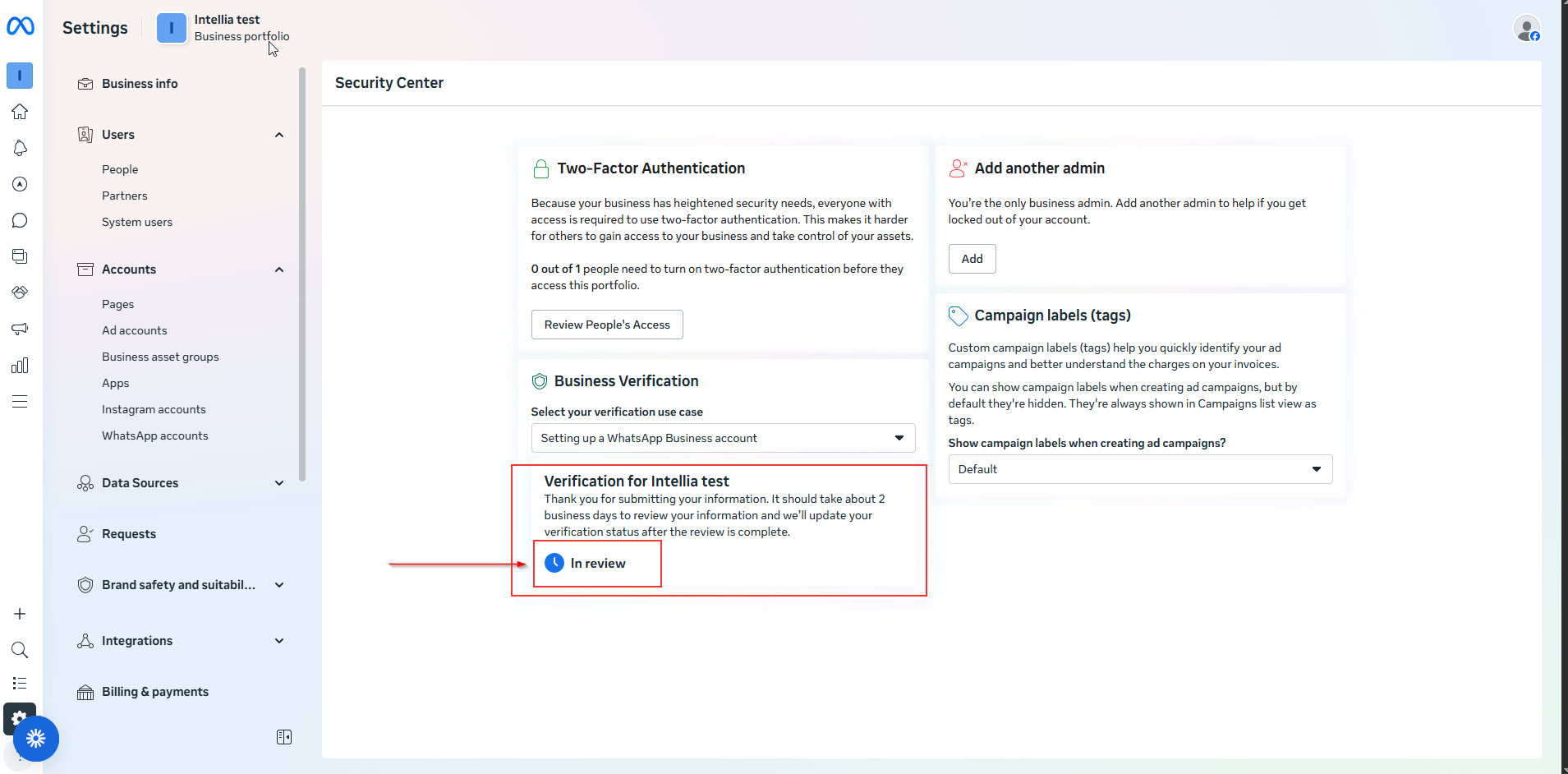
You can proceed with the rest of the setup.
No need to click anything or wait on that screen — Meta will finish the review in the background.
Intellia may still prompt for Meta Business verification later (this is separate from OTP).
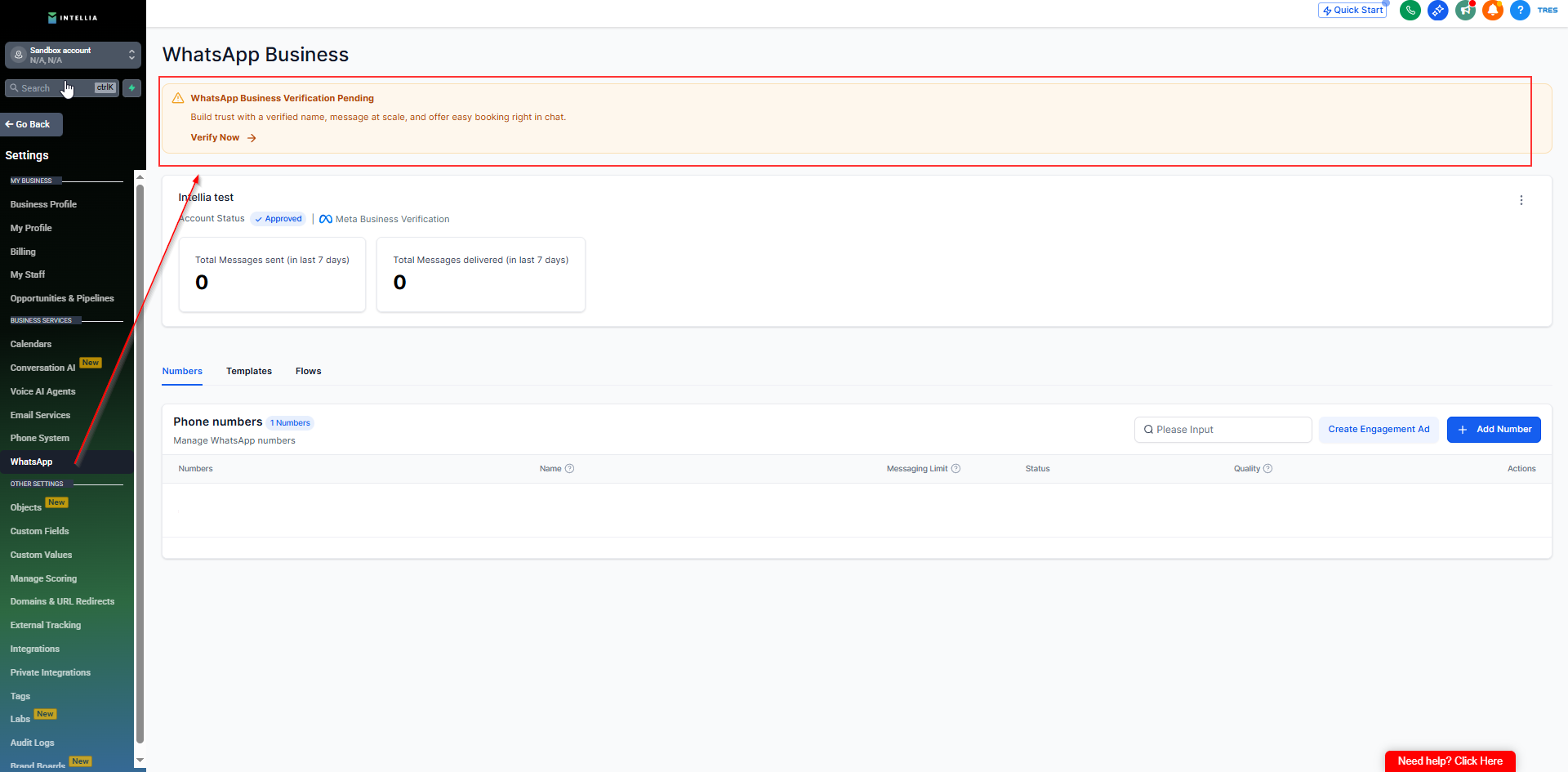
If Meta Business verification already shows as In Review, you can safely ignore this prompt and continue. No action is required while Meta completes the review in the background.
✅ Success looks like:
Onboarding completes fully (you reach Finish)
The WhatsApp number shows as Connected inside Intellia
In WhatsApp Manager, the number appears with status like Connected / Active / In Review (any of these is acceptable during processing)
Go to Meta Business Suite
Open Business Settings
Navigate to WhatsApp Accounts / WhatsApp Manager
Select the correct WABA
Inside WhatsApp Manager:
Locate your connected phone number
Confirm status shows Connected / Active
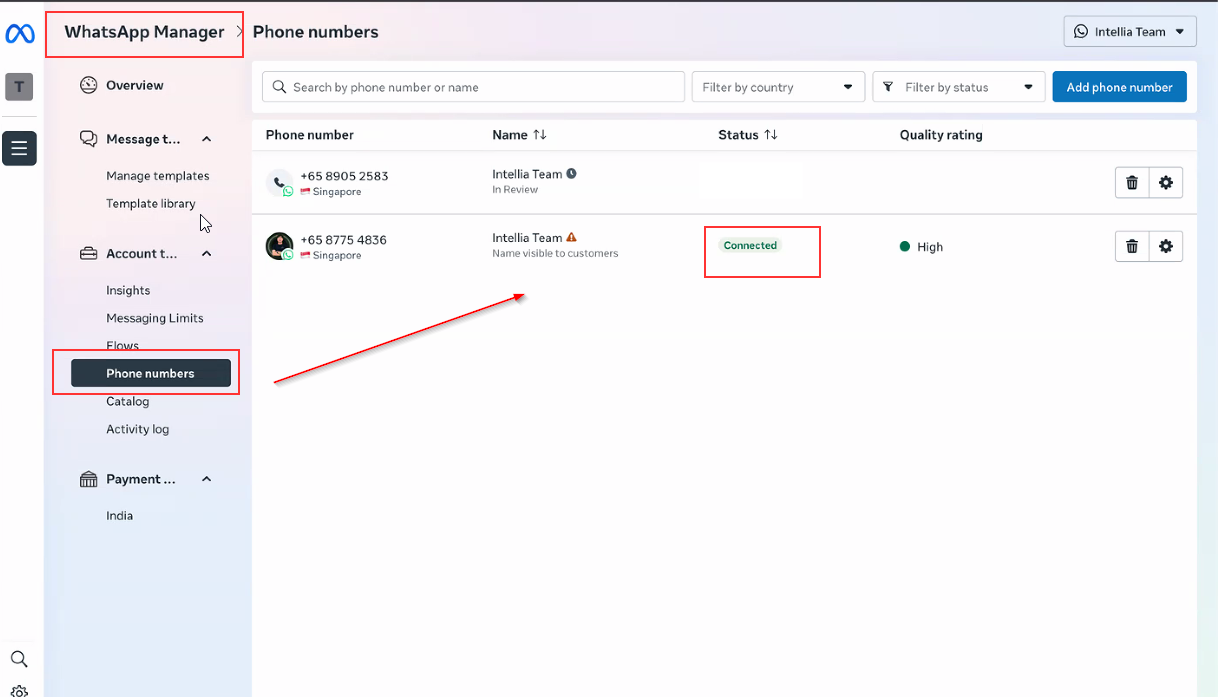
✅ If the number is visible and active, setup is correct.
This section only makes your WhatsApp presence look professional and trustworthy to leads.
A complete profile:
increases reply rates
reduces “Is this legit?” objections
makes your business look credible from first message
Inside WhatsApp Manager, open your phone number → Business Profile.
For WhatsApp Manager Link: https://business.facebook.com/latest/whatsapp_manager
Fill in (minimum):
Business Display Name
Clean, brand-consistent
No symbols or excessive punctuation
Profile Photo / Logo
Category
Description (1–3 lines)
Suggested format:
“We help [who] achieve [result] through [method].”
Email + Website (recommended)
Address + Business Hours (optional)
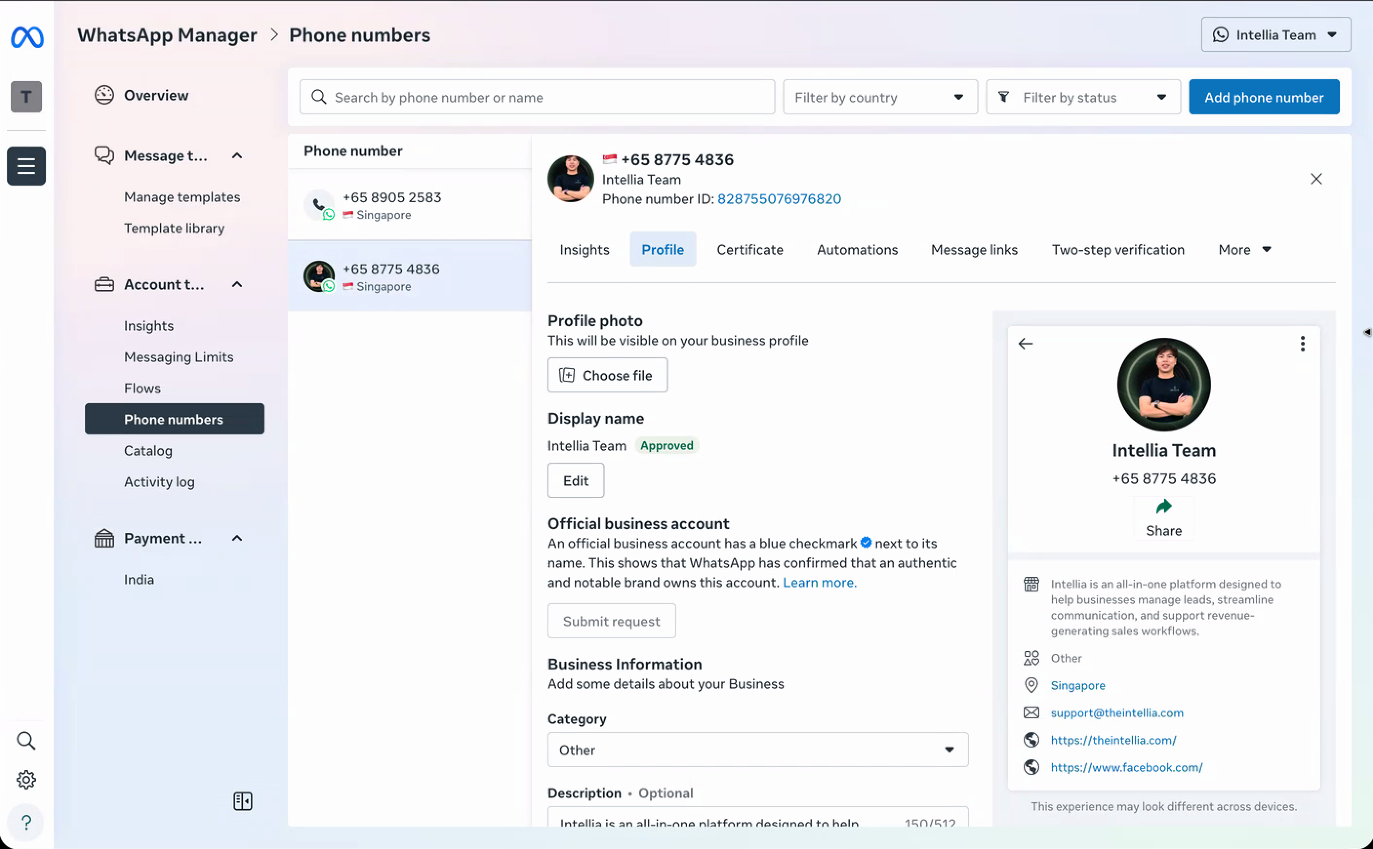
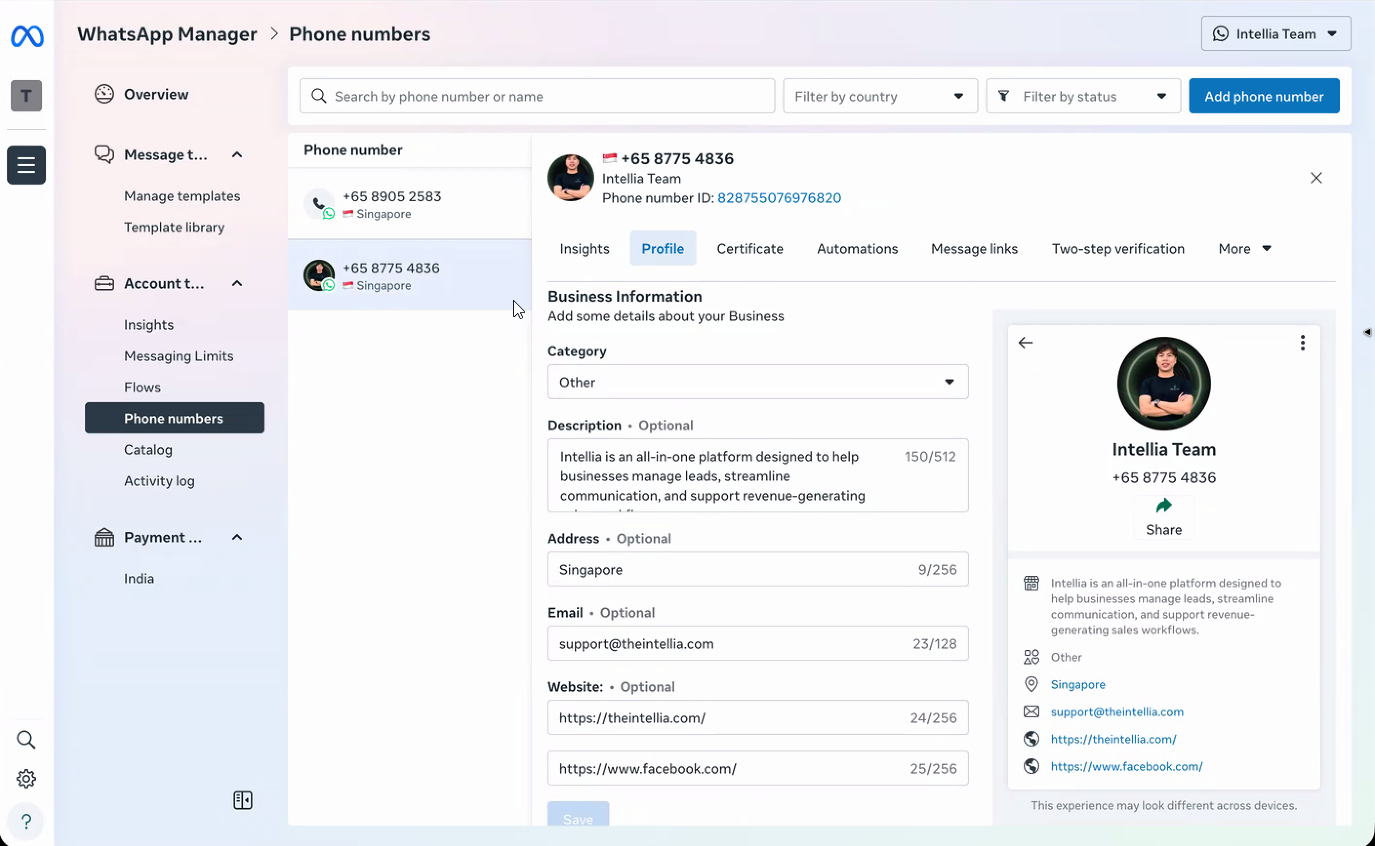
✅ Success looks like:
When someone receives your WhatsApp message, it looks like a real business — not a random number.
Why is a new number required? Can I use my personal WhatsApp number?
A new number is required because WhatsApp onboarding uses Meta embedded signup + OTP verification and is meant for a business-dedicated number. Avoid using the founder’s personal number to prevent conflicts and disruption.
What kind of number should I get for OTP verification?
Use a number that can reliably receive SMS or phone call OTP. A new SIM/eSIM is recommended (business-owned and accessible during setup).
I can’t see the “Pay / Subscribe” button in Intellia WhatsApp settings. What should I do?
This usually happens due to billing permissions or UI issues. Click the red Help button in Intellia (bottom-right) or contact support so the team can assist.
Meta onboarding looks finished, but Intellia still shows “Not Connected.” Why?
Meta often shows a “done” screen before the actual completion step. Go back and continue until you see the final Next / Finish step. Then refresh the Intellia WhatsApp page.
OTP is not arriving during Meta embedded signup. What should I try?
Try these in order:
Wait 2–3 minutes
Tap Resend
Use Call me verification
Confirm your SIM/eSIM is active and can receive calls/SMS
How do I confirm the number is truly connected and active?
Check both sides:
In Intellia: WhatsApp shows Connected
In Meta: Business Settings → WhatsApp Manager → number status shows Connected / Active
If it’s missing in Meta, you may be viewing the wrong Business Portfolio / WABA.
Do I need to configure the WhatsApp business profile?
It’s recommended but not required for connectivity. A complete profile increases trust and reply rates (logo, category, description, email/website). This is the “look legit” step.
Can I proceed if my WhatsApp template approval is still pending?
Yes, you can continue setup — but you cannot use the template inside workflows until Meta approves it. Refresh periodically; approvals may take minutes to 24 hours.

