

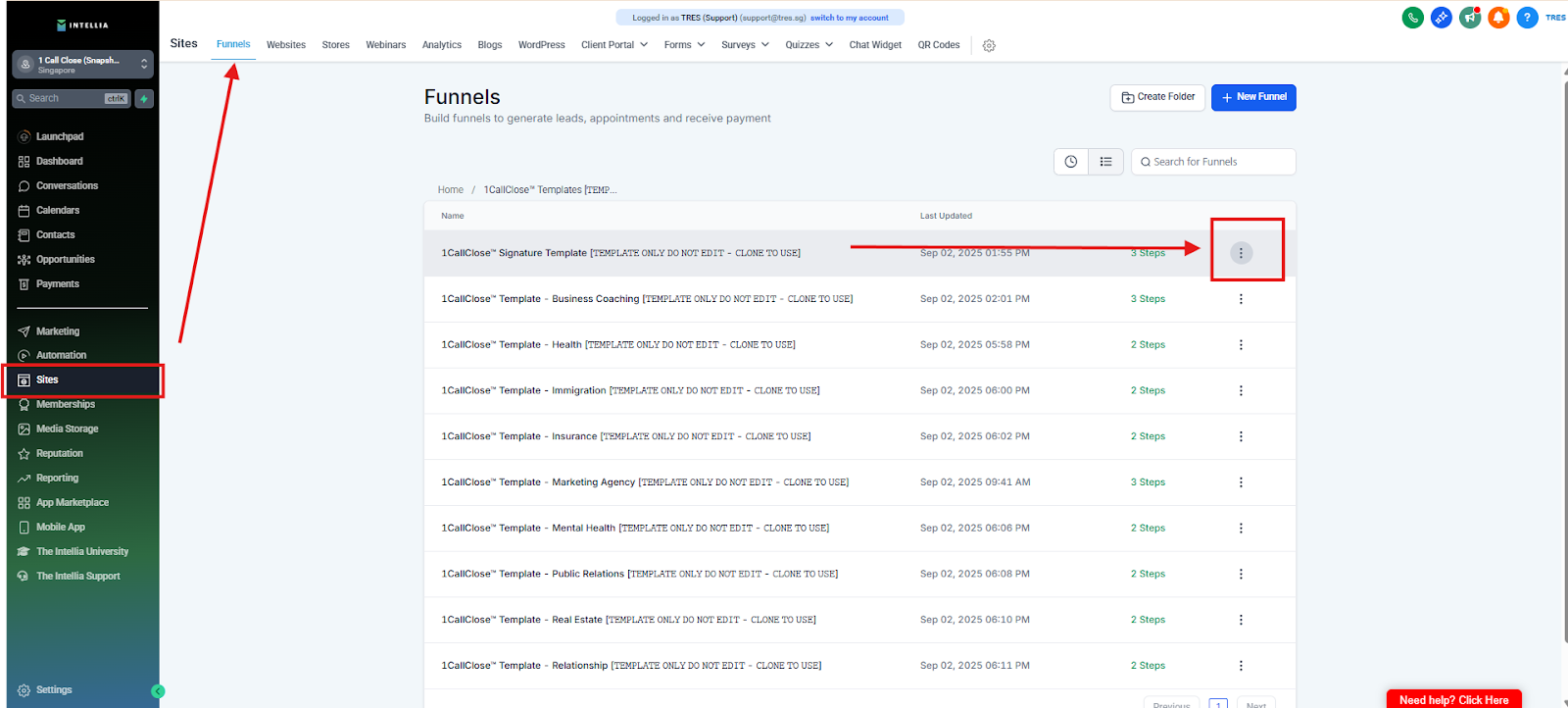
Click ⋮ next to the Signature Template
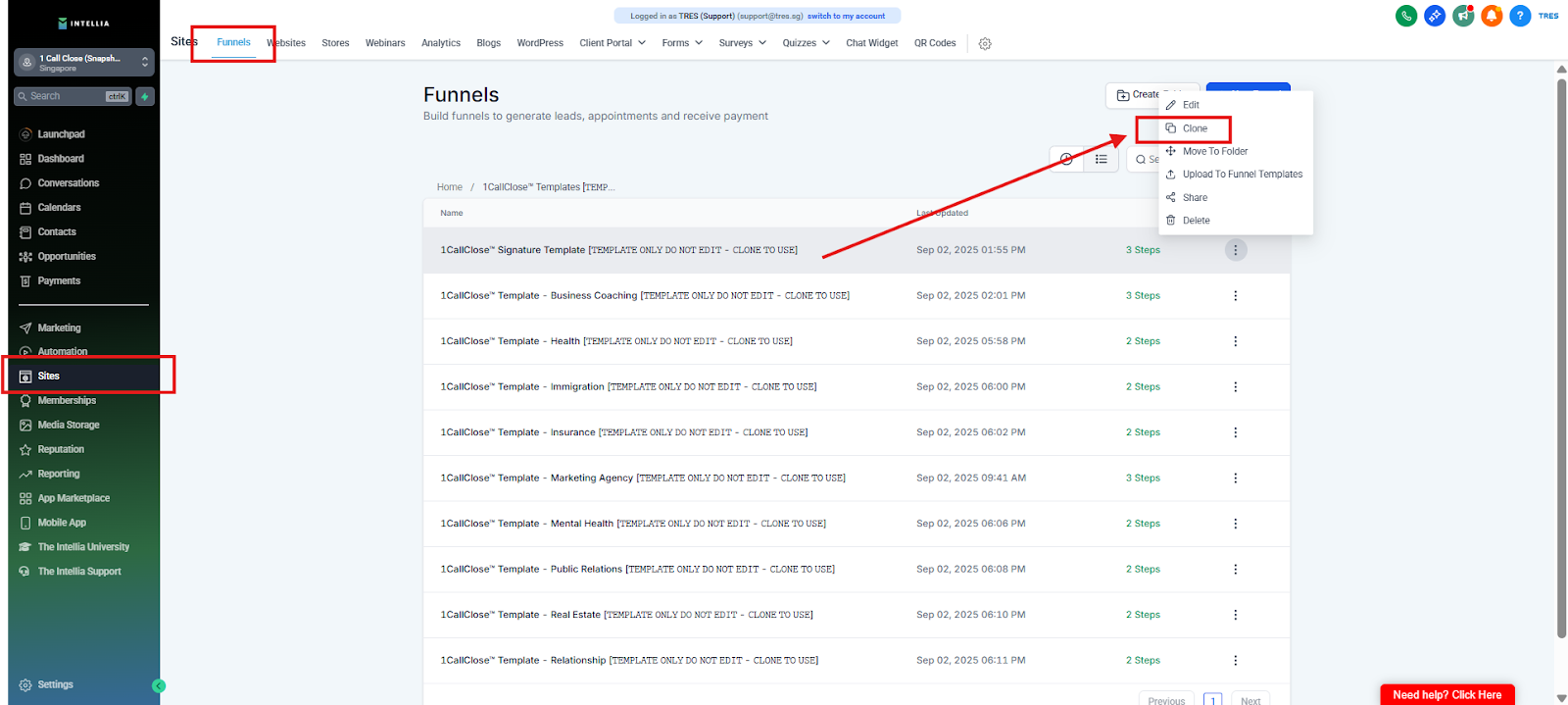
Click Clone
Frequently Asked Questions
Why do I need to clone the page?
Cloning creates a safe copy so you can edit your own landing page without overwriting the original template for future use.Where is the Clone option?
Go to the page list → find the Signature Template → click the ⋮ (three dots) next to it → click Clone.I don’t see the three dots (⋮). What should I do?
Try these quick fixes:Hover your mouse over the template row (the menu sometimes appears on hover)
Expand your browser window / zoom out
Check you’re viewing the page list (not inside the editor)
Try refreshing the page
I clicked Clone but nothing happened. Did it work?
Check your page list for a new duplicated page. It may appear at the top or bottom. If you’re unsure, refresh and look again.How do I confirm I cloned the right page?
The cloned version will be a separate page entry (often with a similar name). You should then rename it immediately so you don’t confuse it with the template.What do I do after cloning?
Drop “CLONED” in chat, then move to the next step: Rename the page (so you don’t publish the wrong one).