Set up the WhatsApp message templates your 1CallClose.Agent will use — especially the Initial template which will be the first message every lead receives after they opt in.
This step ensures your messages are approved by Meta and formatted correctly for Intellia automation.
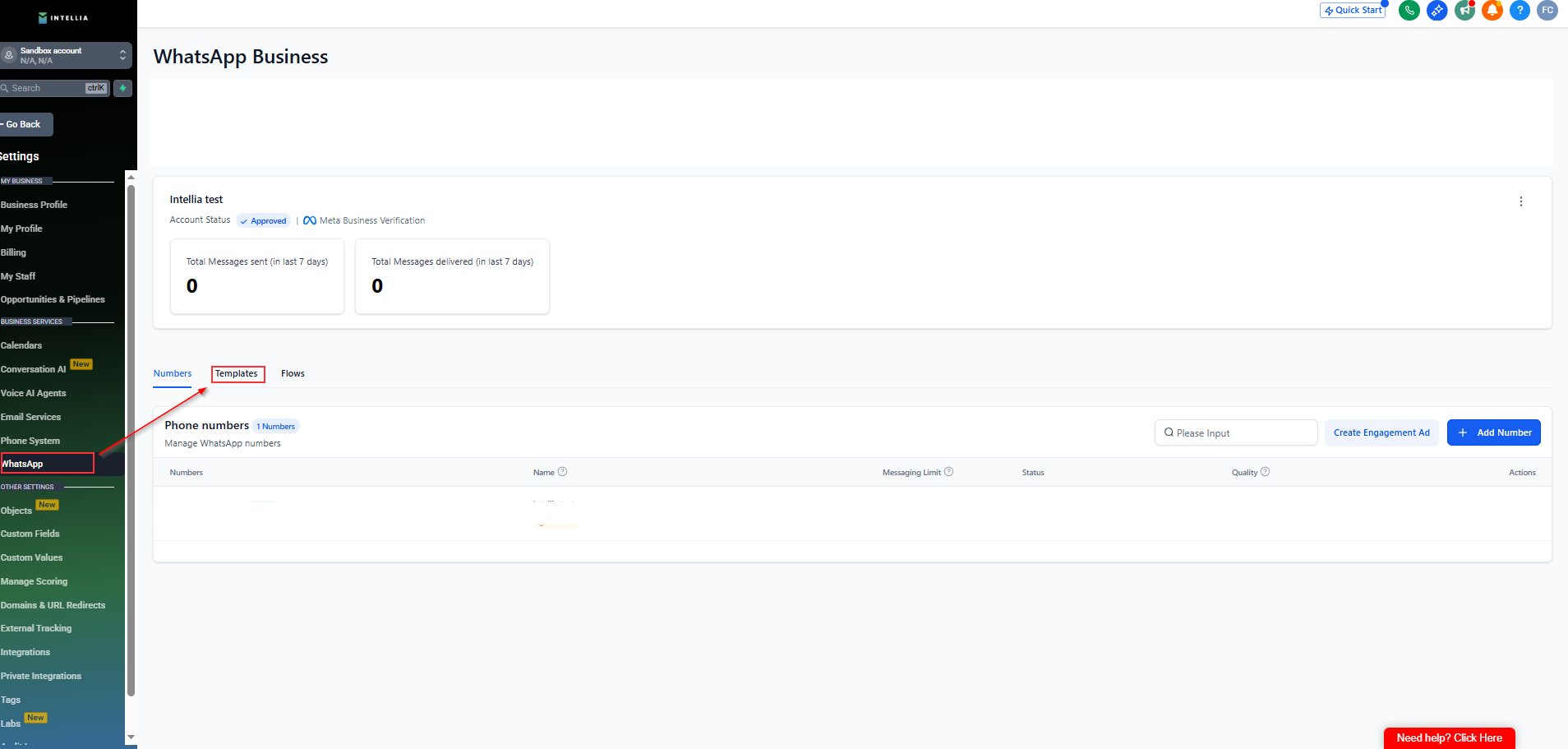
Log in to your Intellia account
Go to Settings → WhatsApp
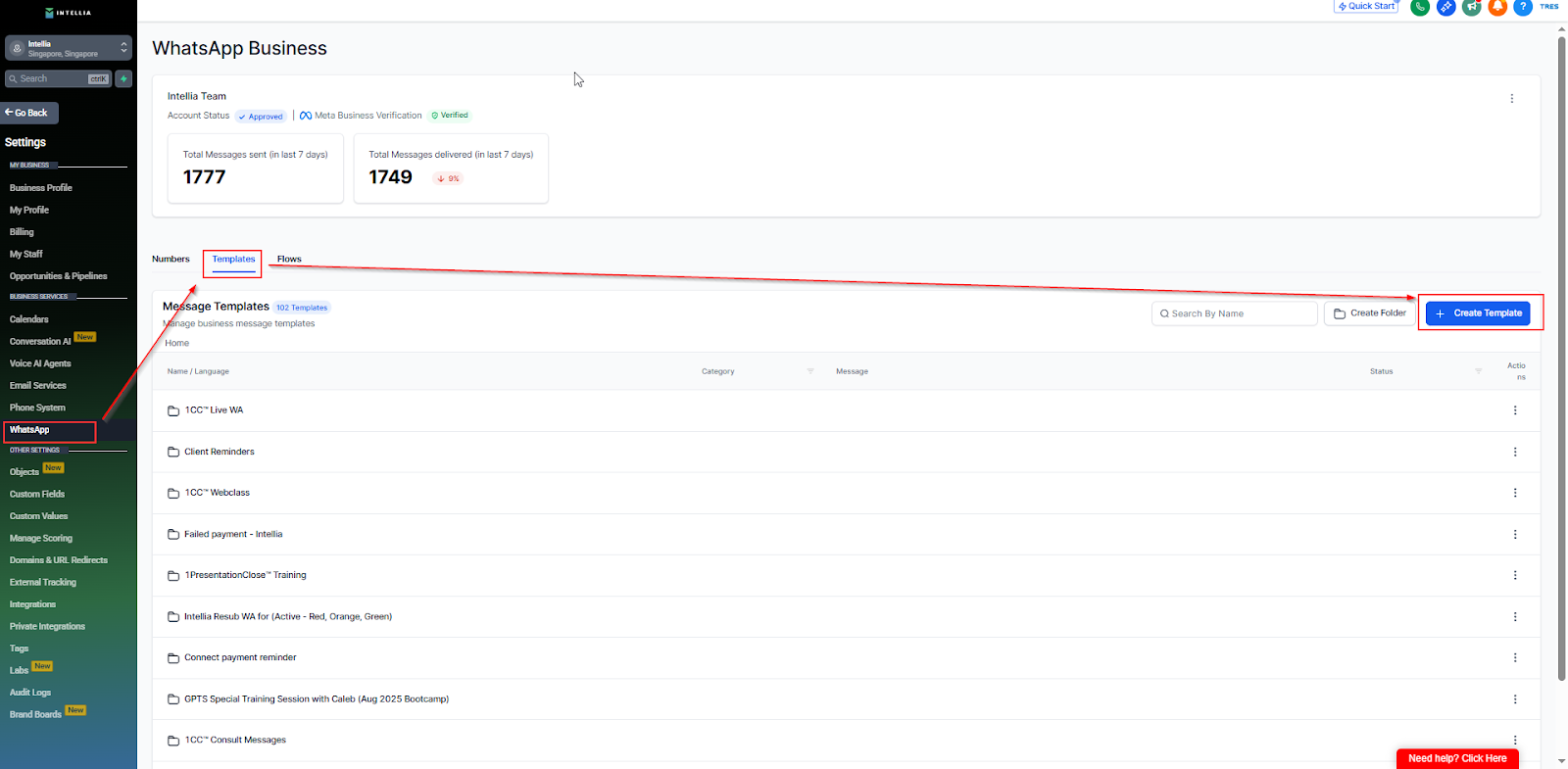
Click Templates
This will take you to the WhatsApp Template management screen
For your automation, you will create at least these templates:
✅ Initial Template – sent immediately after opt-in
(You can create others later if needed — e.g., reminders, follow-ups)
Click Create New Template
Choose Template Category (IMPORTANT): You must choose one Marketing or Utility
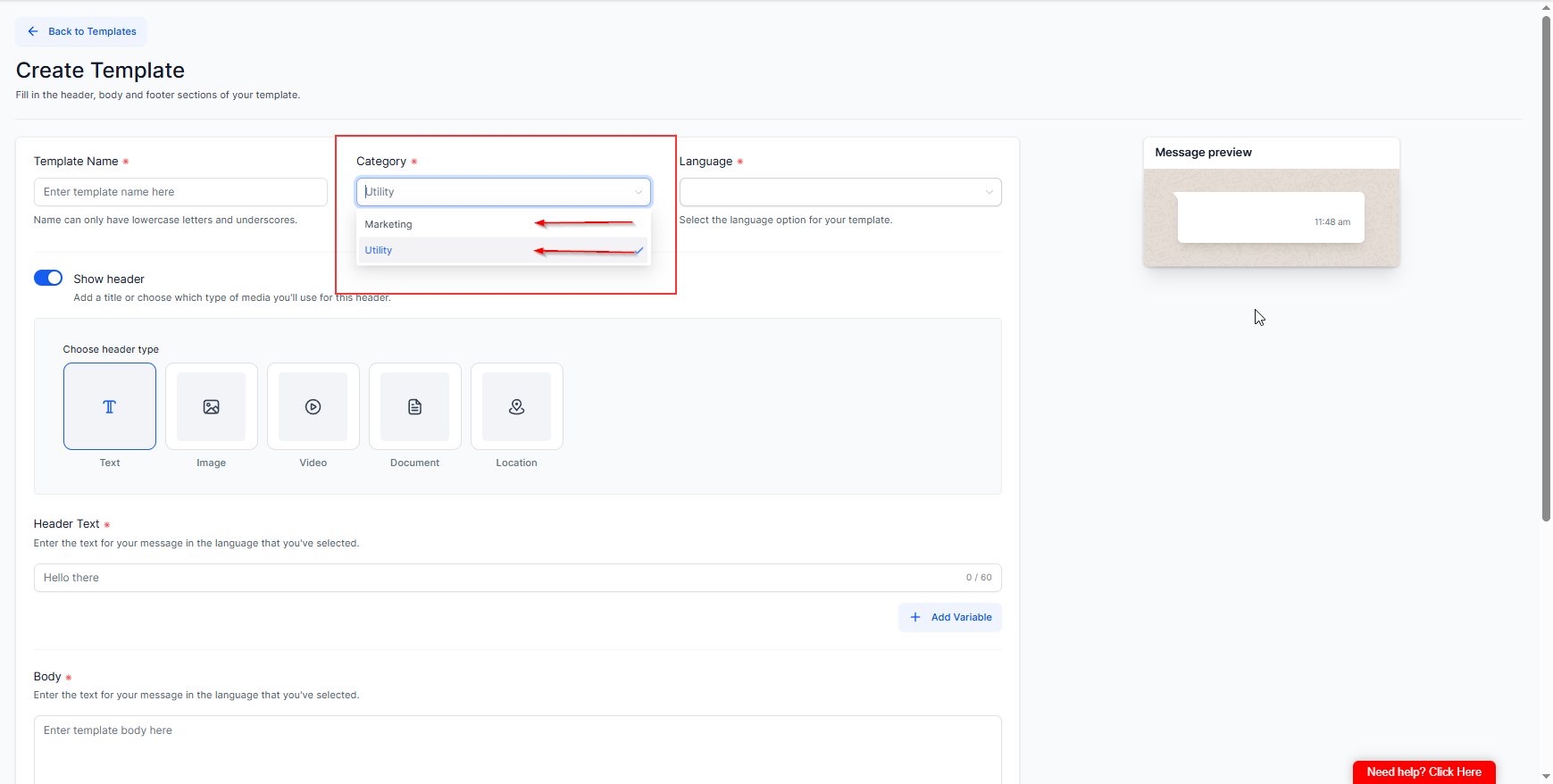
Marketing template: $0.0634 per message
Utility template: $0.0081 per message
✅ Template messages are used to start or restart a conversation after 24 hours — and they cost money.
✅ Session messages are follow-up messages within 24 hours of the customer replying to your template — these are free.

Template Name: Use a clear, short identifier
Example:
1CC_AI_Confirmation
Language: Choose your primary language (e.g., English)
Header Text (optional):
Click the Header Text section
You may add a header with or without a variable.
Examples:
Welcome {{1}}
Hi {{1}} 👋
1CallClose™ Registration Confirmed
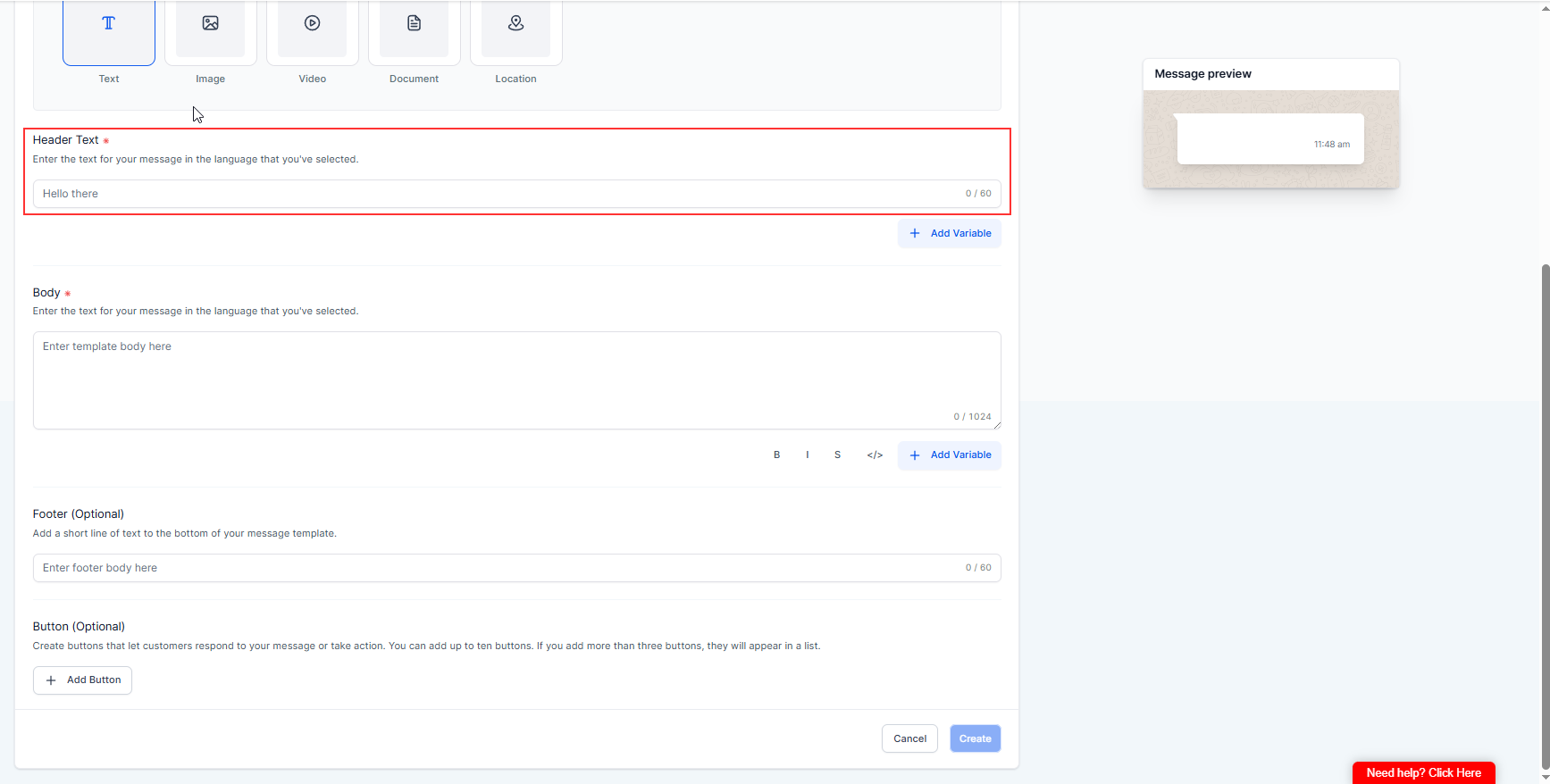
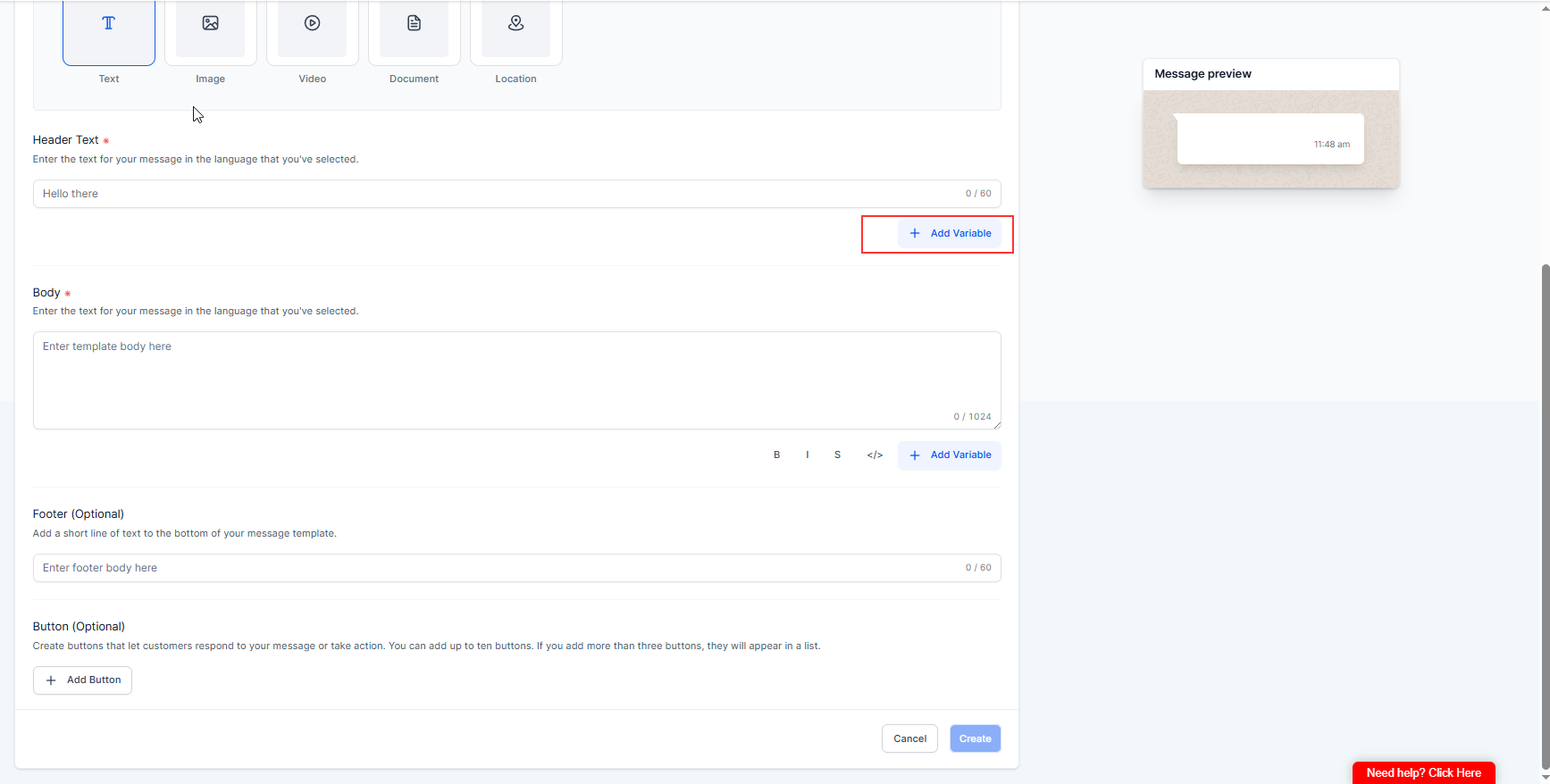
How to add a variable in the header:
Add Variable
Map {{1}} to the correct Intellia variable
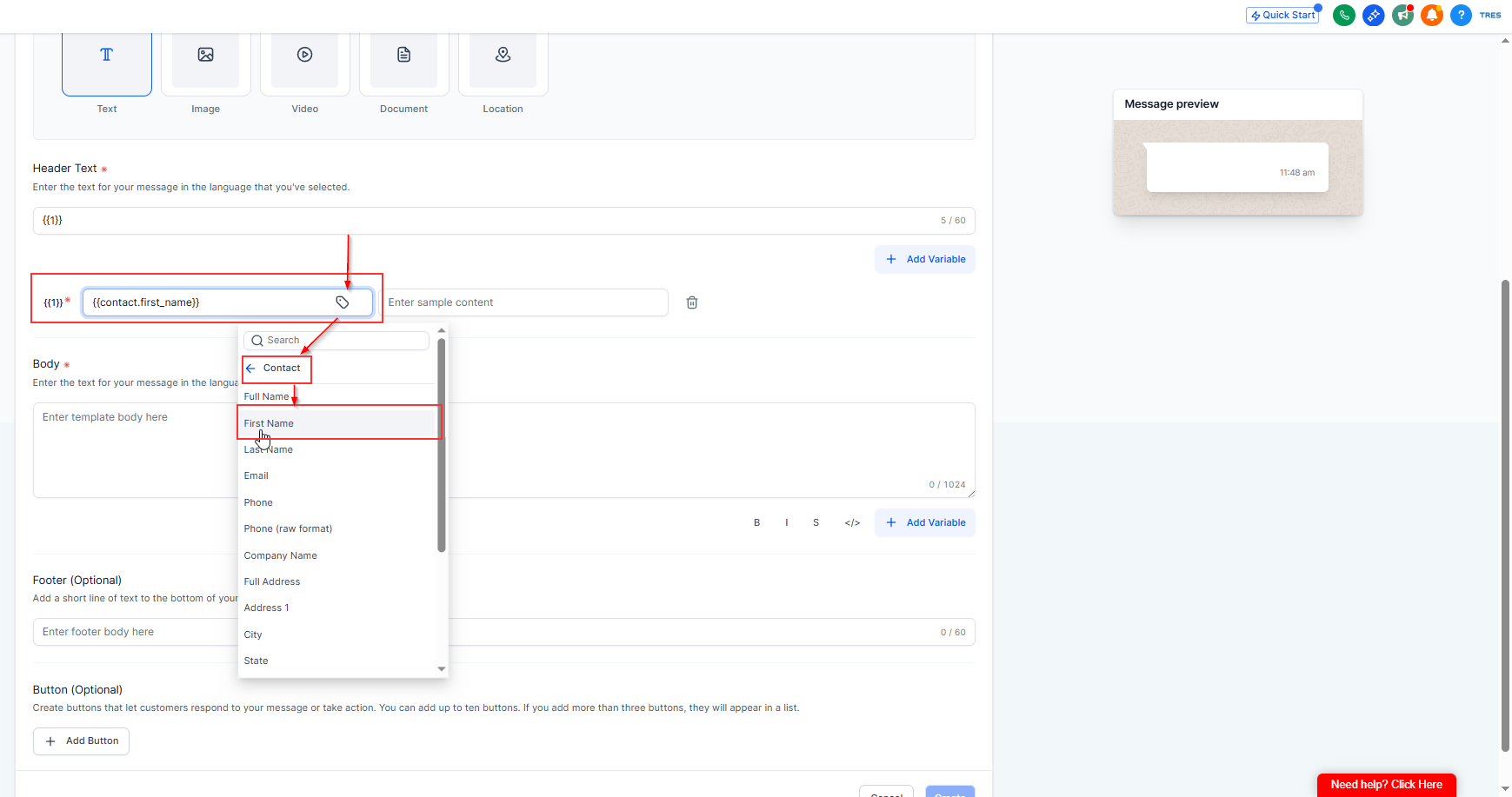
Under the variable mapping row (the one showing {{1}}):
Click Select custom variable
Choose: Contact → First Name
This is the same as: {{contact.first_name}} in Intellia terms.
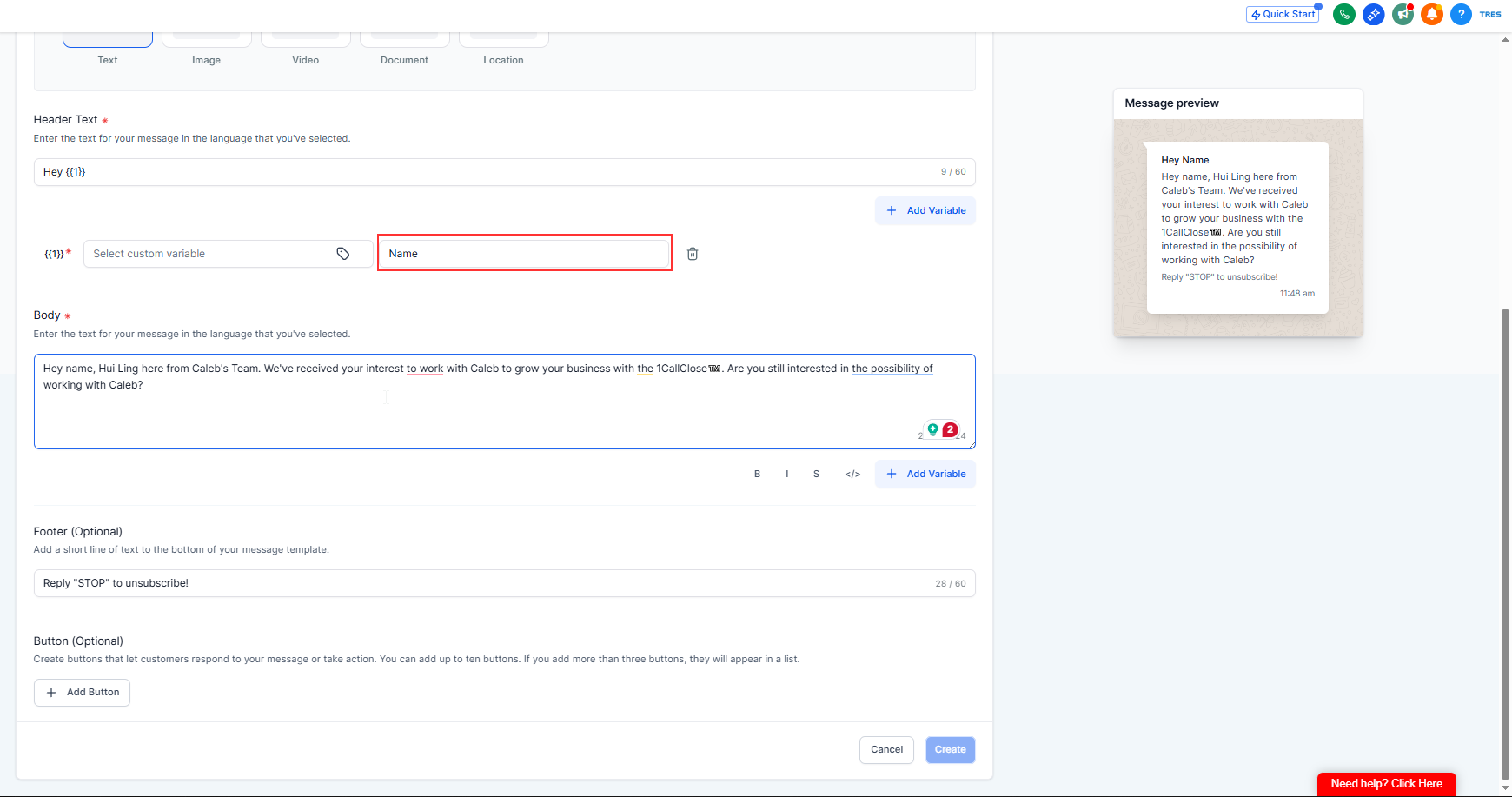
Fill in “Enter sample content” (required by Meta)
In the Enter sample content field, type a realistic example like:
Name / Sarah / David
✅ This is ONLY a preview/example for Meta to review your template.
✅ It does not get sent to customers.
✅ The real value will come from the mapped field (First Name) when the message is sent.
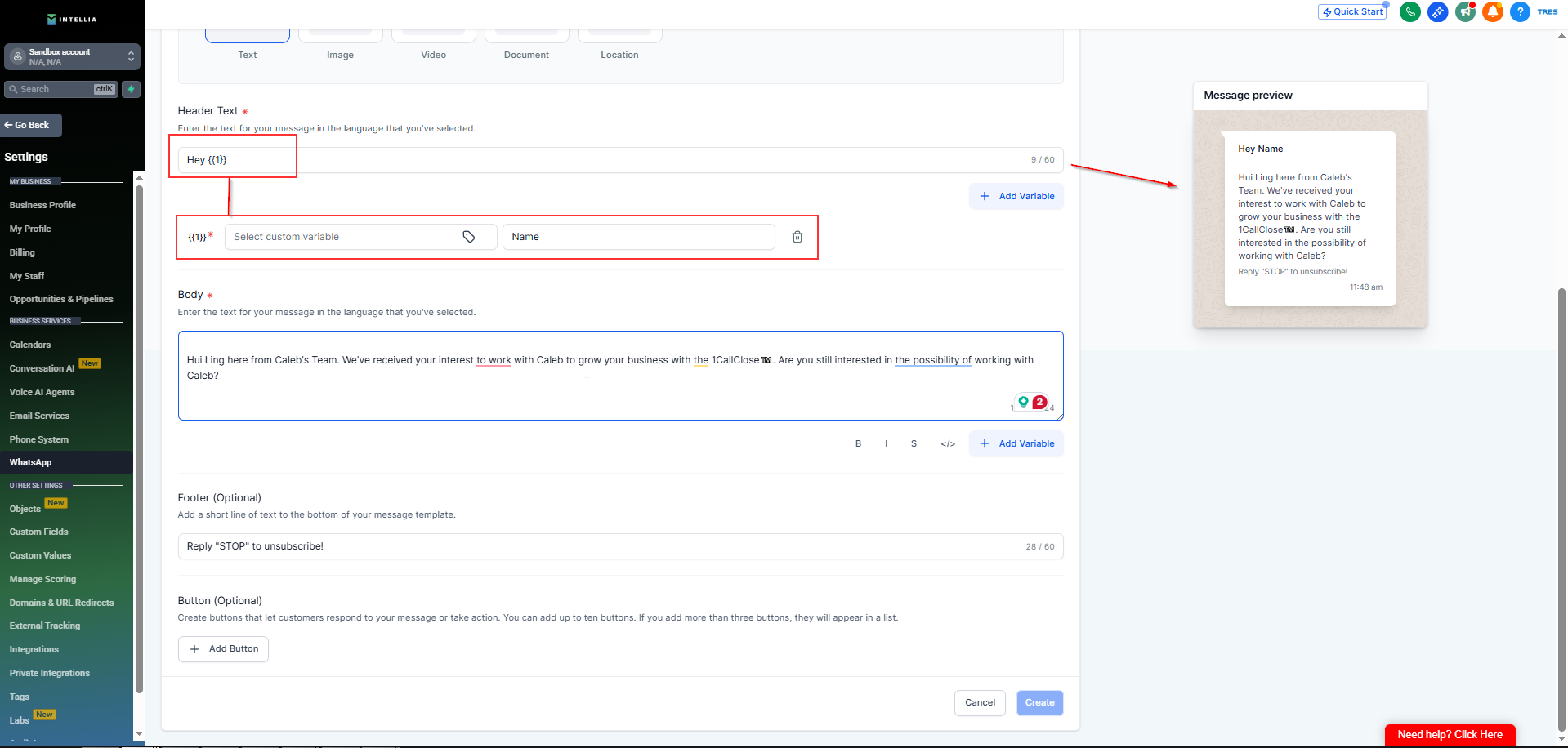
Example header:
Welcome {{1}}
or
Hi {{1}}👋 =
✅ Do not rename it. Meta only allows {{1}}, {{2}}, etc.
Body (keep it short + conversational):
Thanks for registering for the 1CallClose! 🎉
Quick question — are you here to scale deals or systemize selling?
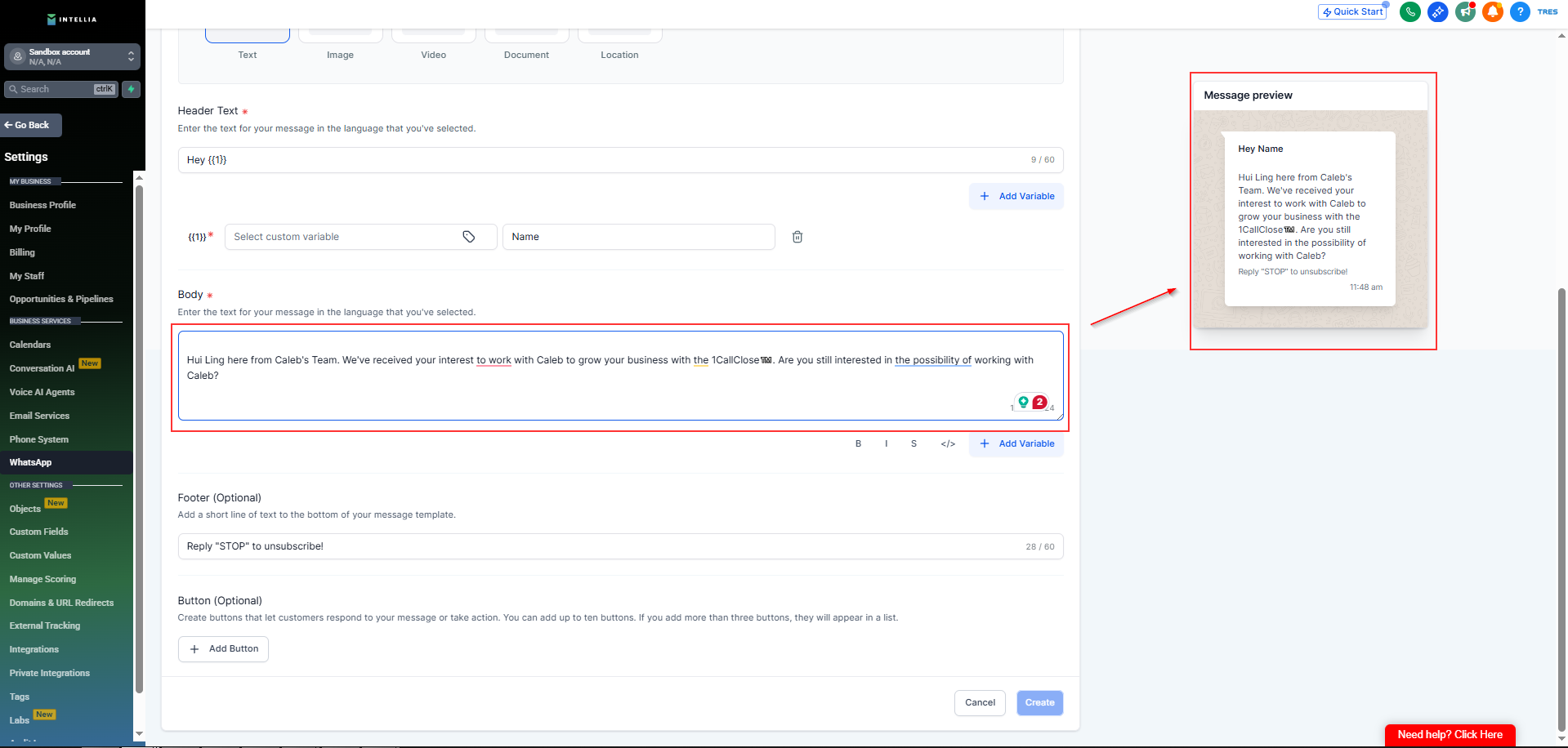
Variables (Optional):
{{1}} = First Name
Keep it exactly {{1}} (no spaces)
You can reuse {{1}} in both header and body
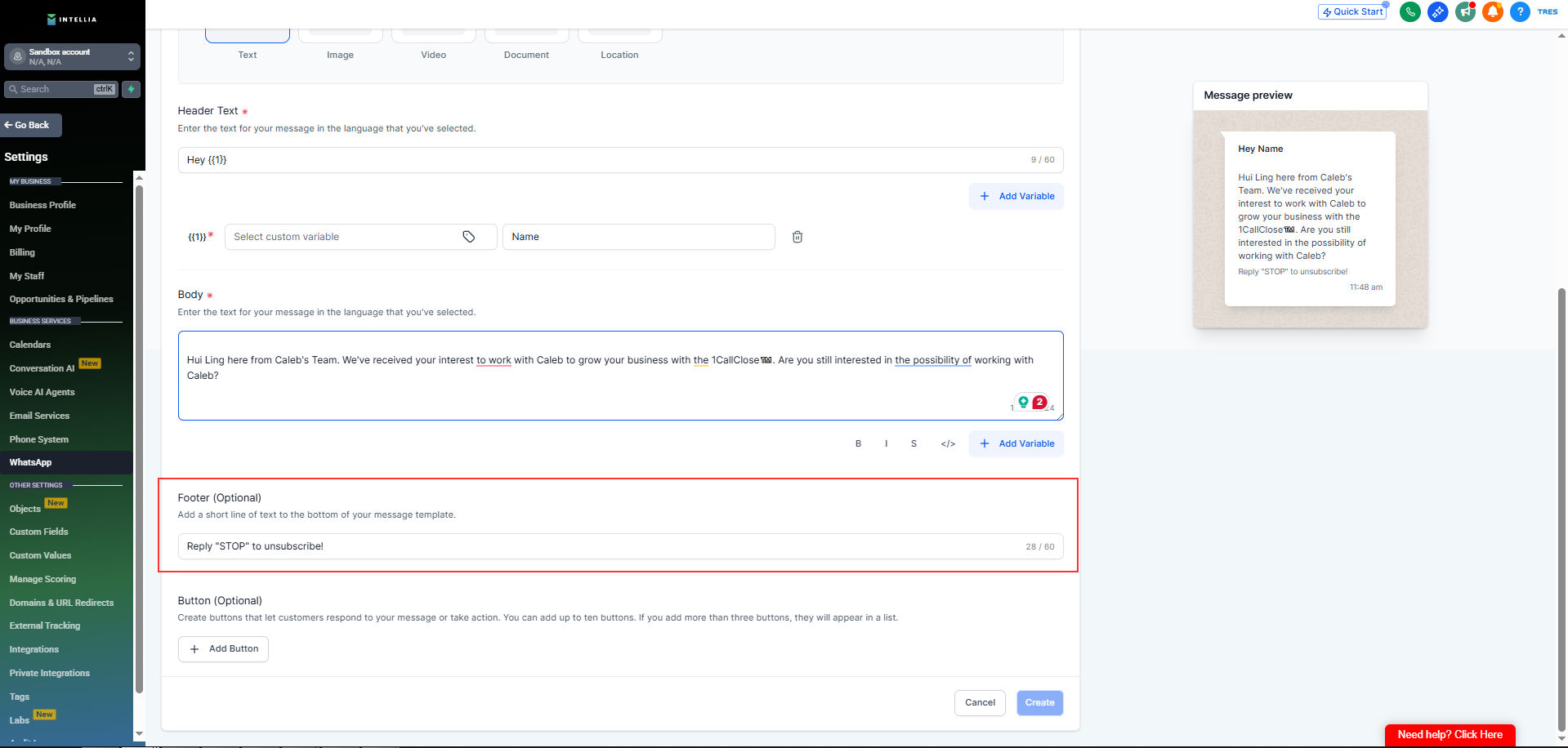
Footer (optional but recommended):
Reply anytime if you need help.
example:
Reply "STOP" to unsubscribe!
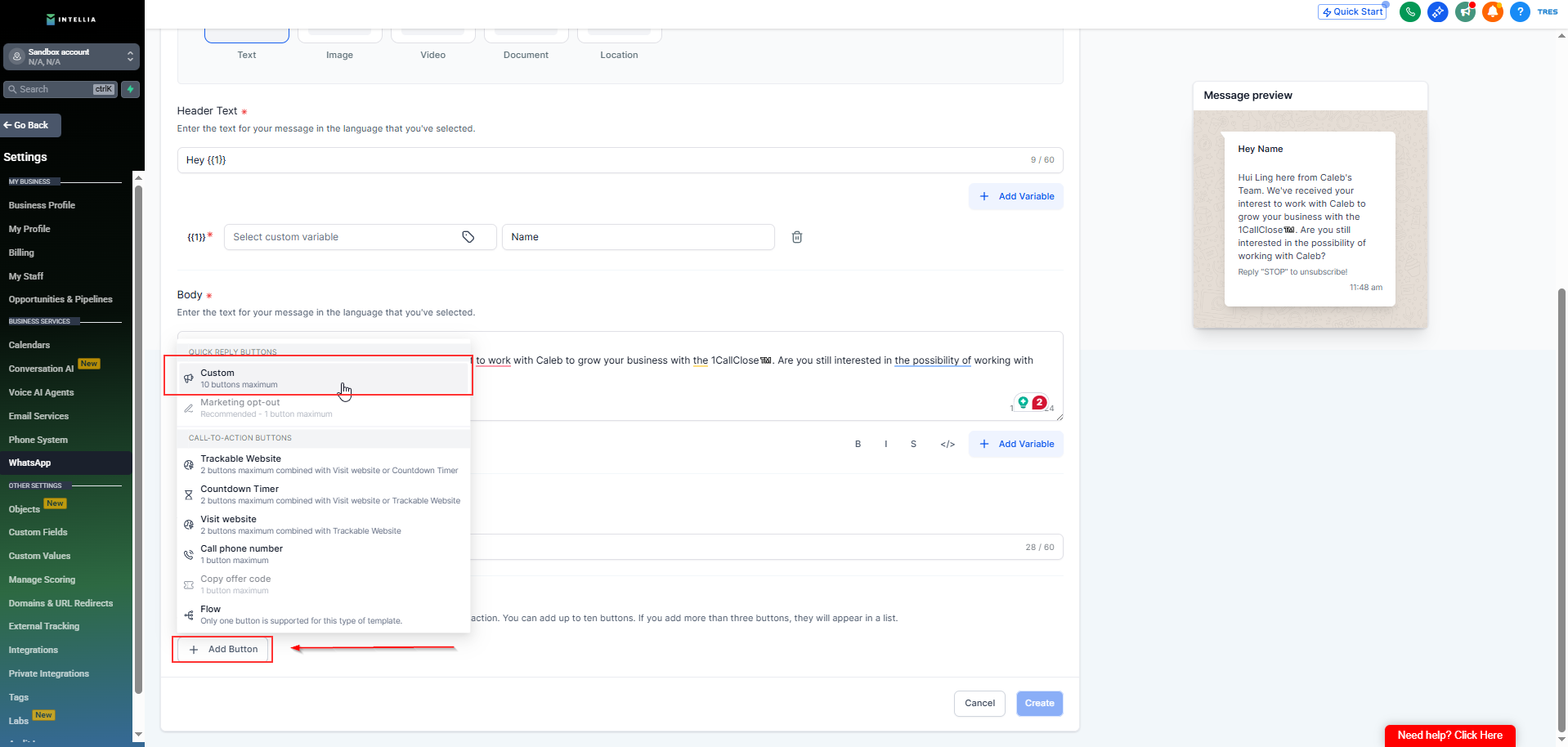
Add a Custom Button
Choose a button text that fits your question flow (based on what you want them to click/respond with)
Fill the Button Text
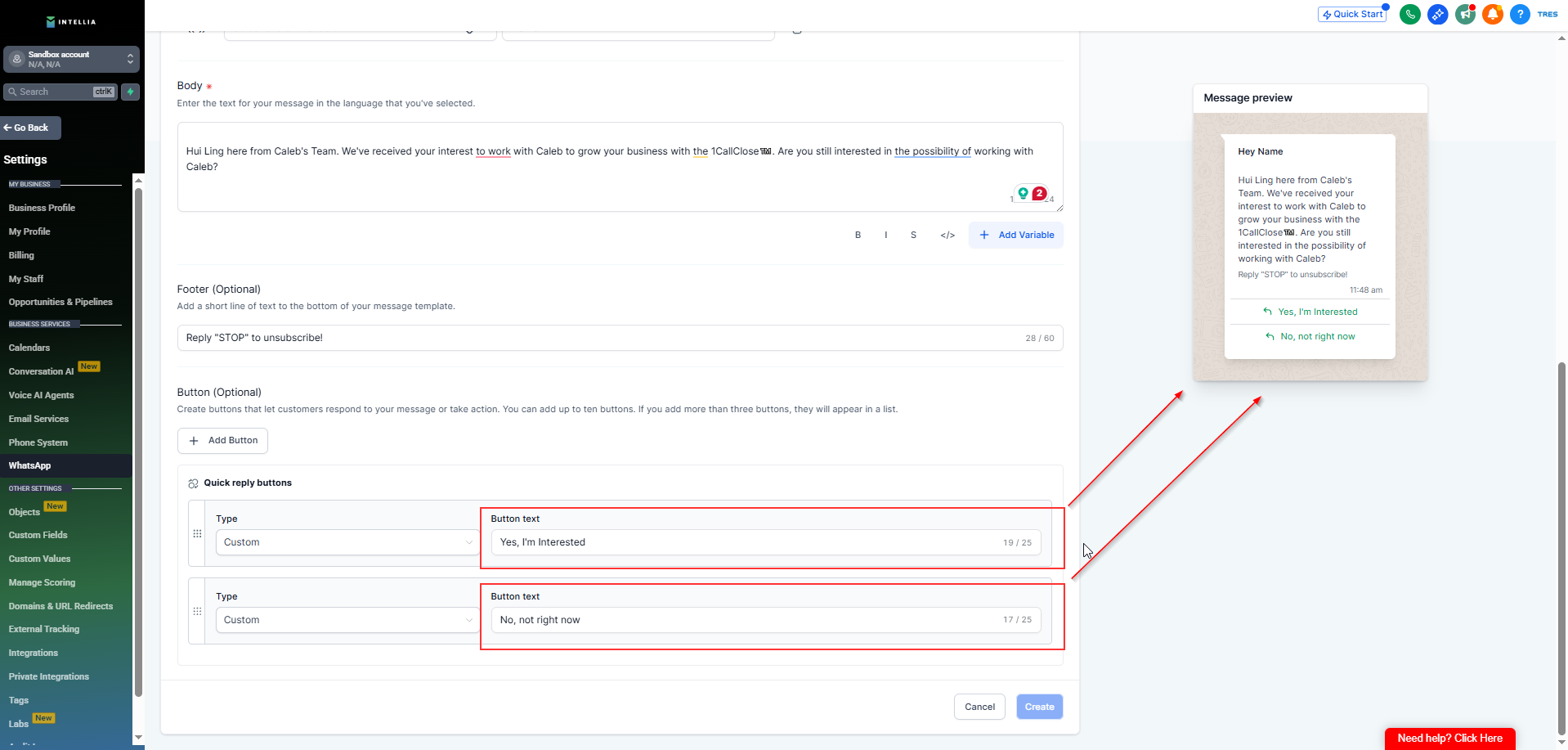
Rules:
Keep it short (WhatsApp-friendly)
Don’t overwhelm with paragraphs
Once the template is complete, Review the copy.
To save, click Create
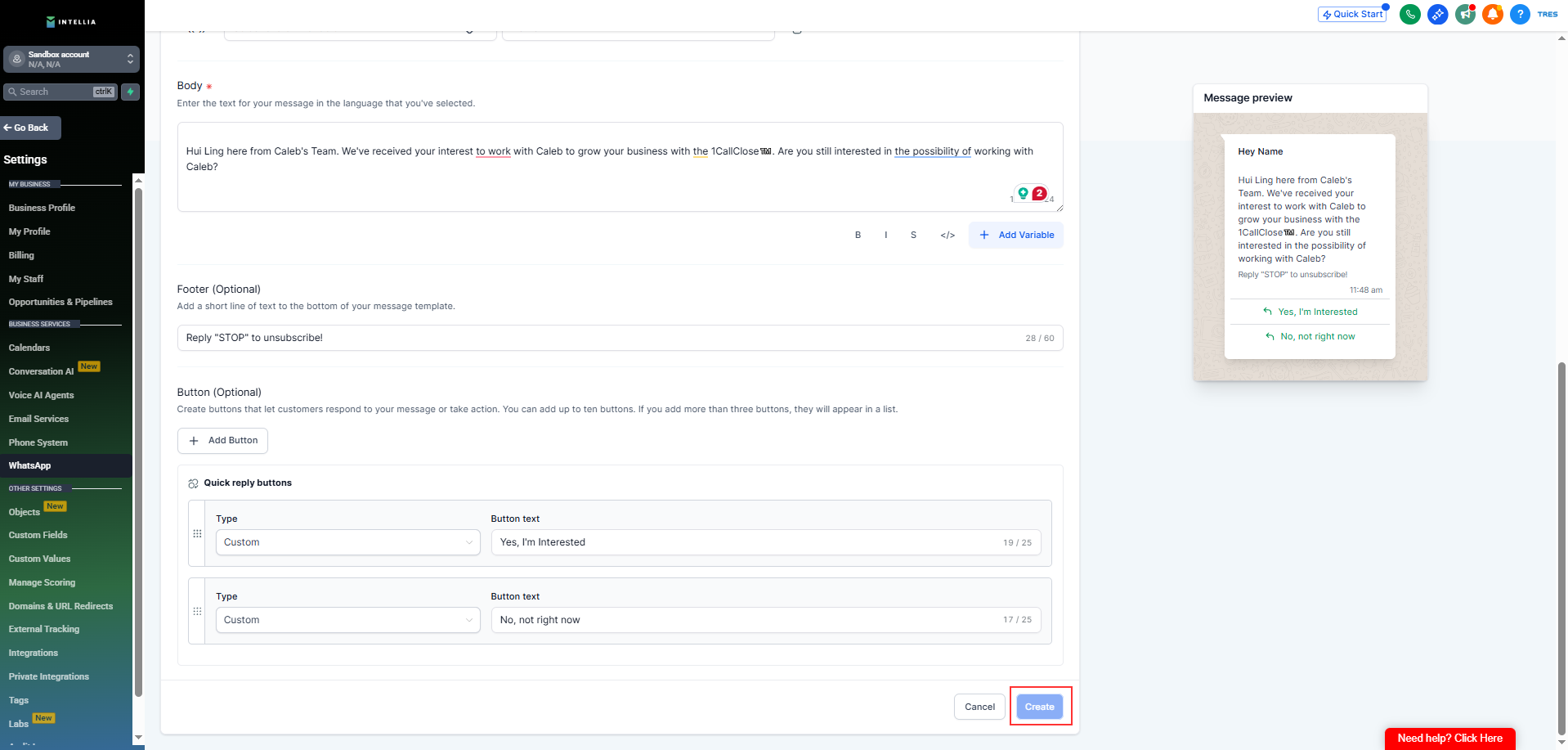
☑ Templates must be approved before they can be used in automation.
Meta will review your template
Approval typically takes a few minutes to a few hours (sometimes up to 24 hours)
Once approved, you can select this template inside your workflows
⚠ Use simple, clear language — avoid ALL CAPS, salesy tone, emojis in the middle of sentences, or symbol spamming.
⚠ The template must match the automation use case — greeting + next step ask.
⚠ Don’t include links in the first message — Meta may reject templates with unsafe or spammy URLs.
1) Why do I need to create a WhatsApp template first?
WhatsApp (Meta) requires all first messages to be pre-approved templates before automation can send them. Without an approved template, your 1CallClose.Agent cannot message new leads.
2) What’s the difference between Marketing and Utility templates?
Marketing: Used for opt-ins, events, and promotions (higher cost)
Utility: Used for confirmations or transactional updates (lower cost)
Both are used to start or restart conversations after 24 hours.
3) Why do templates cost money but follow-up messages are free?
Templates are charged because they initiate a conversation.
Once a lead replies, all messages sent within 24 hours are free session messages.
4) What is {{1}} and how does it work?{{1}} is a Meta-required placeholder.
Inside Intellia, you map it to a real value like Contact → First Name ({{contact.first_name}}).
Do not rename or edit the format.
5) Why does Meta ask for “Enter sample content”?
This is only for Meta’s preview during approval (e.g., “John”).
It is not sent to customers — real values are auto-filled when the message sends.

