Test end-to-end before going live.
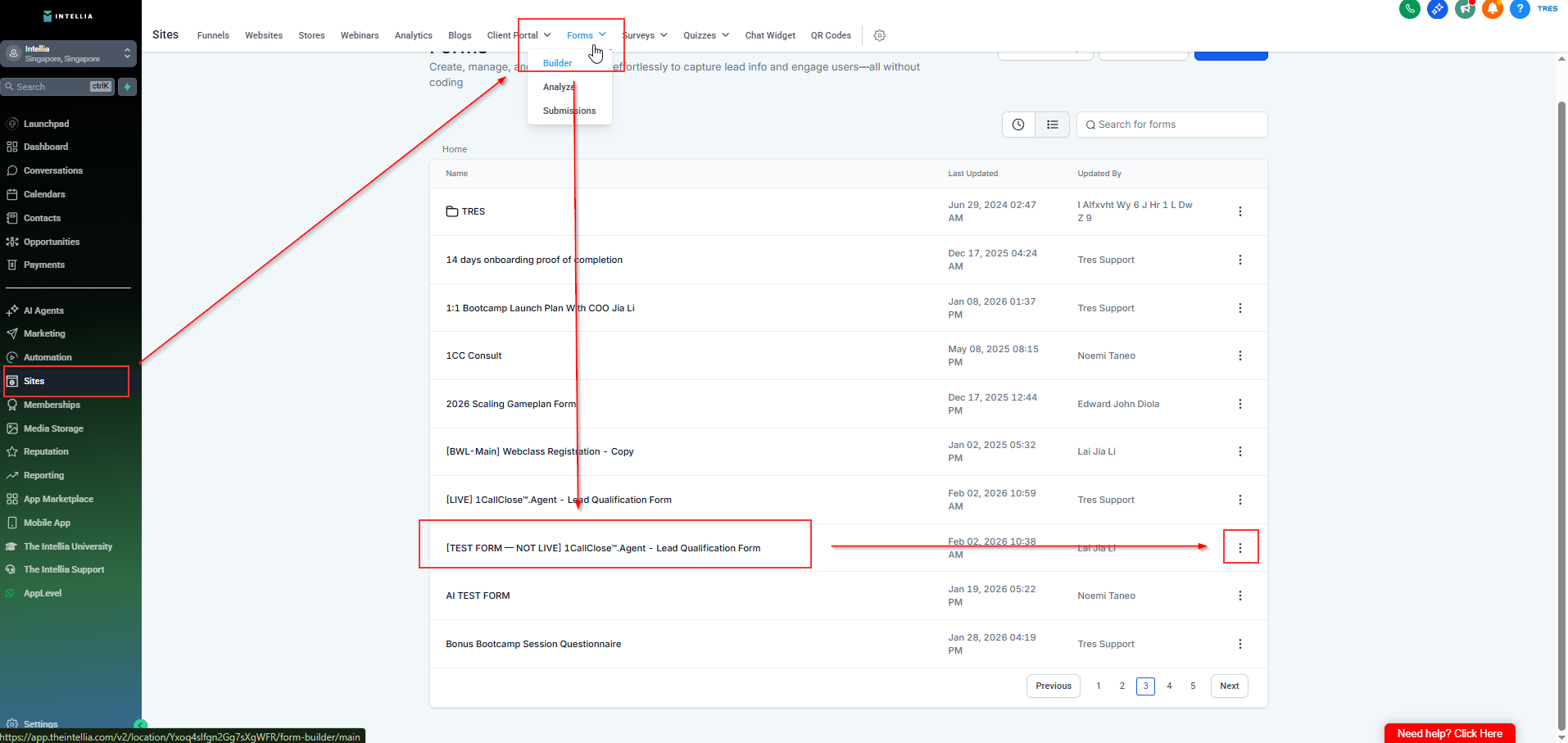
Go to Sites> Form builder > find the test form
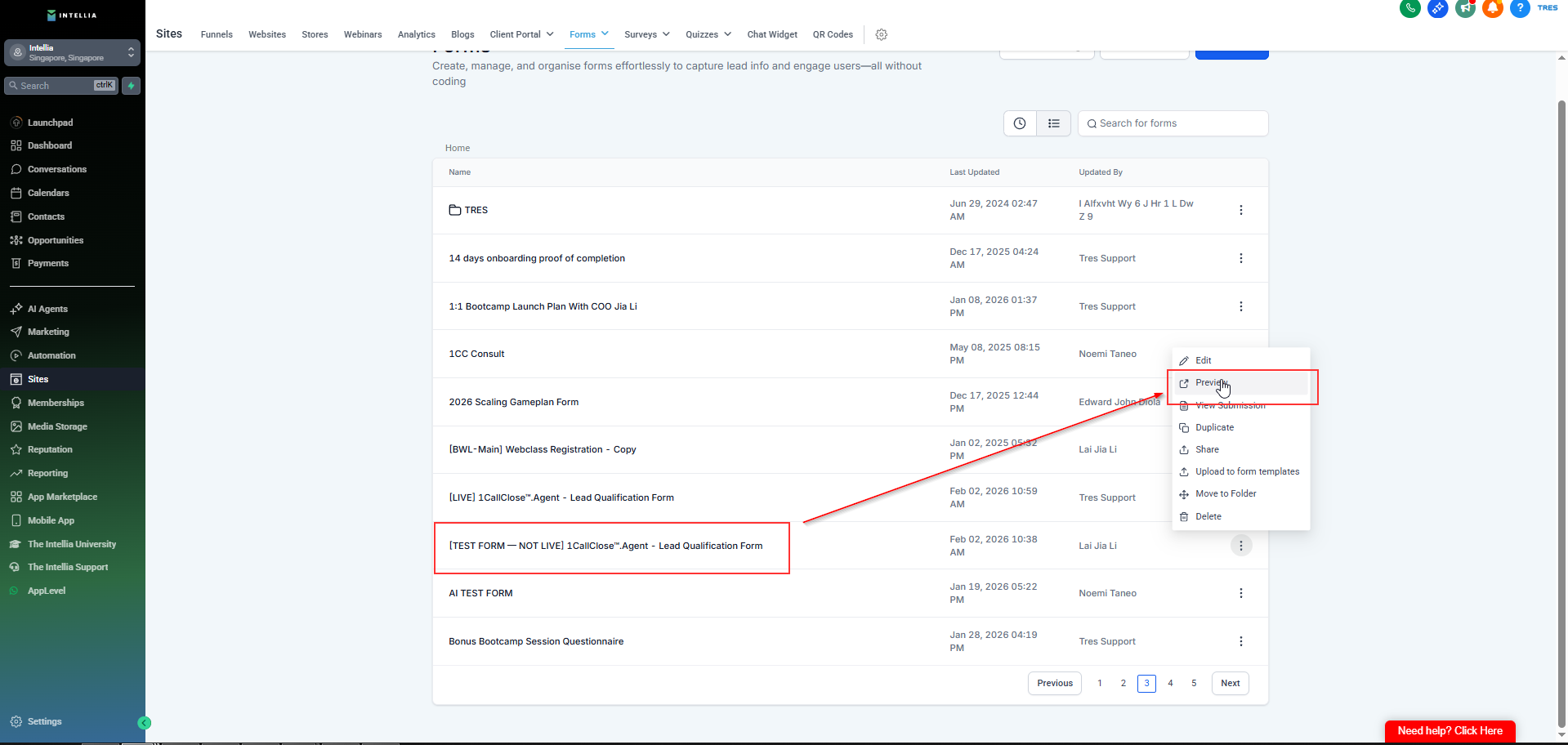
Once you found the test form click the 3 dot
Click Preview
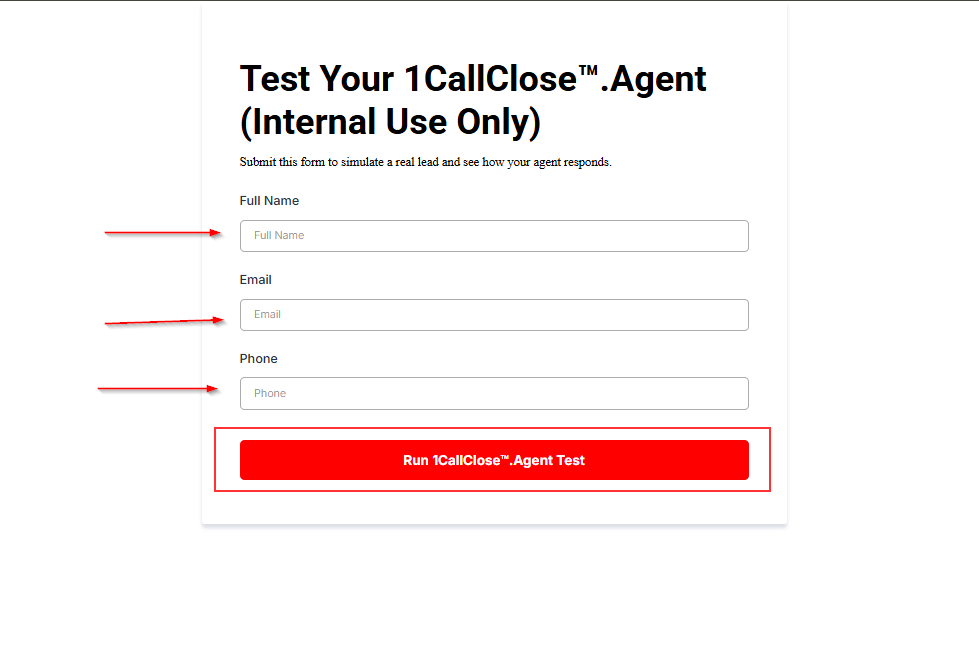
Submit using:
Your real contact details
A valid WhatsApp number
Test at least these scenarios:
“How much is it?”
“Send me details”
“I’m busy”
“Is this legit?”
“I need to think”
✅ Verify the AI follows your configured rules, including:
Qualification questions
Booking direction
Short, human replies
Correct calendar booking logic
If it’s off: update Additional Instructions → Save → Retest.
1) Why do I need to publish the workflow before testing?
Publishing activates the logic so contacts can actually run through it. If the workflow is still in draft mode, triggers won’t fire and WhatsApp/email messages won’t send.
2) Where should I test from — the TEST form or LIVE form?
Always test against the TEST form first. This ensures your AI messages, booking links, variables, and logic work end-to-end before using your LIVE opt-in form.
3) How do I verify the WhatsApp messages are sending correctly?
Submit a test with a real phone number for WhatsApp. Ensure:
WhatsApp is connected
Templates are approved
Wallet has credits
If the message doesn’t arrive, check template approval + wallet balance first.
4) Why didn’t the AI message trigger after I submitted the TEST form?
Common causes:
Workflow not published
Trigger filter still set to the wrong form
WhatsApp templates not approved
Wallet balance too low
Double-check each of these before retesting.
5) Can I test again after publishing?
Yes — you can keep testing as much as you need. Publishing doesn’t lock the workflow. Every time you make changes, save and republish so the test reflects the latest version.

