Go live safely using a LIVE workflow connected to the REAL form.
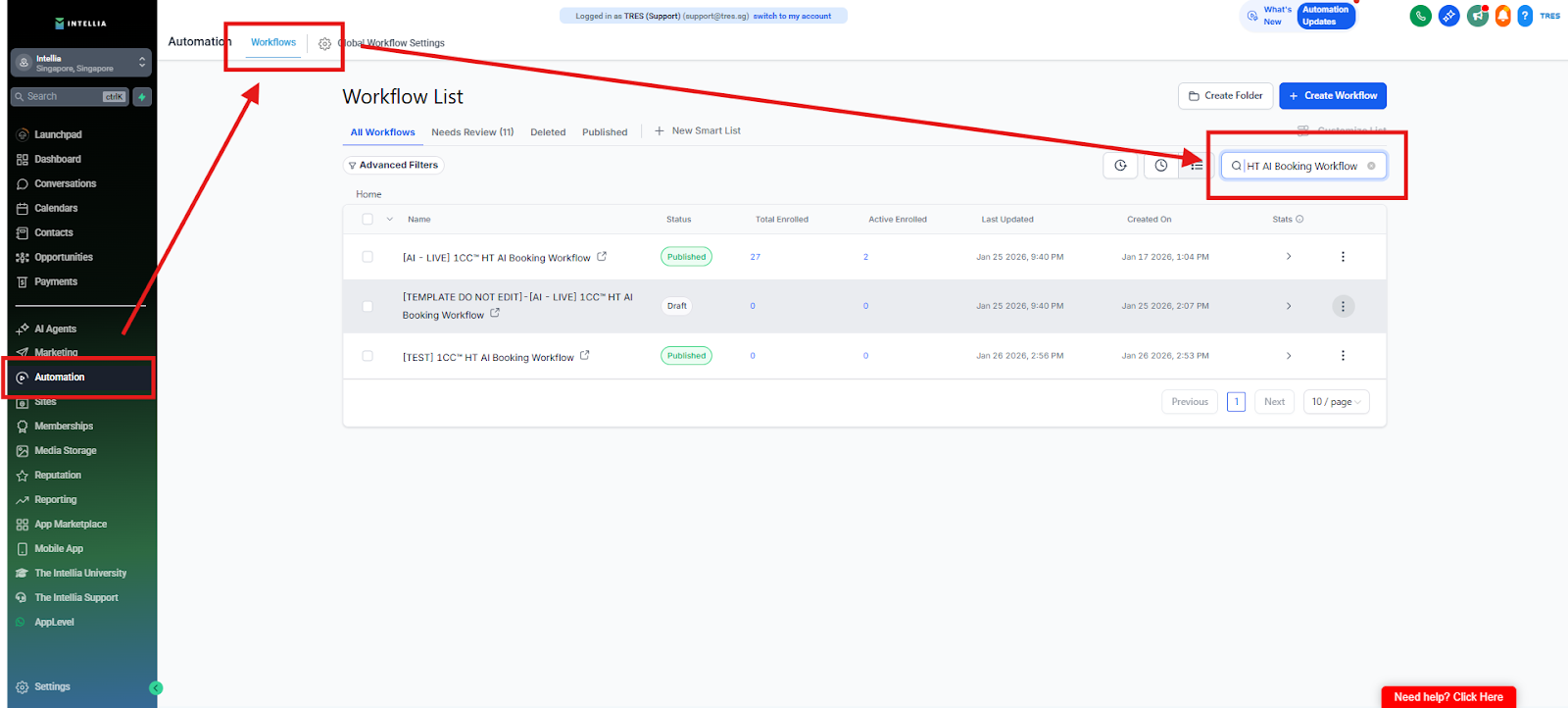
Go to Automations
Search for:
[LIVE] 1CallClose™.Agent - Buyer Qualification & Appt Booking - TEMPLATE ONLY (DO NOT EDIT THIS - CLONE & USE)
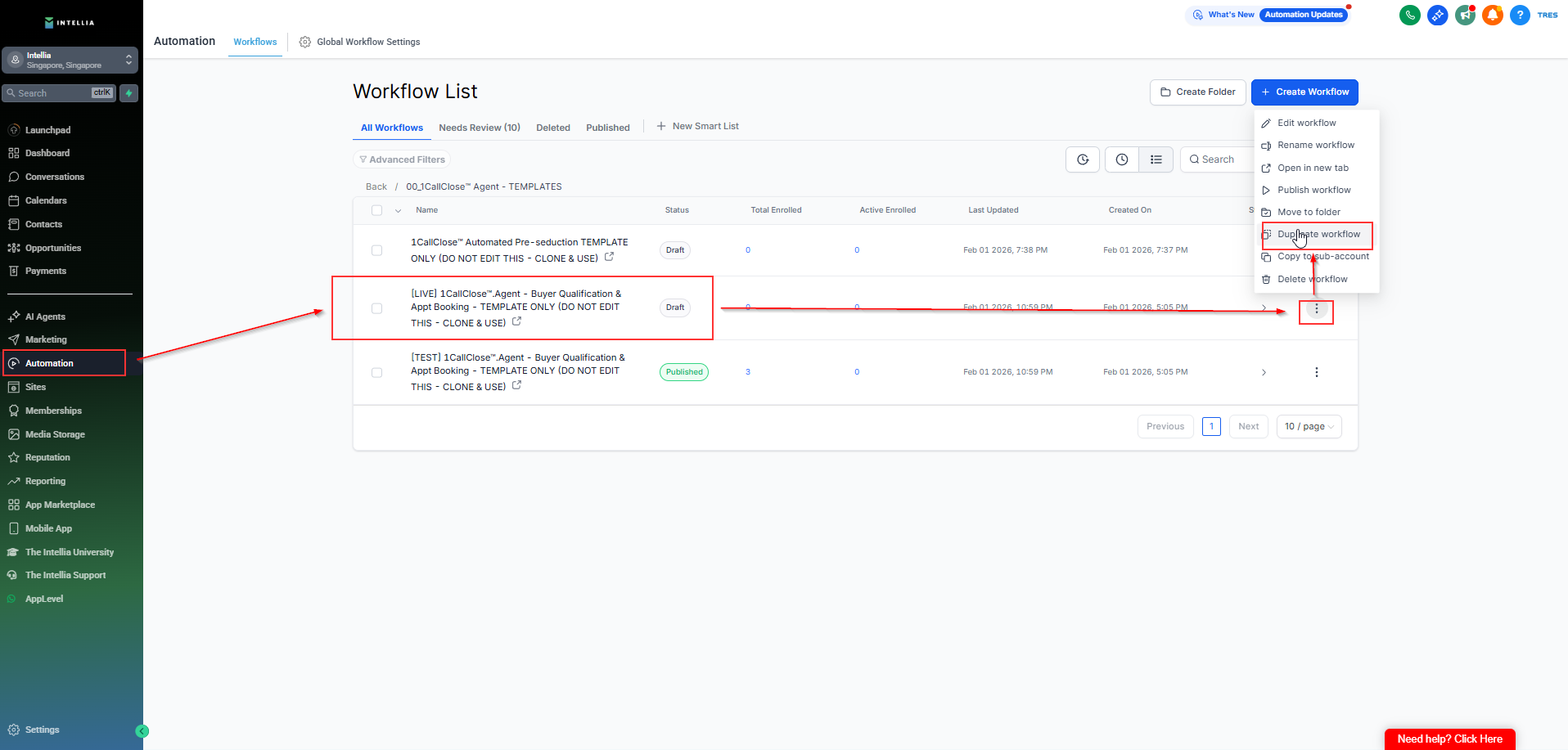
Click Three dot and duplicate the workflow
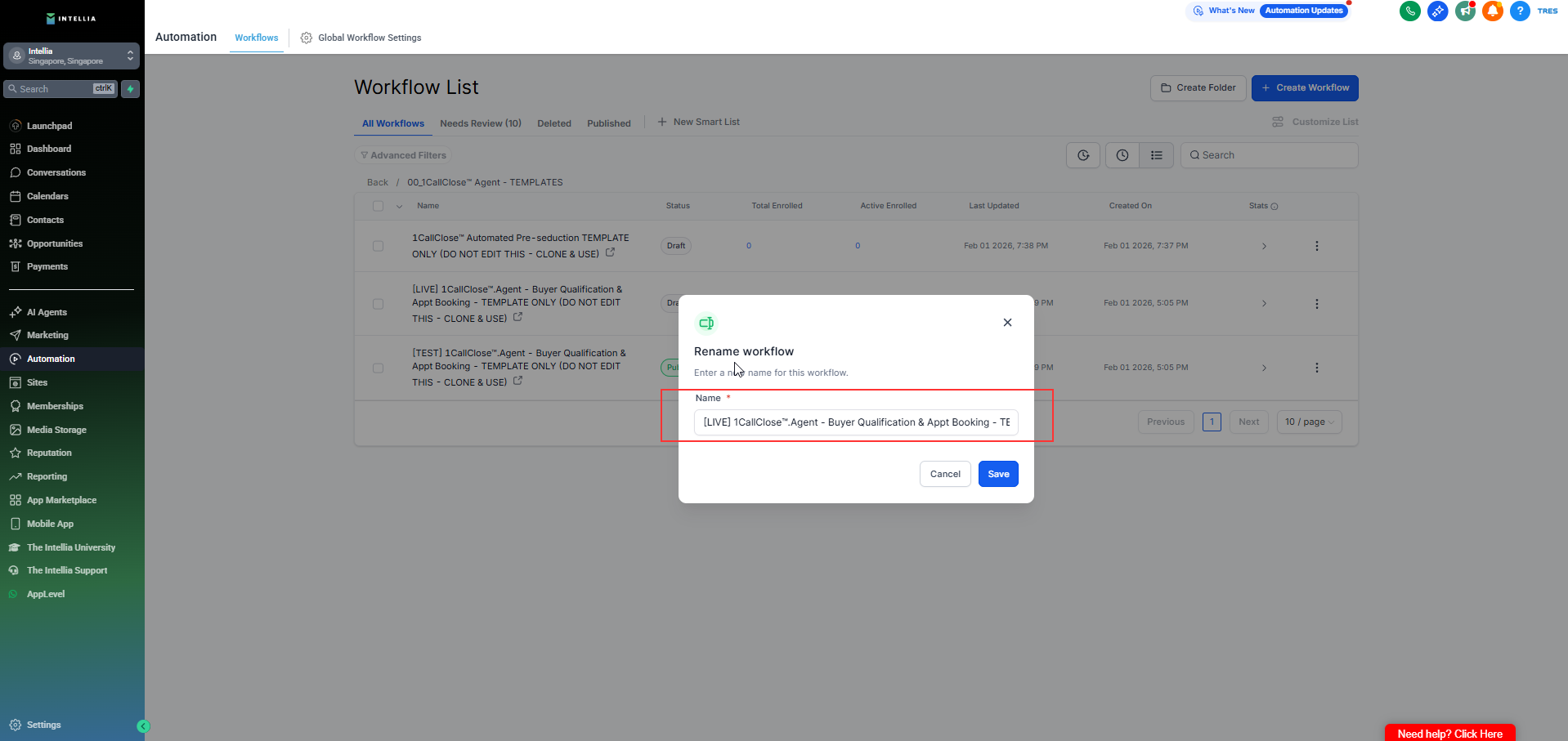
Rename clearly (examples):
[LIVE] 1CallClose™.Agent — [[Business/Brand]]
Buyer Qualification & Appt Booking — LIVE
Open your duplicated LIVE workflow
Click Trigger: Opt-in
Set filter:
Form is → [LIVE] 1CallClose™.Agent - Lead Qualification Form
Or if you have existing Live Opt-in form use it.
Save
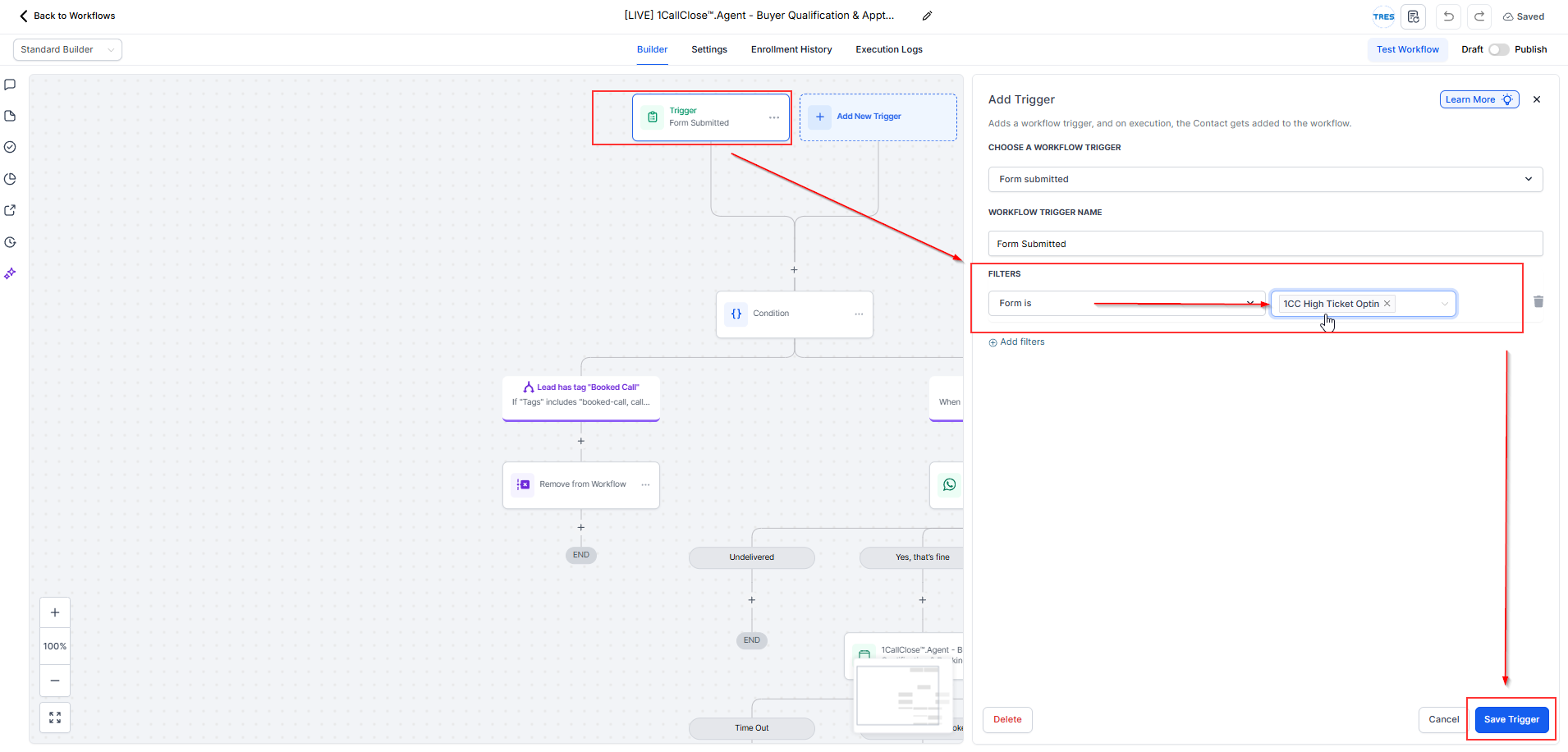
🚨 Double-check you did NOT select the TEST form.
In your TEST workflow:
Copy the final edits from:
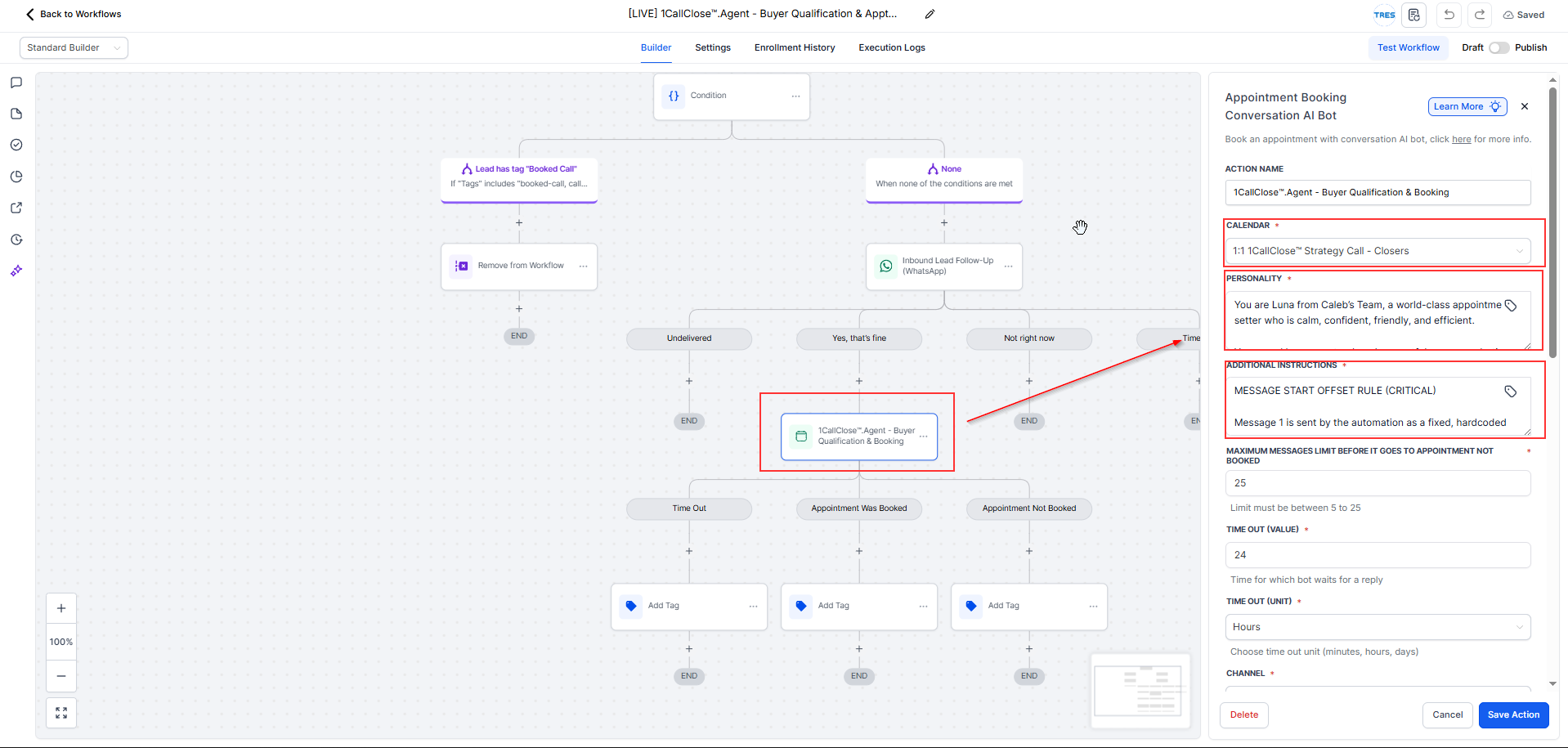
1CallClose™.Agent - Buyer Qualification & Booking
1CallClose™.Agent - Buyer Qualification & Booking (Personality + Additional Instructions + Calendar)
Paste / apply the same changes into LIVE.
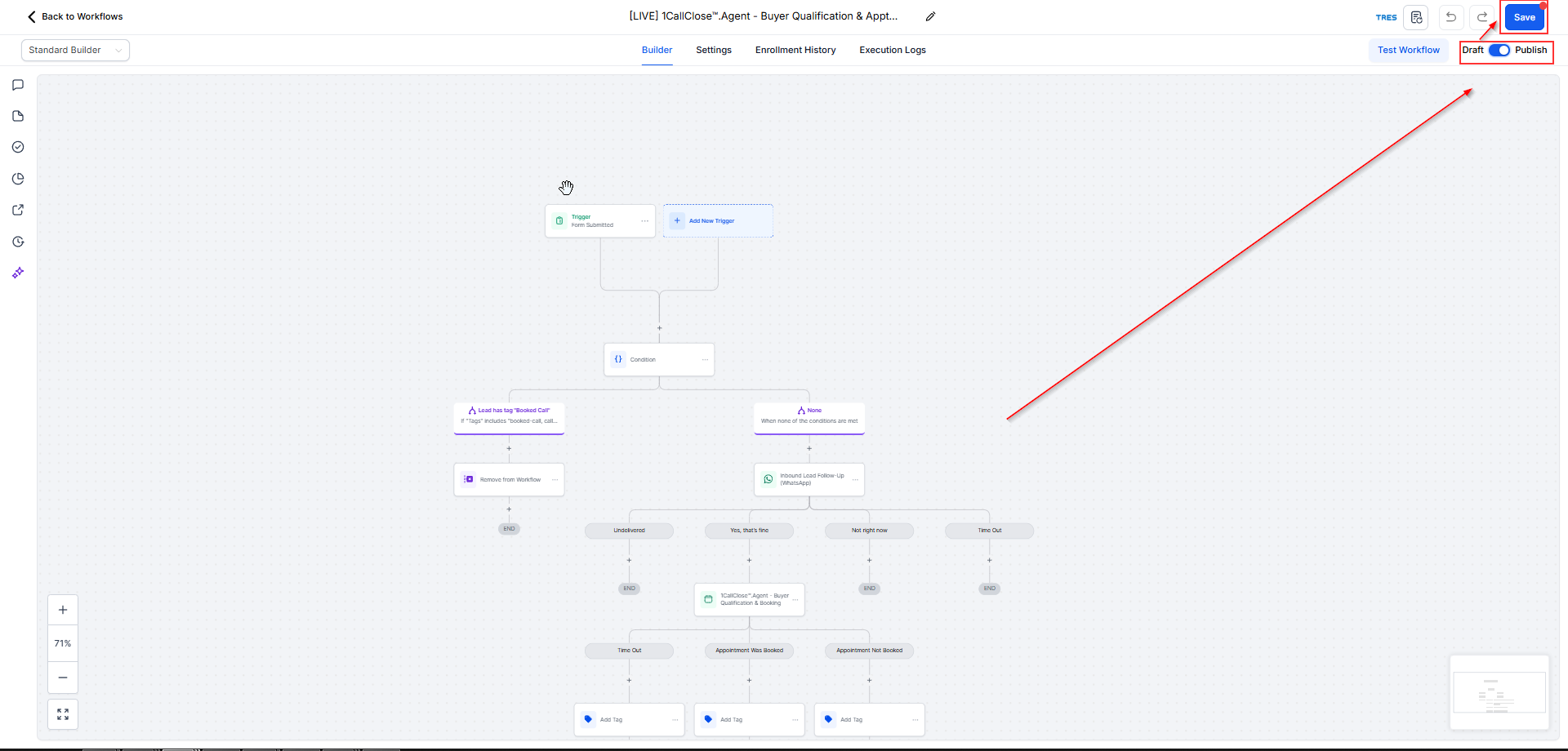
Save and Publish your duplicated LIVE workflow.
✅ Launch checklist (before traffic):
LIVE trigger = REAL form
Calendar selected correctly
First message personalized
Workflow is published/active
TEST is for safe testing with your TEST form only.
LIVE is the real one connected to your REAL opt-in form, used when you’re ready for actual leads.
Open your duplicated LIVE workflow → Trigger: Opt-in → check the filter shows:
Form is → (your REAL opt-in form)
If it shows the TEST form, your real leads won’t enter the workflow correctly.
No—don’t reinvent it.
You should copy the final refined settings from your TEST workflow (Personality + Additional Instructions + Calendar) and paste/apply the same changes into LIVE.
It alerts your team when the AI conversation pauses (e.g., timeout), so a human can follow up fast.
Best practice: keep it short + actionable and include lead details like Name, Phone, Email.
Most common causes:
LIVE workflow is not published/active
LIVE trigger is still pointing to the TEST form
Calendar wasn’t selected correctly
First message wasn’t personalized properly
Use the Launch checklist before sending traffic: REAL form, correct calendar, personalized first message, workflow published.