The Contacts Export Upgrade replaces the old browser-based export with a scalable backend process.
Instead of waiting for a CSV to download in the foreground, your export job is queued on Intellia’s servers, processed in the background, and tracked from the Bulk Actions dashboard. Once complete, your file appears in Bulk Actions and stays available for download for 30 days.
Work Uninterrupted: Exports run in the background (no UI blocking).
Handles Large Lists Better: Fewer failures with big exports.
Progress Tracking: Monitor status inside Contacts → Bulk Actions.
Notifications: Get notified when the export is ready.
30-Day File Retention: Download link stays active for 30 days.
Admin-Controlled Access: Export/download is restricted to Admin roles.
Exporting contacts to CSV helps when you want to:
Back up your contact list offline
Migrate contacts to another CRM
Build marketing lists for email/SMS campaigns
Share data with your team
Analyze/report using spreadsheets or BI tools
Exported file format is CSV, compatible with Excel, Google Sheets, and other spreadsheet tools.
Some data (example: latest note beyond 255 characters) may be truncated.
Exports do not include automation history (ex: past emails/SMS logs).
Only Admin users can export contacts. If you don’t see the export option, check your role permissions or contact an admin.
In your Intellia sub-account (location), go to Contacts.
Click Smart Lists.
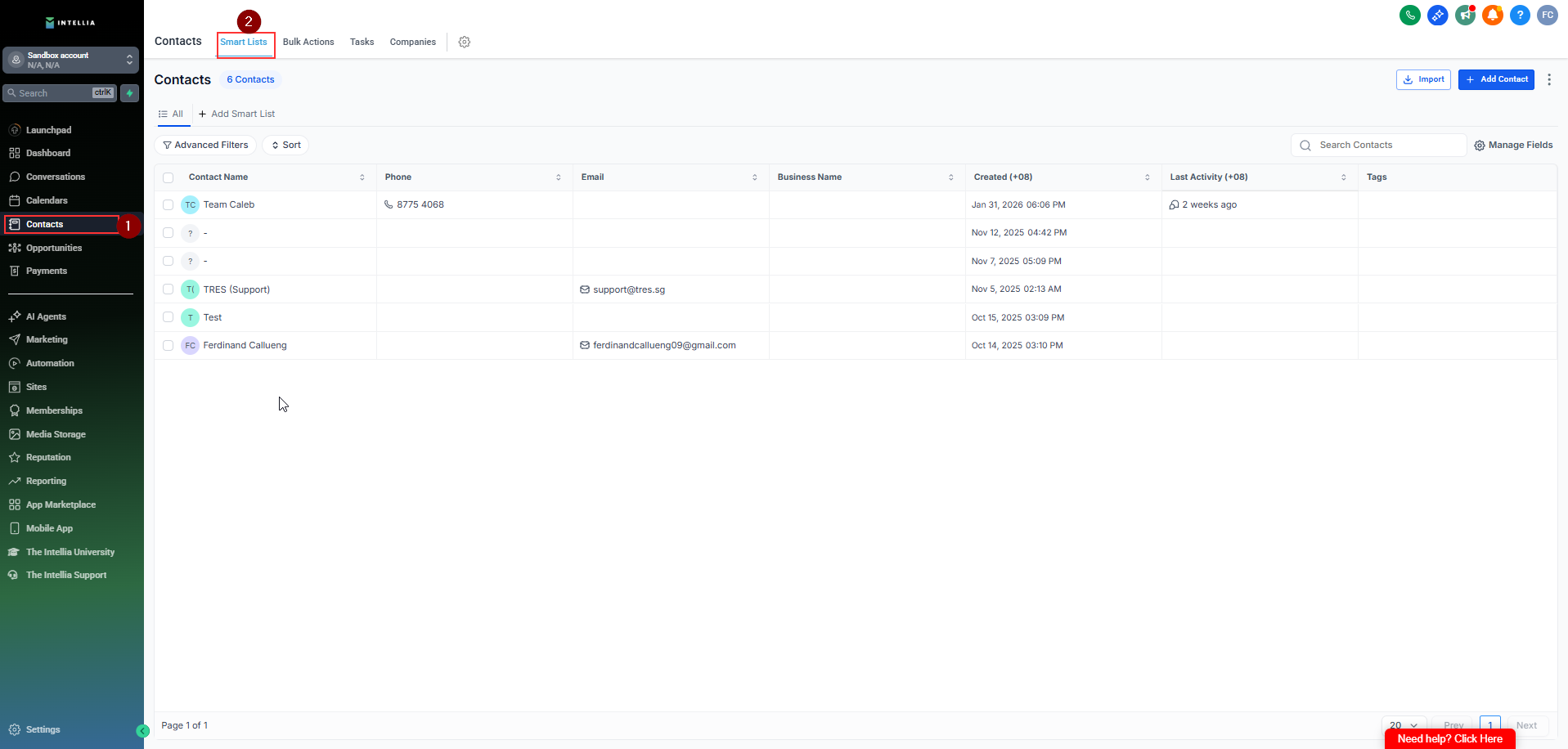
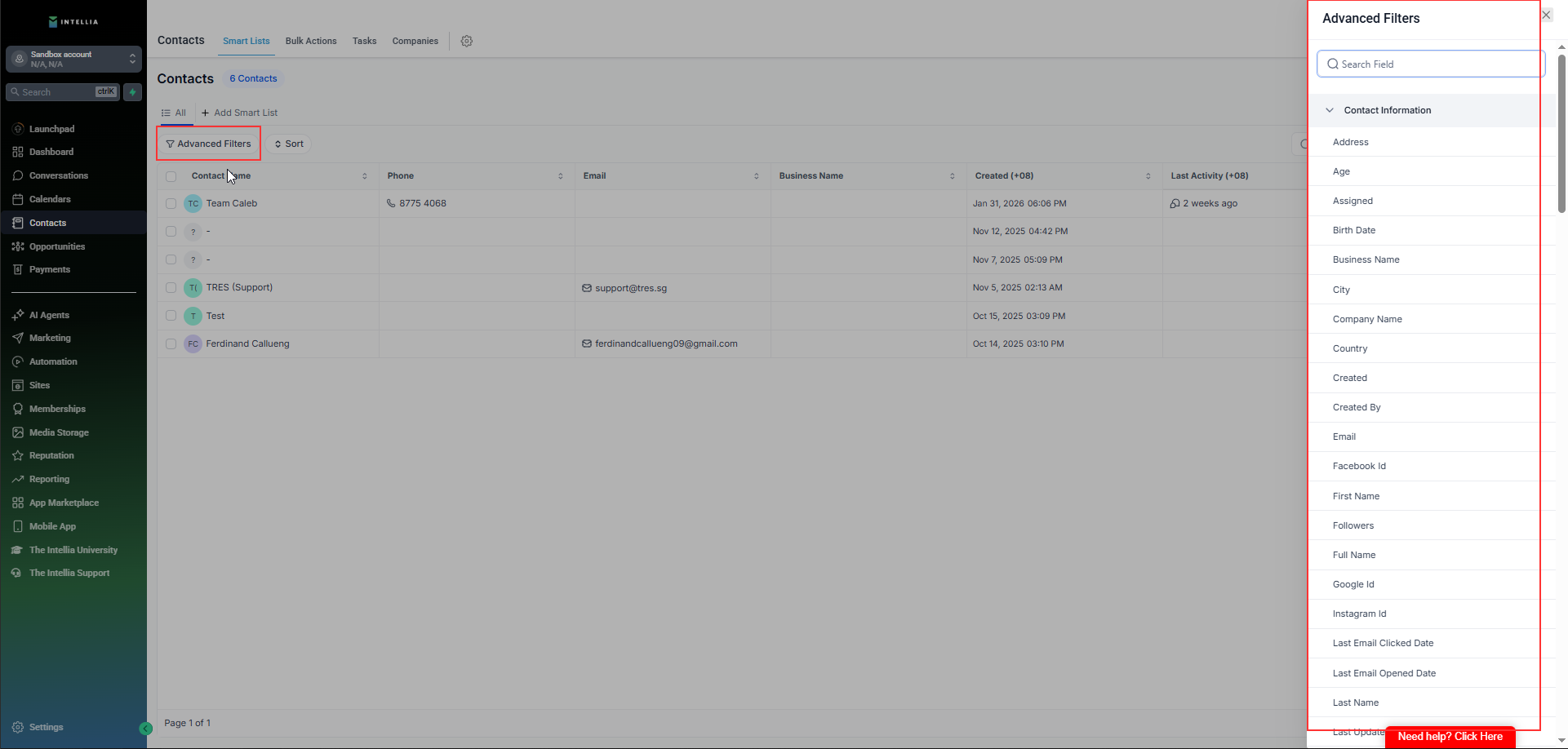
Use Advanced Filters to narrow down your list (optional).
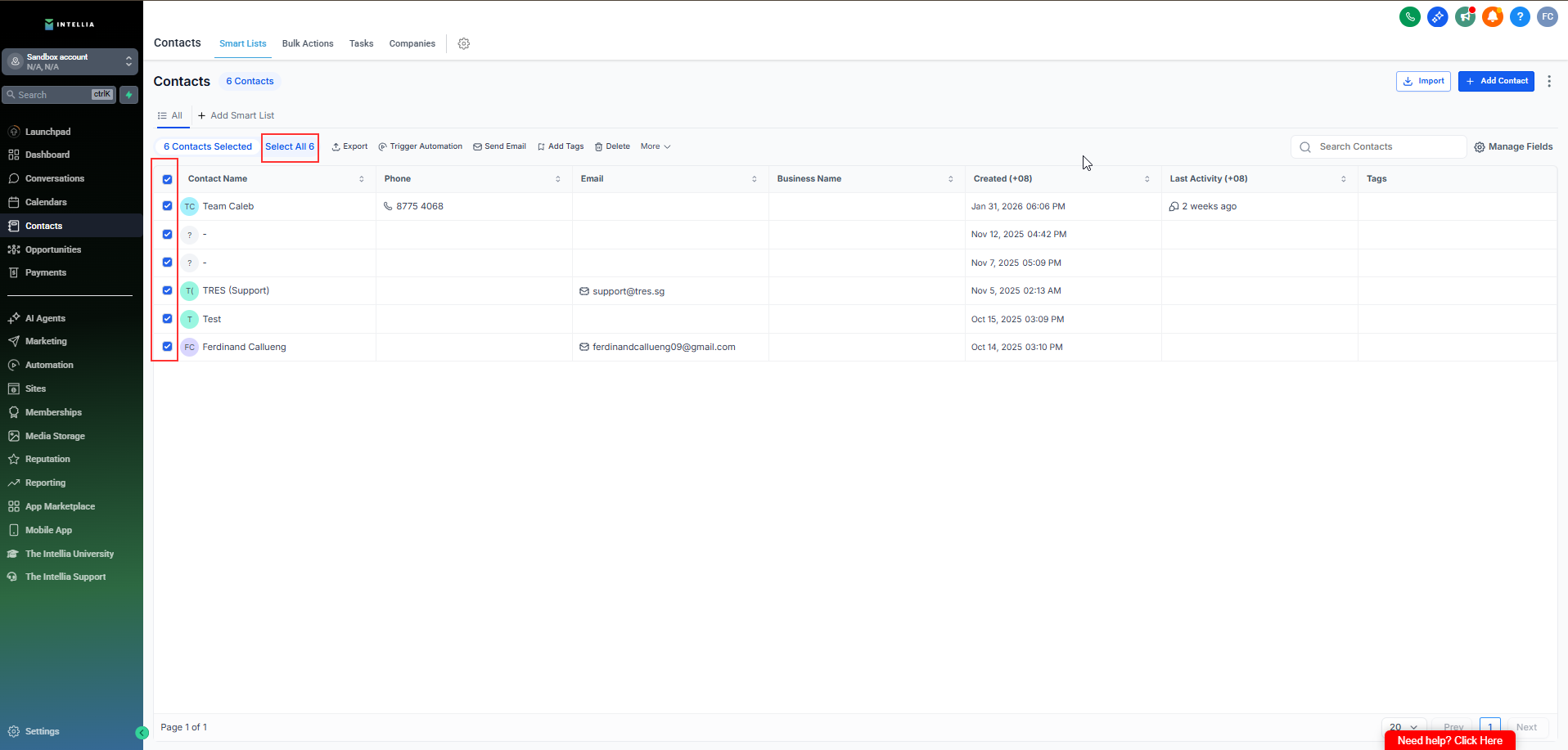
Select contacts by checking the boxes beside each contact.
To export all contacts, click the checkbox beside the filter fields (left side), then click Select All Contacts.
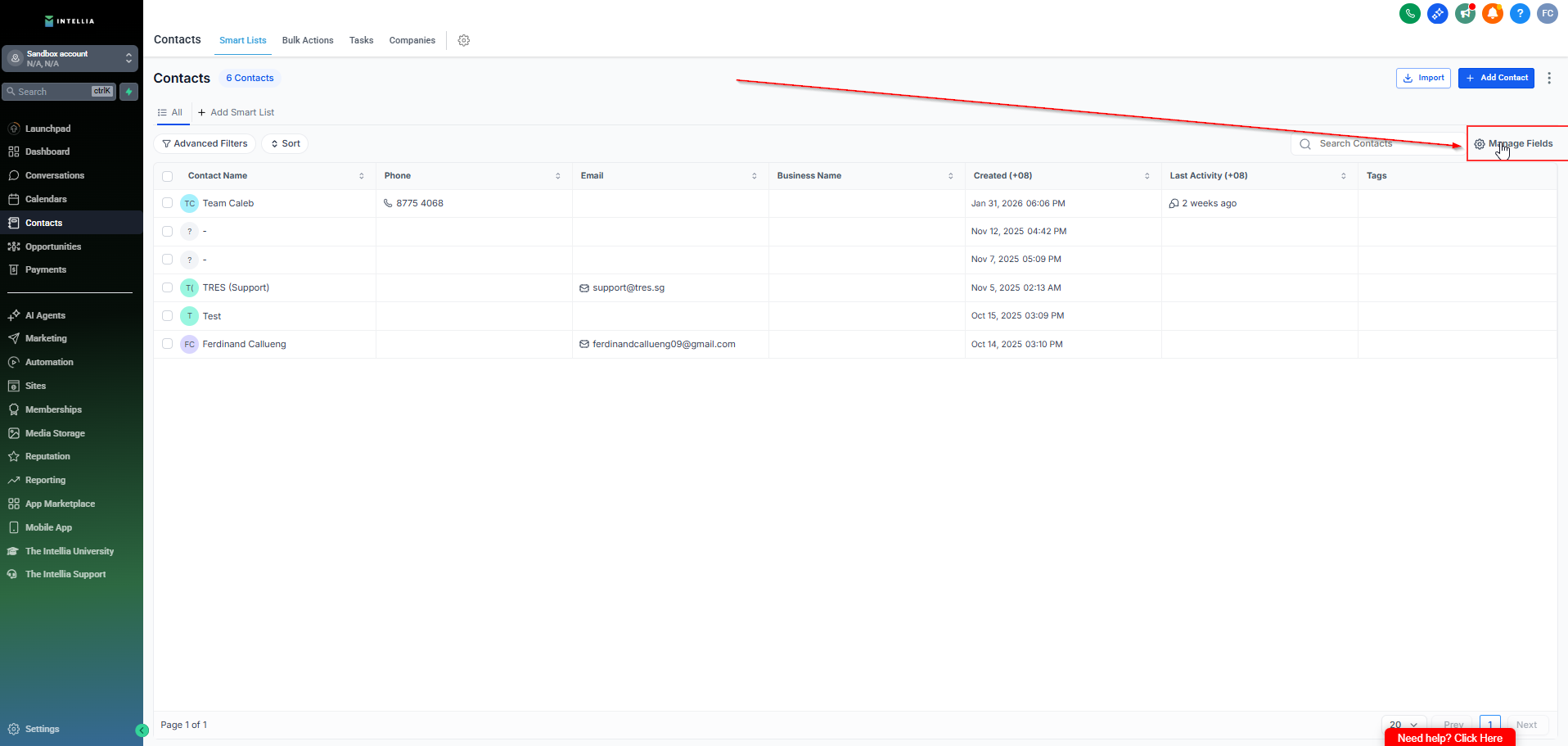
Important: Your CSV will only include the columns currently visible in the Contacts table. If a field is missing, update your columns first, then export again.
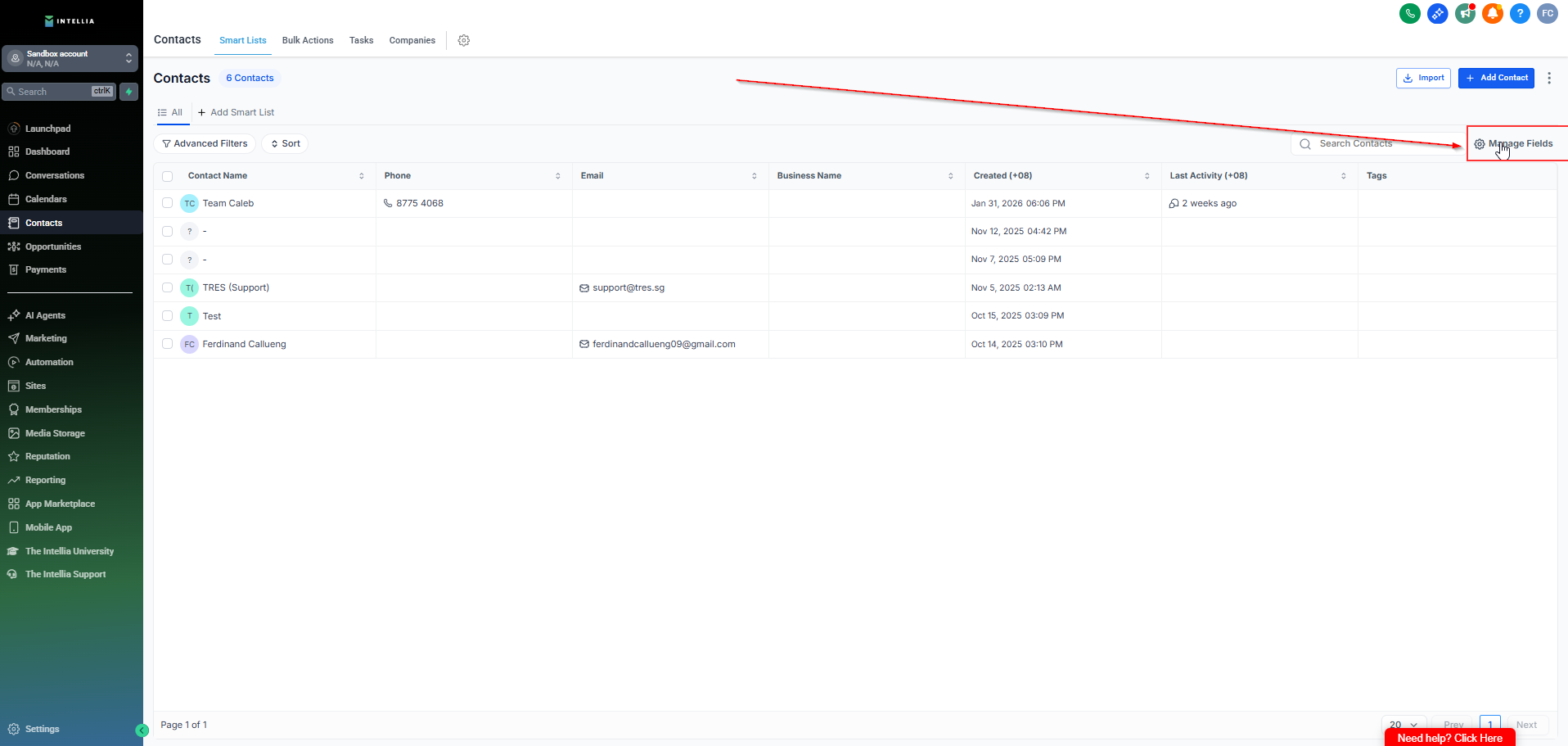
Click Manage Fields.
Check/uncheck fields to control which columns appear in the export.
Your exported CSV will reflect these visible columns.
Click More.
Click Export.
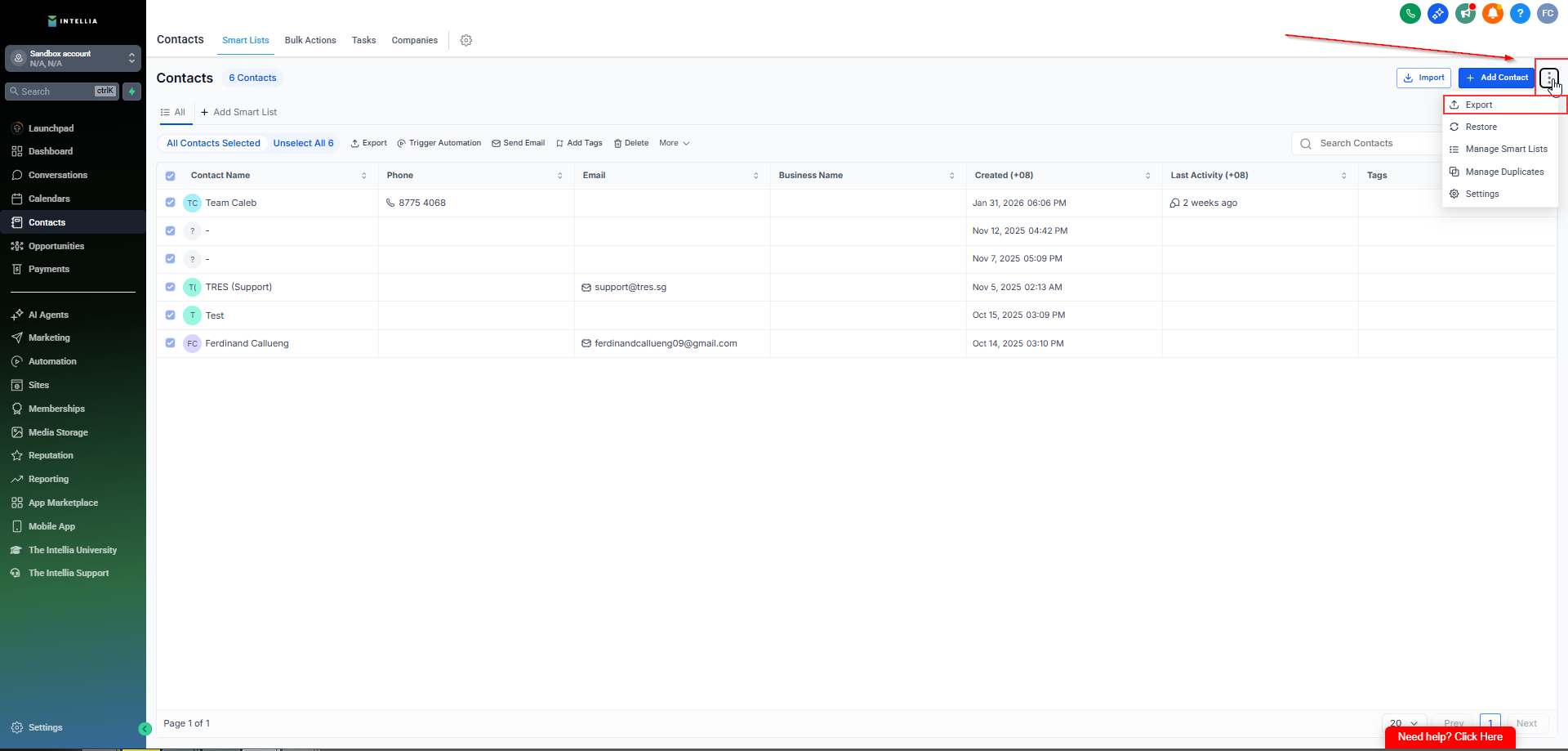
Alternative: Click the three dots beside + Add Contact, then click Export.
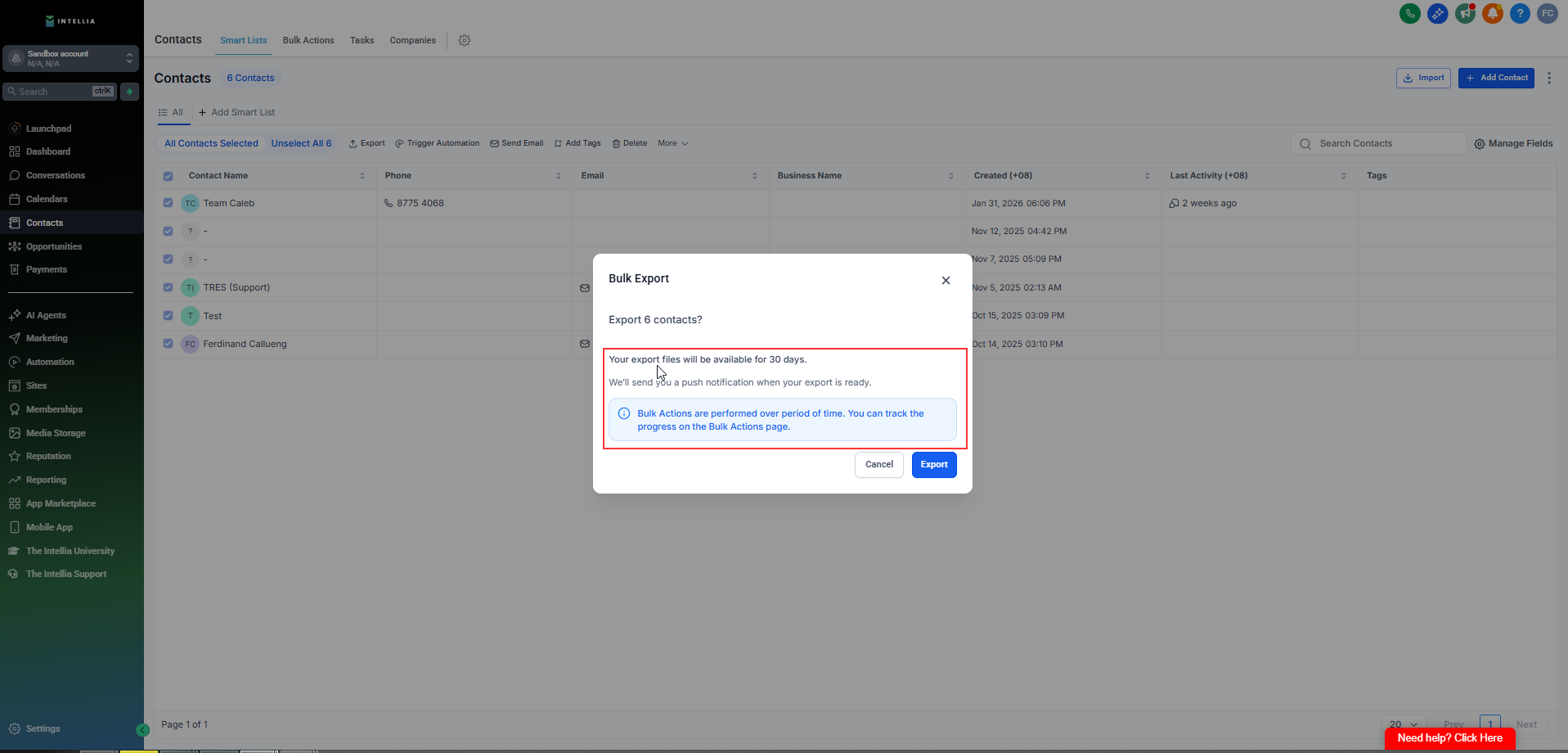
Confirm your selection in the export modal, then click Export.
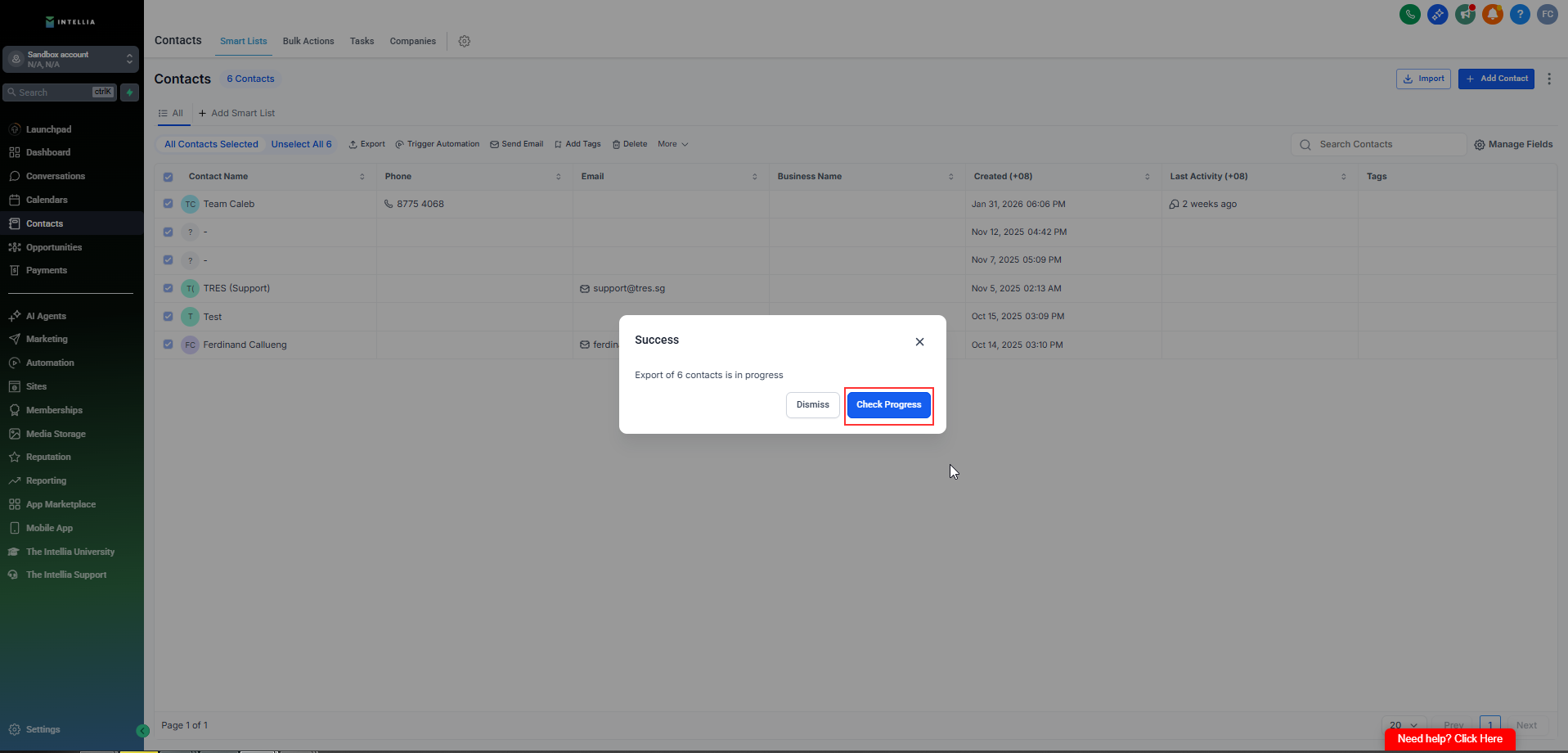
You’ll see a success message that the export has started.
Click Check Progress to open Bulk Actions—or dismiss and continue working (export runs in the background).
Go to Contacts → Bulk Actions.
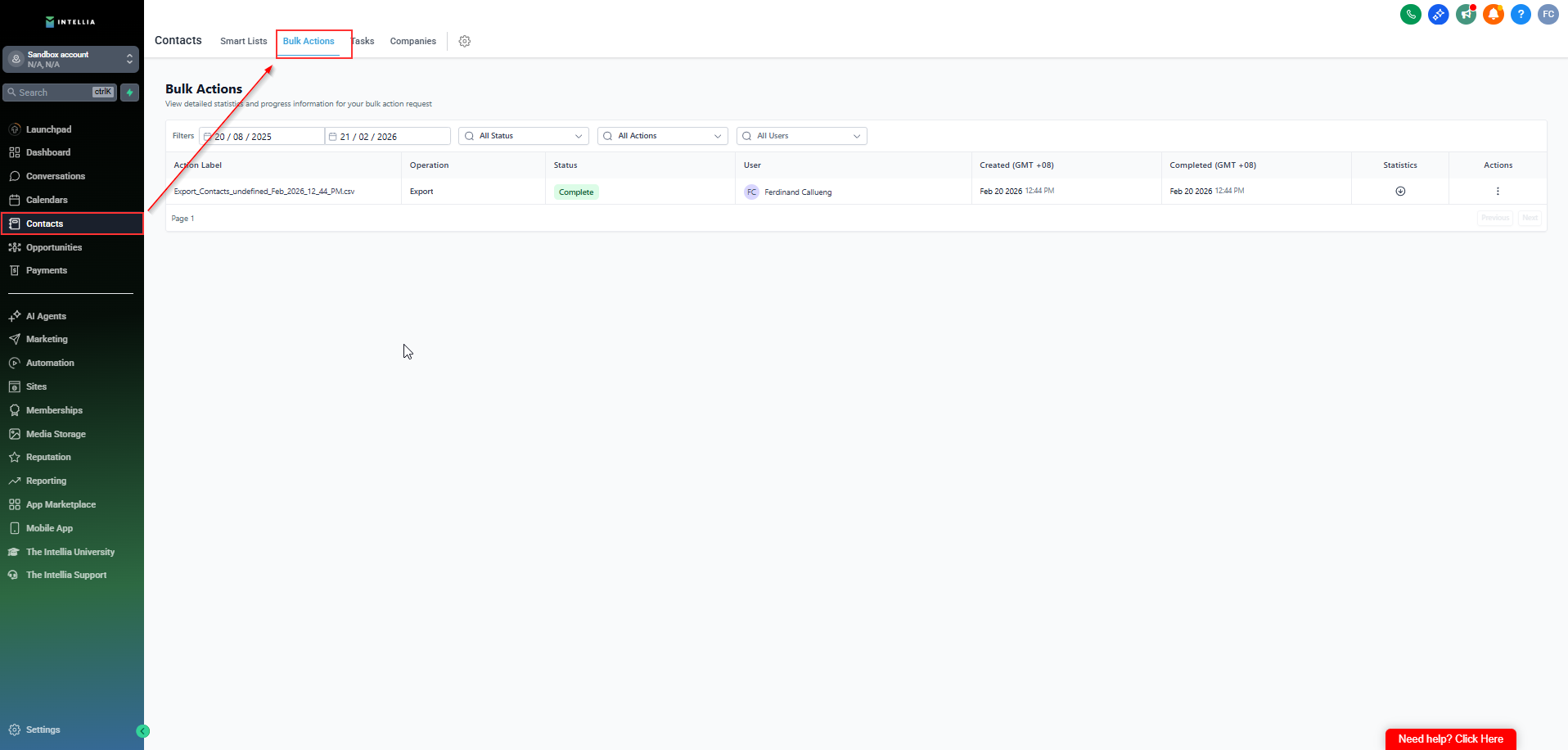
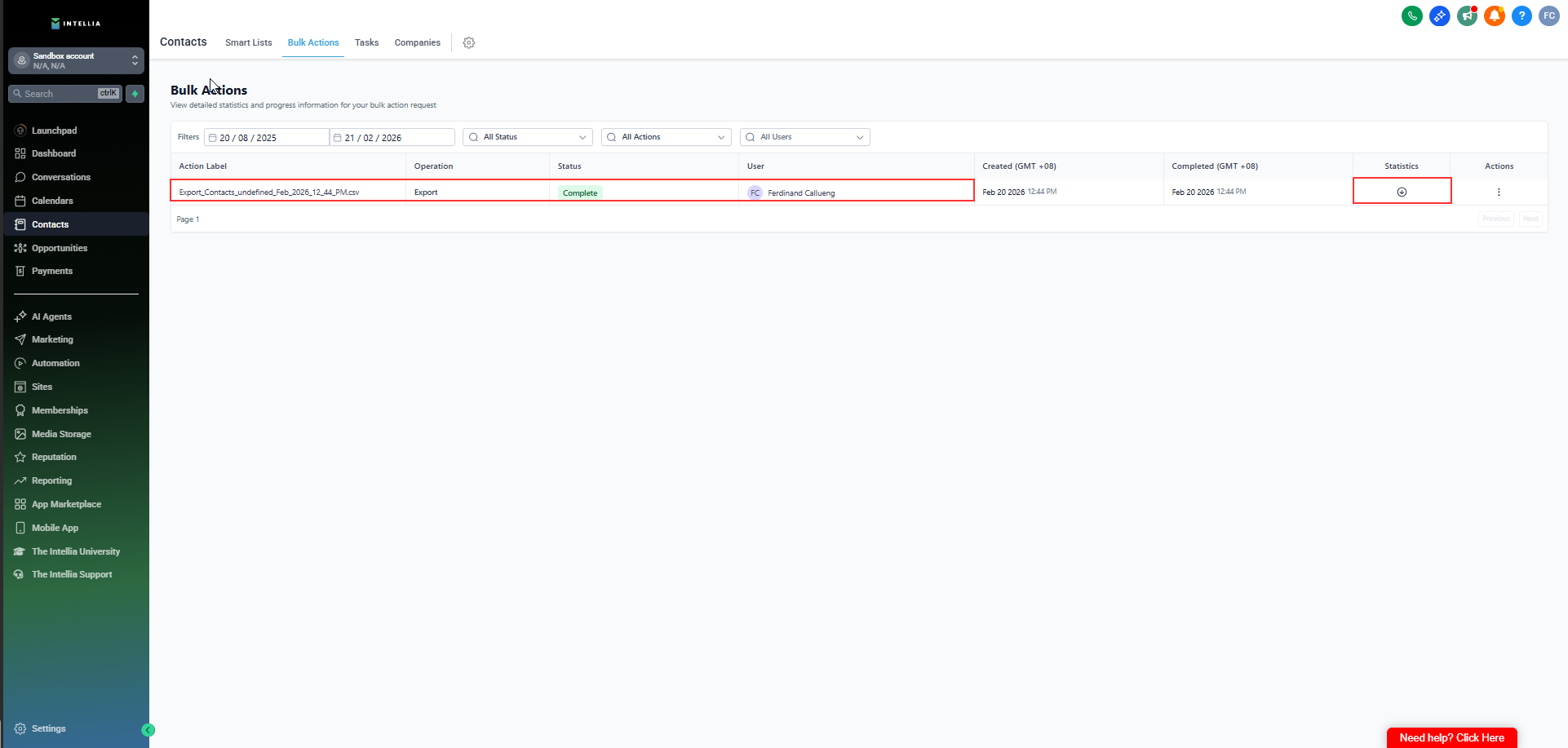
Find your export row. You should see:
Operation: Export
Status: Complete
File name: (example format like Export_Contacts_All_Month_Year.csv)
Click the Download (down arrow) icon to save the file to your device.
After 30 days, the download link is disabled.
Where does the file download to?
It downloads to your device’s local storage (your computer).
Can I export only specific fields?
Yes—use Manage Fields / column visibility before exporting so the CSV includes only the columns you want.
What if a contact’s latest note is longer than 255 characters?
Only the latest note up to 255 characters is included; anything longer is truncated.
Can I export from multiple locations at once?
No—exports must be done per sub-account/location. You can combine CSVs afterward in a spreadsheet tool.
Can I schedule exports automatically?
Not available at this time.
Who can download exported files?
Only Agency Admins and Location Admins can download completed exports from Bulk Actions.
How long are exported files available?
Files remain available for 30 days.

