Create and submit the Initial WhatsApp template that will be sent automatically after a lead opts in.
(Use the Section 1 — Universal First Message Template generated from the Custom GPT.)
✅ Checkpoint: The Initial template is submitted for Meta approval and ready to be selected inside your workflow.
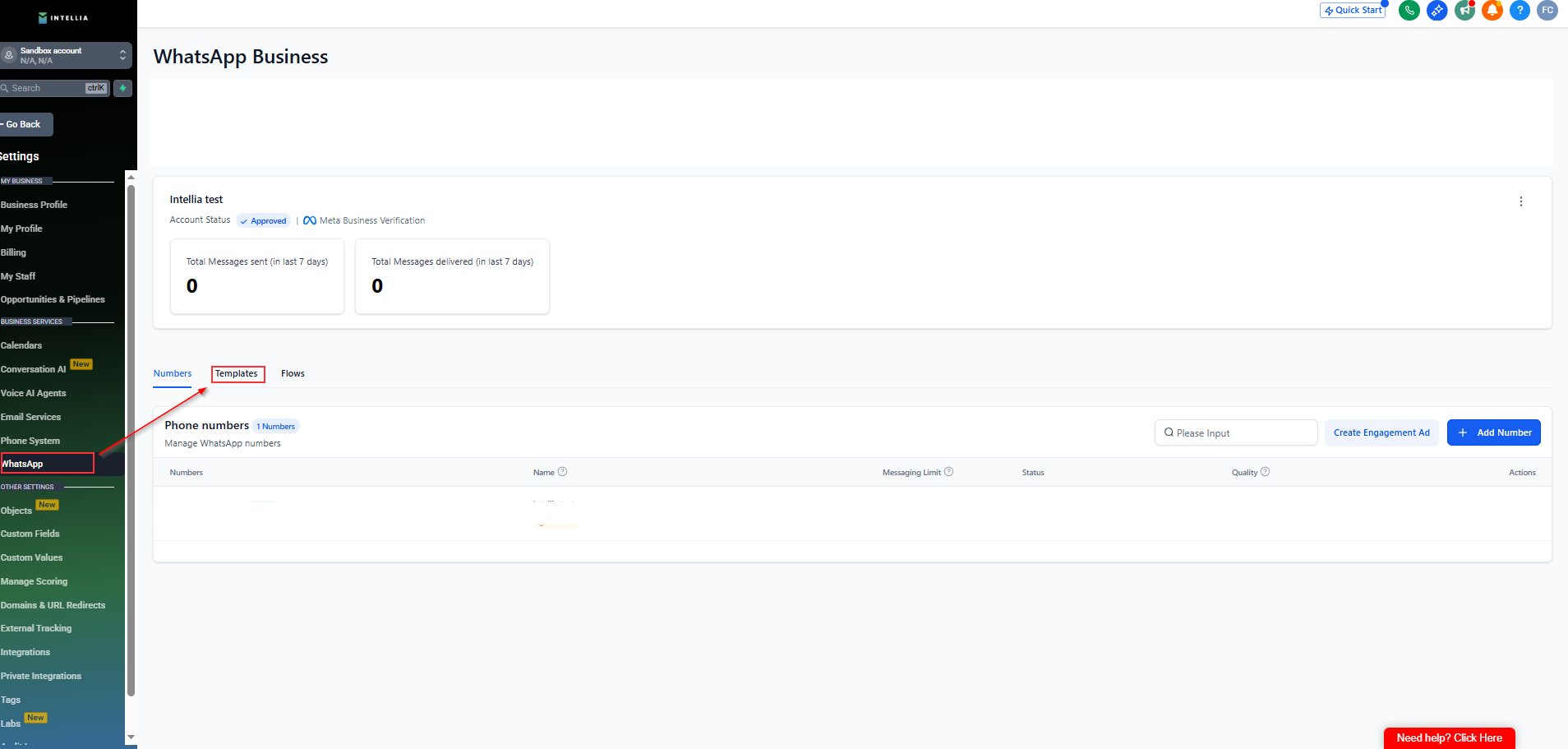
Log in to your Intellia account
Go to Settings → WhatsApp
Click Templates
This will take you to the WhatsApp Template management screen
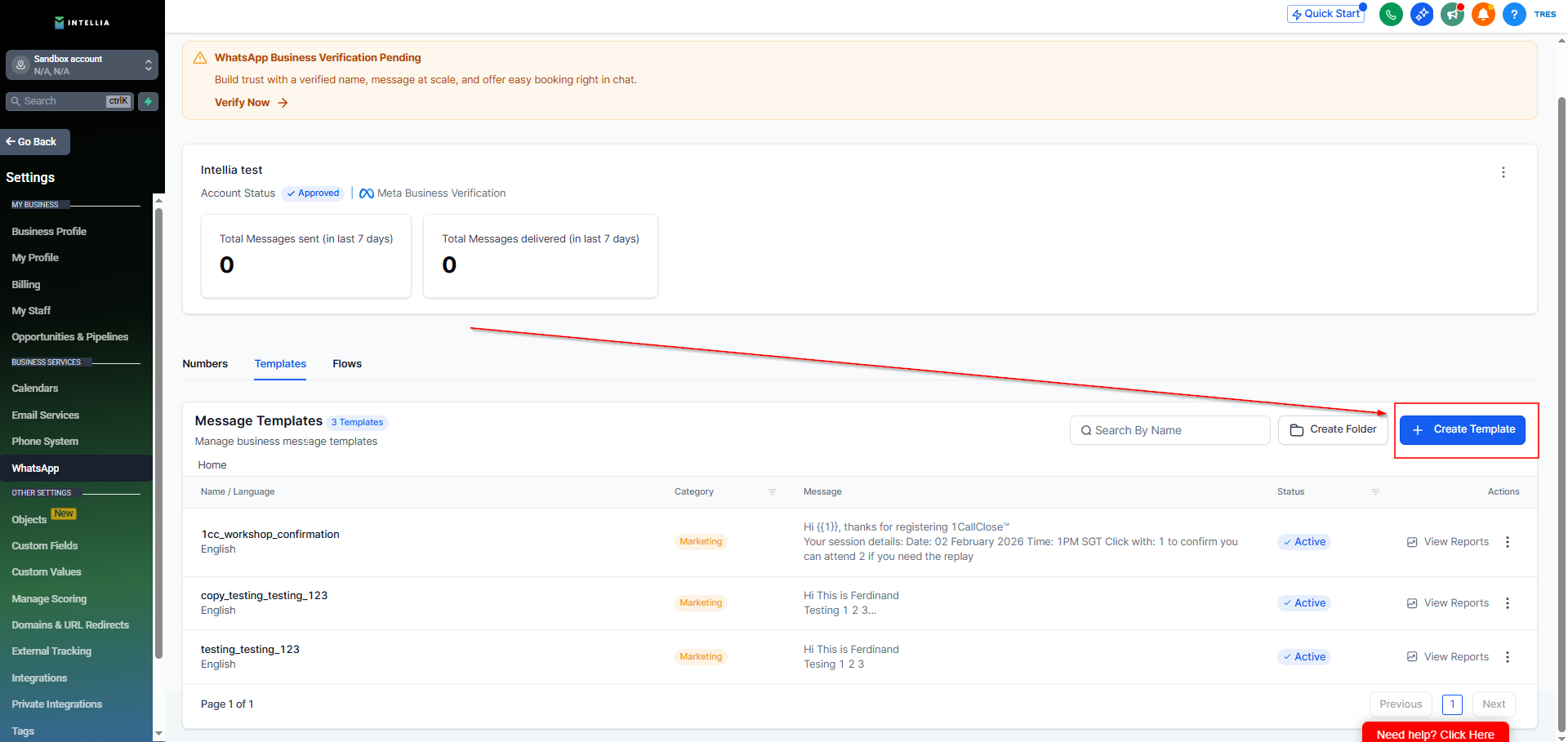
Click Create New Template: Blank Template
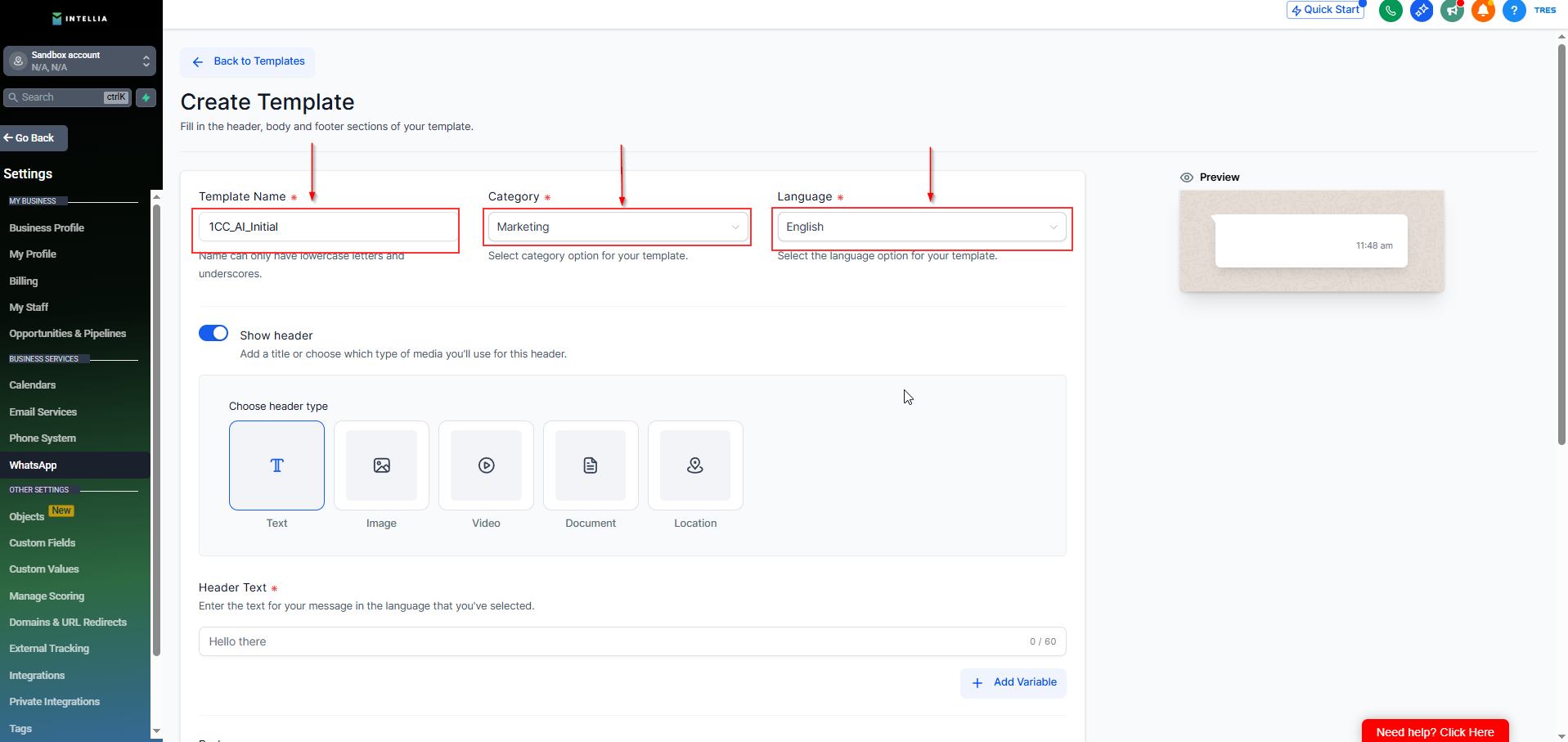
Template Category: Choose Marketing or Utility (based on your use case)
Template Name: Use a clear identifier
Example: 1CC_AI_Initial
Language: Select your primary language (e.g., English)
Marketing template: $0.0634 per message
Utility template: $0.0081 per message
✅ Template messages are used to start or restart a conversation after 24 hours — and they cost money.
✅ Session messages are follow-up messages within 24 hours of the customer replying to your template — these are free.

Template Name: Use a clear, short identifier
Example:
1CC_AI_Confirmation
Language: Choose your primary language (e.g., English)
Use the GPT output:
✅ SECTION 1 — Universal First Message Template (Automation Message)
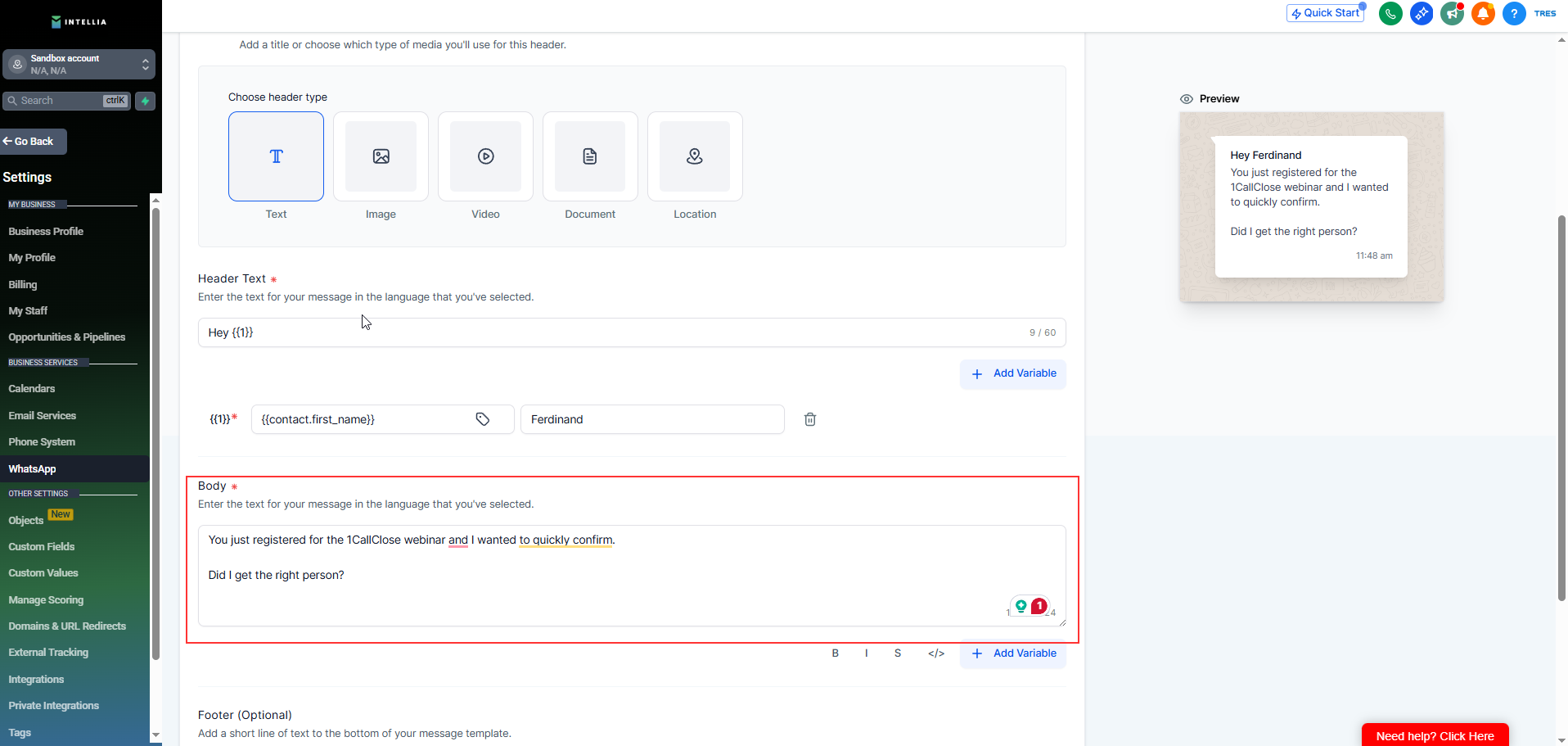
If your template includes a name variable in the first line, add a header like:
Hi {{1}} 👋
Map {{1}} → Contact → First Name
Add sample content for Meta approval (e.g., “Sarah”).
Variables (Optional):
{{1}} = First Name
Keep it exactly {{1}} (no spaces)
You can reuse {{1}} in both header and body
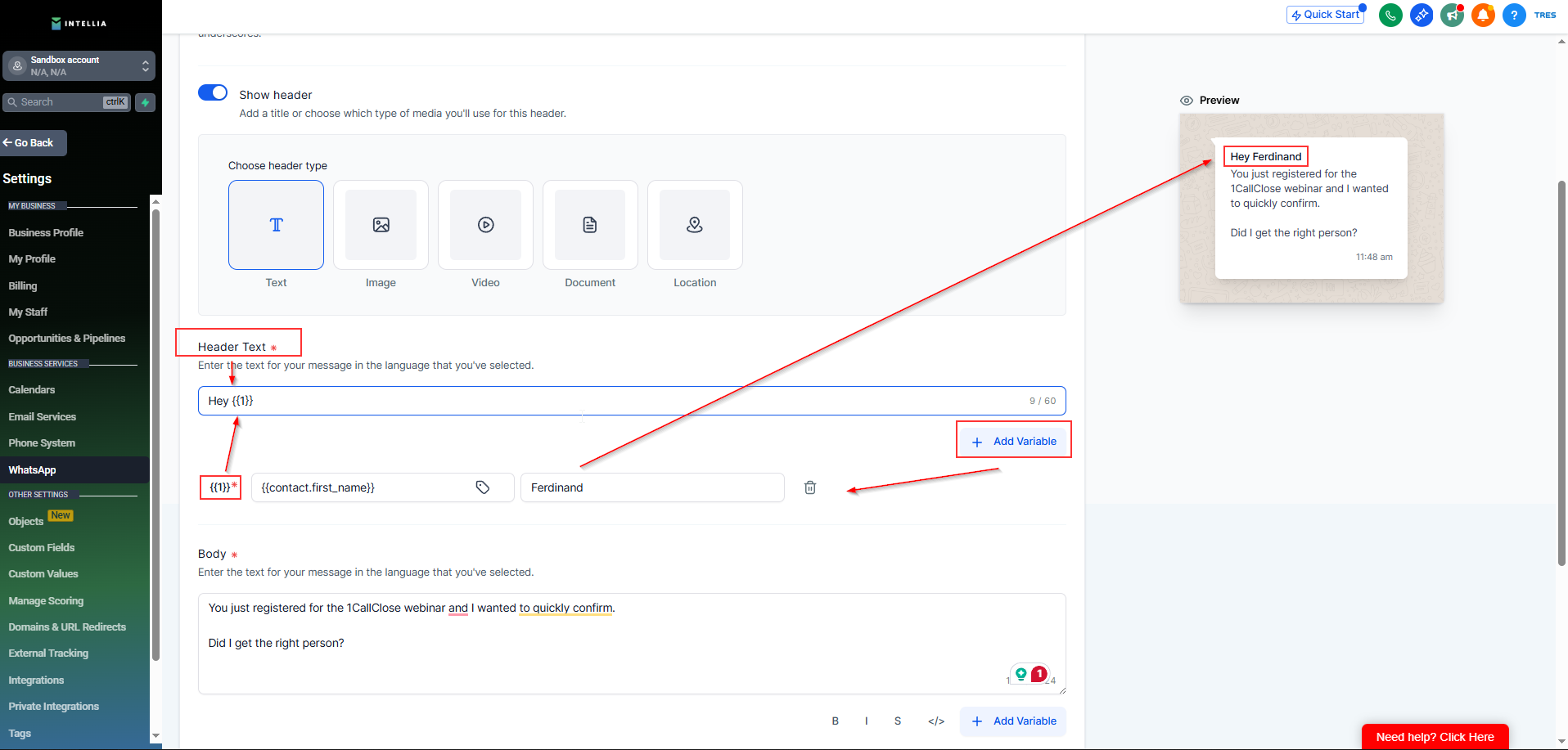
Paste the exact body copy from the GPT output except the “Hey {{contact.first_name}}”, you can paste it on Header text.
Important:
If the GPT output uses {{contact.first_name}}, replace it with {{1}} in the WhatsApp template.
Keep the message short and conversational.
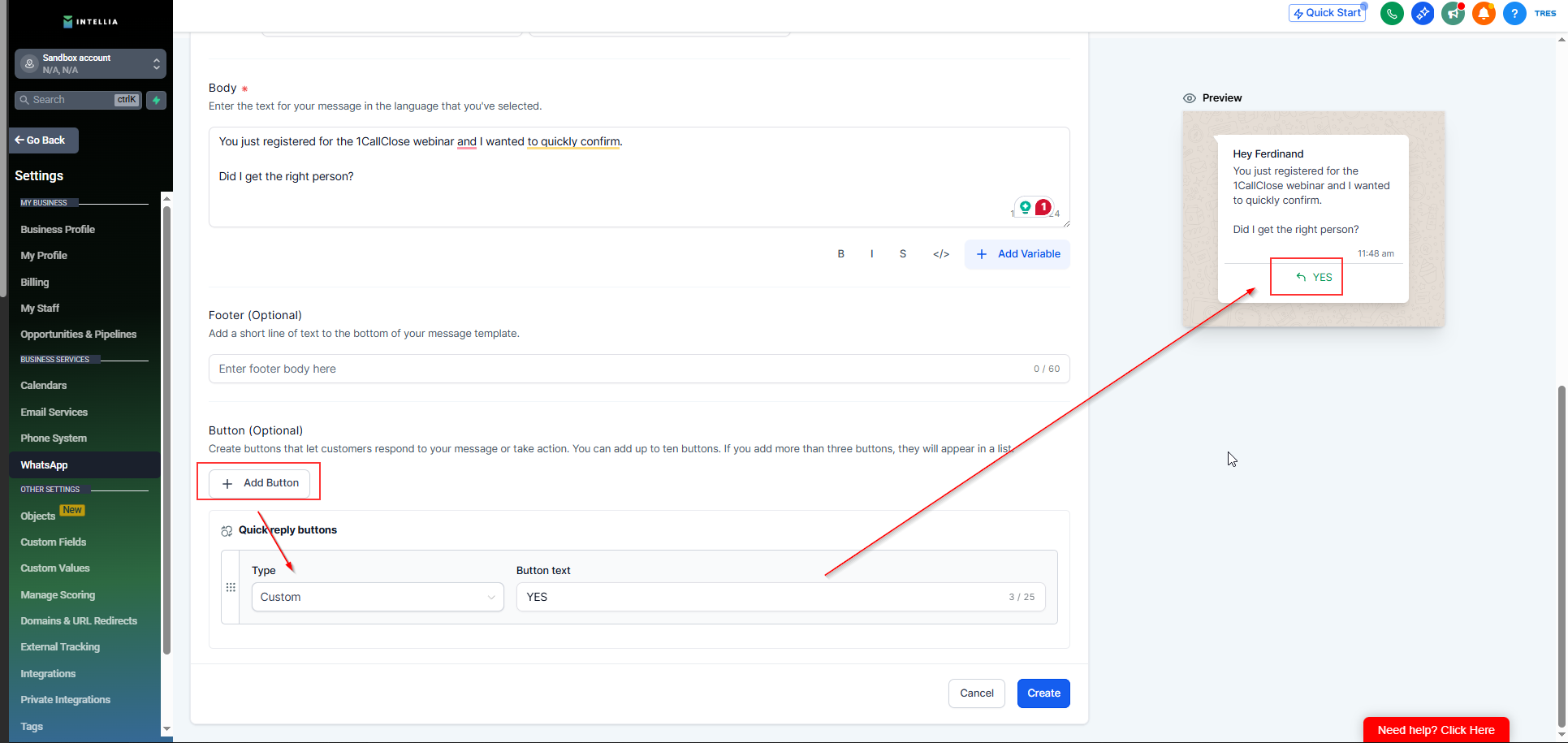
If the GPT output includes a confirmation button like [Yes], add it as a button option in the template.
Footer (optional but recommended):
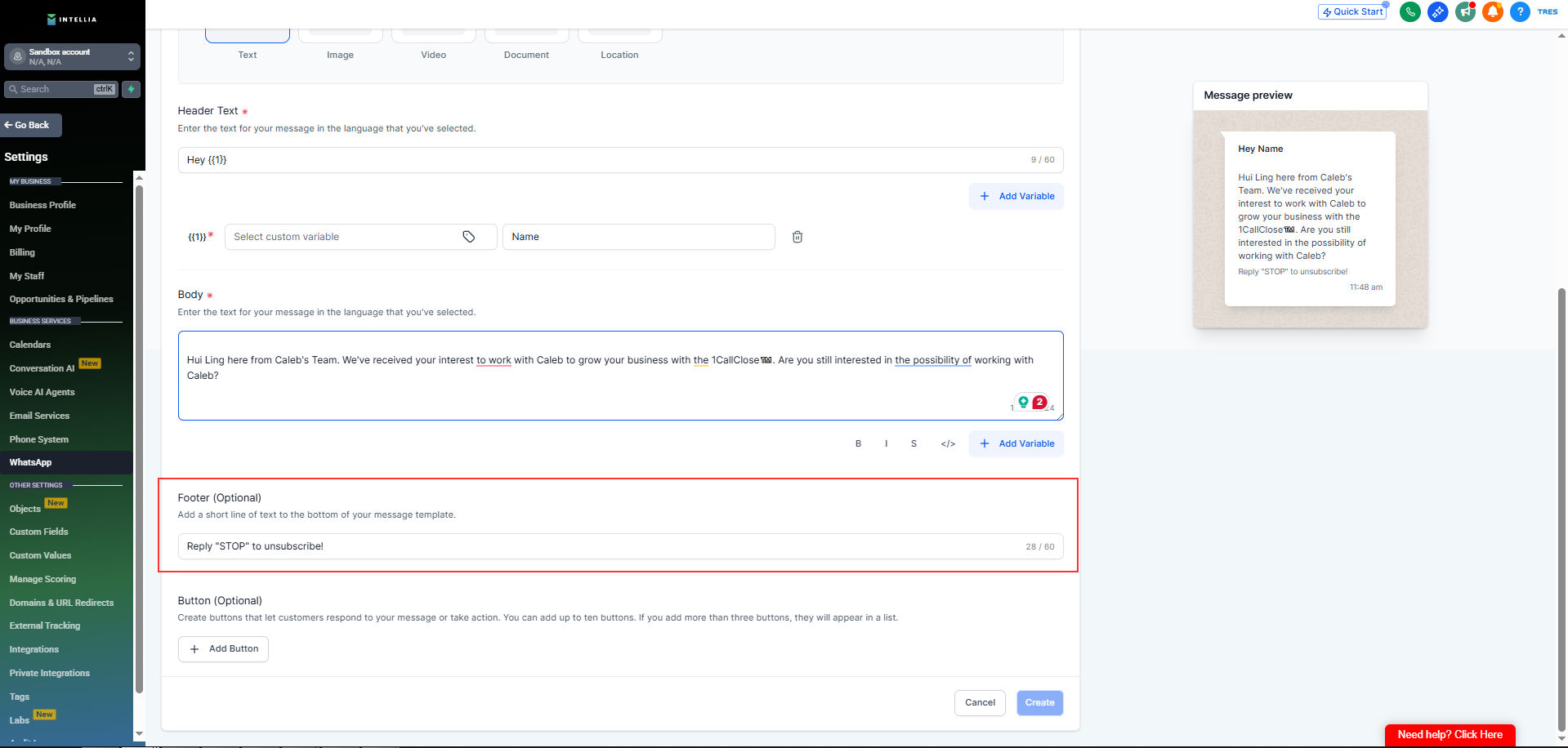
Reply anytime if you need help.
example:
Reply "STOP" to unsubscribe!
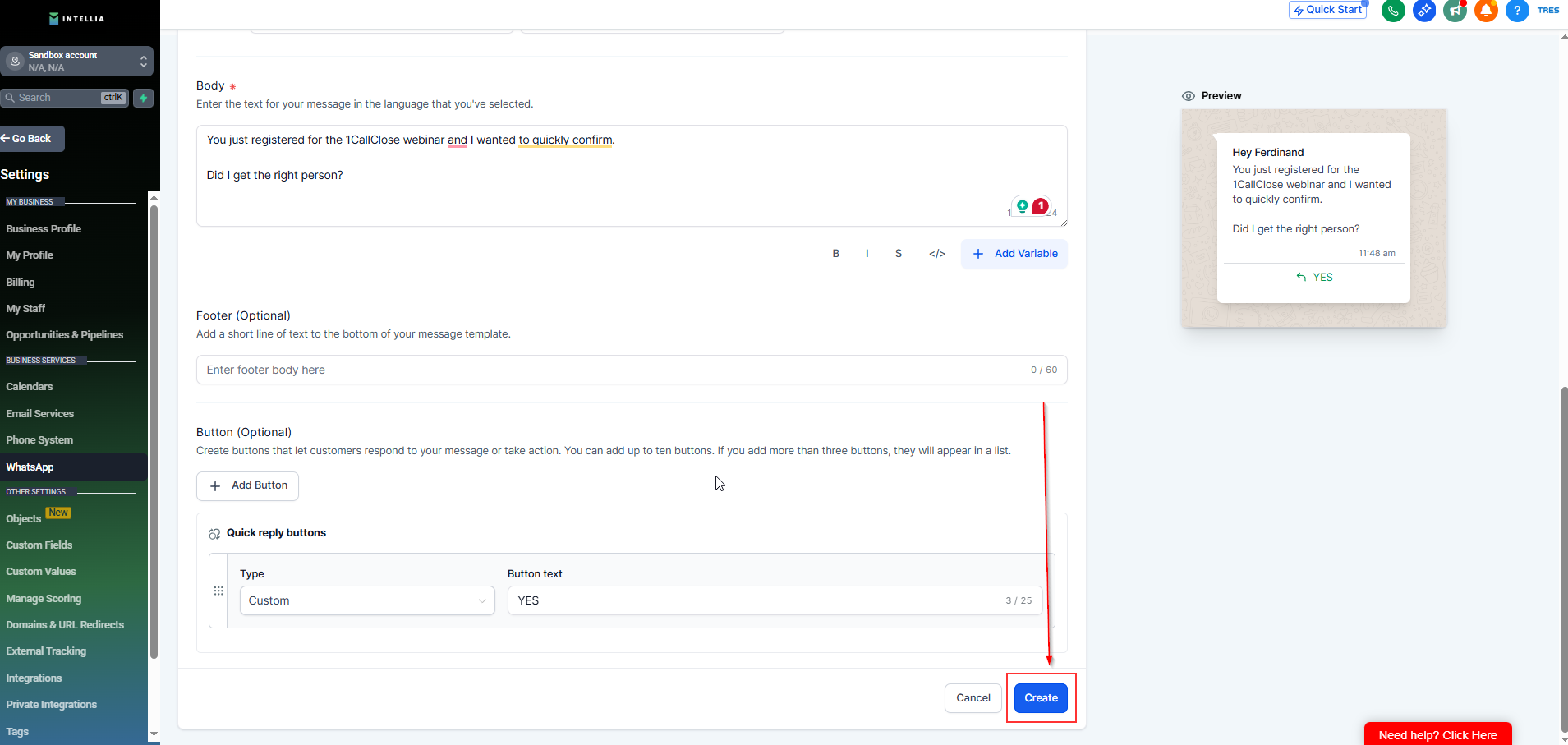
Review the final template content
Click Create
Wait for Meta approval before using it in automation
✅ Checkpoint: Template status shows Approved (or Pending if just submitted).
Meta will review your template
Approval typically takes a few minutes to a few hours (sometimes up to 24 hours)
Once approved, you can select this template inside your workflows
Keep language simple + conversational (avoid spammy or overly salesy wording)
Avoid excessive punctuation, symbols, or ALL CAPS
Don’t include unsafe links in the first template message
Always use Meta placeholders ({{1}}, {{2}}, etc.) — don’t rename them
1) Why do I still need a template?
Meta requires the first message to be a pre-approved template before automation can send it.
2) What if the GPT output includes variables like {{contact.first_name}}?
Replace it with {{1}} in the WhatsApp template, then map {{1}} → Contact → First Name in Intellia.
3) Do I need to edit the GPT copy?
No — paste it as-is unless you’re correcting the webinar name/date/time.

