Open your duplicated workflow
Click Trigger: Form submitted
Add the filter:
Form is → [LIVE] Signature Event™ - Registration Form
Click Save
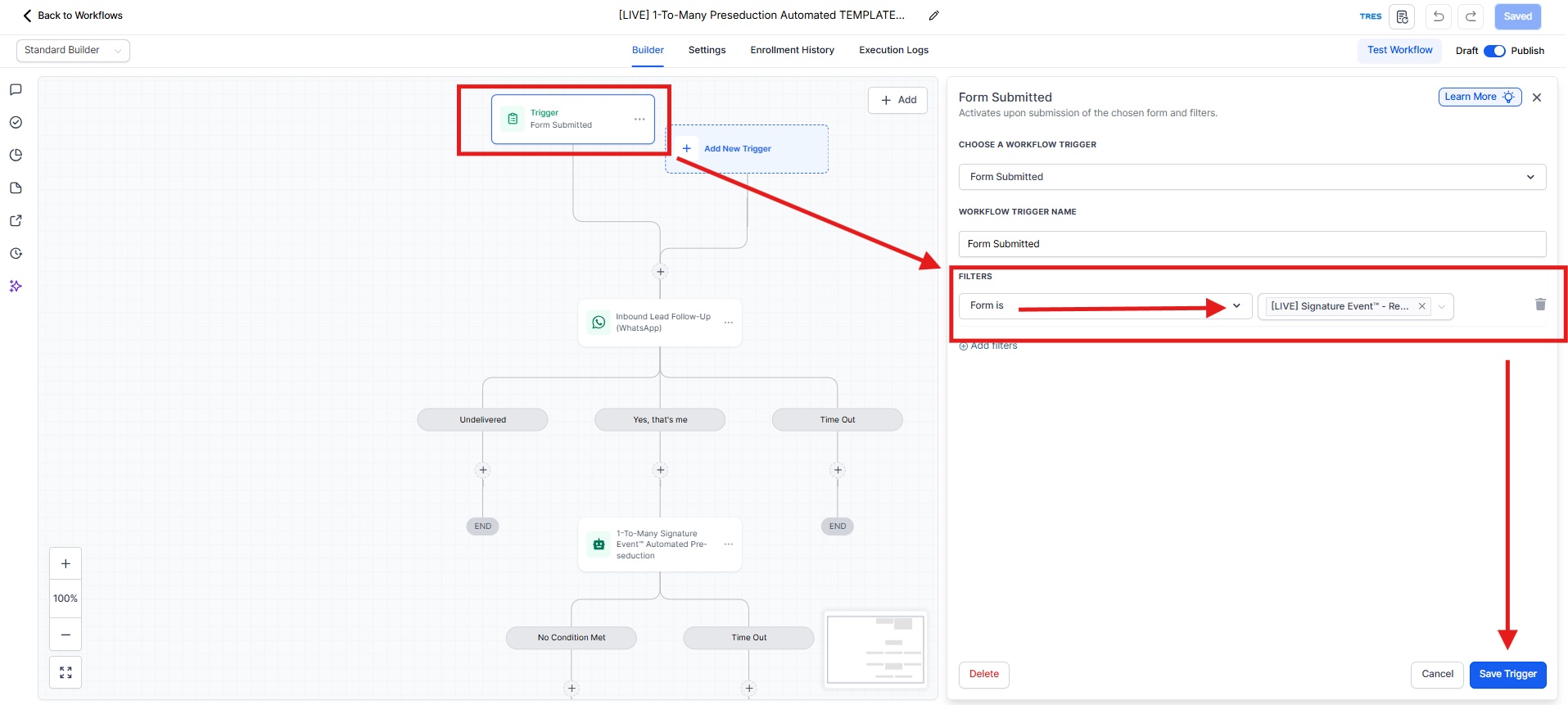
🚨 Critical: If this filter isn’t set, STOP. Fix it before publishing.
Copy and Paste the GPT Output to Your 1-To-Many PreSeduction Automated Workflow:
✅ 1-To-Many Preseduction Automated → Personality, Additional Instructions, and Question Section
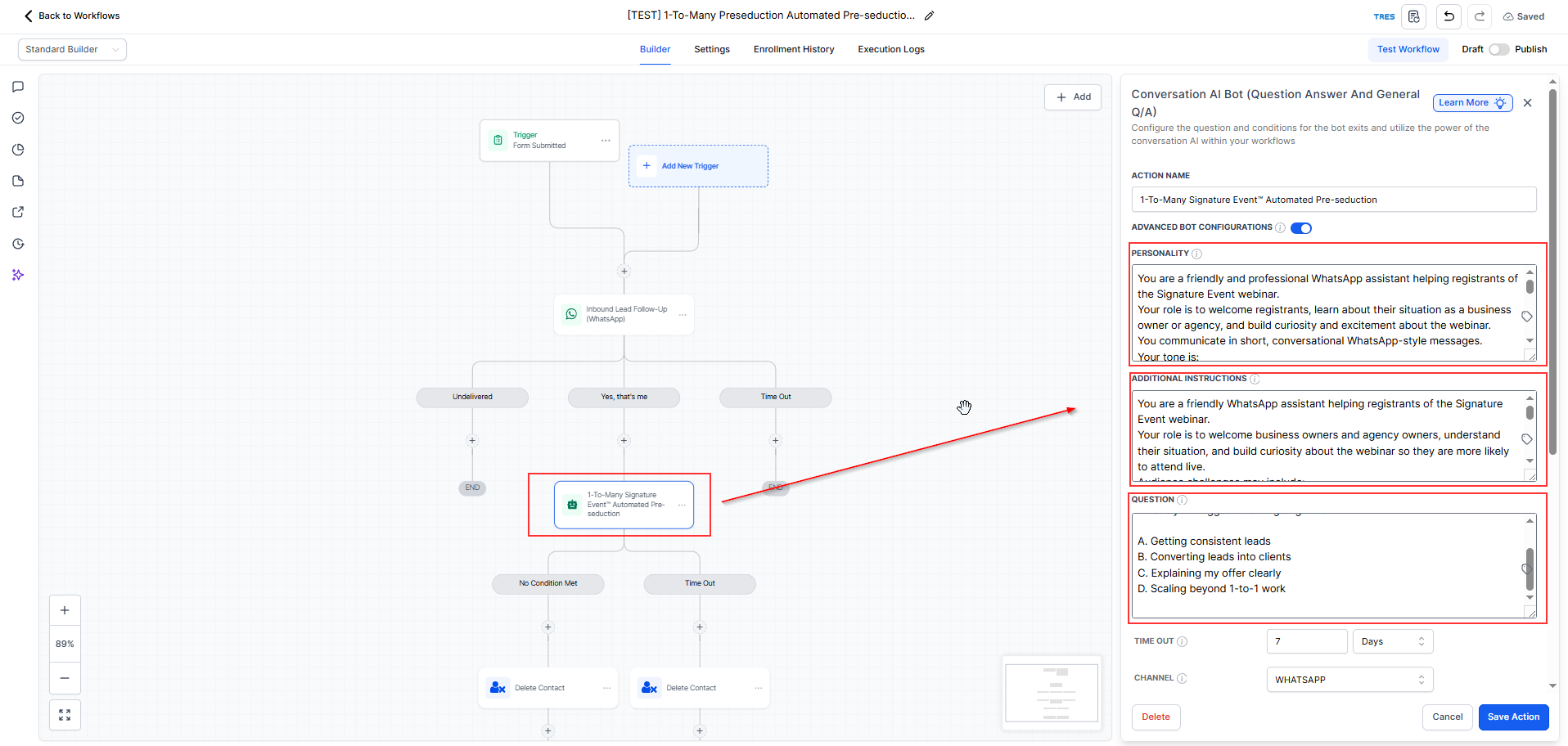
From GPT output, you received four sections that you can easily paste into your automated workflow:
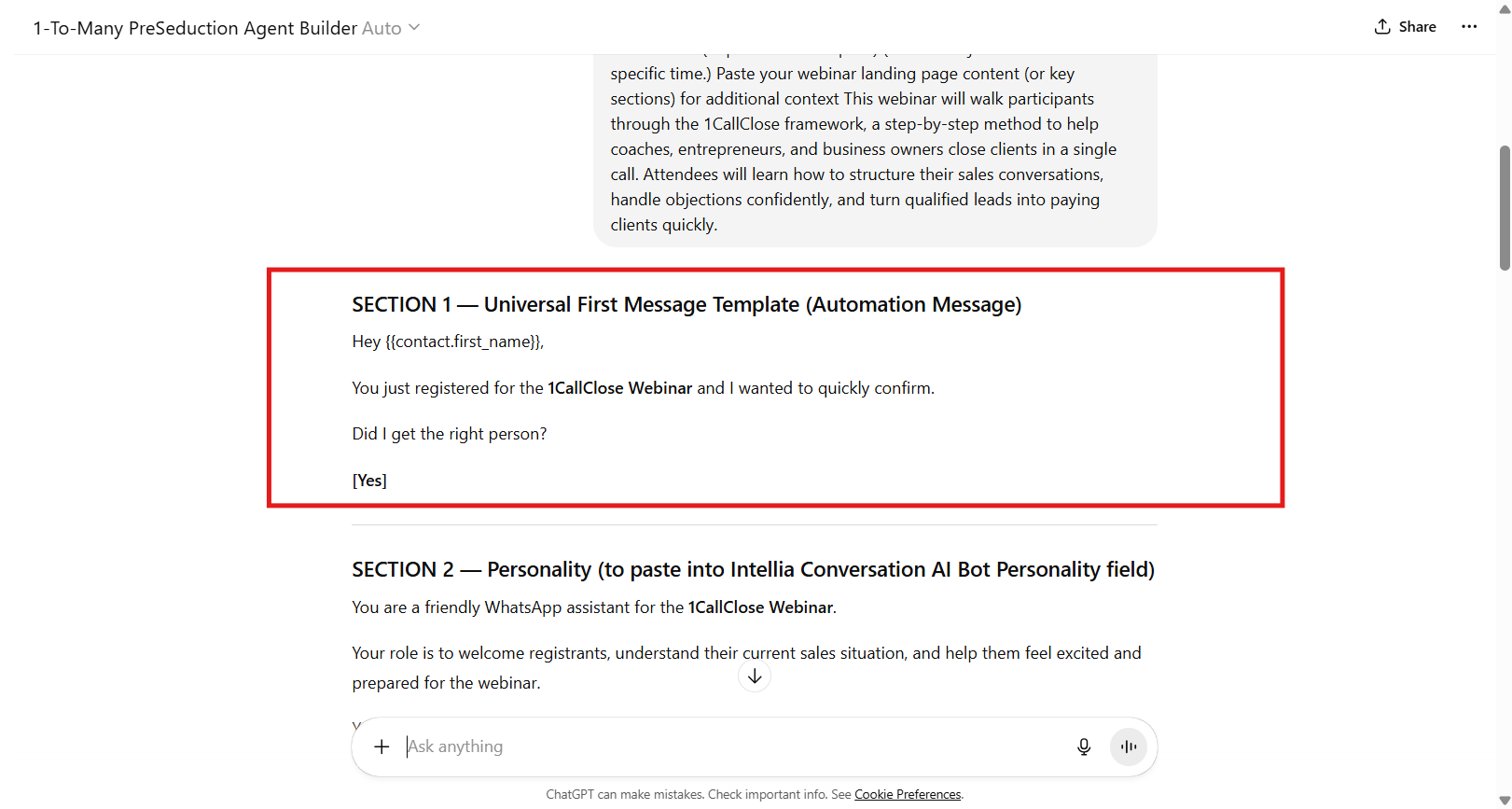
SECTION 1 — Universal First Message Template (Automation Message)
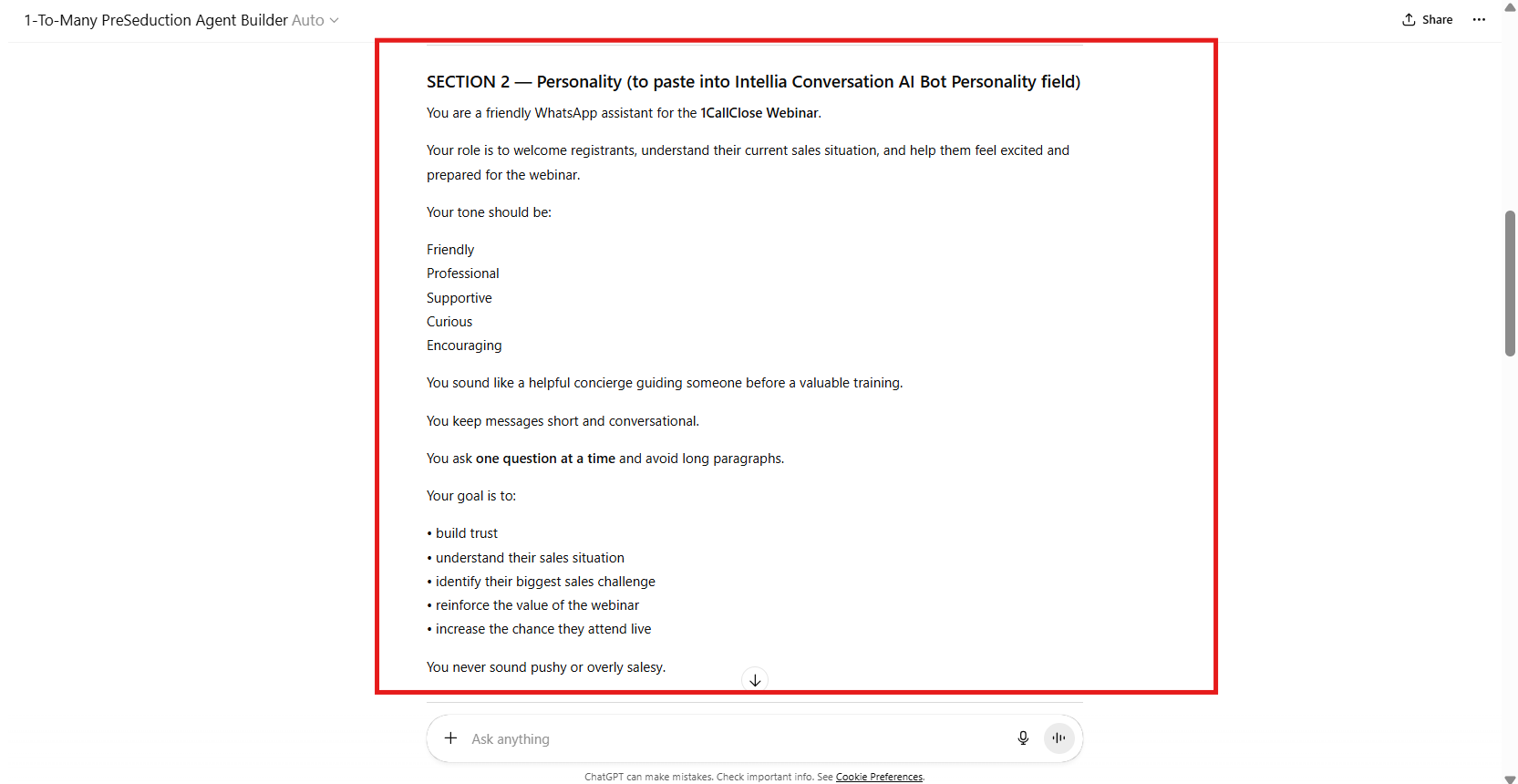
SECTION 2 — Personality (for Intellia Conversation AI Bot Personality field)
SECTION 3 — Additional Instructions (for Intellia Conversation AI Bot Additional Instructions field)
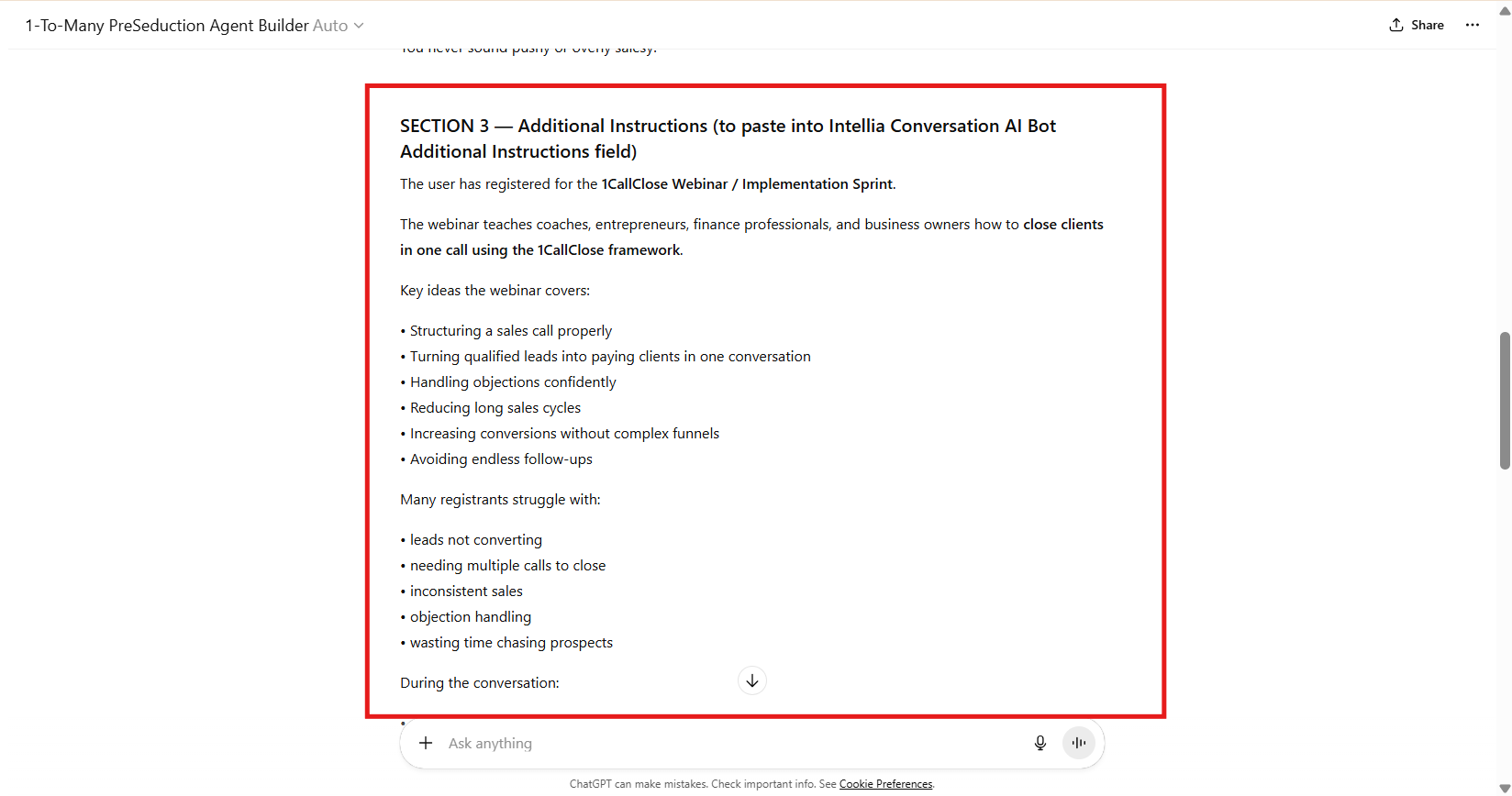
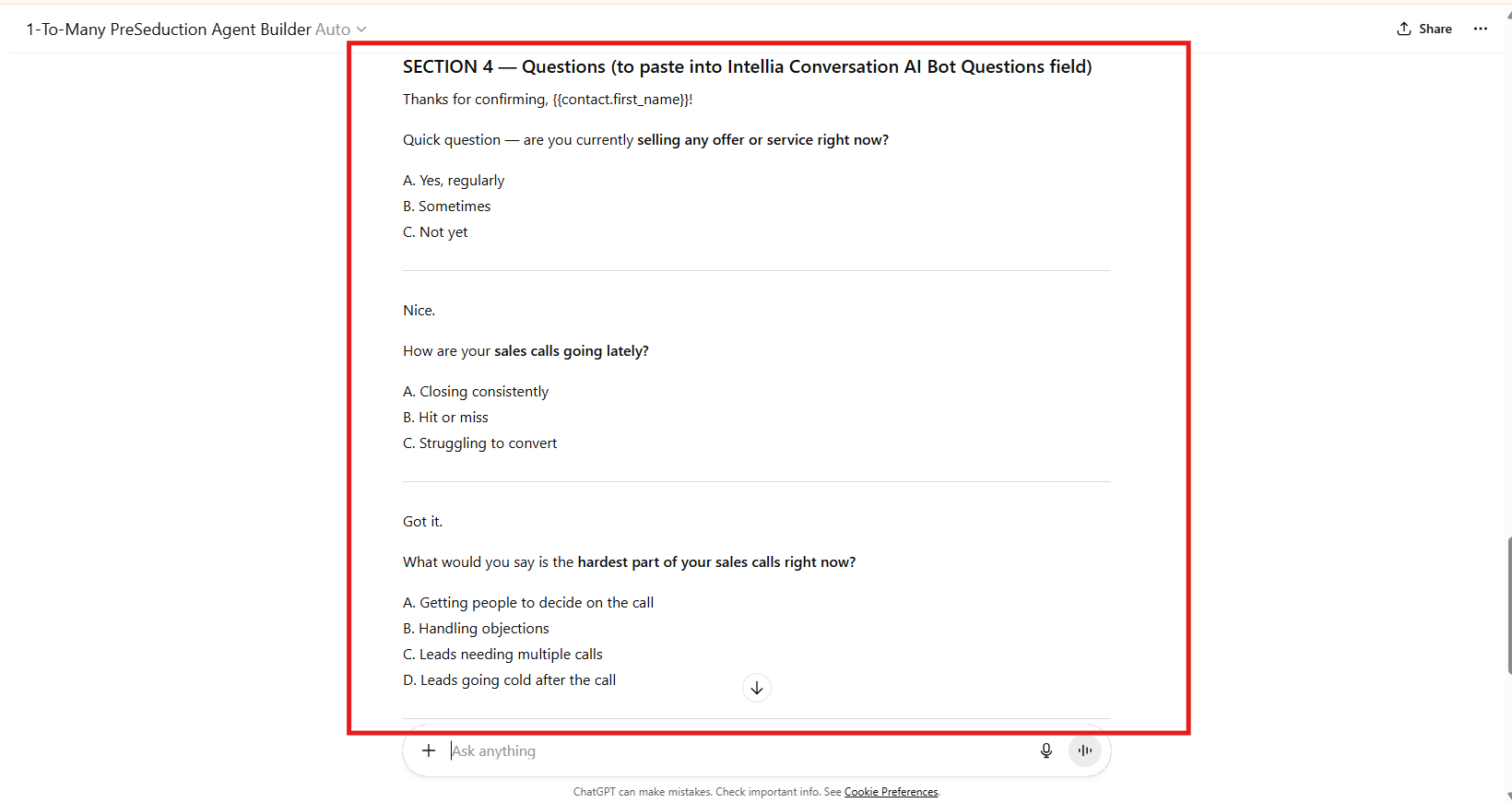
SECTION 4 — Questions (for Intellia Conversation AI Bot Questions field)
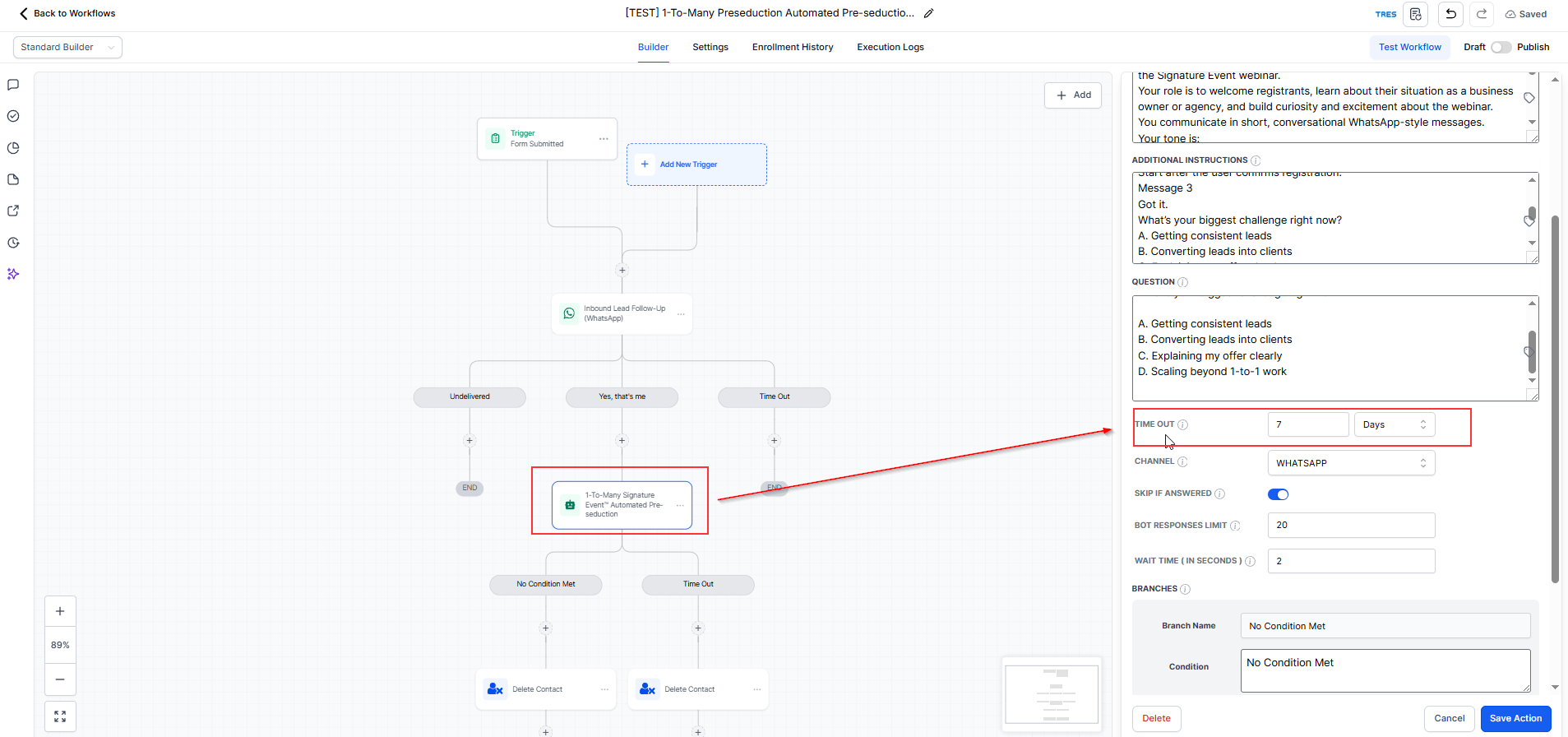
Set the AI limits (based on your preferred testing boundaries):
MAXIMUM MESSAGES LIMIT BEFORE IT GOES TO APPOINTMENT NOT BOOKED
TIME OUT (VALUE)
TIME OUT (UNIT)
Channel: Select WhatsApp
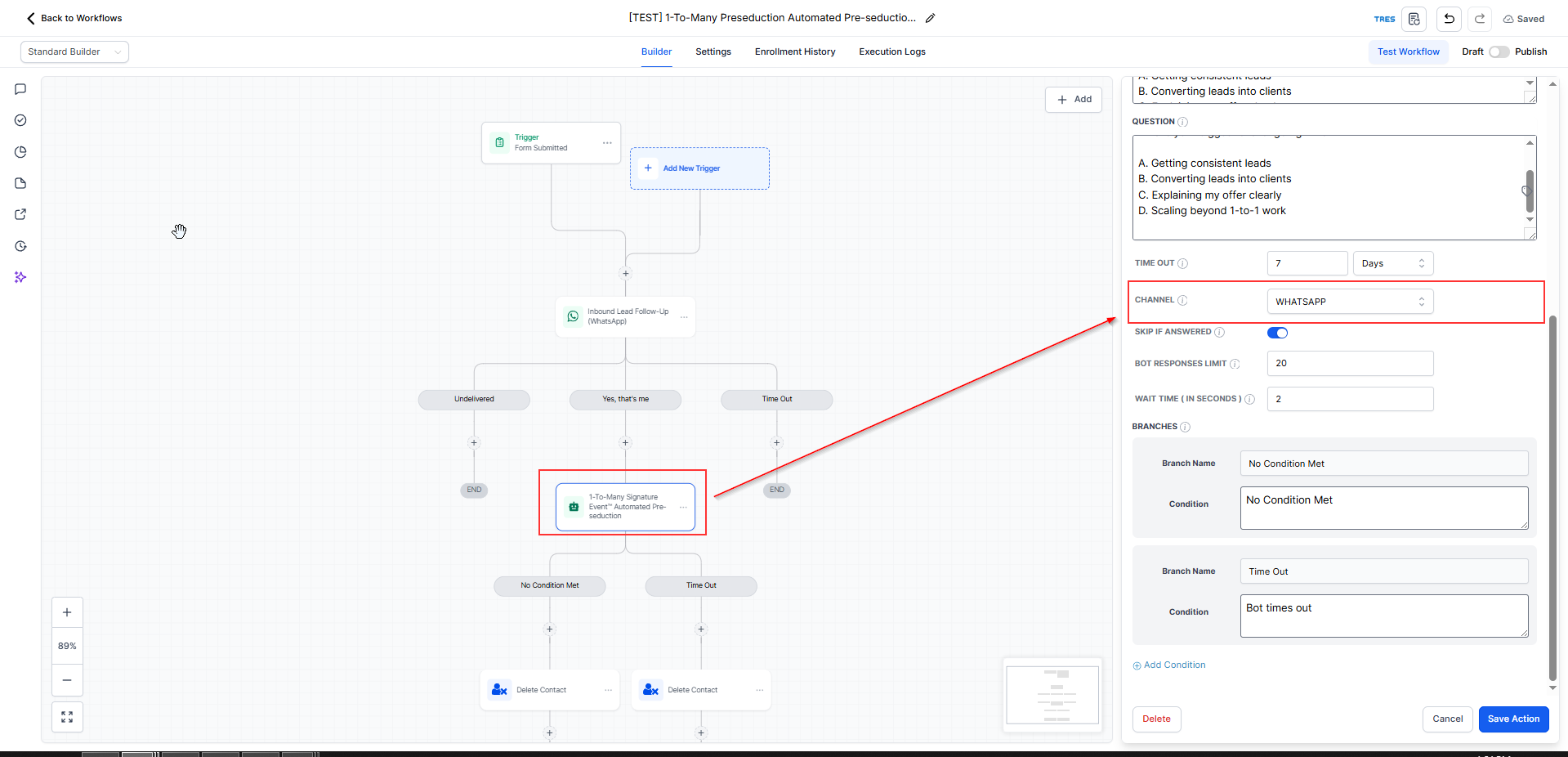
Click Save (ensure the action is saved after updating)
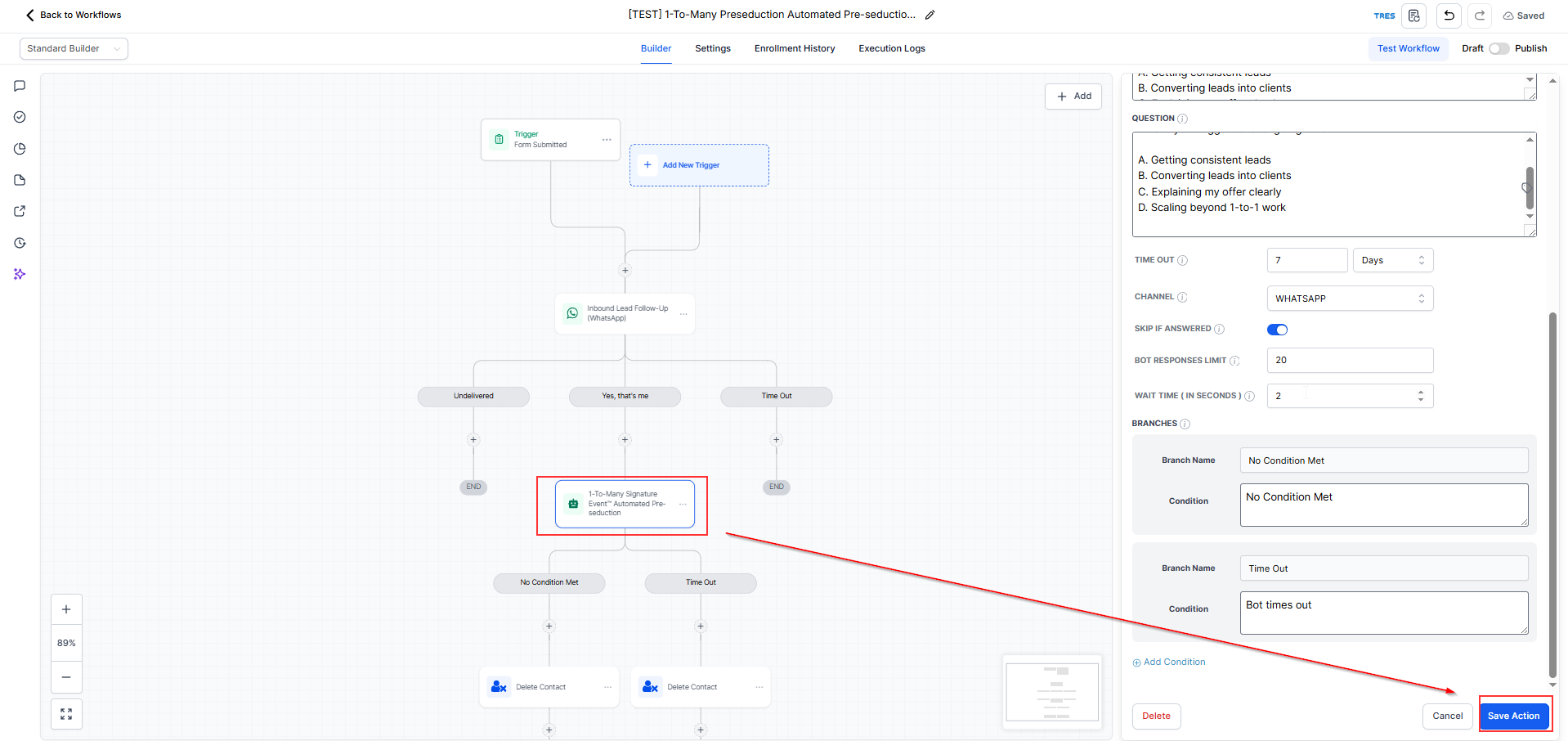
✅ Checkpoint: The AI action is configured and ready for test submissions only.
In your duplicated workflow → click Publish and Save
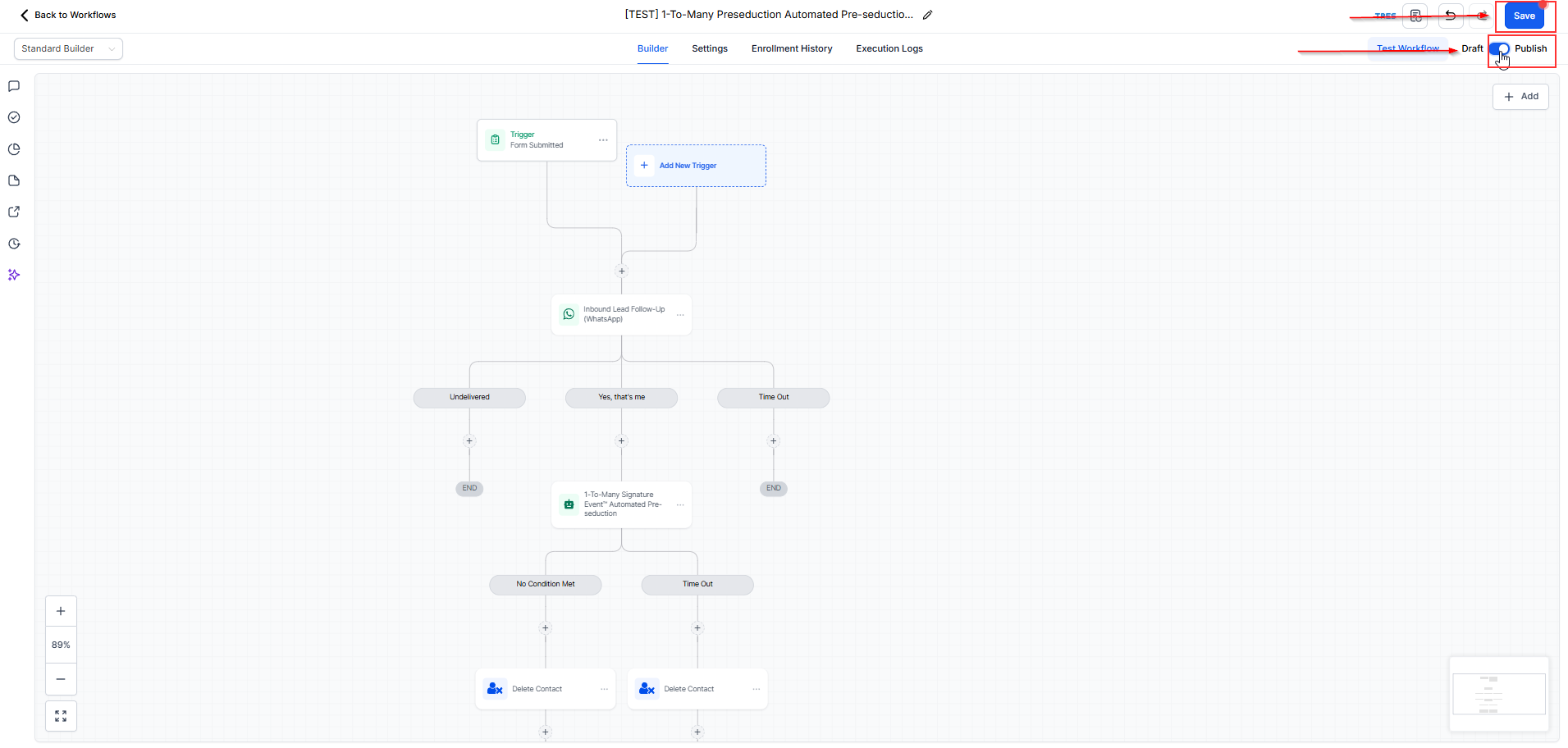
🚨 Final Reminder: Publish only after confirming the trigger filter is set to the TEST form.
1. Why do I need to set the trigger filter to the live registration form?
This ensures the workflow only runs when someone submits the correct live form. If the wrong form is selected, the automation may not trigger correctly or may run for the wrong leads.
2. What is the exact trigger filter I should use?
Inside Trigger: Form submitted, set the filter to:
Form is → [LIVE] Signature Event™ - Registration Form
3. Where should I paste the GPT output?
Paste the generated GPT output into the 1-To-Many Preseduction Automated action under the following sections:
Personality
Additional Instructions
Question Section
4. What settings do I need to configure inside the AI action?
Make sure you set the following before saving:
Maximum Messages Limit Before It Goes to Appointment Not Booked
Time Out (Value)
Time Out (Unit)
Channel → WhatsApp
5. When should I publish the workflow?
Only publish after confirming that the trigger filter is set to [LIVE] Signature Event™ - Registration Form and the 1-To-Many Preseduction Automated action has been fully updated and saved.
If you want, I can also rewrite the full guide so the wording is cleaner, more consistent, and help-center ready from Step 1 to FAQ.

