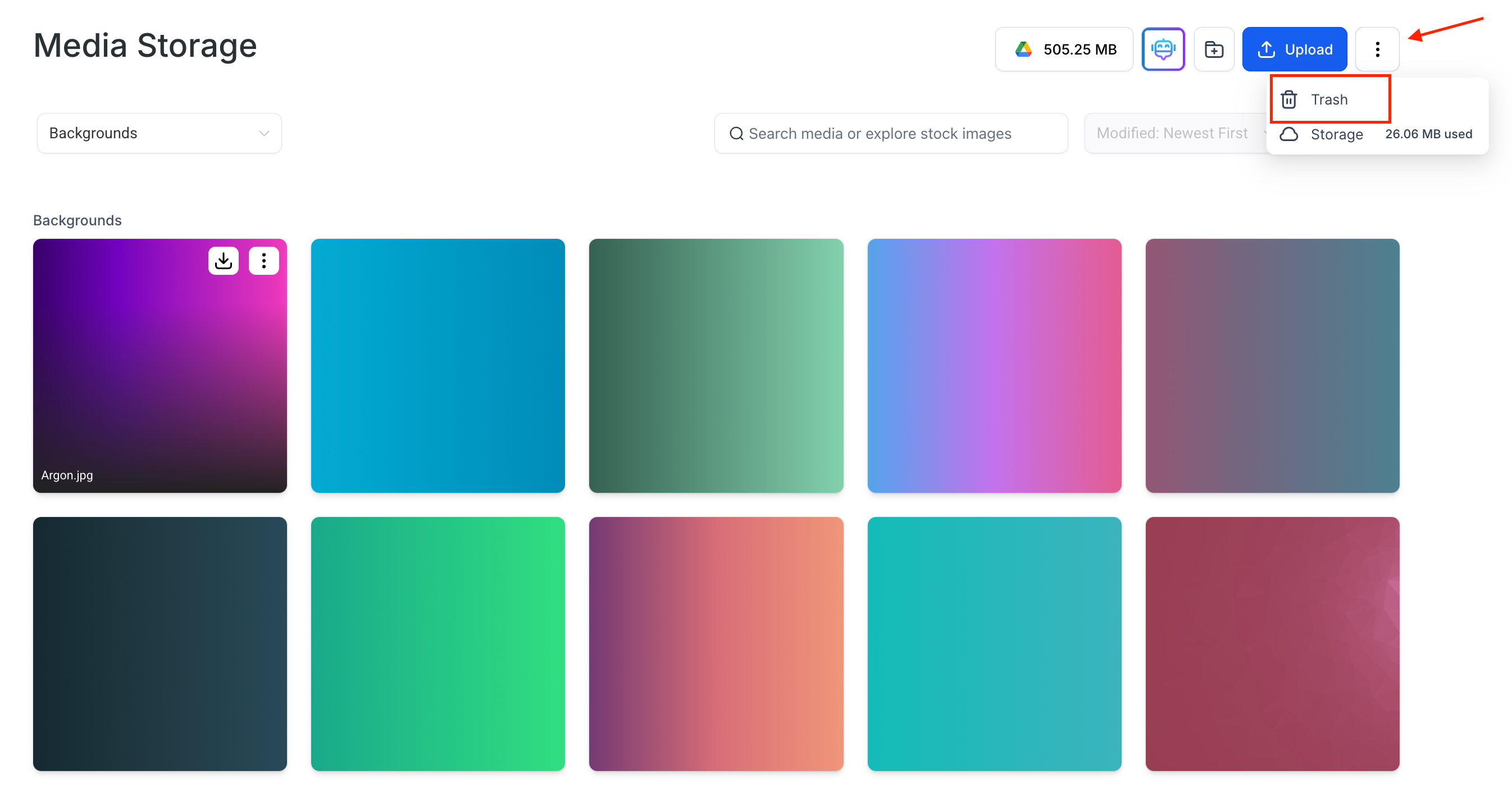
To access Media Storage, navigate to the left sidebar of your dashboard and click the “Media Storage” icon.
Upload files effortlessly via drag-and-drop. Just drag media from your computer into the Media Storage interface no buttons required. The improved functionality ensures a faster, more intuitive upload experience.
You can also upload font files (such as .ttf, .otf, .woff, .woff2) up to 100MB in size. These can be used to customize branding in websites or funnels using Custom CSS.
Easily organize your media library using powerful sorting options:
Sort by Name: A to Z / Z to A
Sort by Size: Smallest First / Largest First
Sort by Modified Date: Newest First / Oldest First
Grid and List View Enhancements
You can toggle between Grid View and List View based on your preference but now, both views offer enhanced metadata visibility:
Orientation Badge (Grid View): Each image now displays a badge showing Landscape, Portrait, or Square format.
Pixel Dimensions (List View): Width × Height values are shown next to each image name, so you can quickly assess suitability for your design.
Note: Older uploaded images may not immediately display dimensions due to background processing delays.
Access file options faster using the right-click dropdown menu or hover-over quick action buttons. Available actions include:
Rename
Delete
Move to Folder
Preview
Insert
This removes the need to rely solely on the top navigation bar.
In Media Storage used within products (e.g., website/funnel builder), you'll now see:
“Insert Media” button for single file selection – instantly insert without navigating away.
Preview Option - accessible from the three-dot menu for quick viewing.
Insert directly from Preview Screen - eliminates the back-and-forth between views.
Folder Management Upgrades
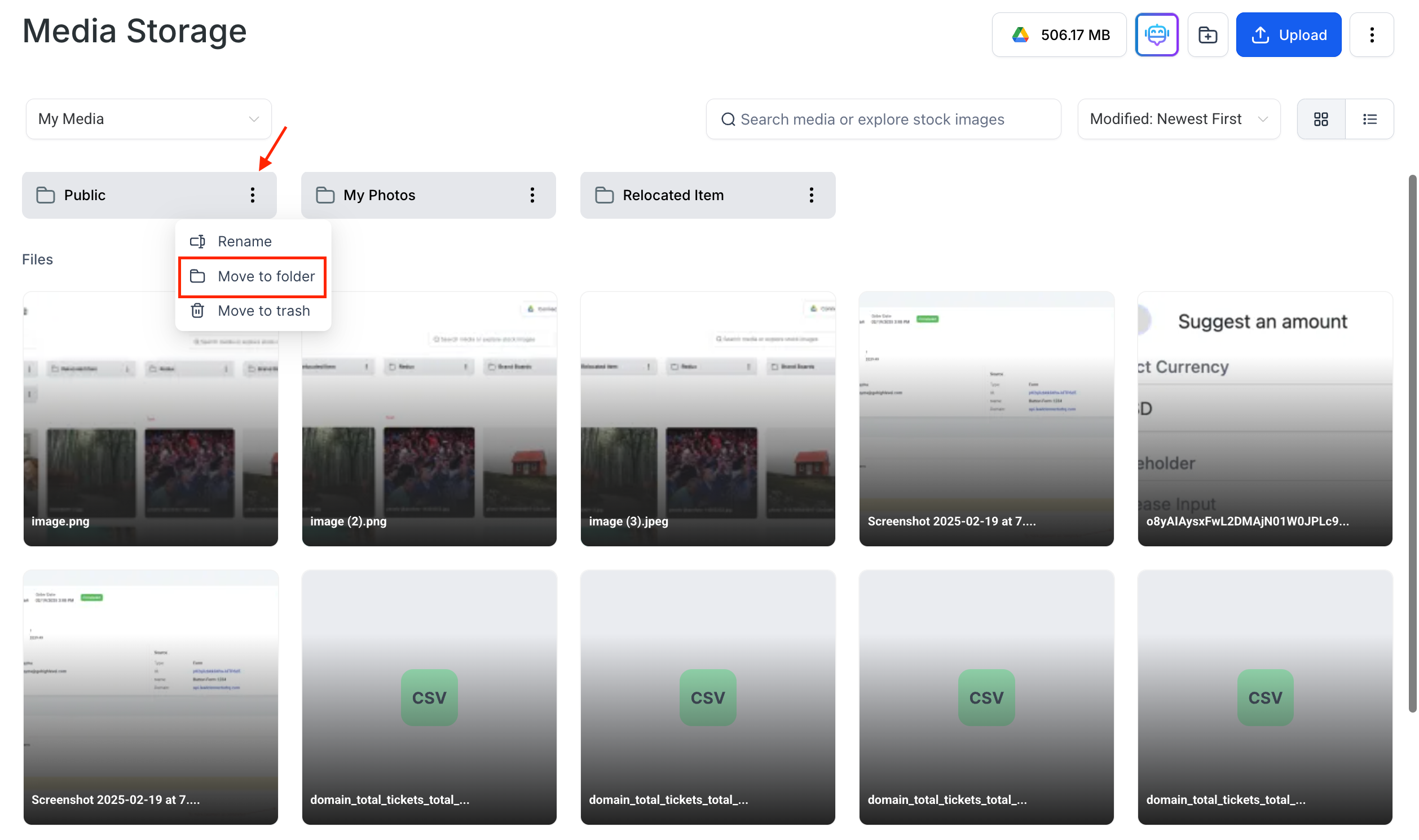
You can now move entire folders with their contents (including nested files and subfolders). Here's how:
Click the three-dot (⋮) menu next to any folder.
Select "Move to Folder."
Choose an existing folder or create a new one.
Confirm the move—everything is relocated together.
No duplicates needed.
Keeps subfolders intact.
Enables a structured, clutter-free layout.
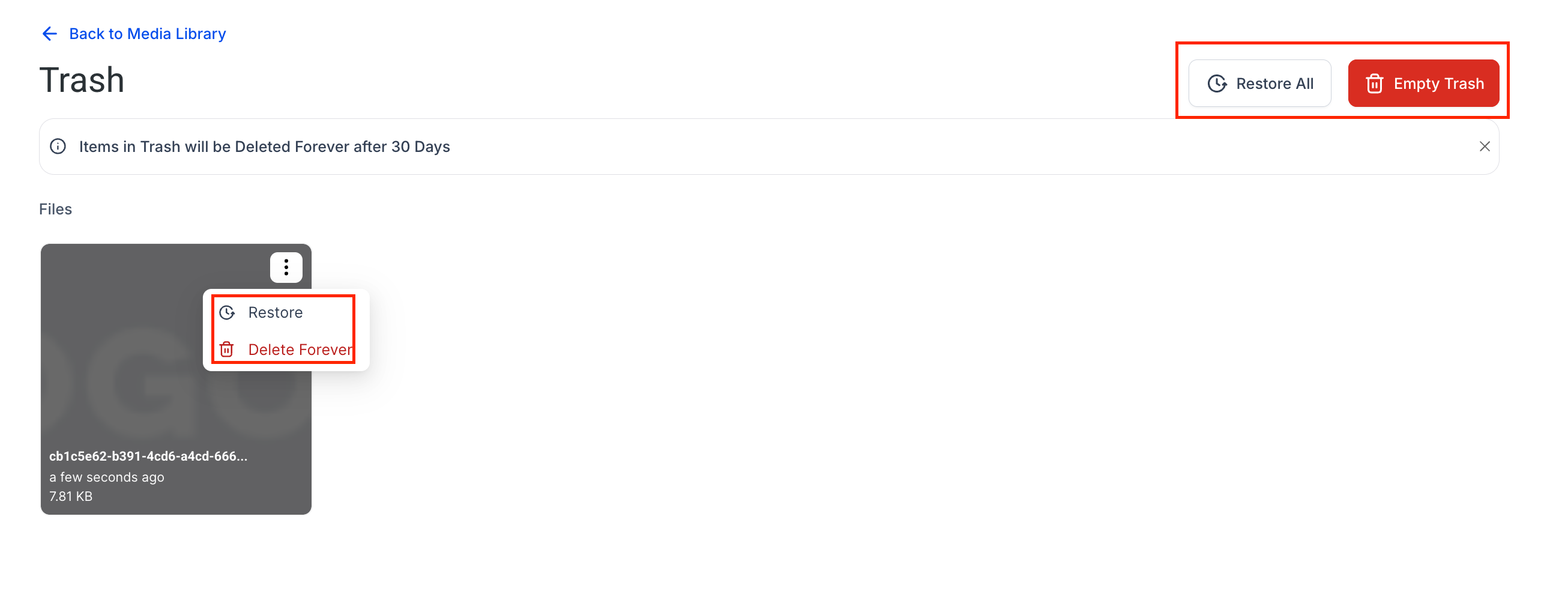
Deleted media files are now moved to Trash, where they remain for 30 days before permanent removal.
Click the three-dot menu on the top right.
Select "Trash."
Choose a file to Restore or Delete Permanently.
⚠ Files are non-recoverable after 30 days.
Connect Drive now enables importing from Google Drive (owned files only).
⚠ Important Note - We’re unable to display shared files or shortcuts to shared files, as these are restricted by access and permission settings. At the moment, we can only show files that are owned by you. This limitation is due to how Google Drive handles visibility and ownership.
⚠ Workaround - We recommend creating a copy of the shared file instead of a shortcut this will ensure it appears and functions as expected.
Privacy Note: When using the "Login As" feature (e.g., for admin access):
The Connect Drive button is disabled and grayed out.
Google Drive data of the original user will not display ensuring strict privacy protection.

Media Storage is now deeply integrated with other modules. Whether you’re editing a funnel or designing a website, media opens via a modal window not full screen for a more pleasant, non-intrusive user experience.