Step 1 : Navigate to your Sites >> then go to the funnel that you are working on >> Click to view the funnel
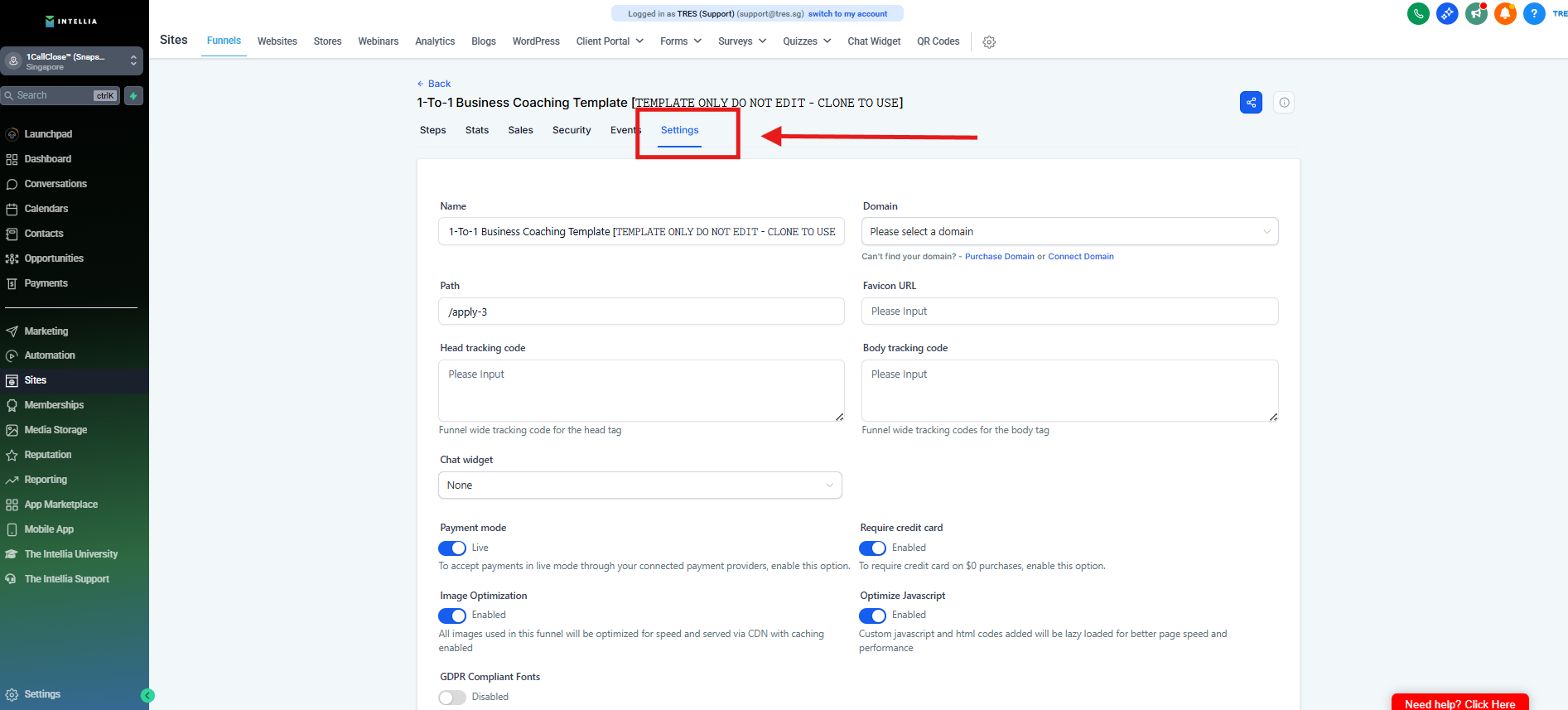
Step 2 : Go to settings
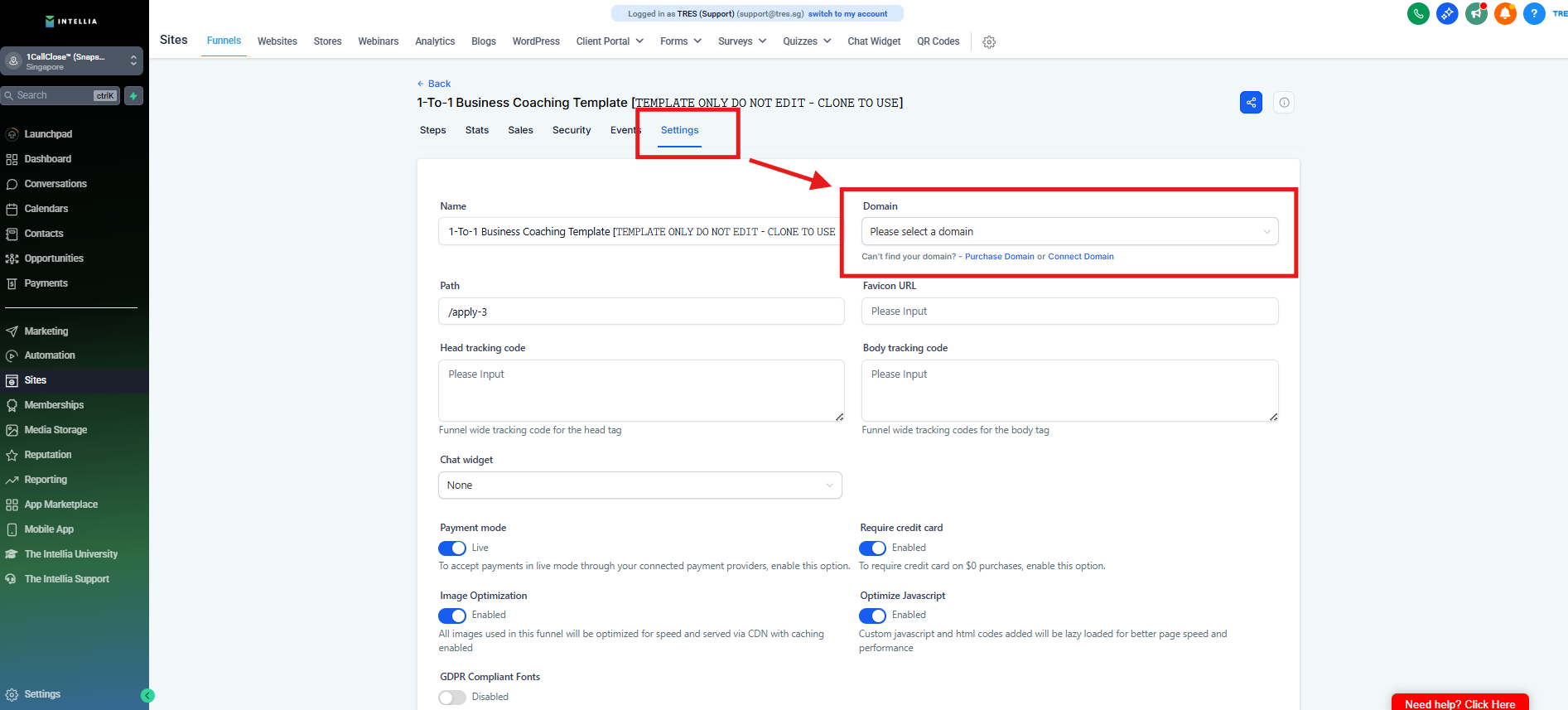
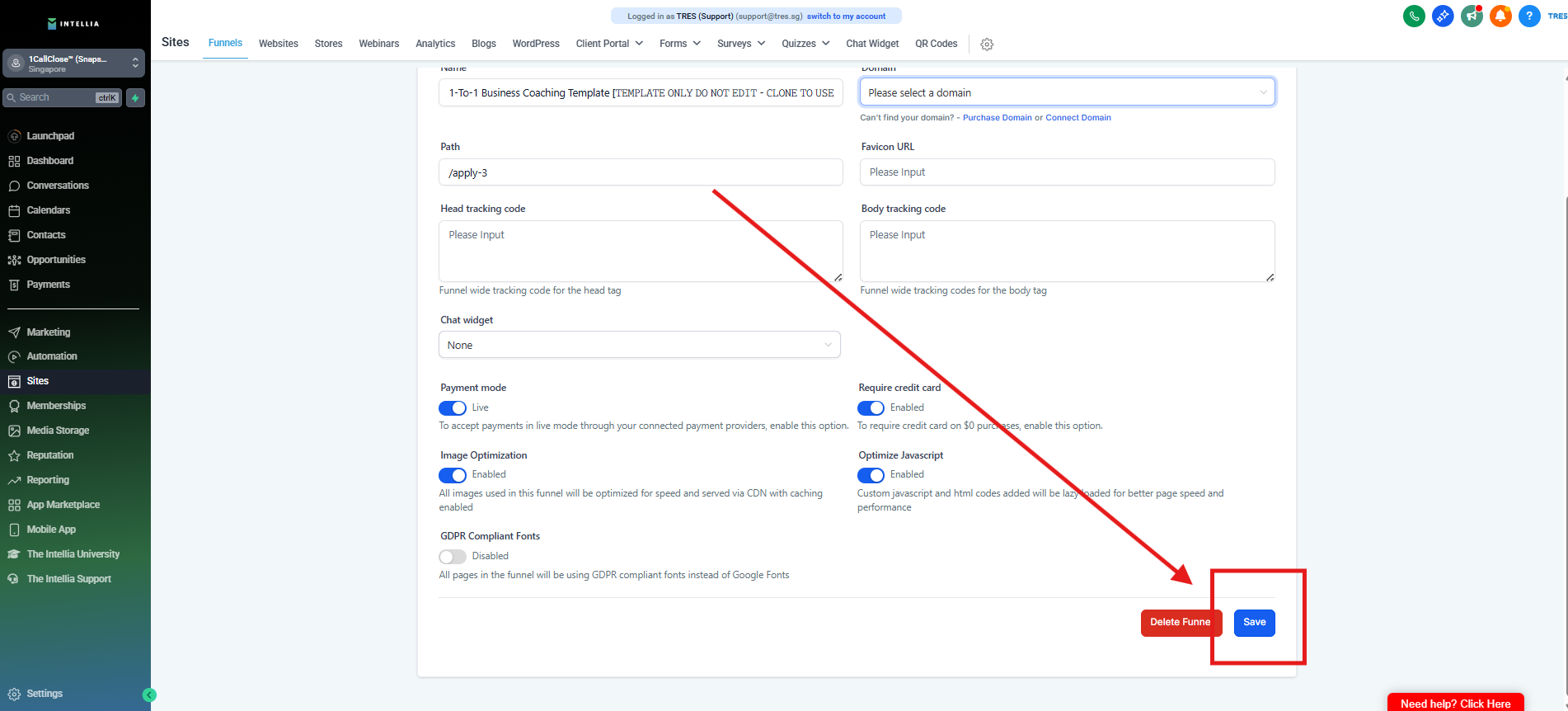
Step 3 : Click "Please select a domain"
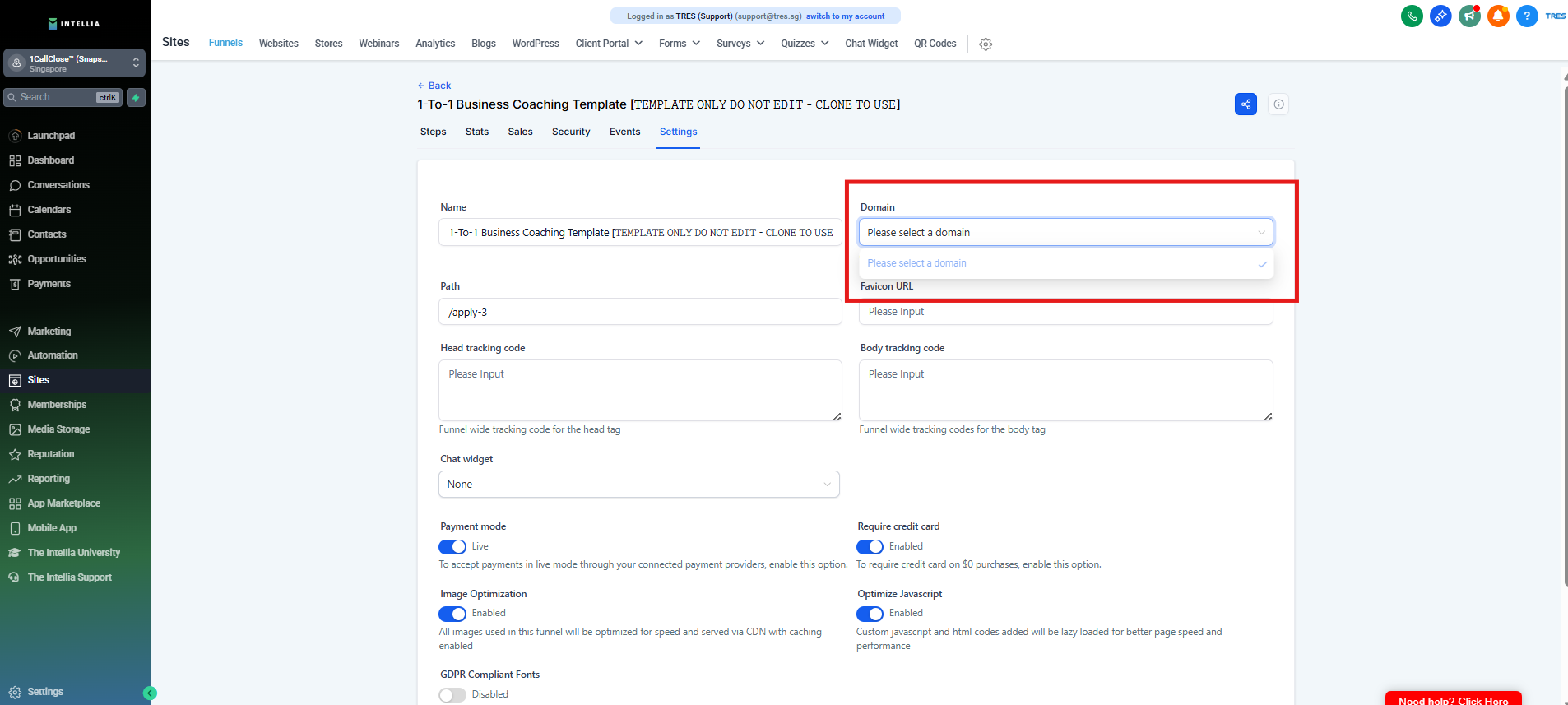
Step 4 : Select the domain you purchased specifically for your funnel campaign.
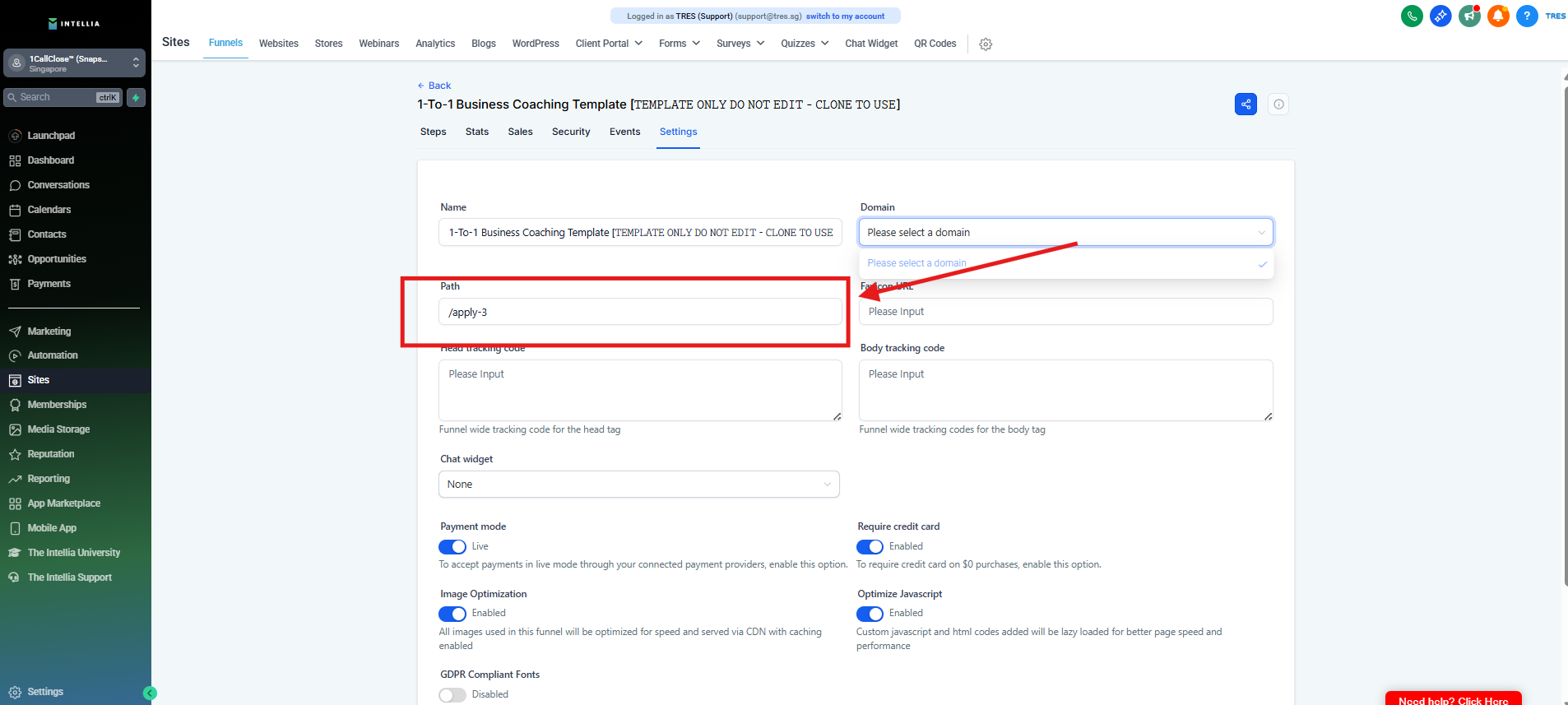
Step 5 : In the "Path" field, enter "/fb-2" for the consultation funnel
Note: For the webinar funnel, use "/join-2" instead
Step 6 : Click "Save"
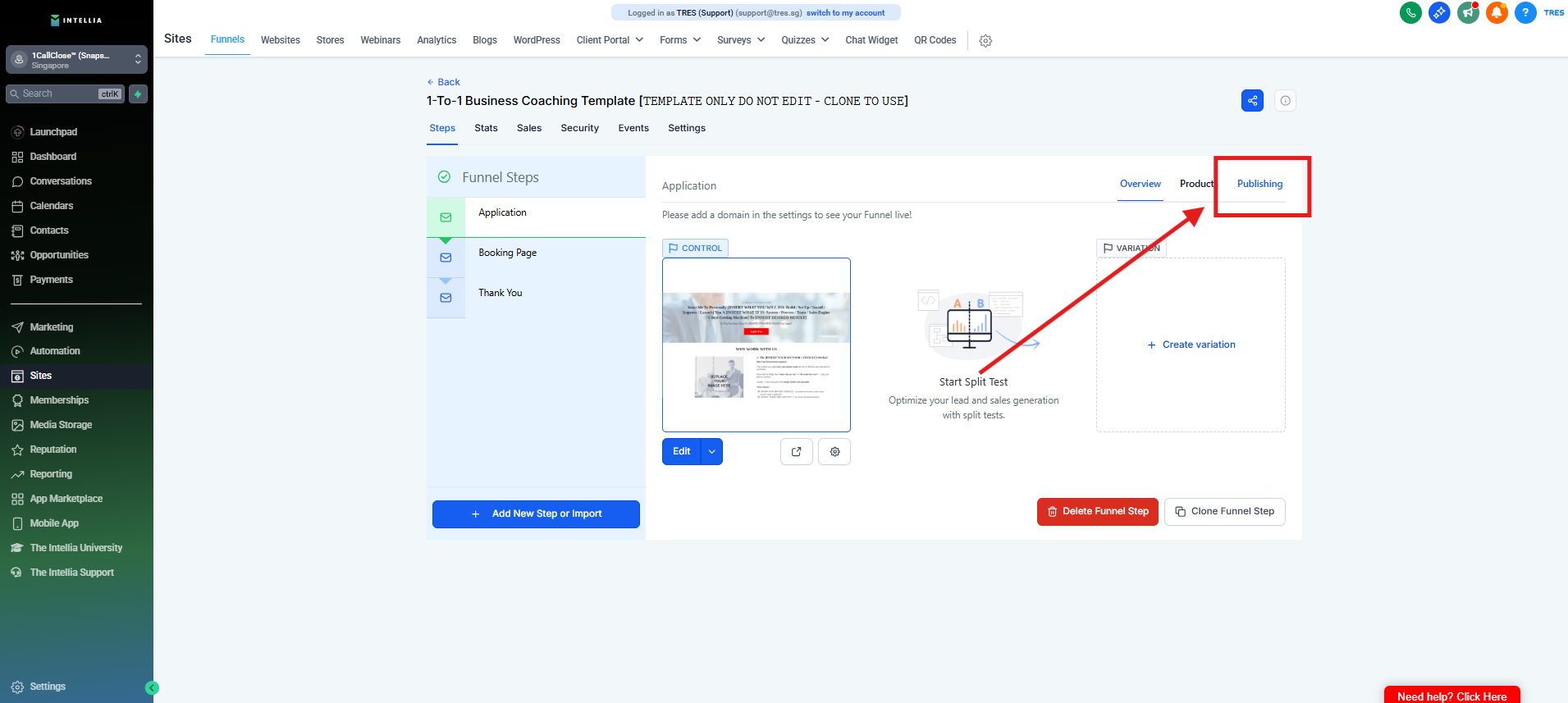
Step 7 : To change the Step URL for the Main Page, click "Publishing"
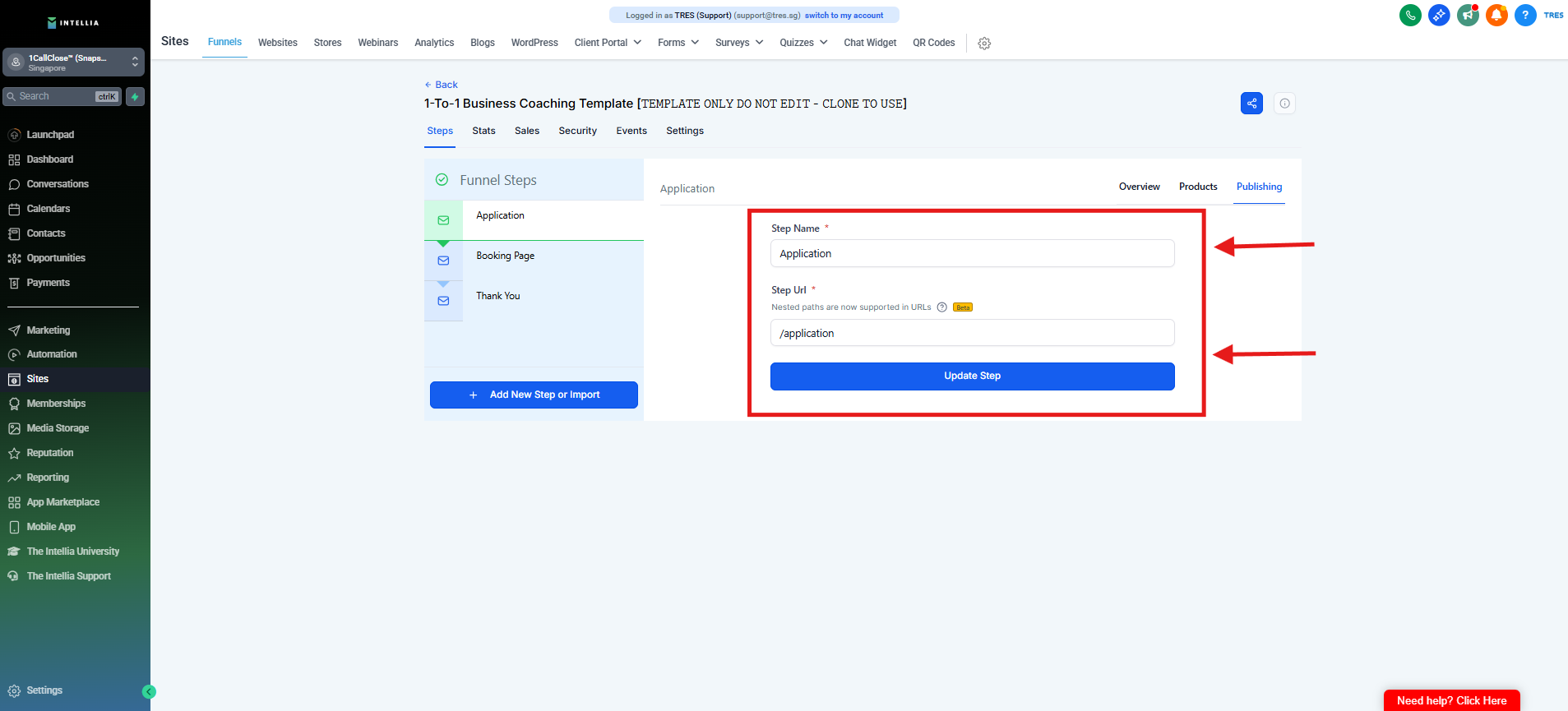
Step 8 : Here, you can edit the "Step Name" and "Step URL."
Note: The Step URL is too long and needs to be shortened.
Step 9 : Enter "/fb" for the consultation funnel and "/join" for the webinar funnel, then click "Update Step" to save.
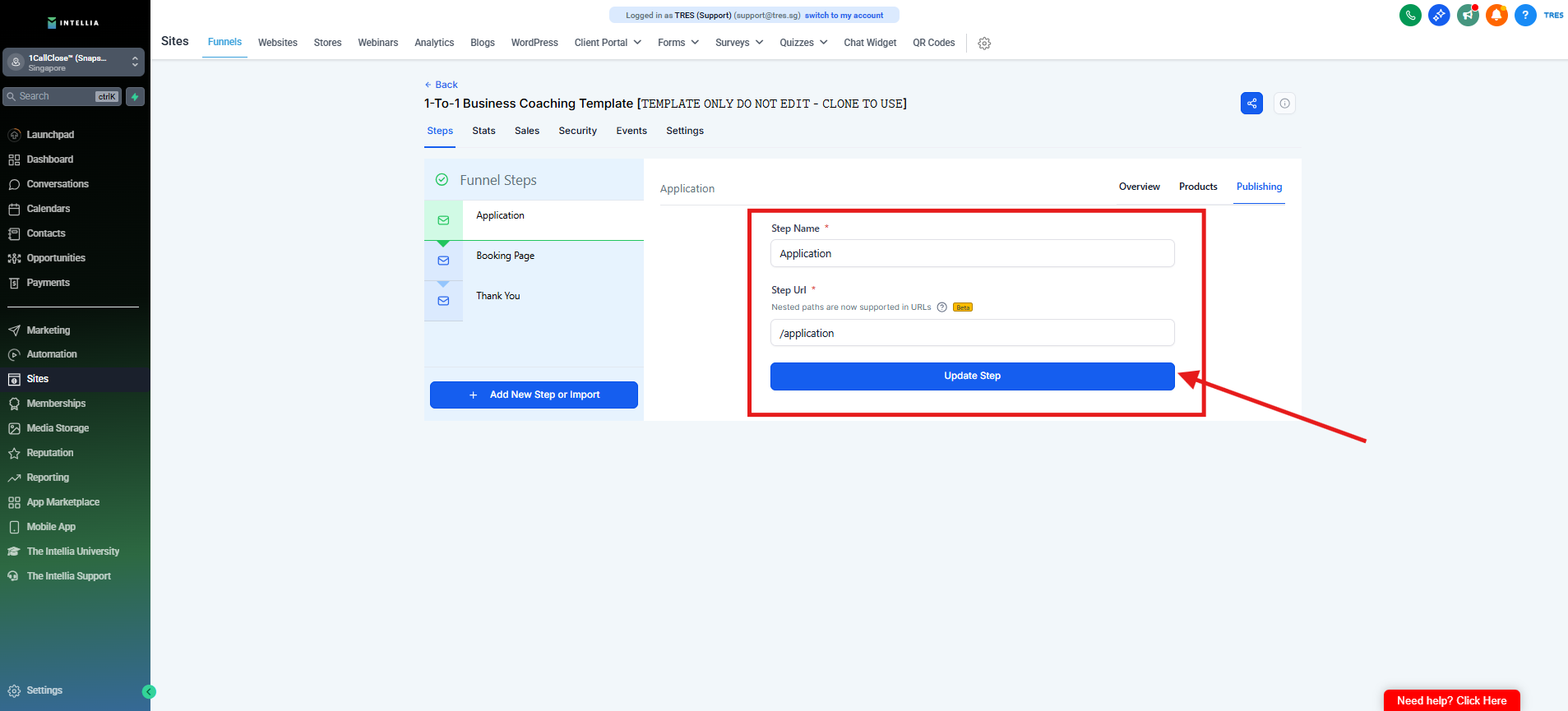
Step 10 : If random numbers appear after saving the Step URL, it means the current path is already in use by another funnel on the same domain. To fix this, rename it or try alternatives like "/join" or "/main."
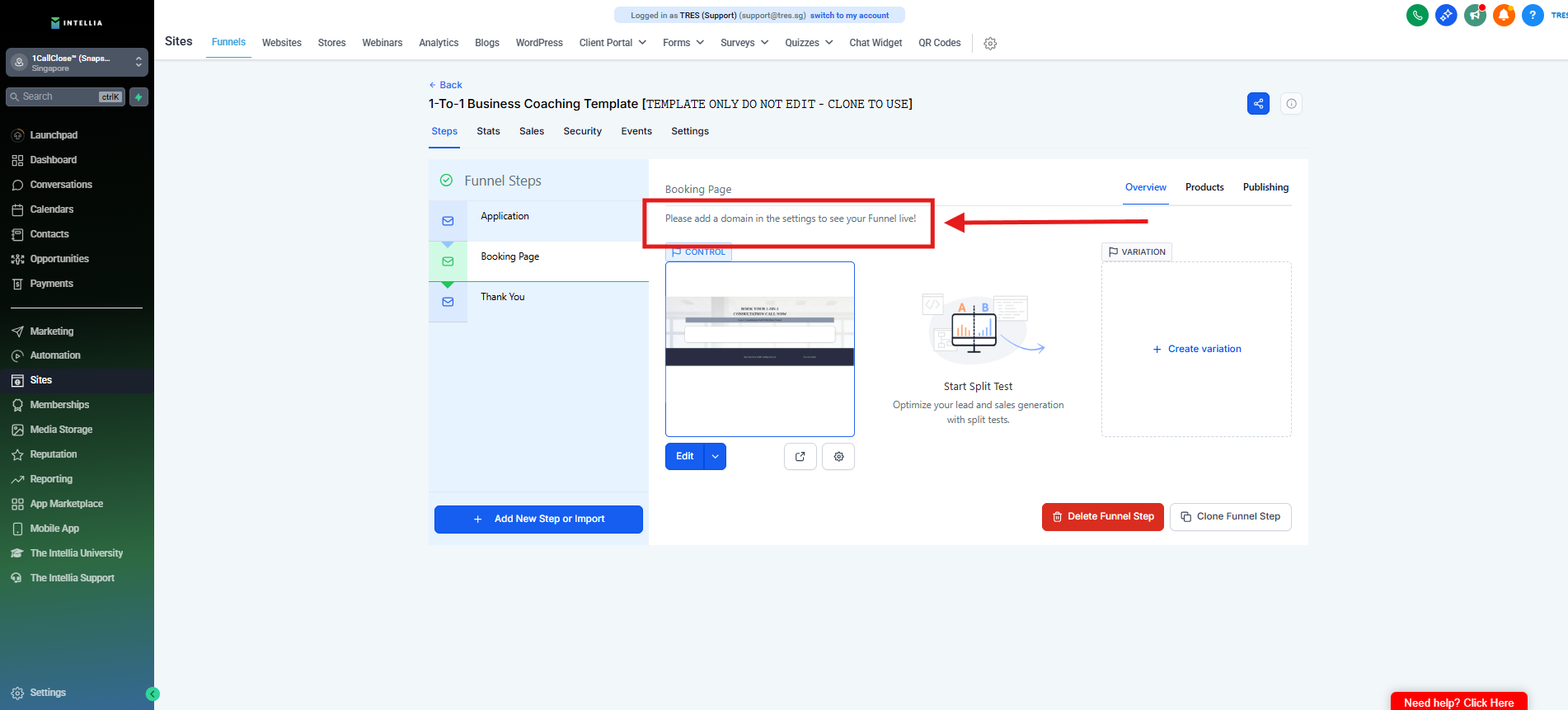
Step 11 : Click the "Please Input" field.
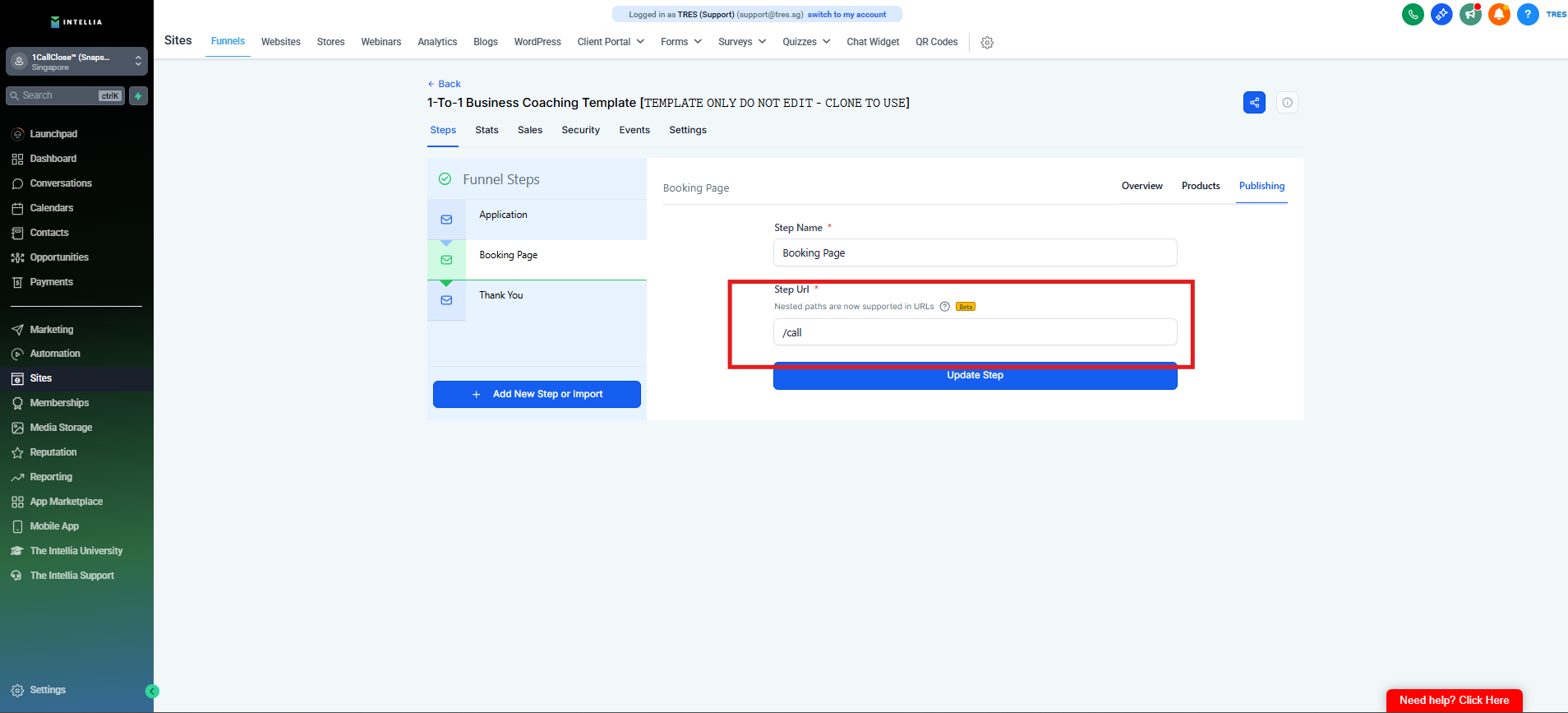
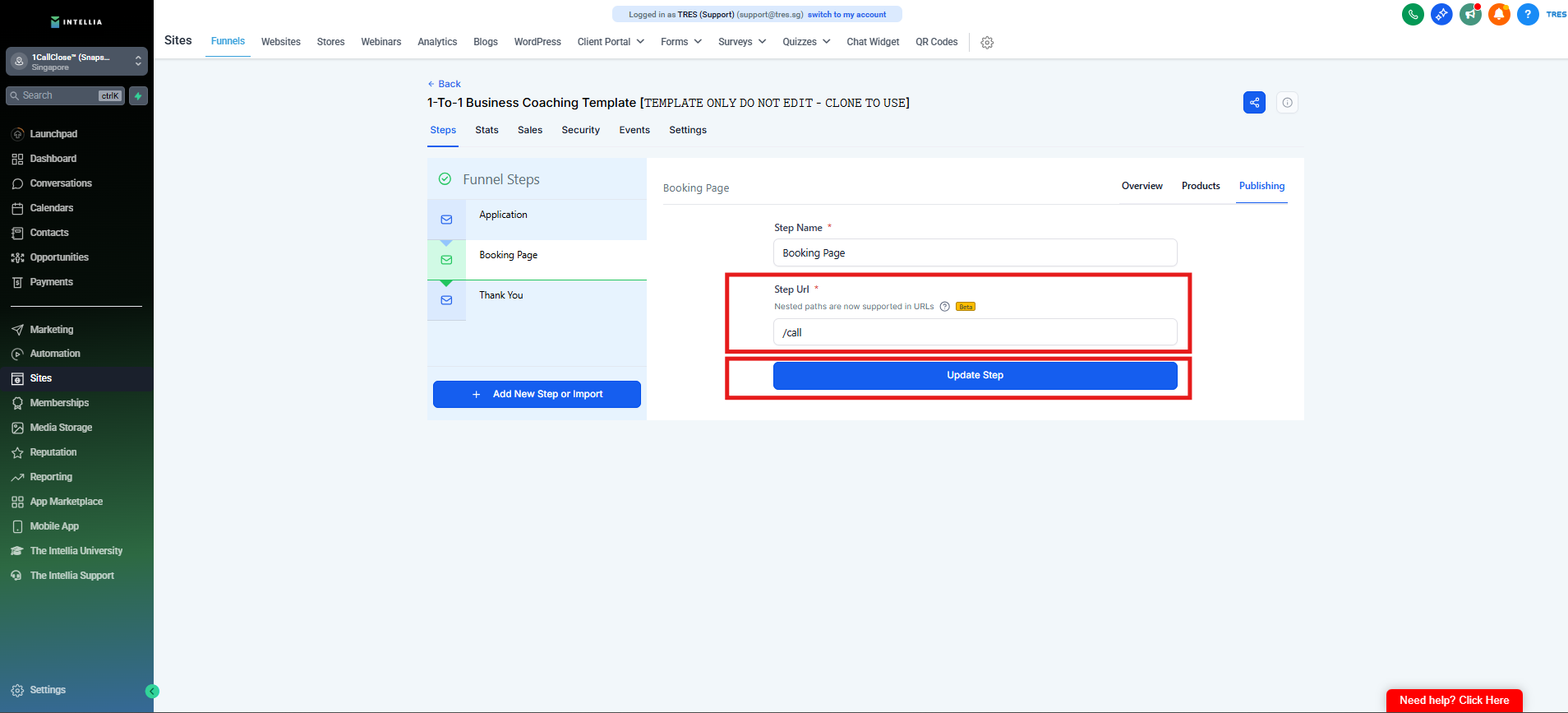
Step 12 : Type "/join" then click "Update Step"
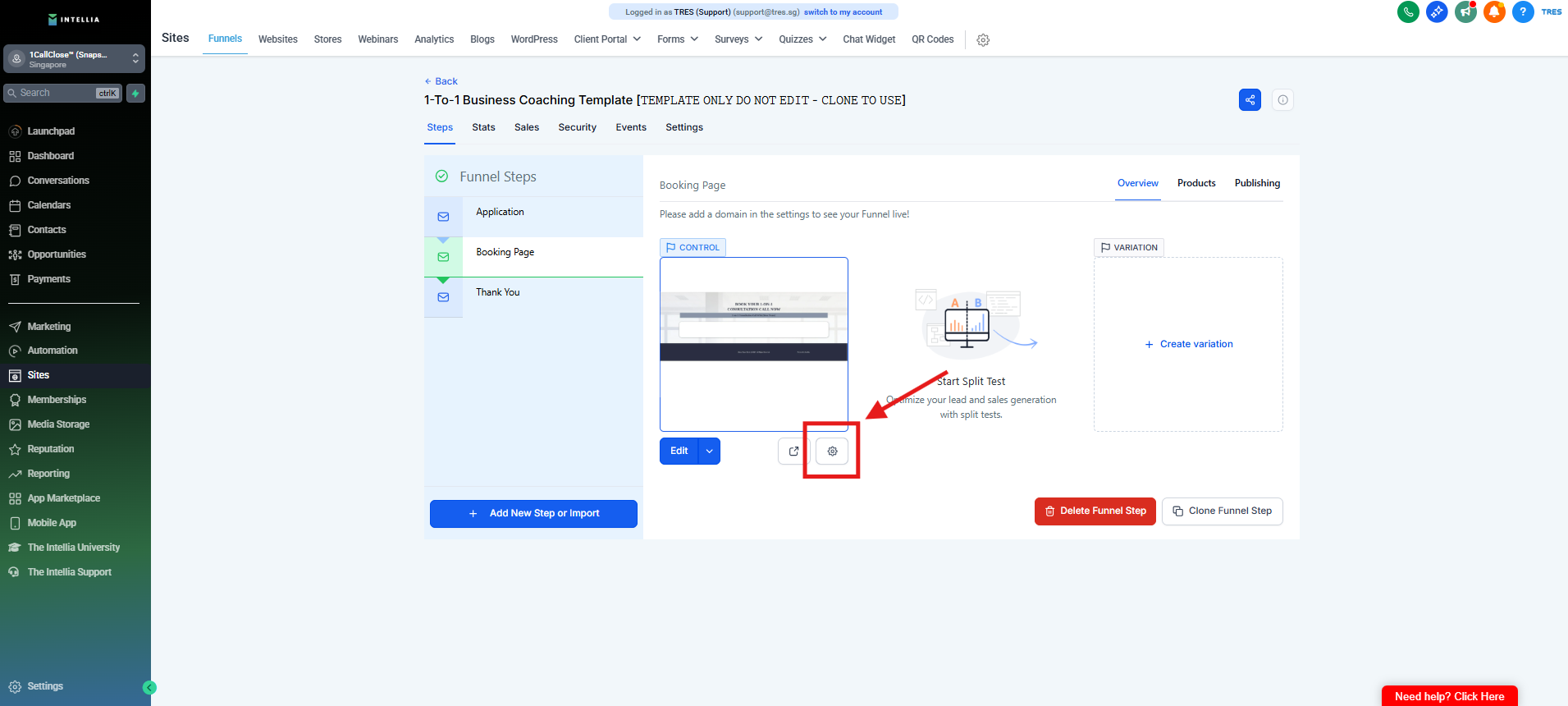
Step 13 : Click this gear icon below the preview funnel.
Step 14 : Update the page path URL to match the Step URL.
Note: This is useful for A/B split testing, helping you track where each lead originated.
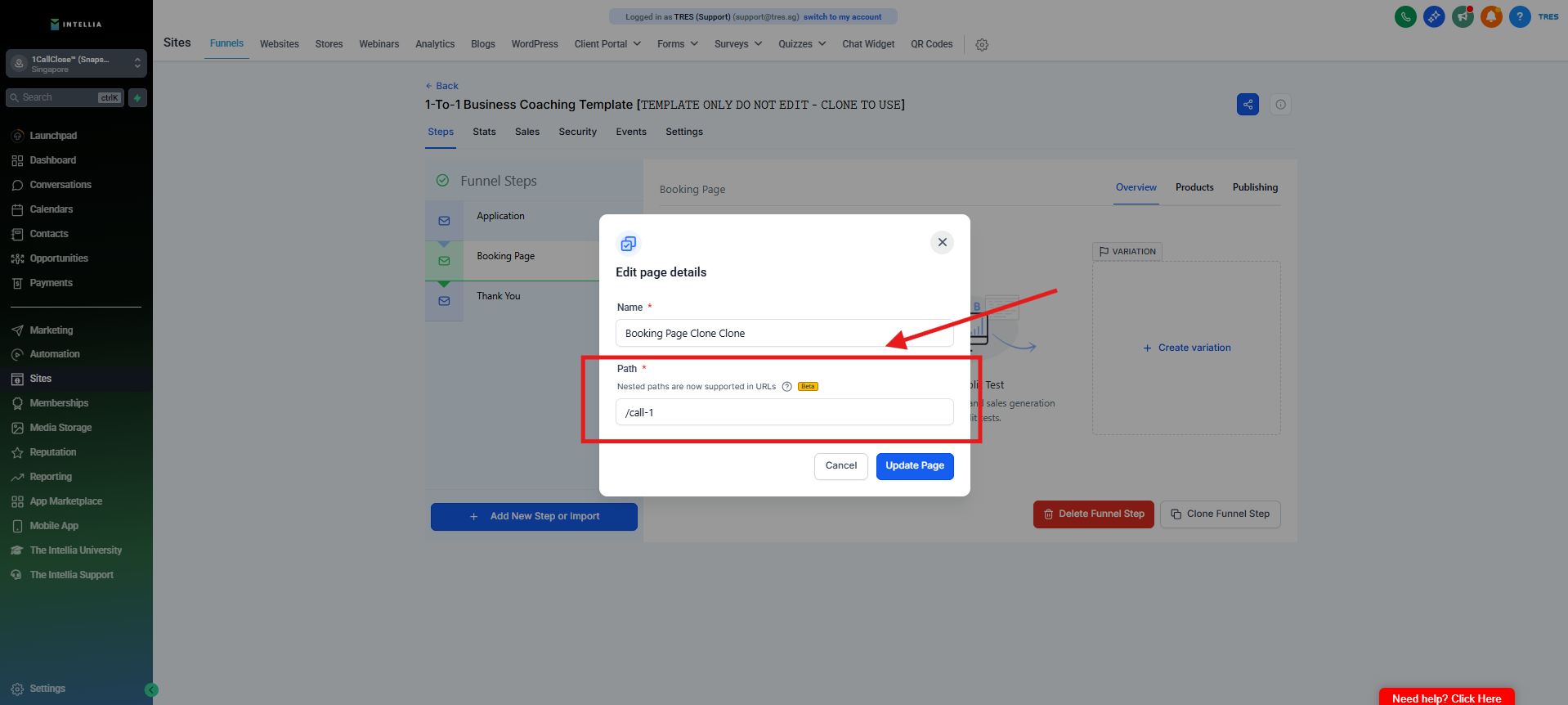
Step 15 : Type in "/join-1" then click "Update Page"
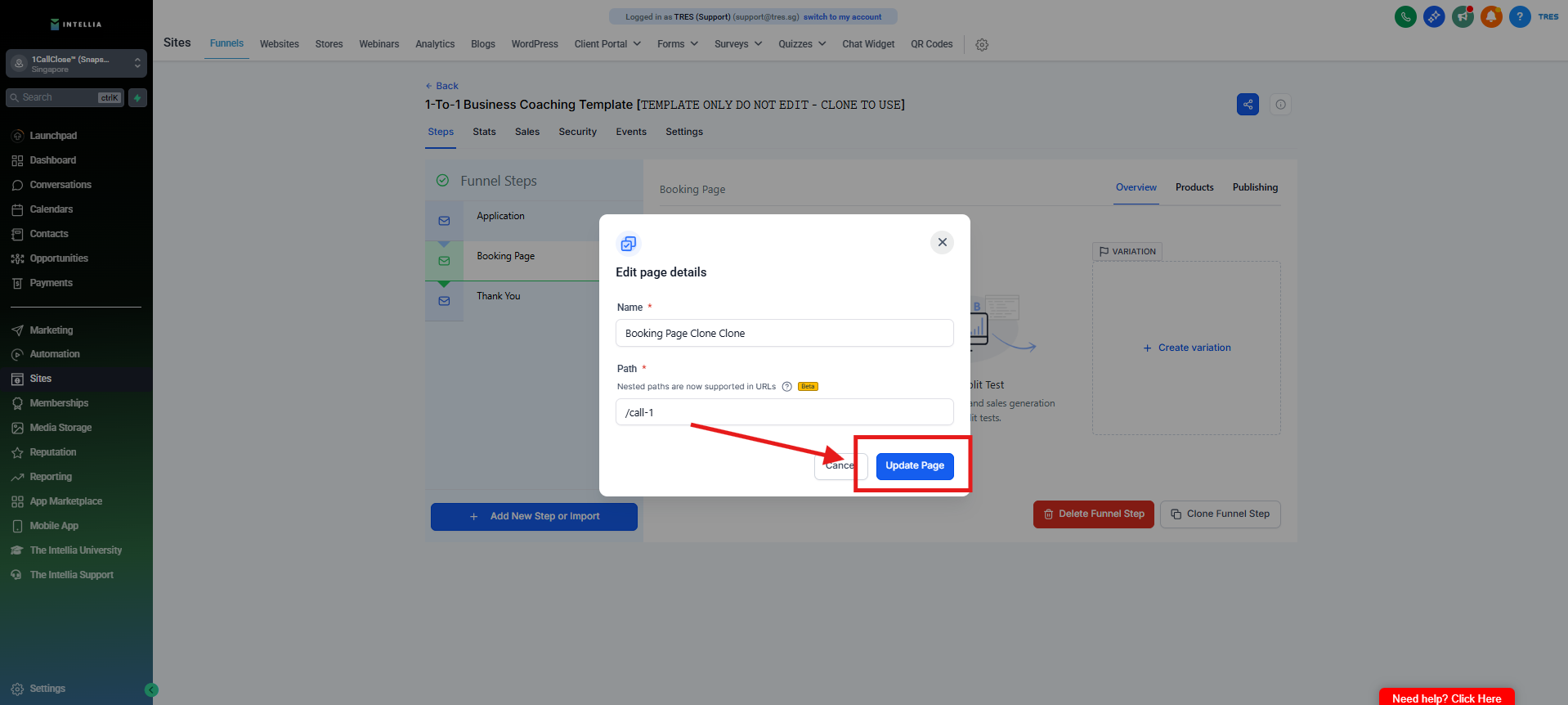
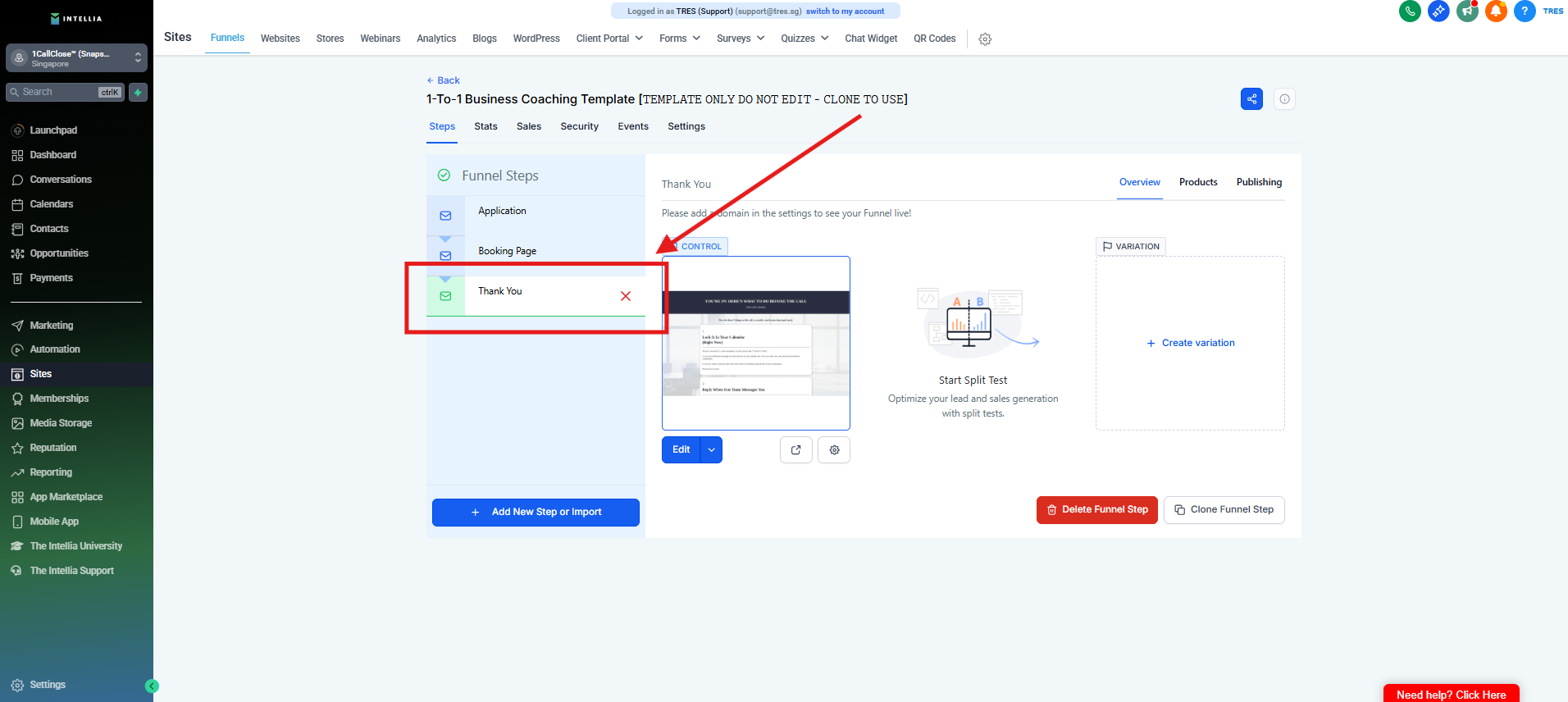
Step 16 : Click on the next step in your funnel.
For a Webinar Funnel, the next step is the Thank You page.
For a Consultation Funnel, the next step should be the Booking Page, with the Step URL set to "/call" and the Page URL to "/call-1."
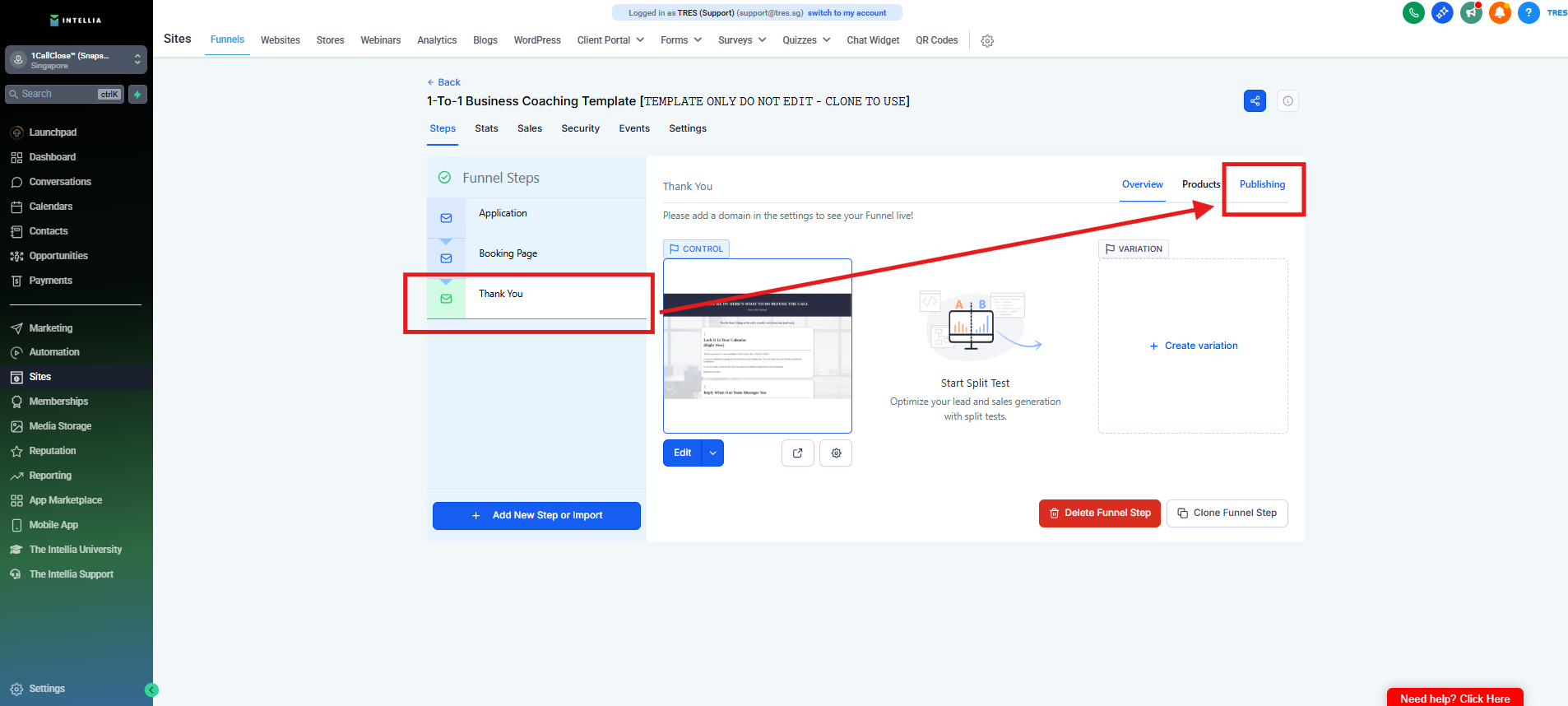
Step 17 : Click "Publishing"
Step 18 : Click the "Please Input" field.
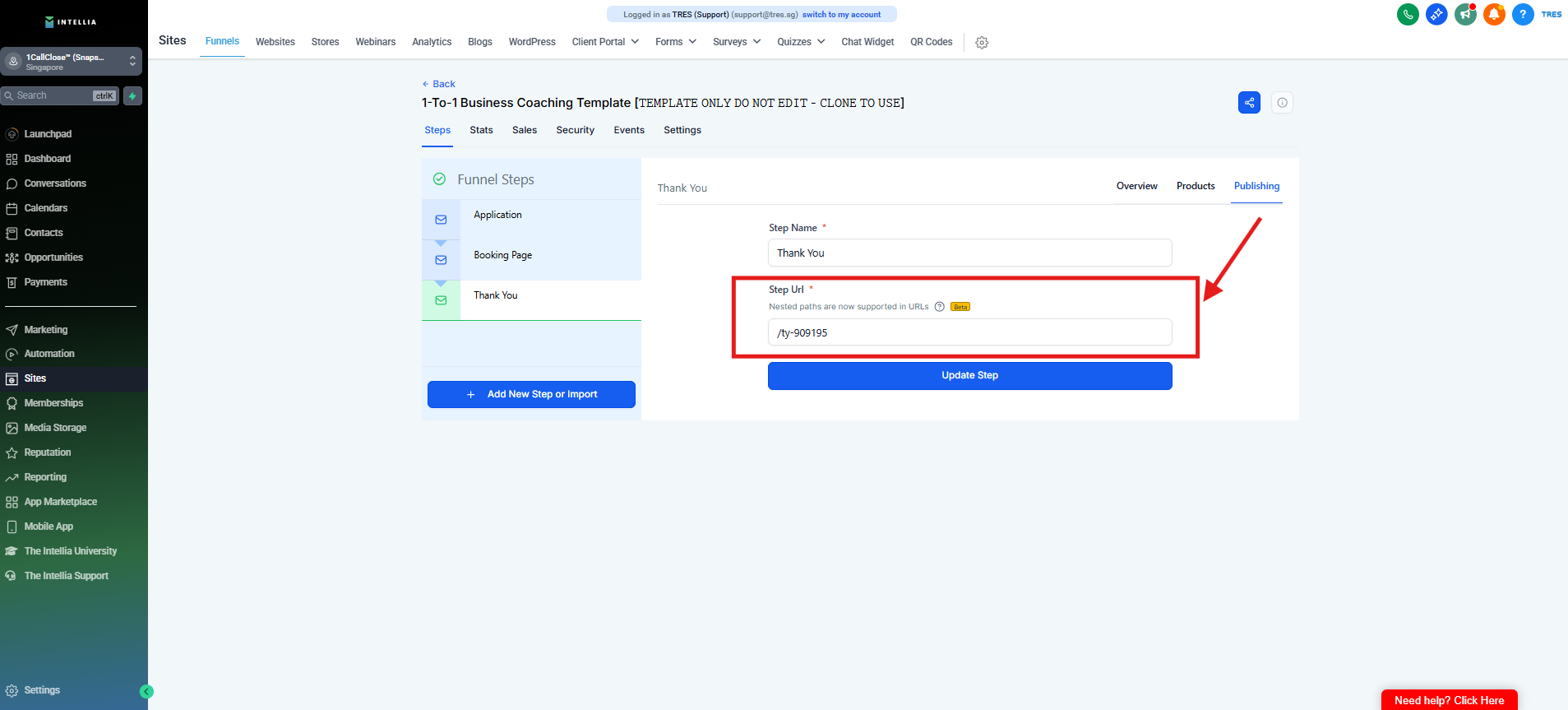
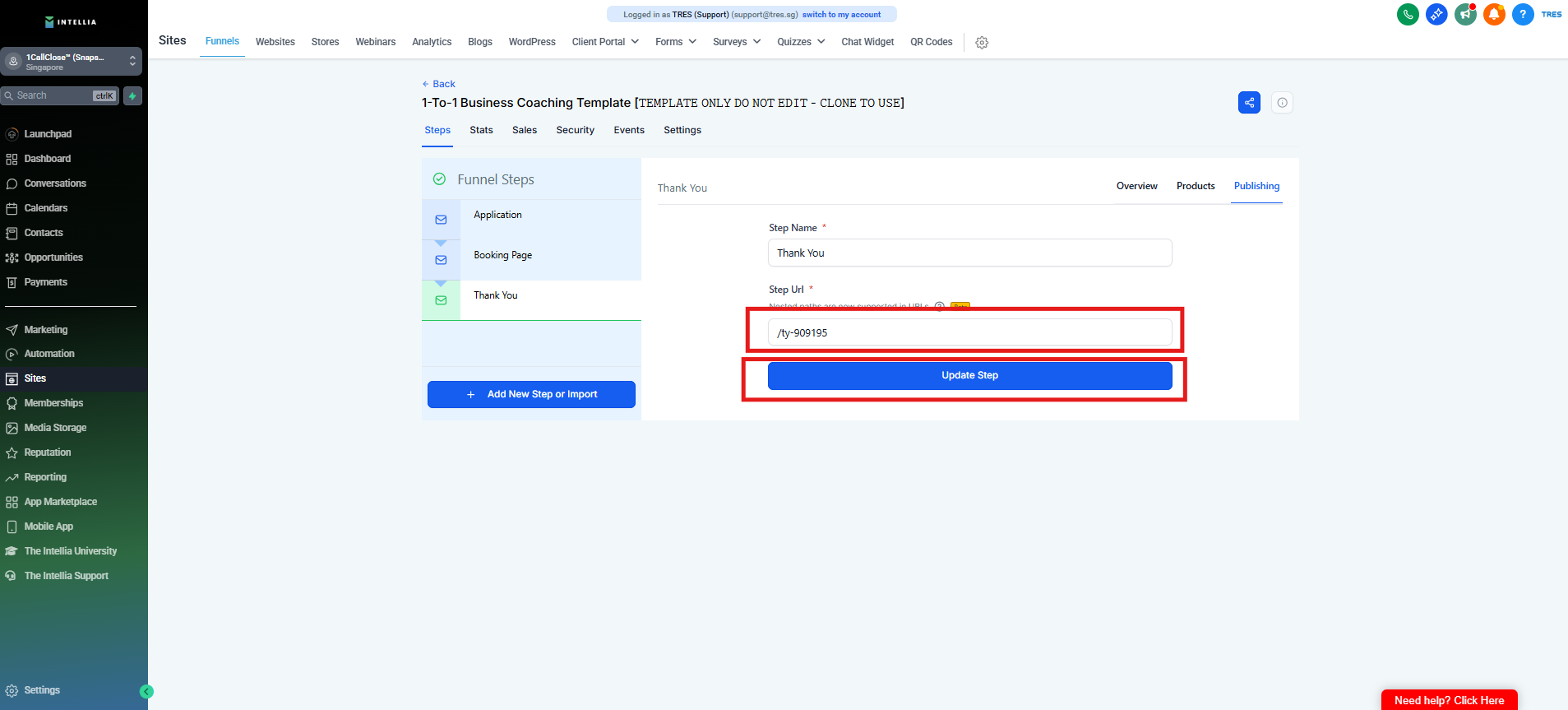
Step 19 : Type in "/ty" or "/thank-you" then click "Update Step"
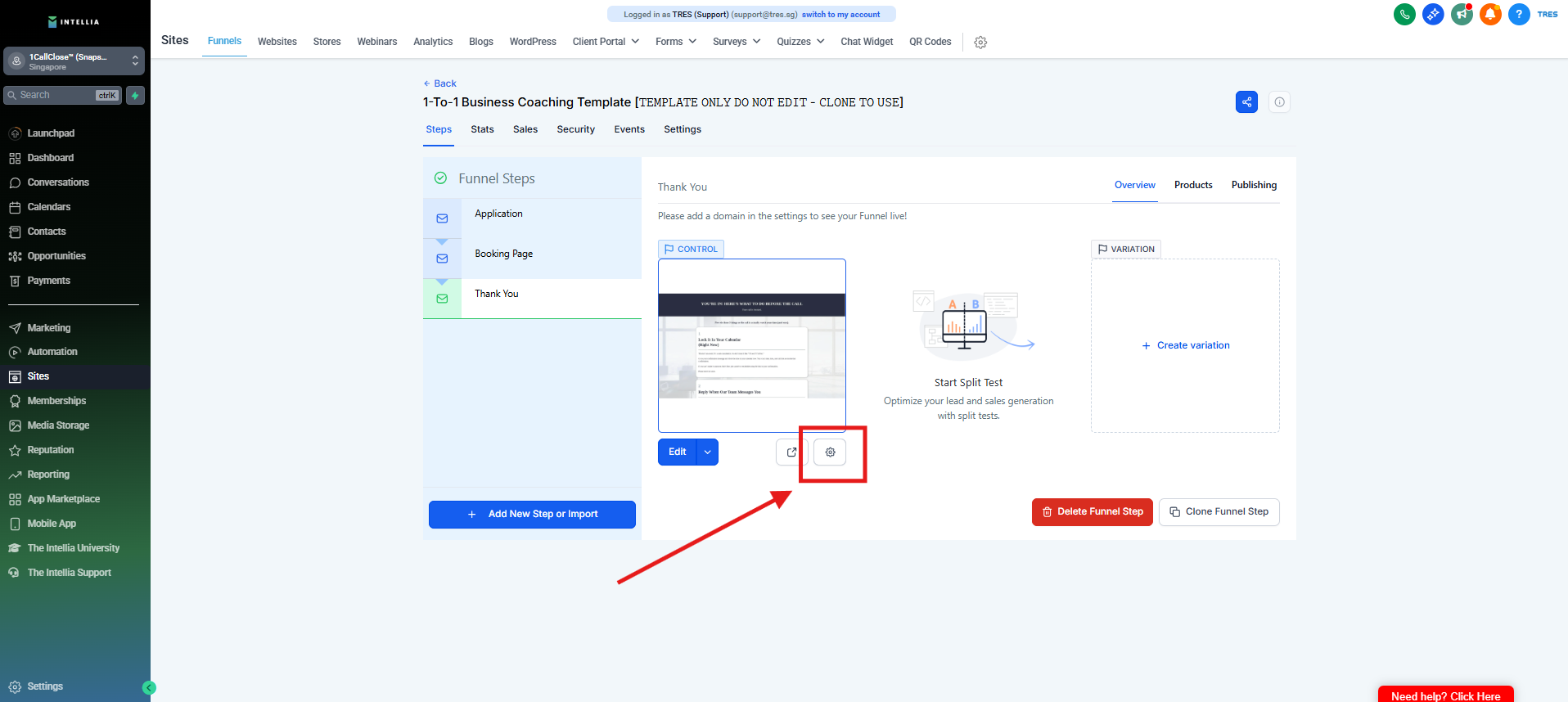
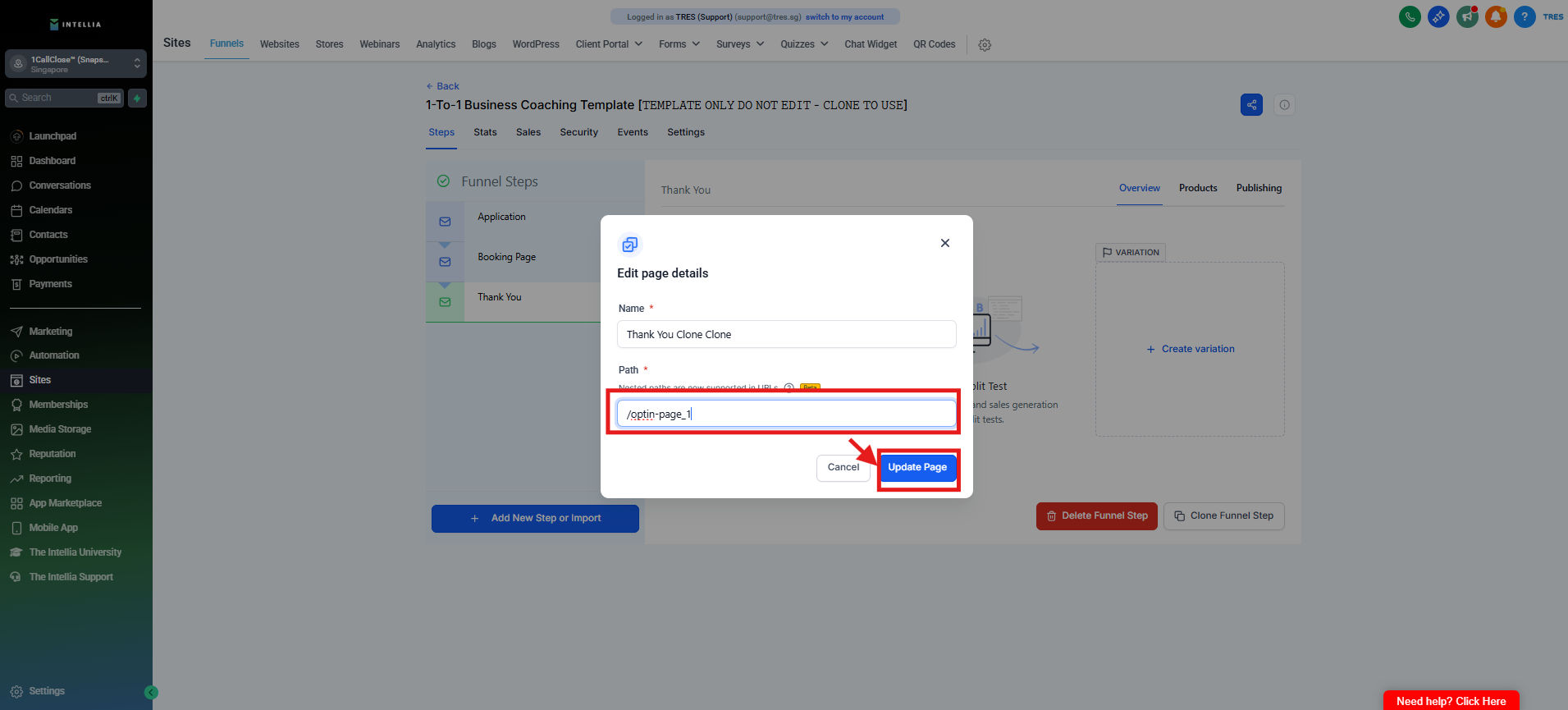
Step 20 : Click on the gear icon.
Step 21 : Click the "Please Input" field.
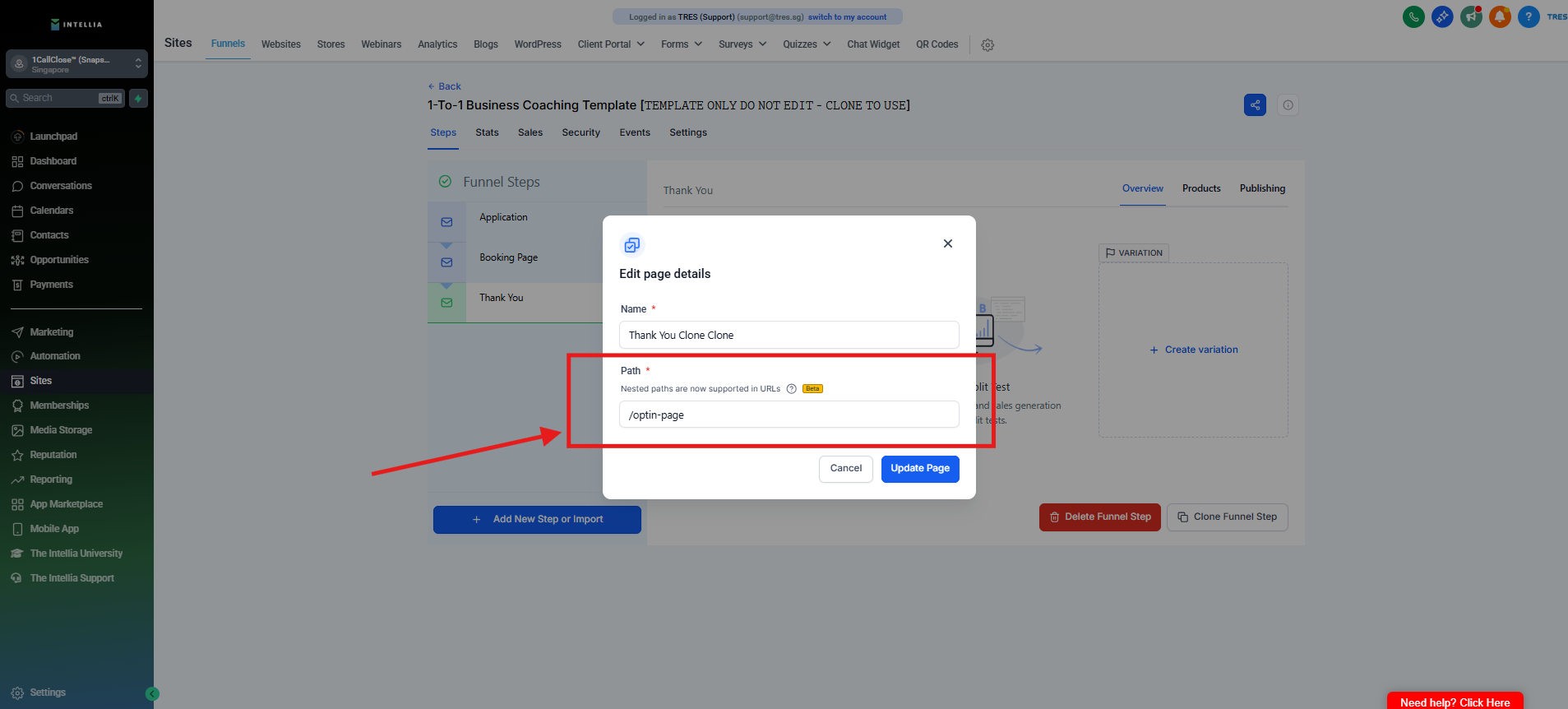
Step 22 : Enter the Step URL, add "-1" at the end, then click "Update Page."
Step 23 : Go to you main page
Step 24 : Click the "View Page" icon on the far right of the URL to verify if the page is working.