Step 1 : Login your Intellia Account, Using this link : app.theintellia.com
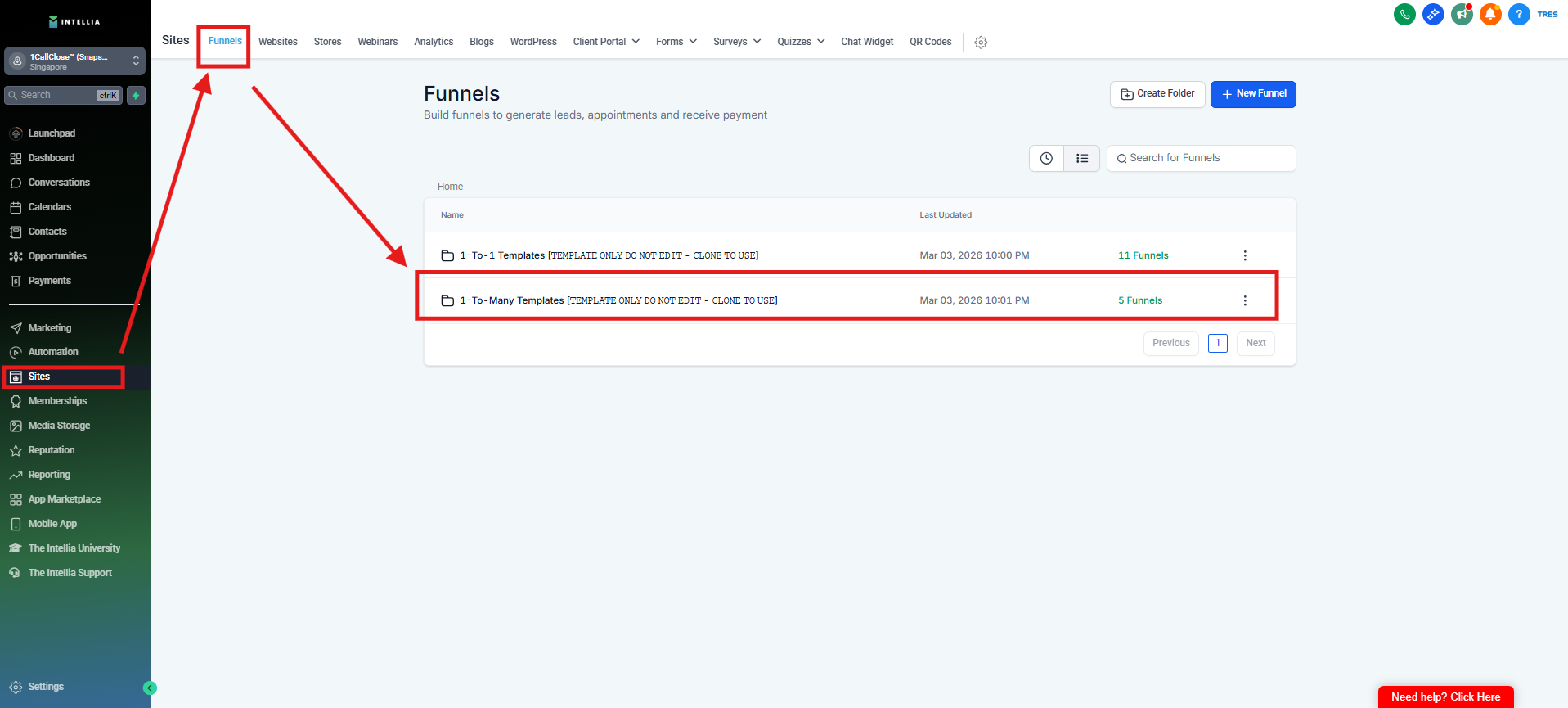
Step 2 : Click Sites > Under the Funnels, Go to Funnels (1-To-Many Templates [𝚃𝙴𝙼𝙿𝙻𝙰𝚃𝙴 𝙾𝙽𝙻𝚈 𝙳𝙾 𝙽𝙾𝚃 𝙴𝙳𝙸𝚃 - 𝙲𝙻𝙾𝙽𝙴 𝚃𝙾 𝚄𝚂𝙴]) > search for 1-To-Many Signature Template [𝚃𝙴𝙼𝙿𝙻𝙰𝚃𝙴 𝙾𝙽𝙻𝚈 𝙳𝙾 𝙽𝙾𝚃 𝙴𝙳𝙸𝚃 - 𝙲𝙻𝙾𝙽𝙴 𝚃𝙾 𝚄𝚂𝙴].
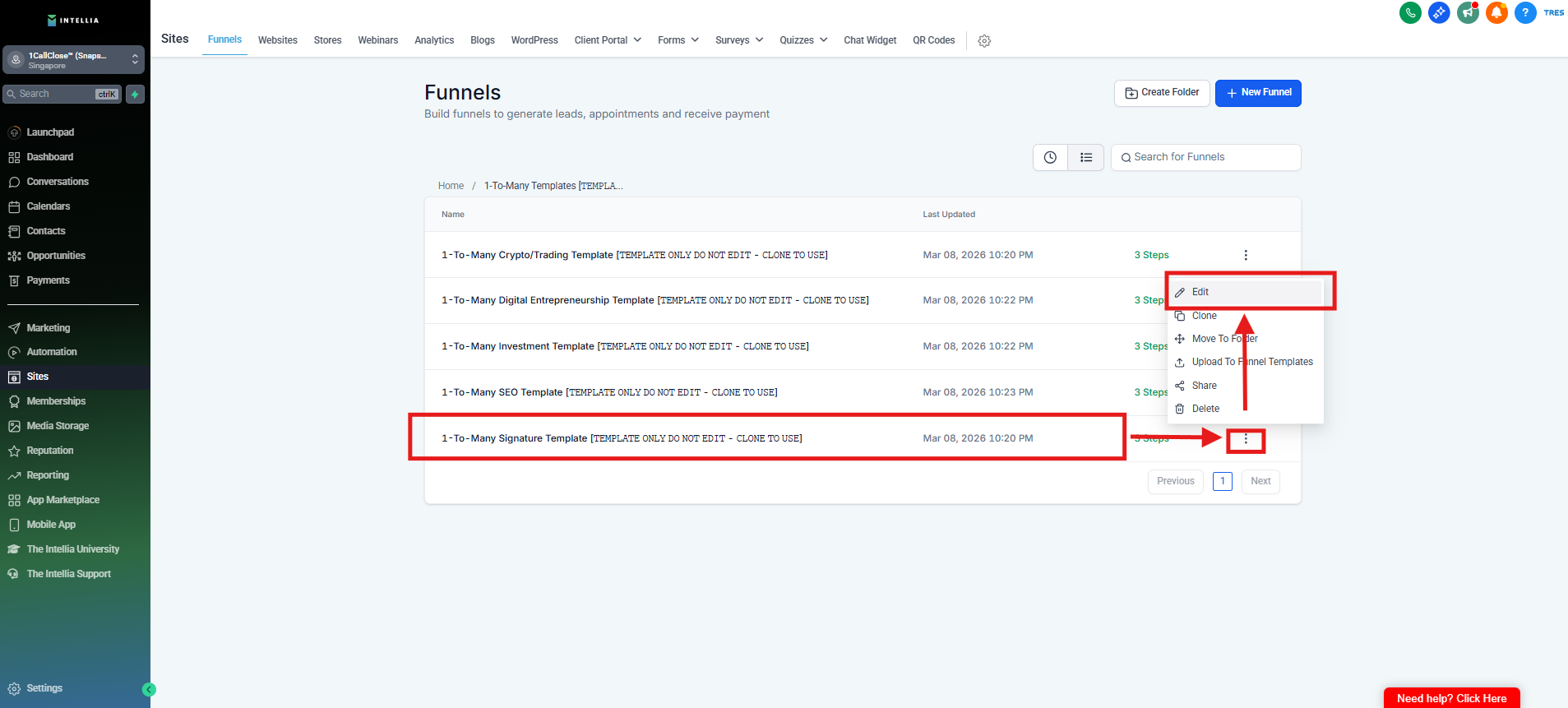
Then Click the 3 dot and click edit.
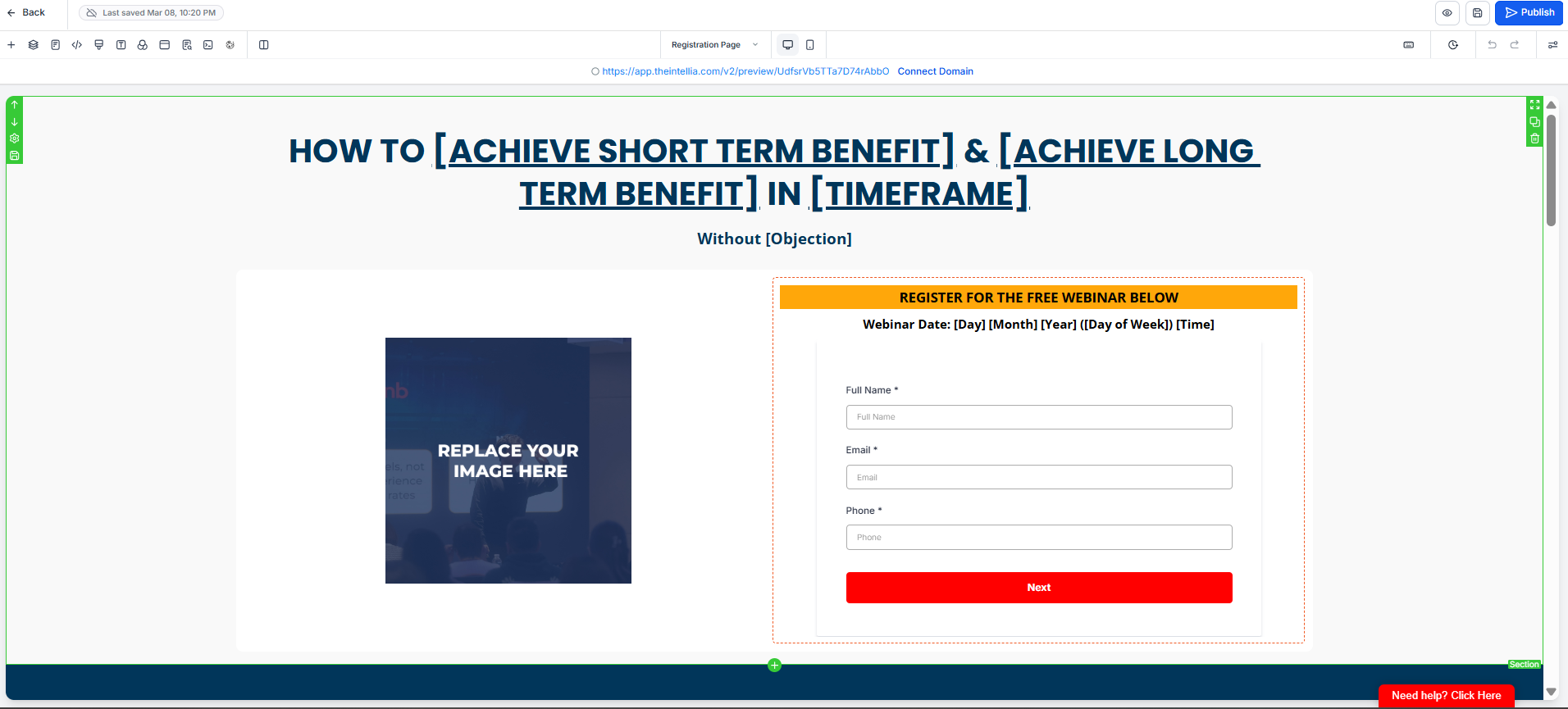
Step 3 : Under the page, click Edit > Once you are now inside the Registration Page > You'll be directed to the page editor.
Step 4 : Click on the Logo > An editor menu will appear on the right of the browser.
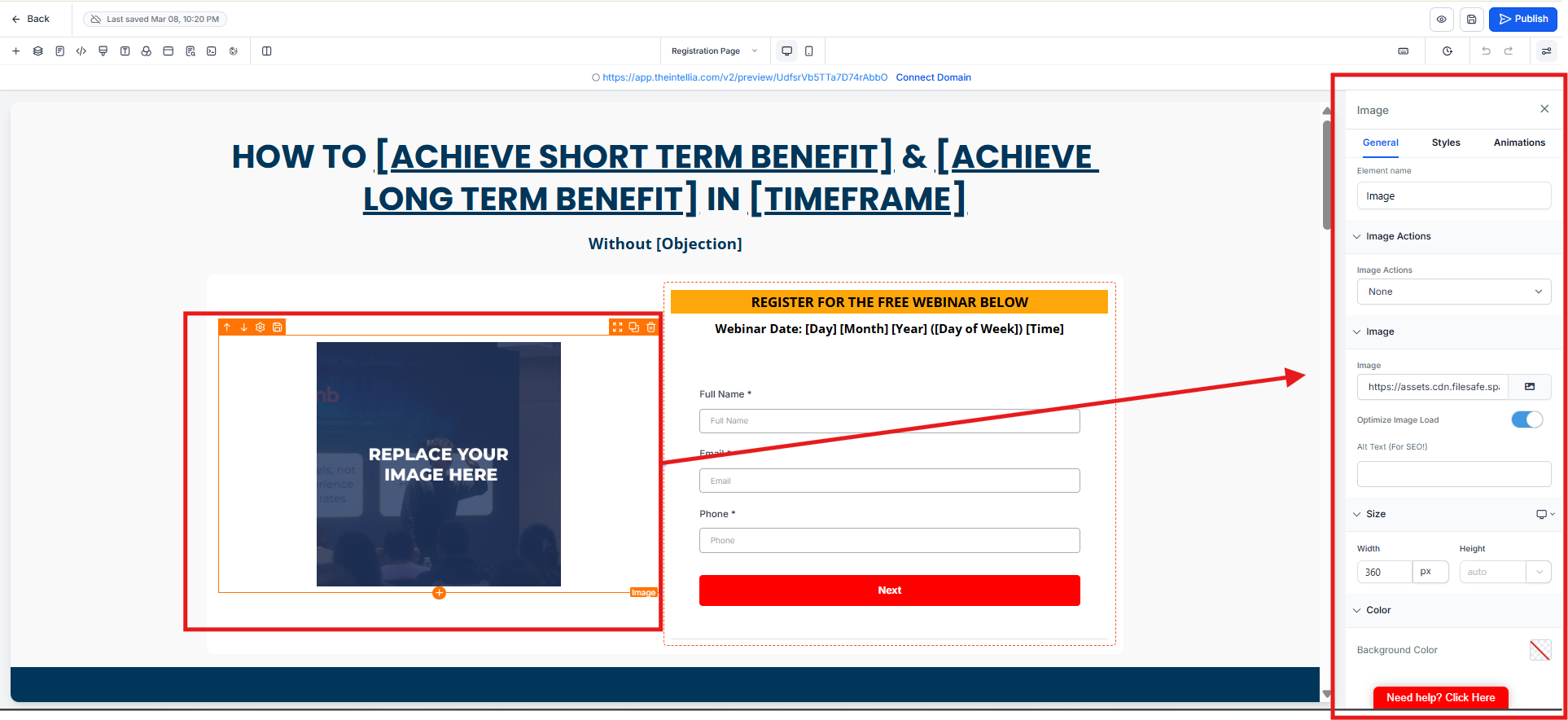
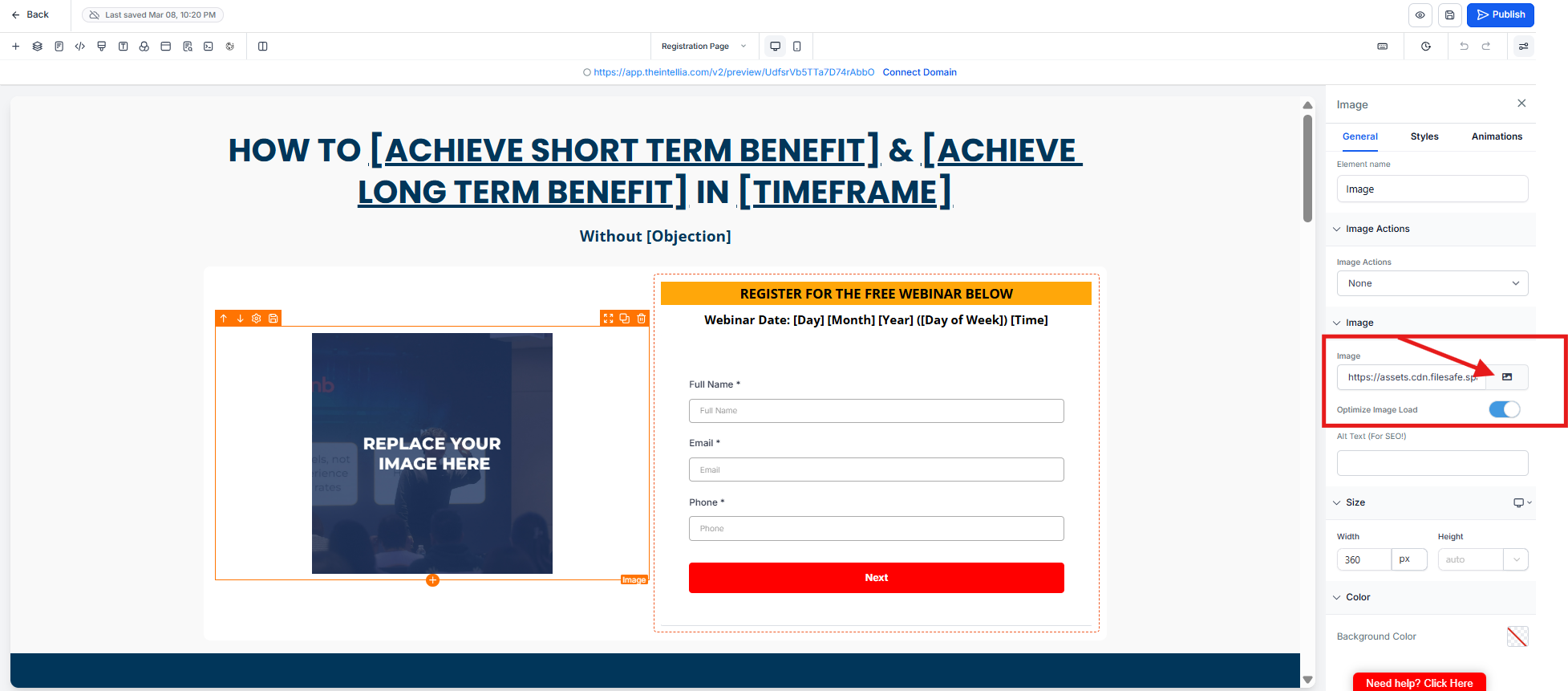
Step 5 : On the editor menu, scroll down to Image Options > Click the Image Icon > You'll be directed to the Media Library.
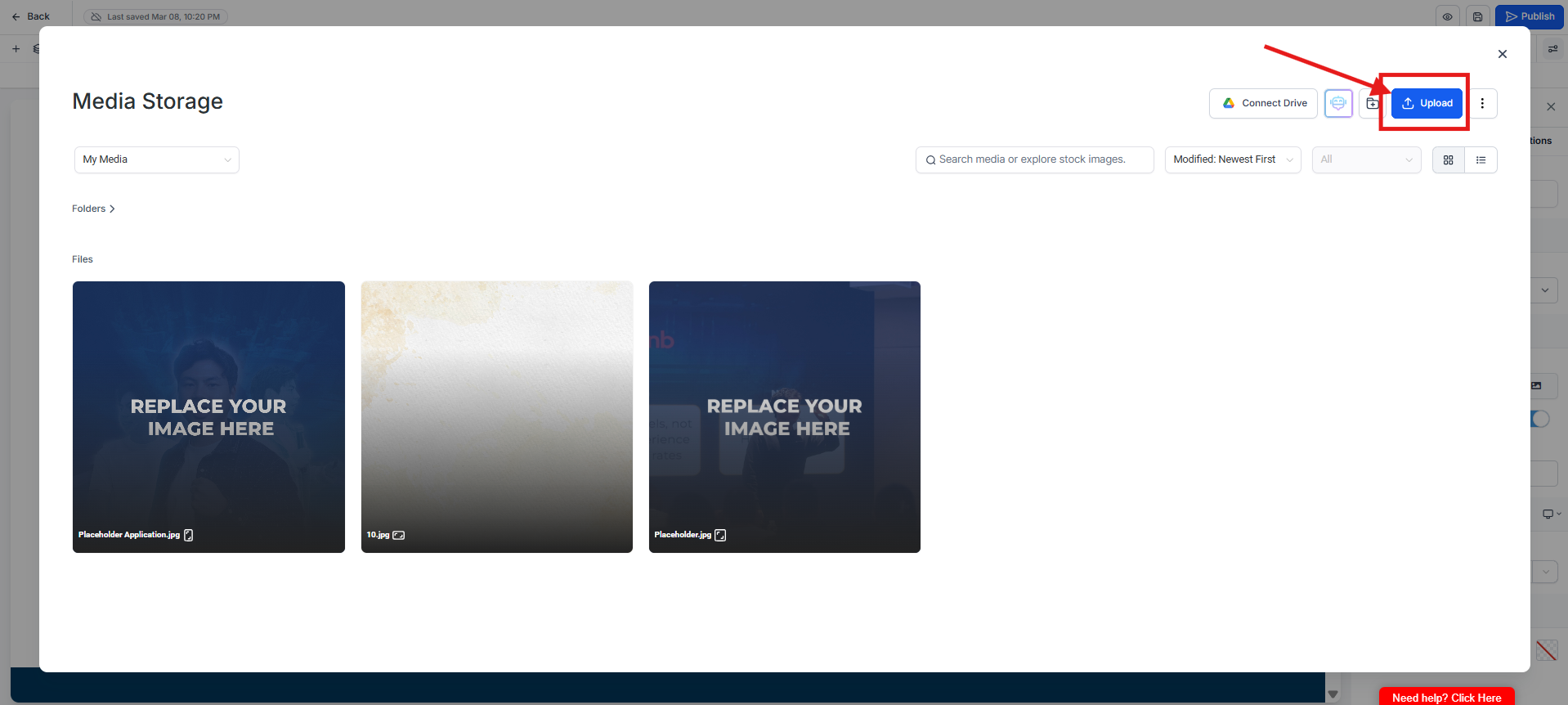
Step 6 : To upload your media, click Upload File on the top right
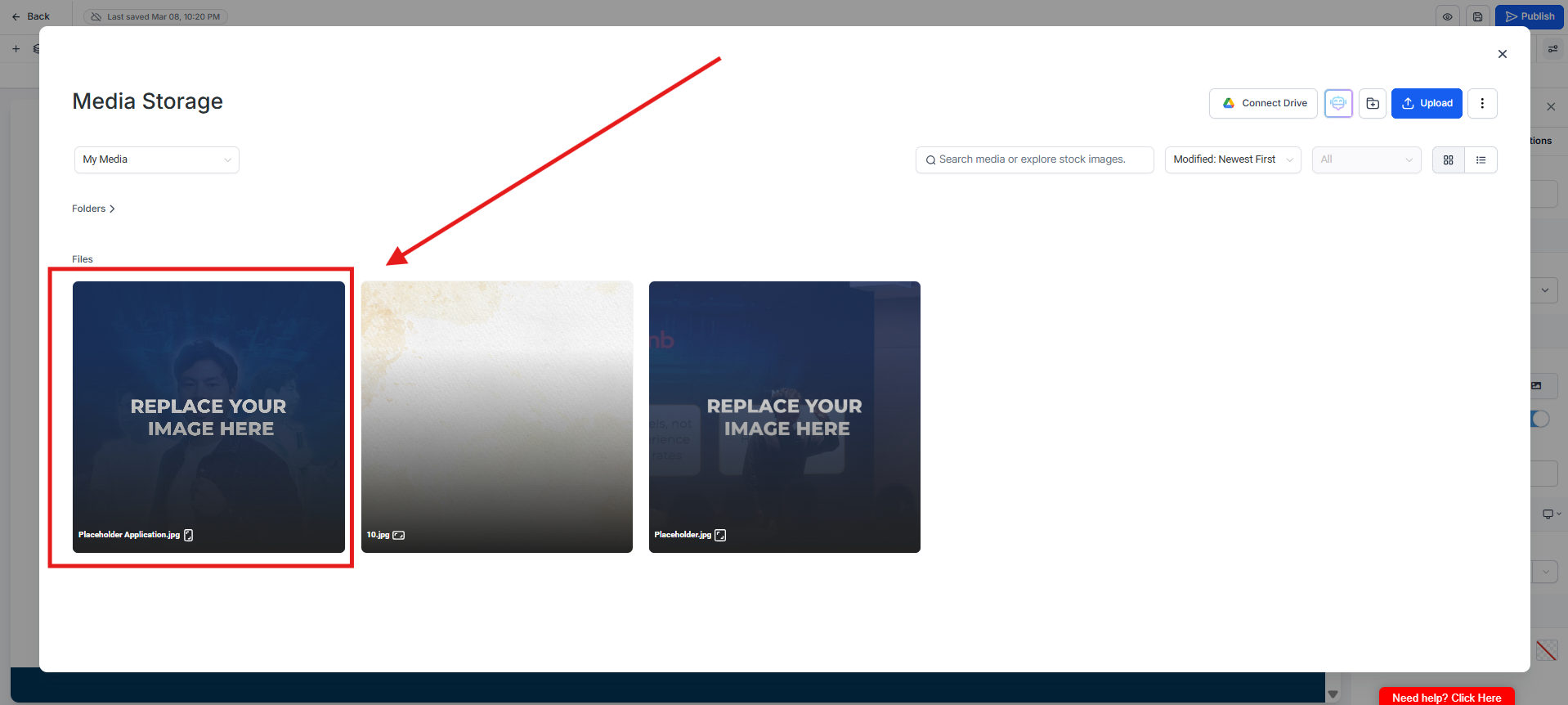
Step 7 : Once your media is uploaded, Double Click To Select. Your media will automatically be replaced on the page.
Step 8 : Scroll down the page, you'll see another section with Image > Click the Image > An editor menu will pop up on the right > Scroll down to Image Options and click Image Icon.
Step 9 : Click the +New Upload > Double-click to select the image you want to use
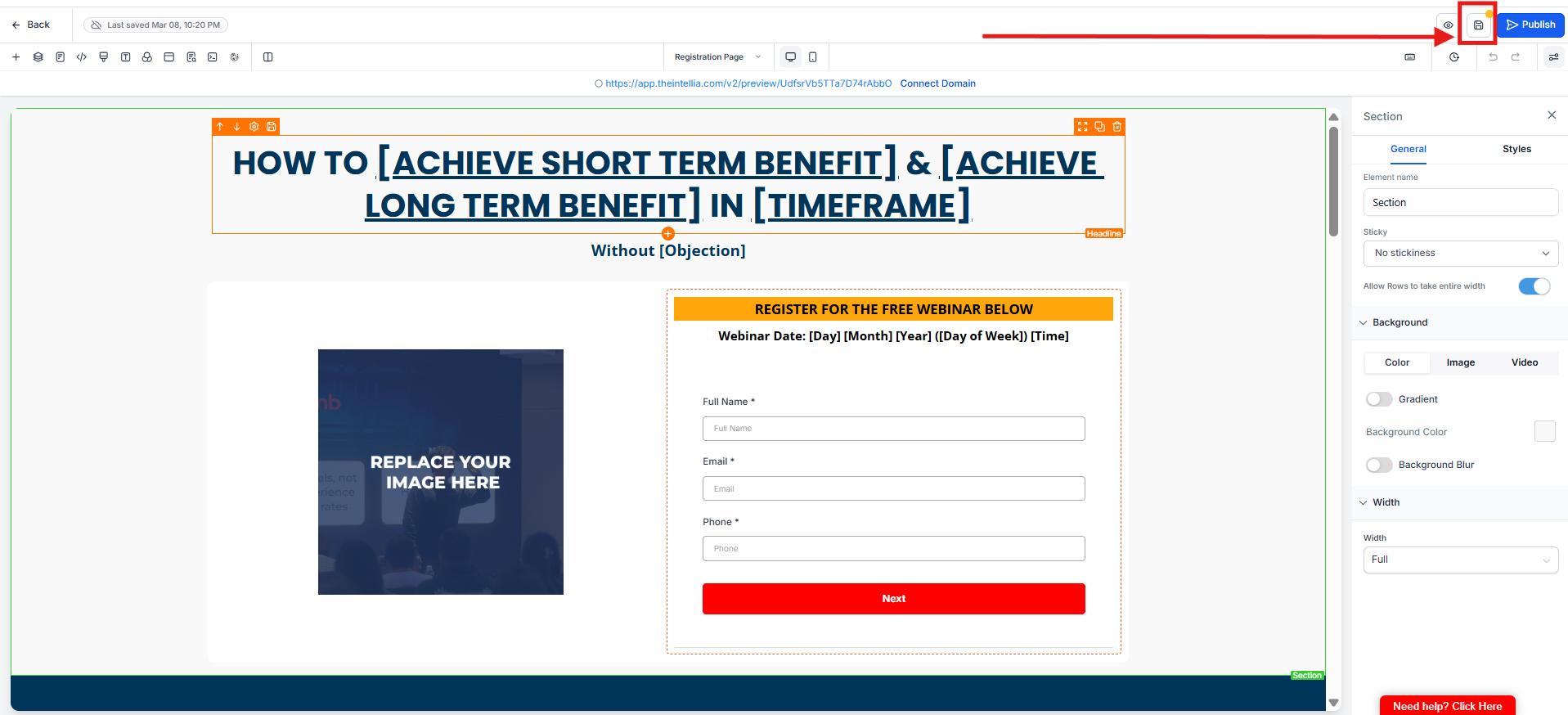
Step 10 : The image will automatically be replaced. You can repeat it throughout the pages to replace the images > Do not forget to Click the Save Button.
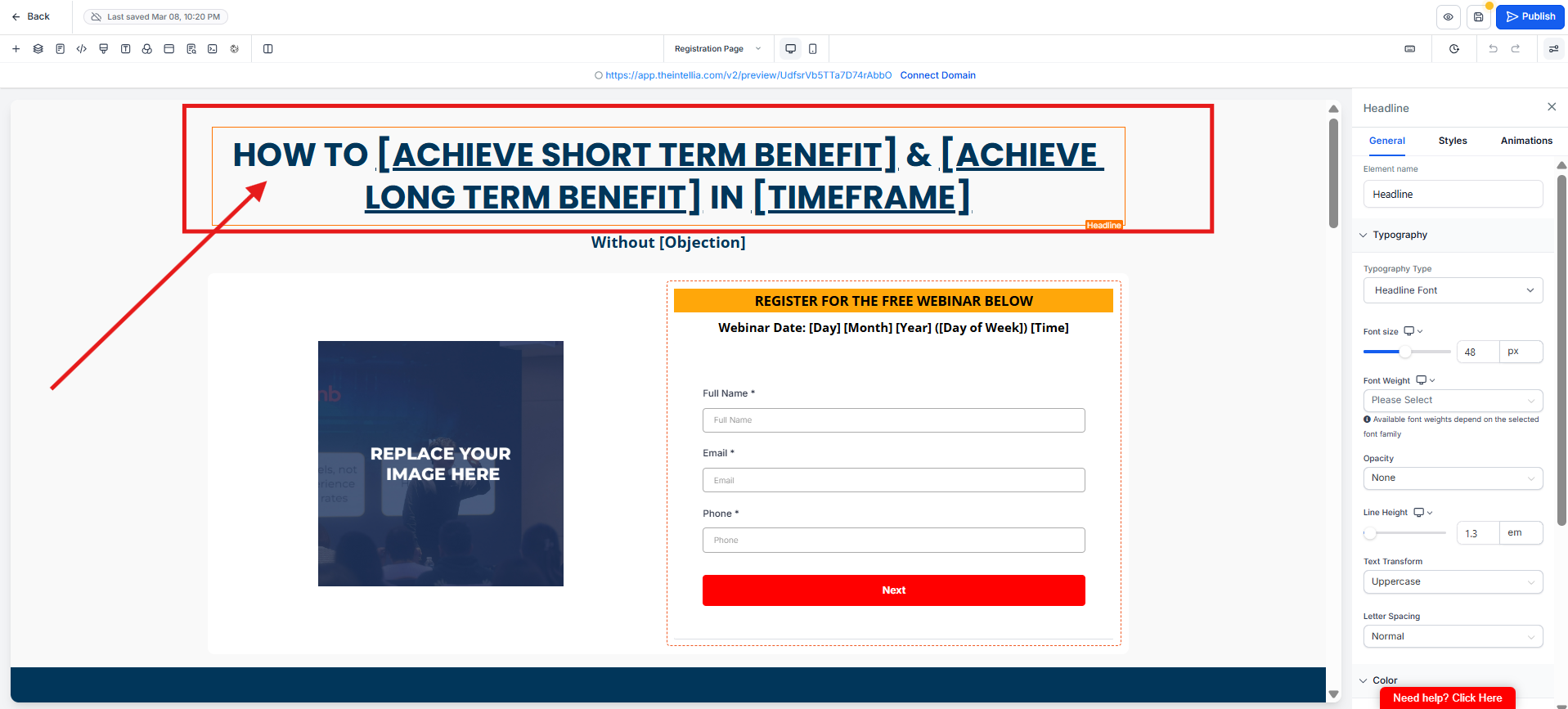
Step 1 : Click Headline > Edit the headline like a word document.
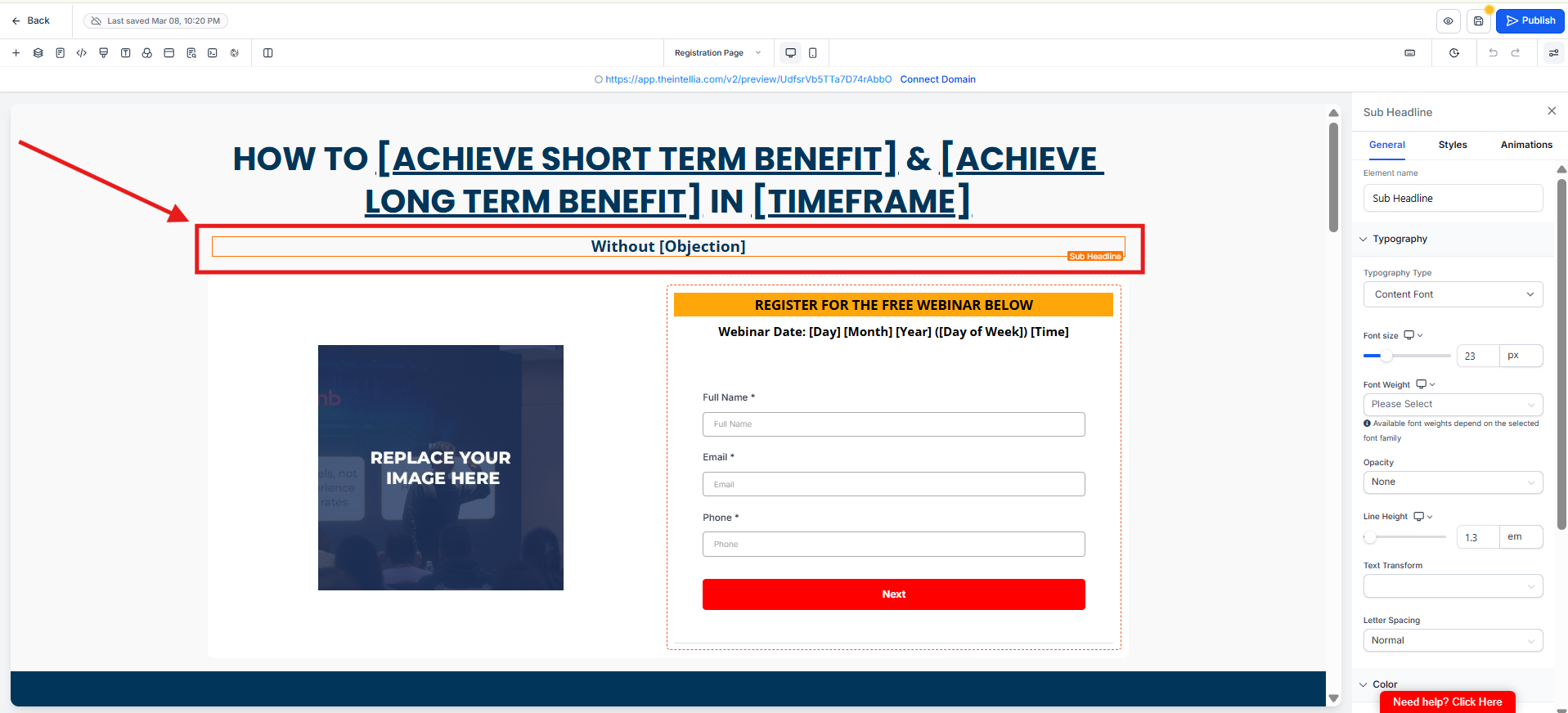
Step 2 : Edit your Sub-Headline.
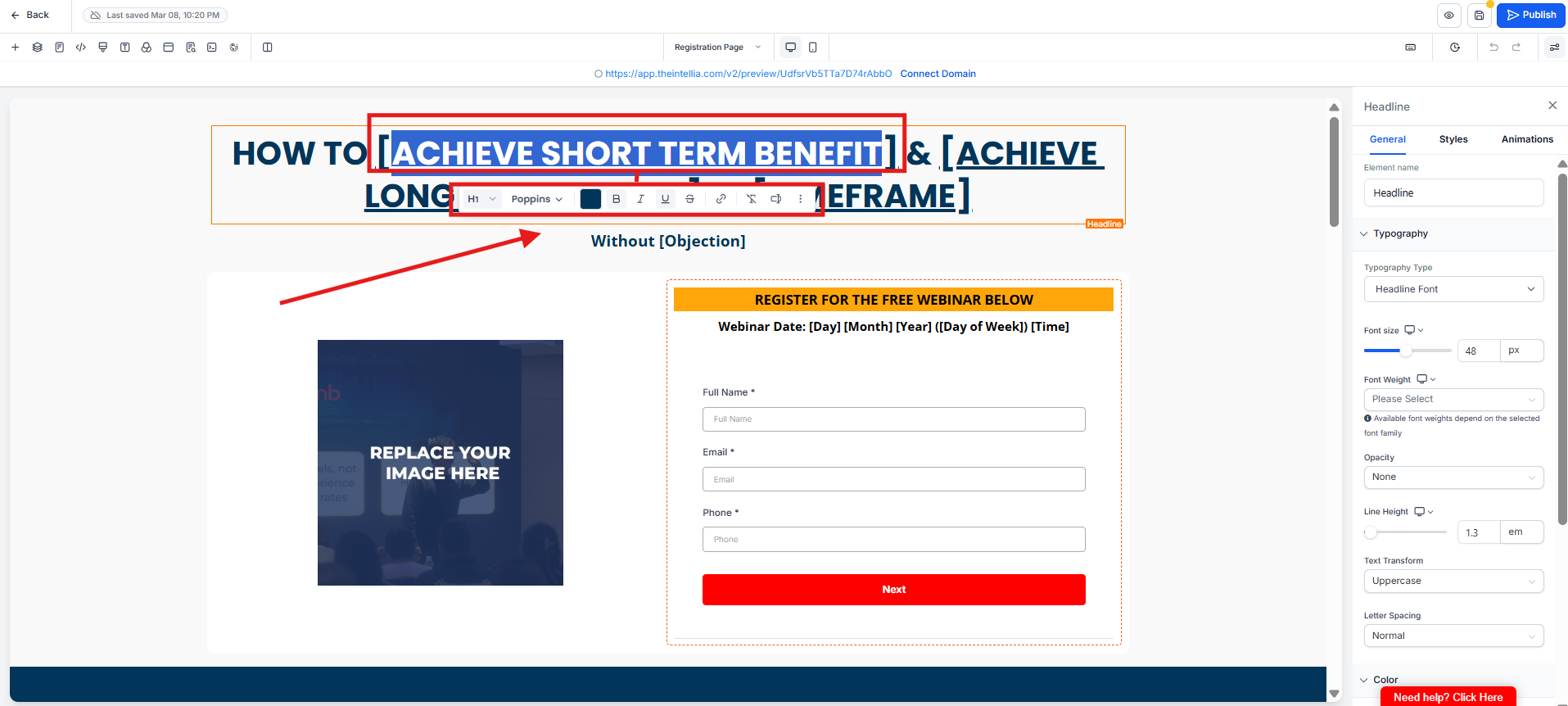
Step 3 : If you'd like to format your text, simply highlight it, a format menu bar will pop up.
(you can choose Bold, Italic etc.)
Step 4 : Do not Forget to Click the Save Button every changes/edit that you make.