Step 1 : Log in to Intellia
Head over to Membership > Communities > Create a Community
Add your details :
Group Name: This field is where you provide a unique name for your group, which will serve as the main identifier for your community. This should be related to the group's purpose or topic. For example, if you're creating a group about digital marketing, you might name it "Digital Marketing Enthusiasts."
Group URL (Group Slug): This is the unique web address where your group will be located. It should be easy to remember and share. Typically, it might be a simplified or abbreviated version of your group name, such as "digital-marketing," if your group name is "Digital Marketing Enthusiasts."
Group Description: This section should briefly outline what your group is about, the kind of discussions that will take place, and what members can expect from being a part of the group. For instance, you might describe the Digital Marketing Enthusiasts group as "A community for digital marketing professionals and enthusiasts to share strategies, tools, and trends in the industry."
Once you have filled in the required details, create the group using the provided options or buttons.
Branding :
Favicon (Recommended Aspect Ratio 1:1): This small icon will appear in the browser tab when someone is viewing your group. Ideally, It should be a small version of your logo or a symbol representing your group.
Cover Image: The main image will appear at the top of your group's page. It should be visually appealing and relevant to your group's topic. The recommended aspect ratio is 16:9, and the image should be clear at a resolution of 200x200 pixels.
Logo: This is the main logo for your group, which will appear in various places, such as the group switcher. It should ideally be square, with a 1:1 aspect ratio, and clear at a resolution of 200x200 pixels.
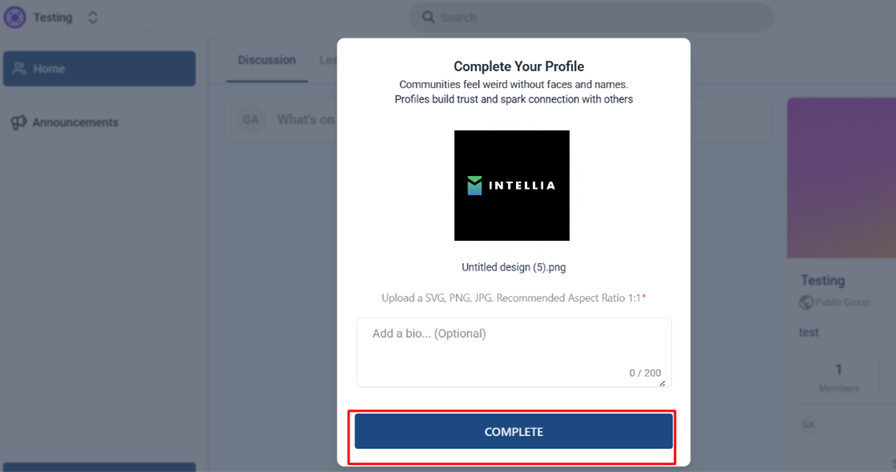
Please set your profile photo (recommended aspect ratio 1:1). Once you've uploaded your photo, click the "Complete" button.
To enable members to join your group, you must provide them with a unique URL specific to the group within your community. This URL will direct them to a customized page where they can sign up and create a profile shared across all the groups within the community. Here's a detailed version of the process:
Invite Potential Members: You can send personalized invitations via email, SMS, or other communication platforms, providing potential members with the group's unique URL.
Joining the Group: Members can click on the provided URL, leading them to a dedicated page where they can join the group.
Once they sign up or log in, they gain access to the client portal and can choose to participate in any of the available groups within the community.
Members can join multiple groups within the community based on their interests or preferences.
Please Note : Members can join multiple groups within the community based on their interests, preferences, or professional needs, fostering a more dynamic and interactive community experience.
In Community Settings > Domains, add a custom domain (or subdomain) to host the community (inside a client portal). For example, community.yourdomain.com.
Follow the instructions to update your DNS settings to point to Intellia’s servers. This will make your community fully white-labeled under your domain.
Note: The domain settings would be for Client Portal since a community exists within a client portal
Go to Memberships > Client Portal > input your desired domain name > + Add Domain
Option 1: Utilize a pre-configured subdomain under "clientclub.net". This subdomain is already set up and ready to be used immediately. Simply select this option if it suits your needs. You will still need to scroll down and hit Update Domain to get this to work.
Option 2: Set up your own custom domain. If you prefer to use a domain that you own, follow the next steps.
Before you can successfully set up an CNAME record, you must ensure that you have already configured your domain registrar to point to the specific IP address or server provided to you. This is an essential step in ensuring that your domain correctly refers to your server, enabling it to function properly.
a CNAME record, or Canonical Name record, is used to map your domain (or subdomain) to another domain name.
Here's a step-by-step guide on how to add CNAME records:
Login to your Domain Registrar's dashboard.
Navigate to the DNS settings.
Here, you will find an option to add a new record.
Select the type of record you want to add (CNAME).
CNAME record, this would be the target domain clientportal.ludicrous.cloud
Save your changes.
Once you have entered the DNS records in your Domain registrar, give it a reasonable time to propagate them (depending on your domain registrar), and hit Update Domain.
What is a Domain?
A domain serves as the digital address for online services like websites, email hosting, and more, by mapping them to IP addresses through DNS. Domain names are essential for your online presence, enhancing website accessibility and enabling email communication.
Domains are crucial for website hosting, white-label branding, configuring branded/API domains, email setup, and the Client portal. They form the foundation upon which Intellia users build their digital presence.
When working with domains, it's important to distinguish between a root domain and a subdomain.
Root Domain (Example: “mywebsite.com”)
The root domain is the primary address of your website, appearing after "www." in a URL (e.g., in "www.mywebsite.com," the root domain is "mywebsite.com"). It serves as the main entry point to your website.
Subdomain (Example: "help.domain.com")
Subdomains are extensions of your root domain, directing users to specific sections or areas within your online infrastructure (e.g., "help.domain.com" for support). This allows for separate content, landing pages, and marketing campaigns without affecting the primary site. This setup is useful for ads, promotions, and utilizing different SEO strategies.
IMPORTANT NOTE: Be careful when adding root domains. Many users accidentally break their existing mailbox or site by adding a root domain already in use. We recommend adding a sub-domain if your root domain is used somewhere else.

