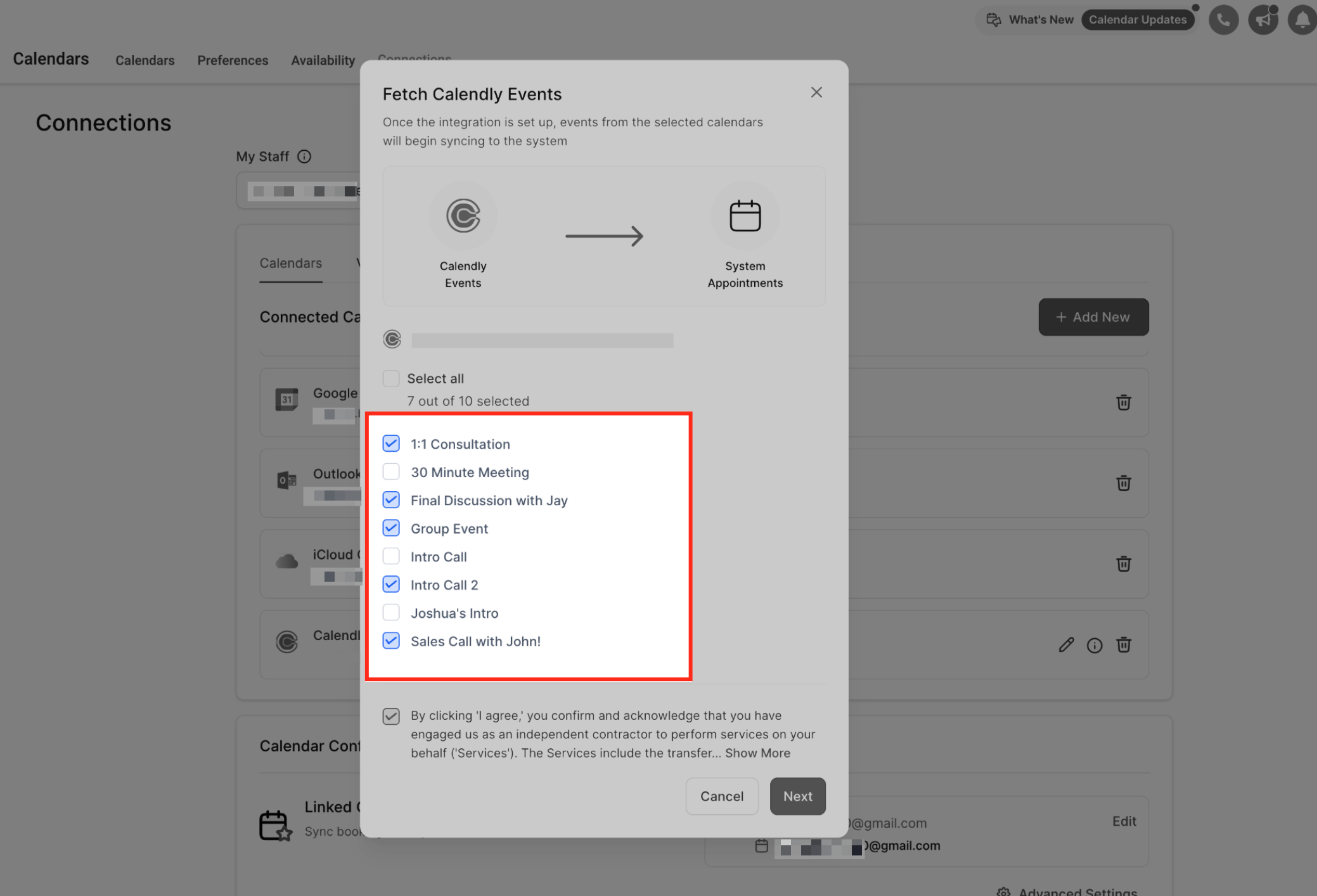
The Calendly integration enables Intellia to automatically import events from your selected Calendly calendars. This allows you to trigger automations, create contacts, and schedule workflows based on real-time bookings. Setting up the integration is the first step in syncing your Calendly scheduling activity with your CRM.
Connecting your Calendly account unlocks powerful automation and contact management features. Once synced, events flow seamlessly into Intellia for downstream use.
Automatically import new appointments into your calendar
Create contacts from Calendly bookings
Assign appointments to users based on calendar ownership
Sync shared or personal Calendly calendars
Enable automation triggers based on new bookings
Setting up the integration is fast and only requires a few clicks. Follow these steps to securely connect your Calendly account and select calendars for syncing.
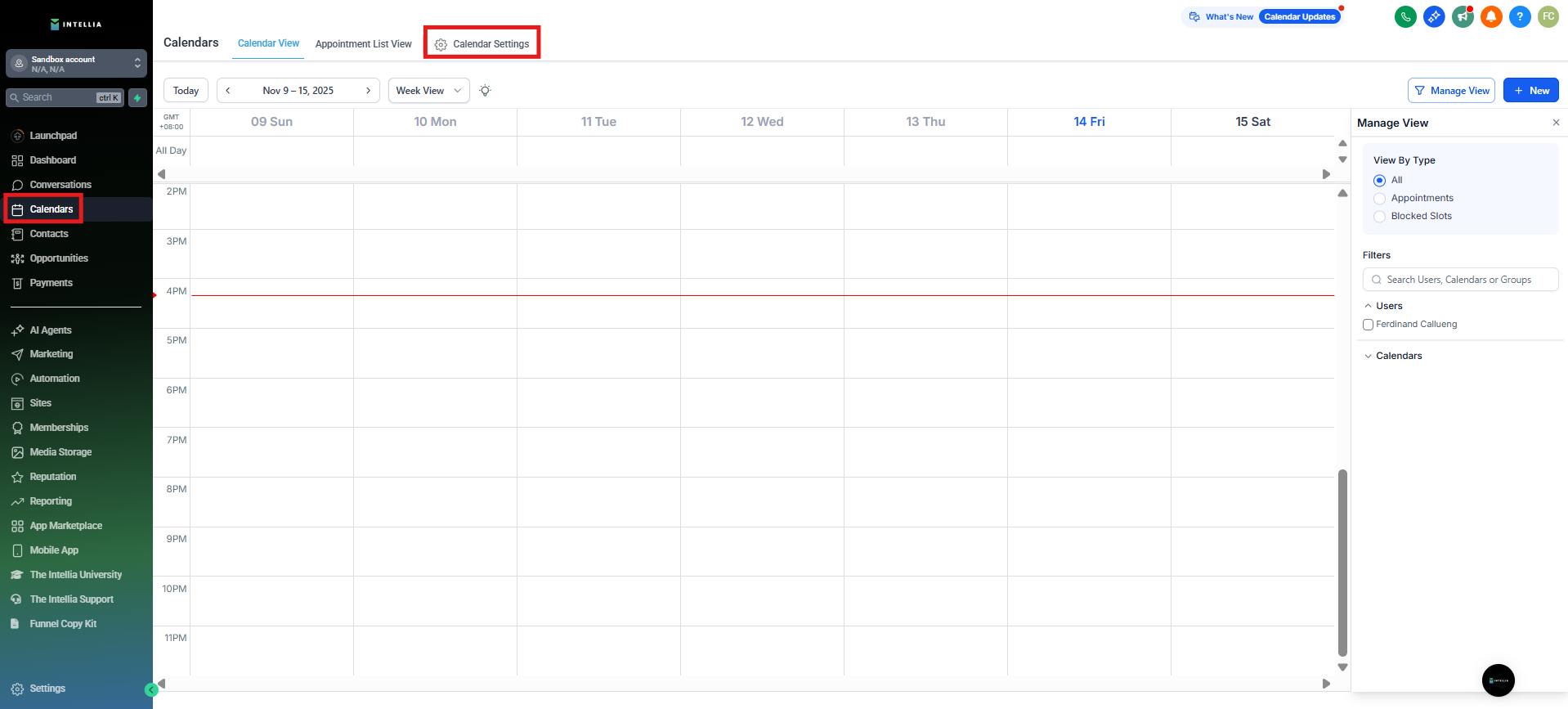
Navigate to the Calendars section in the left-hand menu, then click on Calendar Settings in the top-right corner. This is where you’ll manage all calendar connections, including Calendly.
Go to Calendars > Calendar Settings >
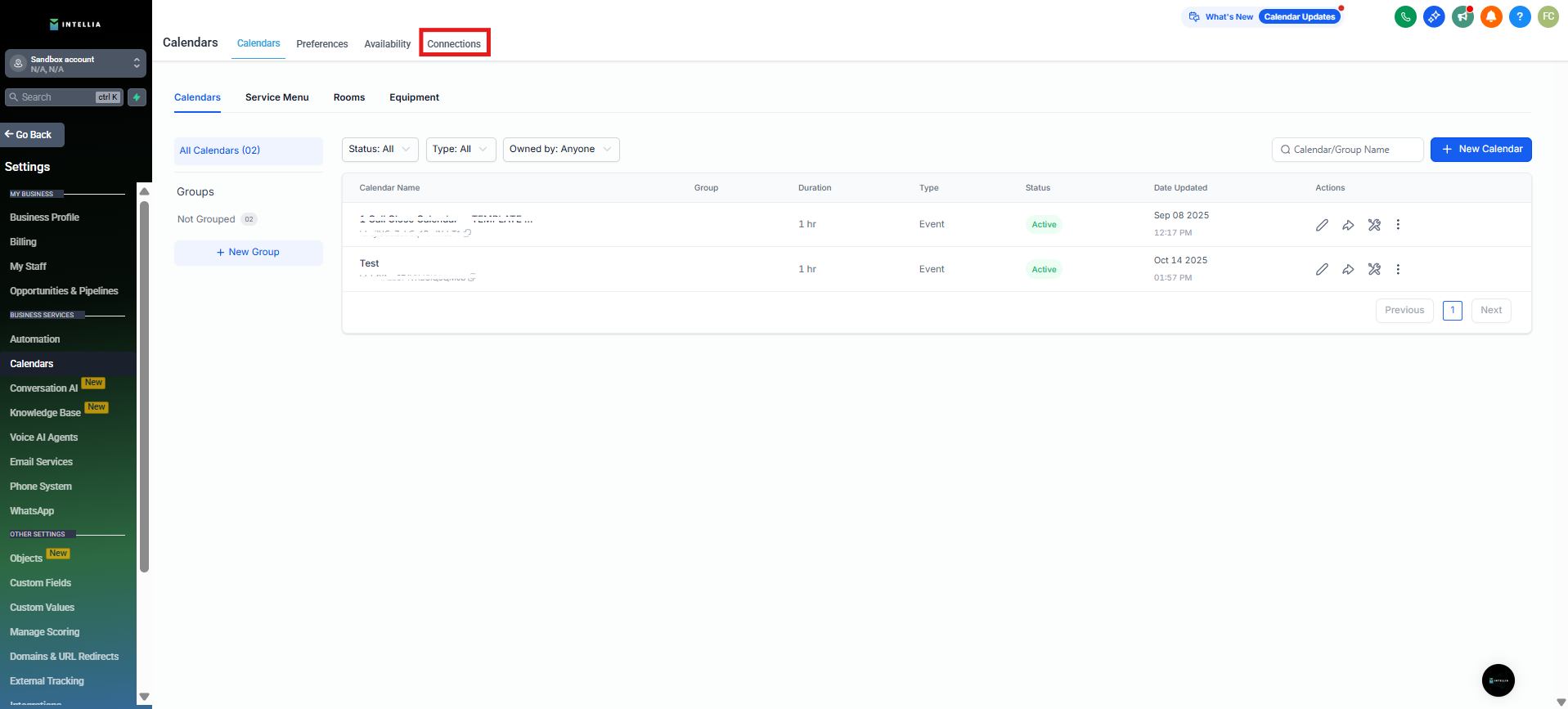
Click on the Connections tab at the top to view and manage all integrated calendar accounts. This is where you’ll add, edit, or remove third-party calendars like Calendly.
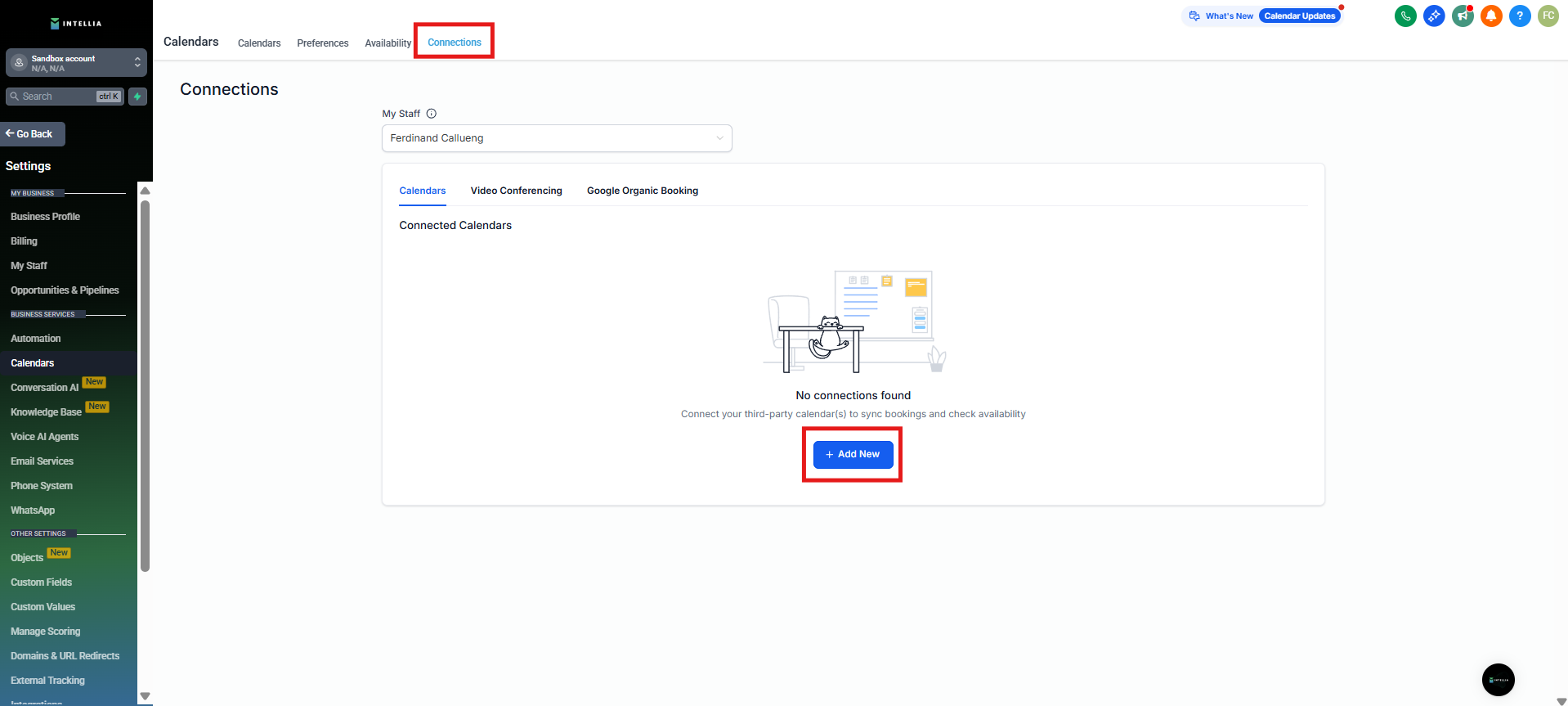
Click the + Add New button to start a new calendar connection. This is where you’ll initiate the process to connect your Calendly account with Intellia.
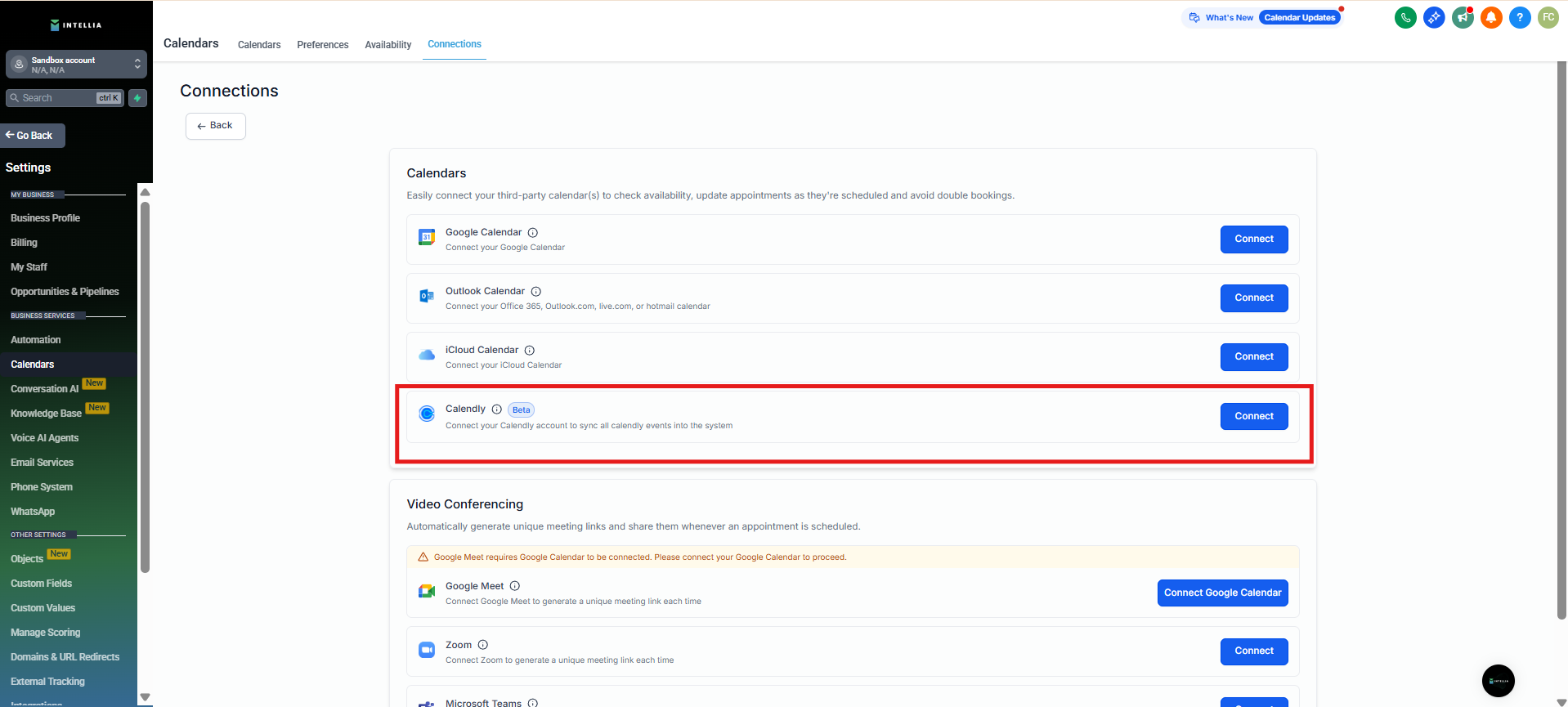
Find Calendly in the list of calendar providers and click Connect. This begins the authorization process to sync your Calendly events with Intellia.
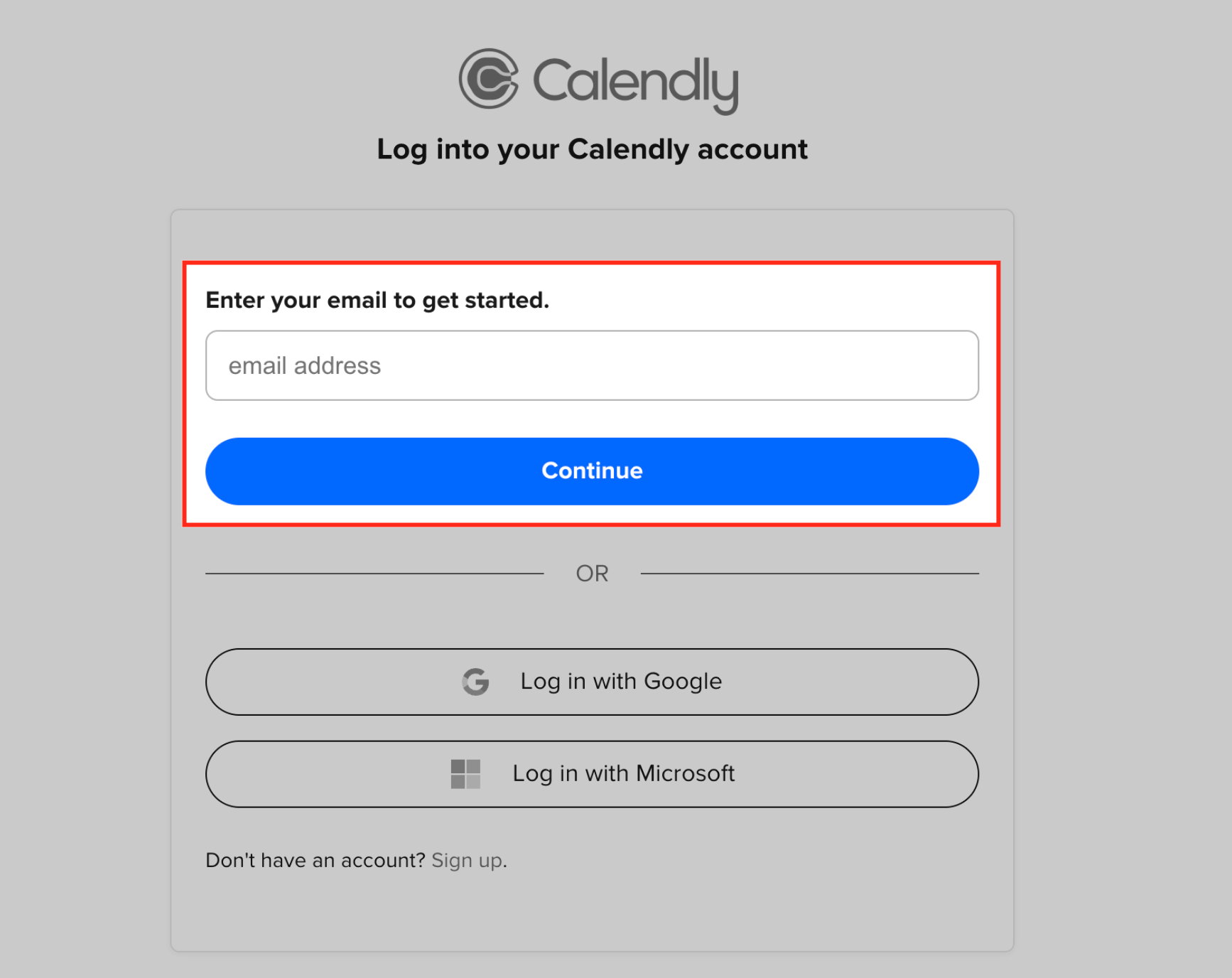
Complete the authentication process by logging into your Calendly account and granting access. Enter the email address associated with your Calendly account and click Continue. You can also log in using your Google or Microsoft credentials if linked.
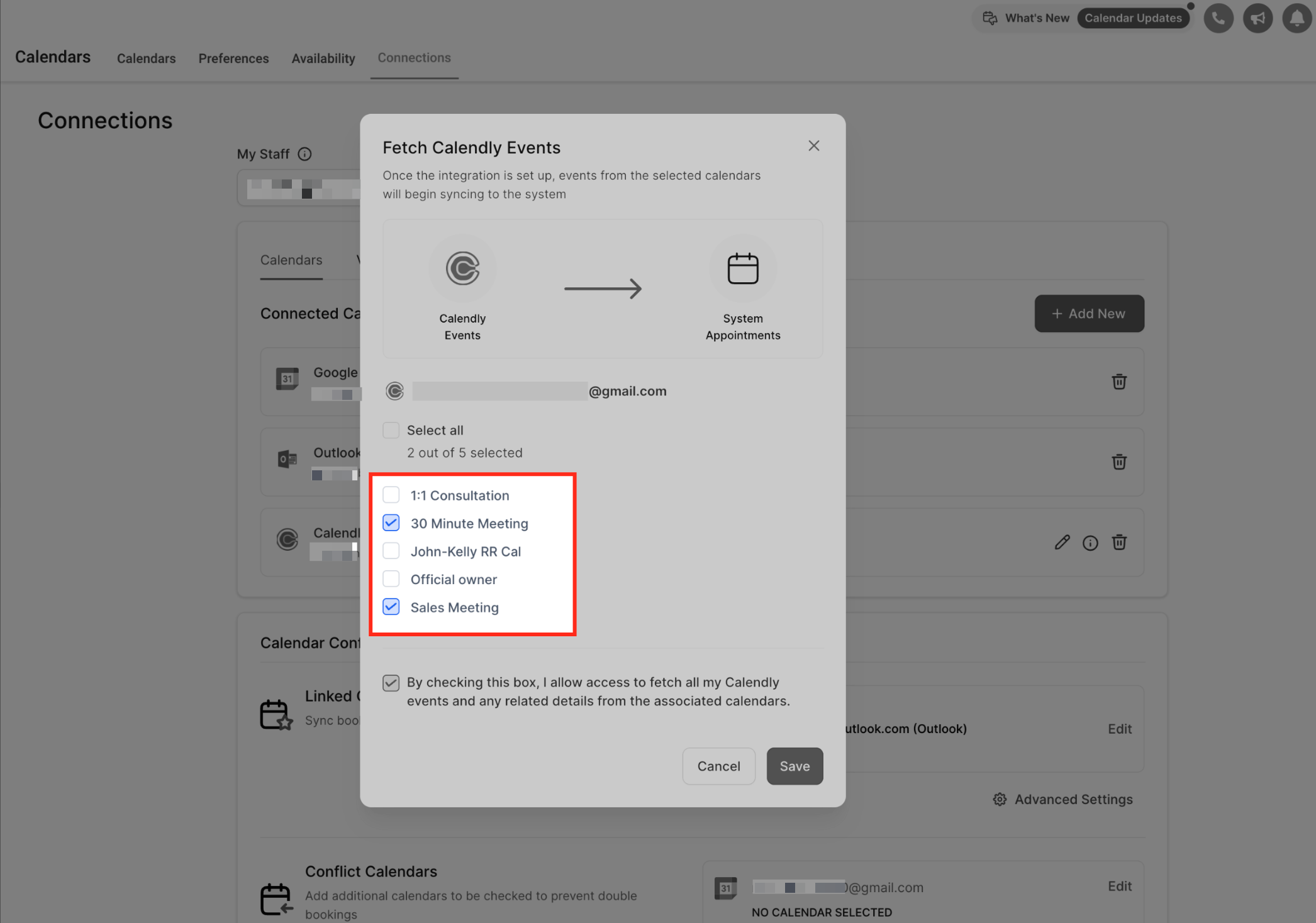
Choose Calendly Calendars
Select the Calendly calendars you want to sync into Intellia. Only events from these selected calendars will be pulled into your system as appointments.
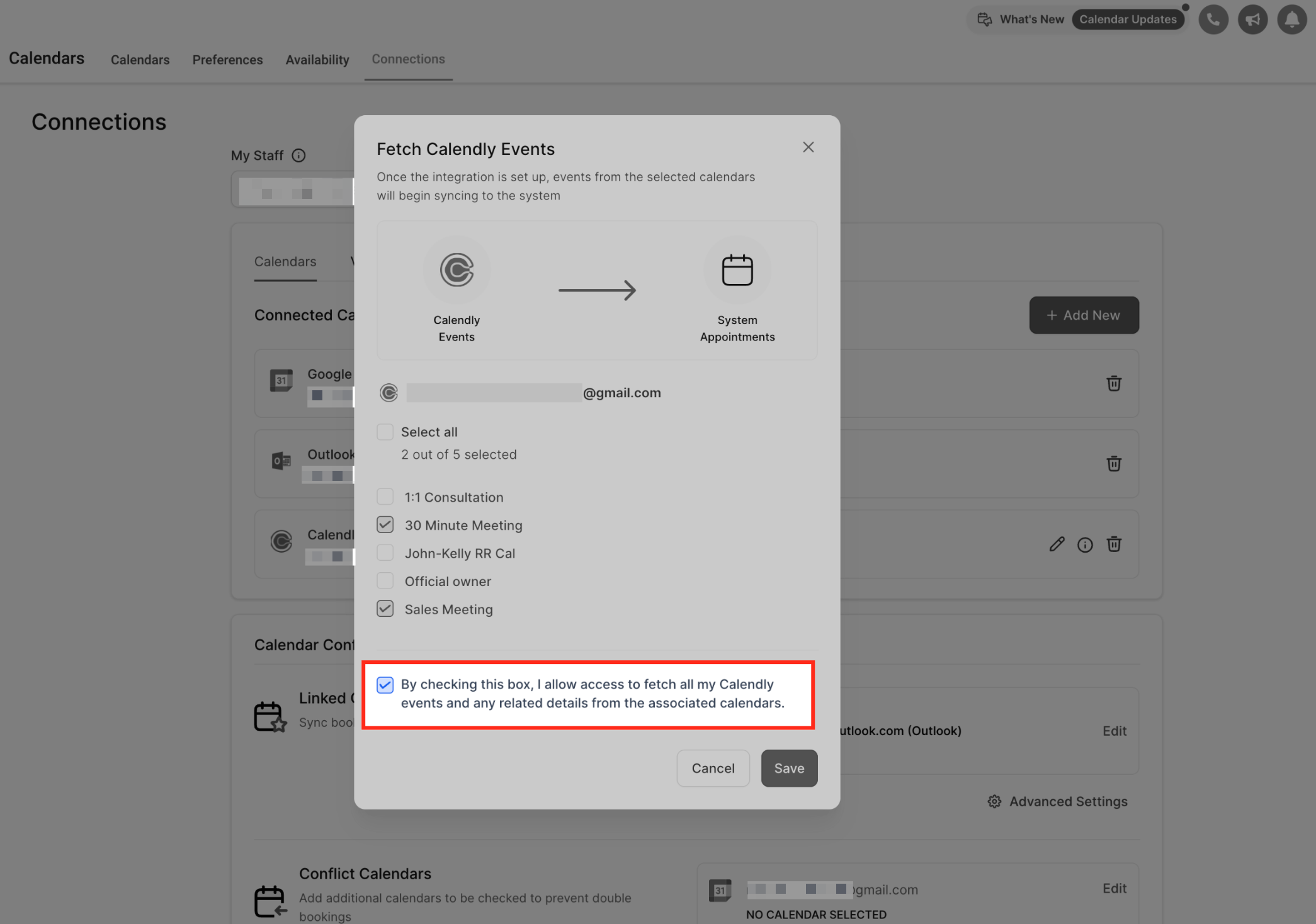
Check the consent box to allow Intellia to fetch your Calendly events and related details. Then click Save to complete the sync setup.

Update your calendar selections by checking or unchecking the events you’d like to sync. Only the calendars selected here will continue syncing into Intellia.