Attachments allow users to send and receive files within Conversations, making it easy to share important documents, images, or videos with clients. In Intellia, attachments can be uploaded directly from a device or selected from the media library. Files too large for SMS or exceeding the 20MB email limit are automatically uploaded to the media library and shared as links. This ensures smooth delivery without file size restrictions.
Enhanced Communication: Easily share contracts, images, videos, and PDFs to make messages more informative and effective.
Flexible Upload Options: Users can upload attachments from their device or select files stored in the media library, making file sharing more convenient.
Automatic Media Library Uploads: If a file exceeds the email size limit (20MB) or is sent via SMS, it is automatically uploaded to the media library and shared as a link.
Engaging Email Thumbnails: Videos uploaded through the media library automatically generate GIF thumbnails, making emails more interactive and visually appealing.
Attachments in Conversations can be added quickly using a few simple steps. Whether you’re sending images, PDFs, or videos, you can choose between uploading from your device or selecting a file from the media library. Below is a step-by-step guide on how to add and manage attachments.
Go to the Conversations tab inside Intellia, then select an existing conversation or start a new message with a contact.
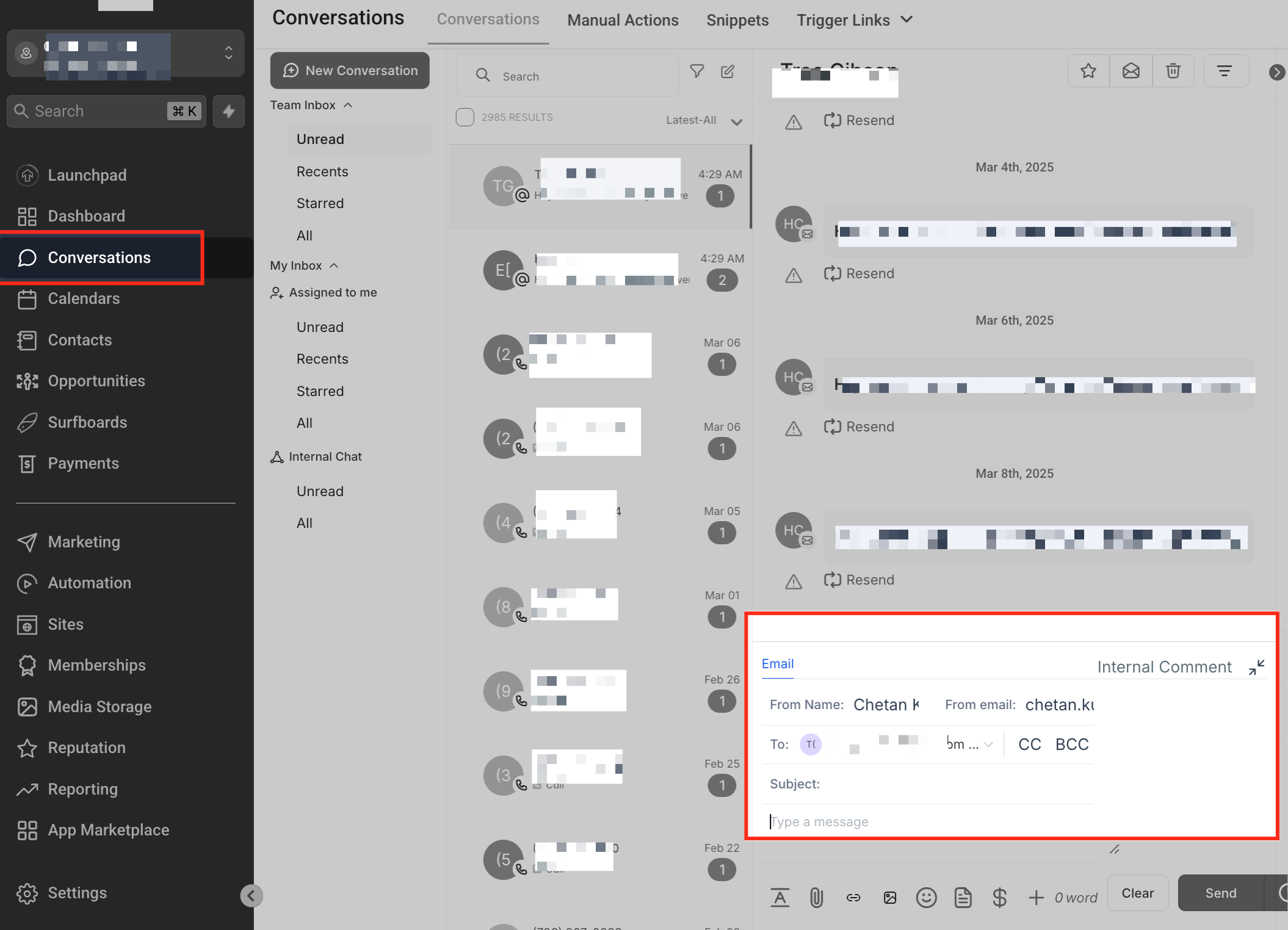
Click the paperclip icon inside the SMS or email composer to open the attachment options. Choose a file from your device or select one from the media library if it was previously uploaded. Once selected, the file will be attached to your message and will be ready to send.
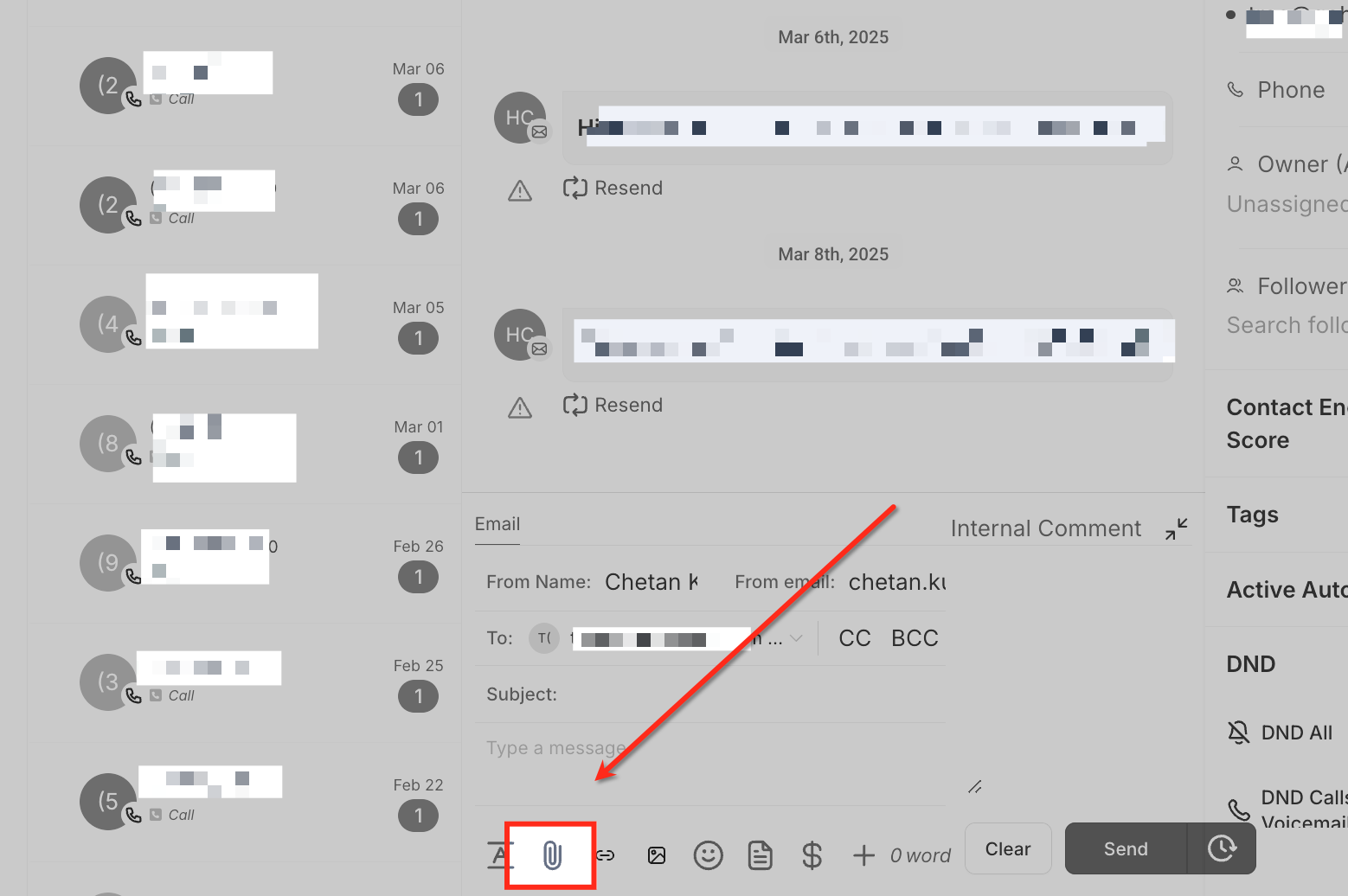
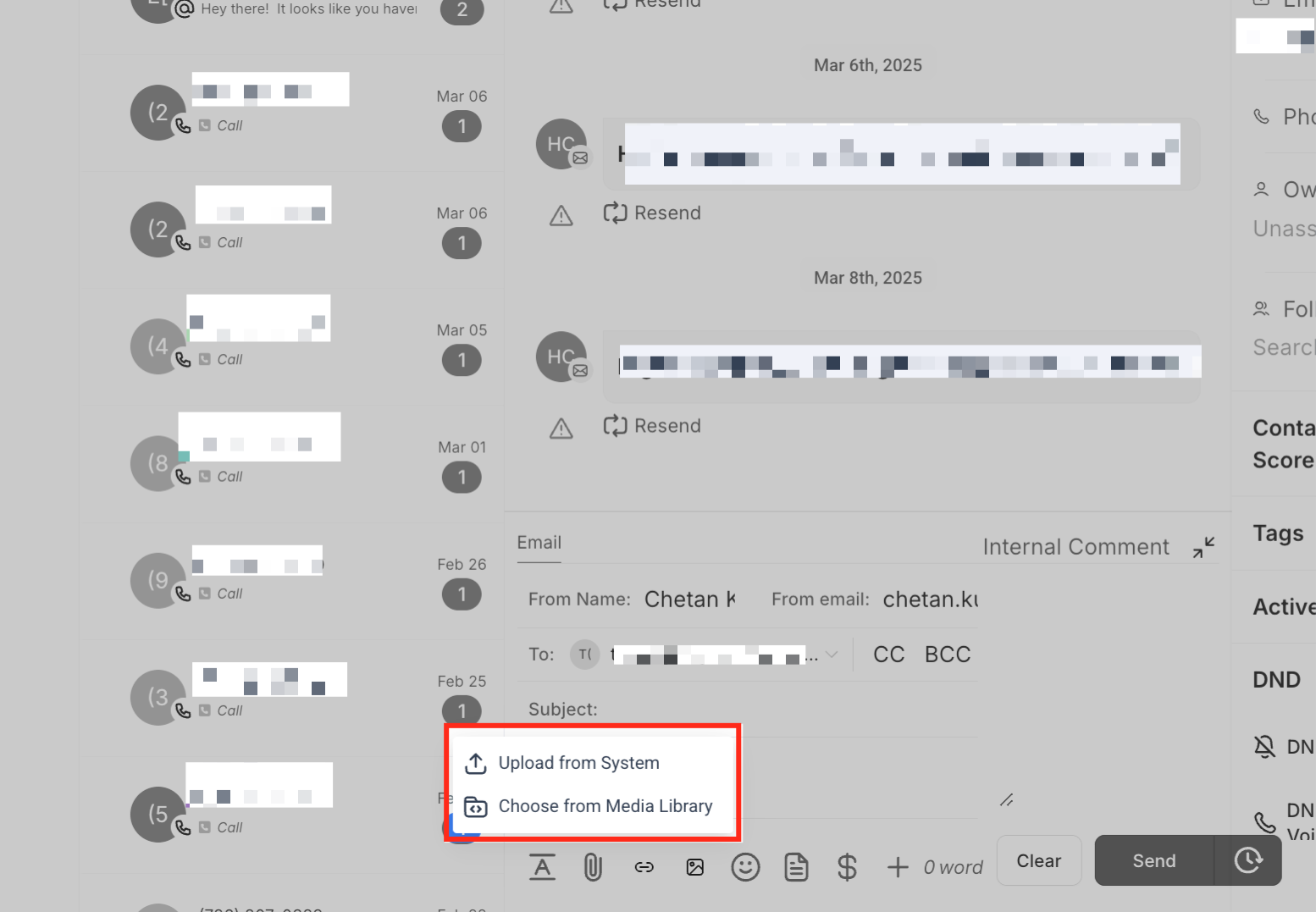
Upload from Device: Select a file from your local storage (e.g., images, PDFs, videos).
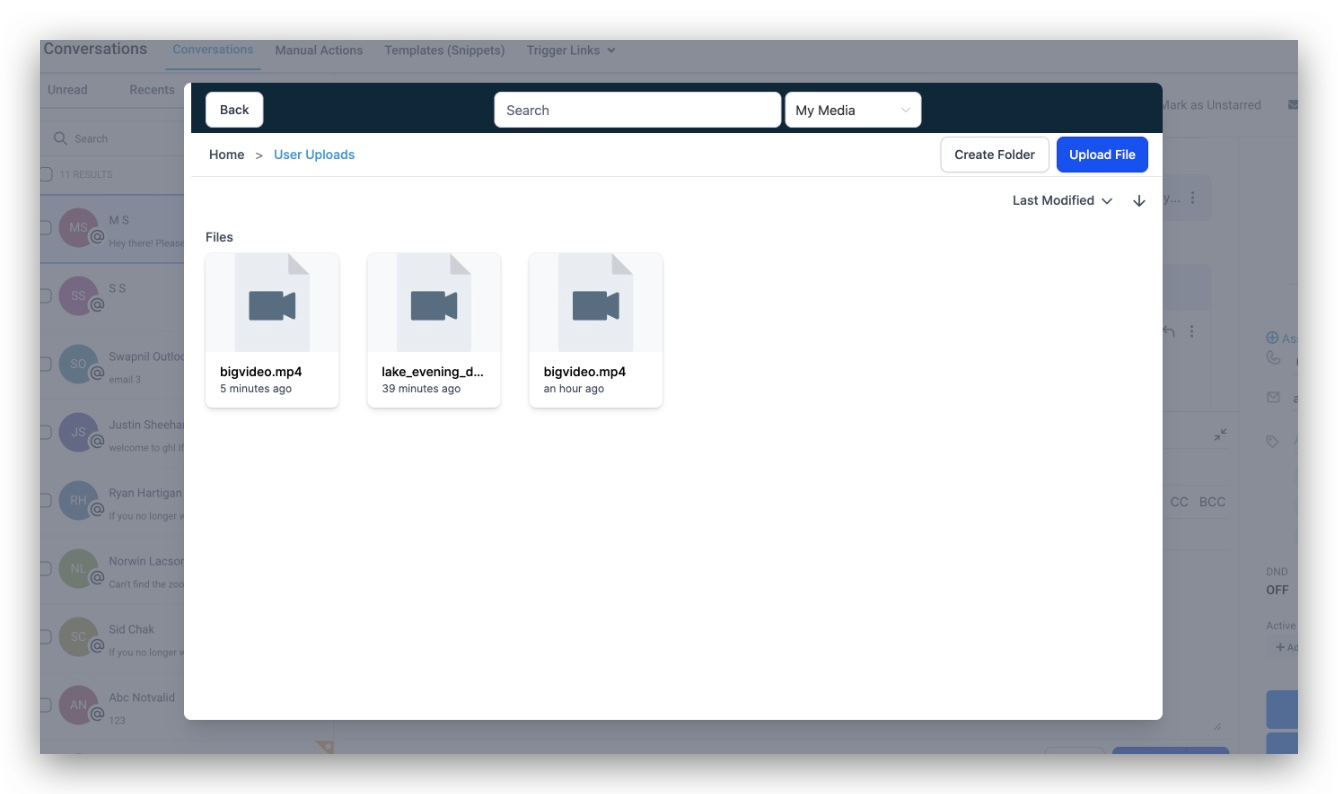
Use the Media Library: If a file was previously uploaded, you can select it from the media storage, avoiding the need to re-upload the same file.
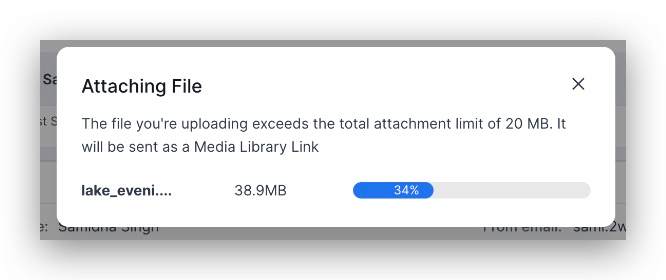
If an SMS attachment or an email attachment larger than 20MB is uploaded, the system will automatically move the file to the media library.
Instead of attaching the file directly, a media library link will be inserted into the message, ensuring smooth delivery without size restrictions.
Videos uploaded through the media library automatically generate a GIF thumbnail preview.
These animated previews make emails more engaging and encourage recipients to interact with the content.
Q: What types of files can be uploaded as attachments?
Users can upload images, documents, PDFs, and videos as attachments. However, email attachments are limited to 20MB, and larger files will be automatically moved to the media library and shared as a link.
Q: How can I access my uploaded files in the media library?
All uploaded files are automatically stored in the media library, accessible from the Conversations interface. This allows users to reuse previously uploaded files without needing to reattach them manually.
Q: What happens if I try to send an attachment that exceeds the email size limit?
If an attachment exceeds 20MB, it is automatically uploaded to the media library and a link to the file is inserted into the email. This ensures that large files can still be shared without delivery issues.
Q: Can I send attachments via SMS?
Yes, attachments can be sent via SMS, but since SMS has size limitations, files are automatically converted into media library links for smooth delivery.
Q: How do interactive video thumbnails work?
When a video is uploaded through the media library, Intellia automatically creates a GIF thumbnail preview. This enhances engagement by making emails more visually appealing and encouraging recipients to interact with the video content.

